
Setting Up for Journal Generator
To set up the journal generator, use the Accounting Entry Definition component (JRNLGEN_DEFN), Journal Generator Template-Defaults component (JRNLGEN_APPL_ID) and the Journal Generator Template-Summarization component (JRNLGEN_APPL_ID).
This section provides an overview of Journal Generator setup and discusses how to:
Define accounting entries.
Define journal generator template defaults.
Define journal generator template summarization.
Pages Used to Set Up for Journal Generator
|
Page Name |
Definition Name |
Navigation |
Usage |
|---|---|---|---|
|
Accounting Entry Definition |
JRNL_GEN_ACCTG_DEF |
|
Identify the system source that distributes data to your general ledger and identify the record and field names for the Accounting Entry table. |
|
Journal Generator Template - Defaults |
JRNL_GEN_DEFAULTS |
|
Specify Journal Generator defaults. |
|
Journal Generator Template - Summarization |
JRNL_GEN_SUM |
|
Define how Journal Generator summarizes accounting entries when it generates journals. Summarize at the account or ChartField level. The generator creates a distinct journal header for each ledger group; multiple ledgers can be in one journal as long as they belong to the same ledger group. |
Understanding Journal Generator Setup
The Journal Generator process creates general ledger journals for any application. The process uses the record and field names from the accounting entry definition to extract data from the Accounting Entry table and create journals.
It extracts data from any table in the database as long as the table contains the required fields listed in the Reviewing Journal Generator Required Field Names.
Your application may contain field names that are different from the required fields in the Accounting Entry table but have the same attributes. If this is the case, create a view in your system's distribution line table and point the Journal Generator to it by specifying its name in the Accounting Entry Record field on the Accounting Entry Definition page.
If you changed or added fields and want to pass values associated with these fields to journals—that is, retain detail—you insert the new fields in five tables: Accounting Entry, Journal Generator Work (JGEN_WRK_TMP), Journal Generator Dynamic State Records (FS_JGEN_UPD_AET and FS_JGEN_PRV_AET), and Journal Line. The fields must have the identical field names and attributes in each table. Finally, in the journal generator template select Retain Detail.
Non-PeopleSoft systems can use the GENERIC accounting entry definition or create their own modified accounting entry definition.
Accounting Entry Definition Page
Use the Accounting Entry Definition page (JRNL_GEN_ACCTG_DEF) to identify the system source that distributes data to your general ledger and identify the record and field names for the Accounting Entry table.
Image: Accounting Entry Definition page
This example illustrates the fields and controls on the Accounting Entry Definition page. You can find definitions for the fields and controls later on this page.

| Accounting Definition |
Use this unique name on the Journal Generator Request page to tie your request to an accounting entry table and field definition. |
Accounting Entry
Field Names
Enter the field names to identify the columns in the Accounting Entry table that the Journal Generator uses to create the journal.
ChartField Mapping
Expand this grid to perform mapping.
Note: Journal Generator limits you to mapping a field once. For example, you cannot map Journal Ref and Open Item Key to the same field name. They must be mapped to different field names.
MultiBook Order By
Specify the field names for in-sync multibook accounting.
Within a ledger group, the accounting entries for one transaction that are distributed to different ledgers are referred to as in-sync accounting entries. These accounting entries have the same ChartFields, foreign currency, and foreign amounts. PeopleSoft applications that support multibook generate in-sync accounting entries to all ledgers within a ledger group.
If the Accounting Entry In Sync option is selected in the journal generator template, Journal Generator recognizes the in-sync accounting entries and marks them for the Journal Edit process to create any missing in-sync journals. When it generates the journal, Journal Generator uses the MultiBook Order By fields to determine how to group accounting entries for one transaction.
If the application subsystem supports multibook in sync, it sends in-sync entries, including those for the translation ledger, to the Journal Generator process. Journal Generator uses the MultiBook Order By fields to determine multibook entries for the same transaction.
| Field Name |
If you create new accounting entries from third party systems, you can enter field names in the sort order required to group the new accounting entries. |
Warning! Do not change any of the values in these fields as delivered. The values are set for the delivered accounting entries and any changes can cause serious data problems.
Note: PeopleSoft Purchasing does not support multibook entries.
Journal Generator Template - Defaults Page
Use the Journal Generator Template - Defaults page (JRNL_GEN_DEFAULTS) to specify Journal Generator defaults.
Image: Journal Generator Template - Defaults page
This example illustrates the fields and controls on the Journal Generator Template - Defaults page . You can find definitions for the fields and controls later on this page.

The defaults and summarization options that you set up using the journal generator templates determine how journal generator summarizes accounting entries and creates journals. Typically, you set up Journal Generator templates for each application system source that distributes to the general ledger, as well as each type of transaction. For example, you can have a template for depreciation expense from Asset Management. For systems other than PeopleSoft systems, you can use the GENERIC journal generator template or create a modified journal generator template.
Journal Generator groups accounting entries together that share the same general ledger business unit, ledger group, book code (the field BOOK_CODE exists in the accounting entry table and Book Code has been activated on the Overall Installation Options page), journal template, journal date, general ledger document type, average daily balance date (the field ADB_DATE exists in the accounting entry table), and the commitment control amount type (field KK_AMOUNT_TYPE exists in the accounting entry table). Accounting entries with different foreign currencies might not be grouped in the same journal, depending on the currency balancing option for the:
Source.
Business unit ledger group.
General ledger business unit.
Options
If a PeopleSoft application that supports the multibook feature has generated in-sync accounting entries for this template, select the Accounting Entry In Sync check box. PeopleSoft applications that support multibook generate in sync accounting entries to most ledgers within a ledger group. The exception is that some products may not include the currency translation ledger. See the individual product documentation to determine if this feature is available for your product. If the Accounting Entry In Sync check box is selected, Journal Generator recognizes in-sync accounting entries and generates in-sync journals. The journals created by Journal Generator depend on the following:
For example, as this table shows, the following accounting entries go into the same business unit journal for US003:
|
Application BU |
Voucher ID |
BU_GL |
Foreign Amount |
|---|---|---|---|
|
US001 |
VCHR1200 |
US003 |
300 |
|
US003 |
VCHR1202 |
US003 |
-300 |
Reversal Code
Select a Reversal Code option to specify when reversing entries are to be automatically generated. Reversal options become effective at the time this entry is posted.
Journal Header Fields
| Journal Source |
Identifies the originating entity responsible for the journal entries, and also determines how the foreign currencies are grouped for each journal. |
| Journal ID Mask |
Enter a unique journal ID mask to identify information such as the source or purpose of journal entries. Spaces are not allowed. A 10-character alphanumeric ID identifies PeopleSoft-system journals. The system automatically generates IDs based on the number or letter that you enter here. For example, if you enter AP, the system supplies the remaining eight characters based on the next available journal ID number. If you do not specify a journal ID mask, you can let the system automatically assign the journal IDs by accepting the default : NEXT. |
| Journal Date |
Determines the journal date for the journals created and indirectly the number of journals created. From the Journal Date options, select the source of the header and line date for journals that use a business calendar. See Defining Business Calendars. Accounting Date on Transaction: Uses the accounting date on the accounting entries as the journal date. This selection may result in multiple journals. Begin Date - From Period: Uses the first open date of the From (year) Period set up on the Open Period page. Begin Date - To Period: Uses the beginning date of the open To (year) Period set up on the Open Period page. Current Date: Accepts the current system date when the process is run. End Date − From Period: Uses the ending date of the open From (year) Period set up on the Open Period page. End Date − To Period: Uses the last open date of the To (year) Period set up on the Open Period page. Period End − Accounting Date: Uses the period-end date that corresponds to the accounting date. This selection might result in multiple journals. Process Date: This refers to the Journal Process Date option specified on the General Ledger Business Unit Definition - Journal Options page. On that page, you can specify the process date defined for the business unit, or the current date. Specify Date: If you select this, the Date field is available for you to enter a specific date. |
| Alt. Journal Date (alternate journal date) |
Determines the journal date for the journals created if the journal date determined from the journal date option is not within the open accounting period's range. Select one of these values: Begin Date - From Period: Uses the first open date of the From (year) Period set up on the Open Period page. Begin Date - To Period: Uses the beginning date of the open To (year) Period set up on the Open Period page. End Date − From Period: Uses the ending date of the open From (year) Period set up on the Open Period page. End Date − To Period: Uses the last open date of the To (year) Period set up on the Open Period page. Retain Primary Journal Date: The system uses the date that you specify as the journal date in this journal generator template. |
| Stay in Period |
Journal Generator derives the journal date according to the journal date options previously described. However, if you select the Stay in Period check box and the derived journal date is a not a working day, Journal Generator uses the next working day for the journal date. If the next working day is not in the same period, Journal Generator uses the day prior to the derived journal date for the journal date. If you deselect the Stay in Period check box, Journal Generator changes journal dates that fall on nonworking days to the next working day, regardless of the accounting period. |
| Descr (description) |
(Optional) Identifies information about the journal. It is useful for explaining any abnormalities in the journal. |
| Reference |
Tracks the source of the transaction for the journal. |
| Default GL Document Type |
The system uses the default GL document type to assign a document type on the journal header when you create journals through Journal Generator. Select a default GL document type. |
| Currency Effective Date |
If you want to set the currency effective date on the journal header to be the average daily balance (ADB) date, select ADB Date in the template. Otherwise, the default is the journal date. If the ADB date does not exist on your accounting entry table, or if it is null, then the ADB date on the Journal Header will default to journal date. In this instance, selecting a currency effective date option does not make any difference because the currency effective date is always equal to the journal date. However, when the ADB date exists on your accounting table and it is not null, then Journal Generator can populate the ADB date from the accounting lines even if this date is different from the journal date. In addition to other existing groupings, Journal Generator also groups accounting lines into different journals by ADB date. |
Document Type Mapping
If you use document sequencing, expand the Document Type Mapping grid to map application document types to general ledger document types. Document type mapping applies to all journals generated, whether they are summarized or retain detail.
If the application document type is not found on this mapping, it is assigned to the default GL document type. You can map multiple application document types to one GL document type, but you cannot map multiple general ledger document types to a single application document type. Each of the different GL document types results in a different journal.
Journal Line Fields
Journal Generator Template - Summarization Page
Use the Journal Generator Template - Summarization page (JRNL_GEN_SUM) to define how Journal Generator summarizes accounting entries when it generates journals.
Summarize at the account or ChartField level. The generator creates a distinct journal header for each ledger group; multiple ledgers can be in one journal as long as they belong to the same ledger group.
Image: Journal Generator Template - Summarization page
This example illustrates the fields and controls on the Journal Generator Template - Summarization page. You can find definitions for the fields and controls later on this page.
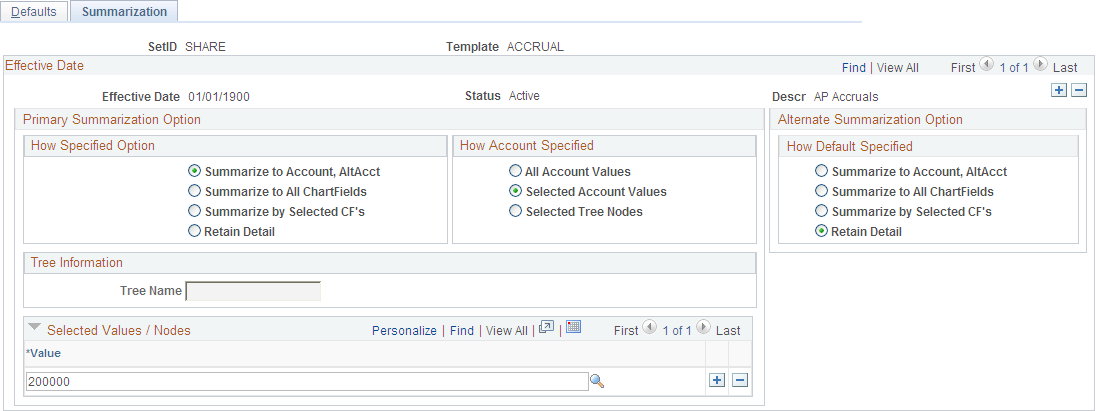
Primary Summarization Option
These options identify how Journal Generator distributes account values from the application system source to General Ledger. In addition to the specified options, Journal Generator summarizes by entry event whenever that field exists on the accounting entry table and the summarization option is not Retain Detail.
Alternate Summarization Option
The Alternate Summarization Option check boxes provide the same options as the Primary Summarization option for the accounts that are not selected in the Selected Values/Nodes field. Select the How Default Specified value. Choose to retain detail, or to summarize one of three ways.