
Scheduling Inventory Resources for a Work Order Task
This section describes how to:
Assign and schedule inventory resources for work order tasks.
Set up a picking plan.
Copy items from the Equipment Parts List.
Add Inventory Items and Purchase/On-Hand Materials to the Equipment Parts List.
Define the Inventory Schedules Materials tab.
Define the Inventory Schedules Details tab.
Define the Inventory Schedules Reservation tab.
Define the Inventory Schedules Availability tab.
Define the Inventory Schedules Additional Information tab.
Define the Inventory Schedules Default Settings tab.
Define the Inventory Schedules Cost tab.
Define the Inventory Schedules Distributions tab.
Perform Inventory batch reservations.
Pages Used to Schedule Inventory Resources for a Work Order Task
|
Page Name |
Definition Name |
Navigation |
Usage |
|---|---|---|---|
|
Schedules |
WM_WO_TASK_SCHED |
Maintenance Management, Work Order Management, Work Order, click the Schedules tab. |
Enter resource schedules for work order tasks. |
|
Copy from Equipment Parts List |
WM_EPL_SELECT_SEC |
Maintenance Management, Work Order Management, Work Order, Schedules tab, click Inventory link, click the Copy from EPL button |
Select an inventory item associated with the selected asset for the task. |
|
Add to Equipment Parts List |
WM_AM_EPL_UPDATE |
|
Add inventory items and purchase/on-hand items to existing EPL templates. |
|
Process/Output Options |
IN_WO_RNCTL_OPT_SP |
Click the Picking Plan Setup button on the Inventory Schedules - Schedules page. |
Define the run parameters for the work order pick plan process. |
|
Item Search Criteria |
ITEM_SEARCH_SP |
Click the icon in the Inventory Schedules grid of the Schedules page or on the Purchase/On-Hand Schedules page. |
Perform an expanded search for an inventory item. |
|
Pegging Workbench |
IN_PEG_DETAIL_SP |
Click the Pegging Workbench icon in the Inventory Schedules - Details tab on the Schedules page. |
Peg quantity for Inventory item in the work order task. |
|
Pegging Inquiry |
IN_PEG_DETAIL_SP |
Click the Pegging Inquiry icon in the Inventory Schedules - Details tab on the Schedules page or in the Purchase/On-Hand schedules - Details tab on the Schedules page. |
Review the pegging status of an item. |
|
Item/Product Availability |
ATP_SUMMARY_INV |
|
Review the availability status of a selected item in the work order task line. |
|
Item Balance by Unit |
INV_BU_QTY_INQ |
|
Review remaining balance in Inventory of a selected inventory item in the work order task line. |
|
Delivery Instructions |
WM_WO_DELVSCHD_SEC |
Click the Delivery Instruction link in the Inventory Schedules - Additional Information tab on the Schedules page. |
Add instructions concerning how to deliver the inventory and purchase/on-hand materials. |
|
Reservation Errors |
WM_WO_RESERVE_SEC |
Maintenance Management, Work Order Management, Work Order. Click the Reservation Errors link on the Inventory Schedules - Reservation tab on the Schedules page. |
Review errors generated from Inventory when attempting to reserve an item. |
|
Shortage Workbench |
IN_SW_SELECTION |
|
Reserve and unreserve inventory items selected for work order tasks. |
|
Reserve Materials |
RUN_IN_FULFILL_RSV |
Inventory, Fulfill Stock Orders, Stock Requests, Reserve Materials Process |
Perform batch reservation processing of inventory items selected for a work order task. |
|
Item Availability |
WM_WO_ITMAVAIL_SEC |
Maintenance Management, Work Order Management, Work Order, Schedules page. Click the No link in the Inventory Schedules–Availability tab. |
Review the reason why an item was identified as unavailable. |
|
Reservation Errors |
WM_WO_RESERVE_SEC |
Click the Reserve Messages link on the Inventory Schedules - Reservation tab. |
Review reservation message errors. |
Schedules Page - Inventory Schedules
Select the Inventory Schedules tab on the Schedules page.
Image: Schedules page - Inventory Schedules
This example illustrates the fields and controls on the Schedules page - Inventory Schedules. You can find definitions for the fields and controls later on this page.
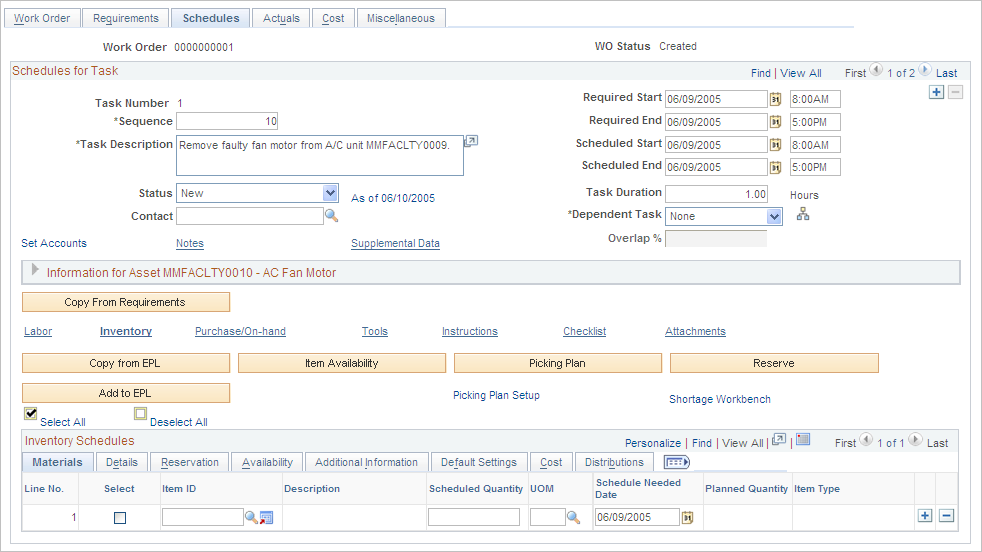
| Item Availability |
Click this button to determine the availability of a selected item as of the Schedule Needed Date. Selecting this button updates the Availability tab and indicates whether the quantity is available or not, the earliest available date, and the quantity available on the Schedule Needed Date. See Inventory Schedules - Availability tab — Schedules Page. |
| Picking Plan |
Click this button to generate a picking plan for any of the listed items that have not already been selected for a picking plan. You do not have to select each row to generate a picking plan. A message displays indicating that you submitted a picking plan and provides the process instance and pick batch ID for tracking purposes. Note: If you indicated that items are committed based on the generation of a Picking Plan in the work order business unit's Integration page or the shop definition, then the Inventory Schedules - Details tab indicates that the items are committed. You must indicate in the User Preferences - Maintenance Management page that a user is authorized to run a picking plan. |
| Picking Plan Setup |
Click this button to display the Process/Output Options page to define the allocations and run parameters for the work order picking plan report. |
| Shortage Workbench |
Click this link to access the Inventory Shortage Workbench to reserve or unreserve the work order demand. Note: With proper authorization in PeopleSoft Inventory, you can access the Allocations Workbench from the Shortage Workbench. See Understanding Work Order Item Fulfillment from PeopleSoft Inventory. |
| Copy from EPL (copy from equipment parts list) |
Click this button to access the Copy from Equipment Parts List page, where you can select among multiple EPL templates, if available, listed in descending order of applicability that match the target asset's classification criteria (asset type, subtype, manufacturer ID and model). The default template is listed at the top and is preselected. However, you can select a different template from which to copy the inventory parts. Selecting the template copies all of the inventory parts associated with the asset to the lower portion of the page. You then select the inventory parts that you want to copy to the work order task. |
| Add to EPL (add to equipment parts list) |
Click this button to access the Add to Equipment Parts List page and add one or more selected inventory items to one or more EPL templates that appear on the page. You must select the items for each row on the Inventory Scheduling grid, enter a planned quantity, and select each item row to display the Add to Equipment Parts List page. |
| Reserve |
Click this button to override the reservation rules hierarchy set up in the work order business unit and shop and immediately reserve the items for that task. The results of this selection displays information on the Inventory Schedules-Reservation tab. Note: This button only appears on the page if the user is authorized to perform this activity on the User Preferences-Maintenance Management page. Note: The user has the option to select (one or more) Inventory Schedule grid rows to be submitted for either the Picking Plan or Reserve options. If no rows are selected before clicking either the Picking Plan or Reserve button, then all the rows will be submitted for the requested function. |
Process/Output Options Page
Use the Process/Output Options page (IN_WO_RNCTL_OPT_SP) to define the run parameters for the work order pick plan process.
Image: Pick Plan Setup - Process/Output Options page (1 of 2)
This example illustrates the fields and controls on the Pick Plan Setup - Process/Output Options page (1 of 2). You can find definitions for the fields and controls later on this page.
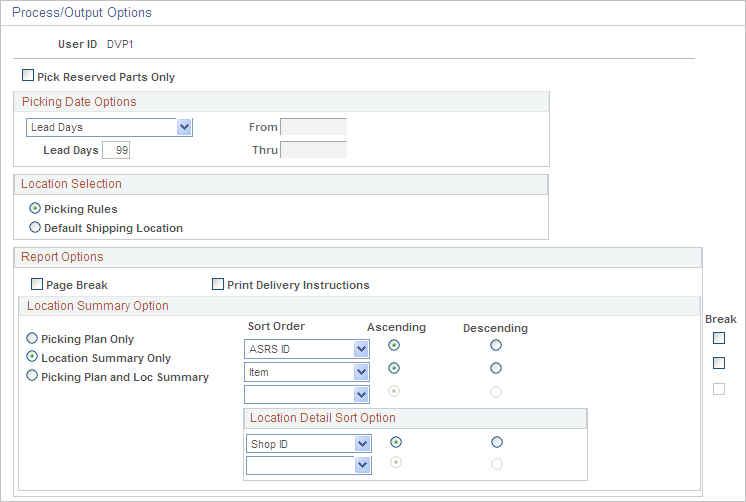
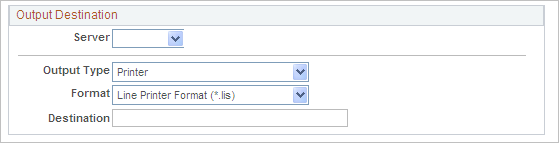
Image: Pick Plan Setup - Process/Output Options page (2 of 2)
This example illustrates the fields and controls on the Pick Plan Setup - Process/Output Options page (2 of 2). You can find definitions for the fields and controls later on this page.
Location Summary Option
If you are using a push picking plan (the Action of Create Allocations on the Work Order Pick Plan page), you can print a Location Summary report either in addition to or instead of a full Picking Plan report. The Location Summary report sorts the demand lines according to where the items are physically stocked within the warehouse (Inventory business unit). The layout of the printed report reflects the actual positions of stock to be picked, enabling your personnel to fulfill all orders on the picking plan without revisiting locations.
Note: It is possible to complete all of the picking using only the Location Summary report; however, you can only view details such as picking errors or picking line and schedule orders and notes if you print out a full Picking Plan report.
Output Destination
Select the Server, the Format of the output, and the Destination for the output, such as the name of an employee or a job location.
Copy from Equipment Parts List Page
Use the Copy from Equipment Parts List page (WM_EPL_SELECT_SEC) to select an inventory item associated with the selected asset for the task.
Maintenance Management, Work Order Management, Work Order, Schedules tab, click Inventory link, click the Copy from EPL button
Image: Equipment Parts List Selection page
This example illustrates the fields and controls on the Equipment Parts List Selection page. You can find definitions for the fields and controls later on this page.

This sample page displays for a target asset that has multiple EPL templates available. If only a single template is available, then that template displays as preselected in the top part of the page.
Add to Equipment Parts List Page
Use the Add to Equipment Parts List page (WM_AM_EPL_UPDATE) to add inventory items and purchase/on-hand items to existing EPL templates.
Click the Add to EPL button above the Inventory Schedules grid on the Schedules page.
Click the Add to EPL button above the Purchase/On-Hand Schedules grid on the Schedules page.
Adding to an Equipment Parts List
When you click the Add to EPL button, the Add to Equipment Parts List page displays a list of EPL templates that have been set up for the work order task asset or a non-specific category such as a location. If only one EPL template is available, this template is selected by default.
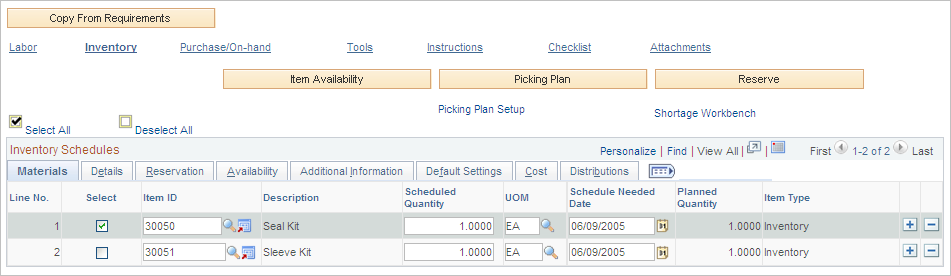
Inventory Schedules - Materials tab — Schedules Page
Use the Inventory Schedules - Materials tab on the Schedules page to view details of the Inventory schedules.
Image: Inventory Schedules Materials tab on Schedules page
This example illustrates the fields and controls on the Inventory Schedules Materials tab on Schedules page. You can find definitions for the fields and controls later on this page.

Inventory Schedules - Details tab — Schedules Page
Image: Inventory Schedules Details tab on Schedules page
This example illustrates the fields and controls on the Inventory Schedules Details tab on Schedules page. You can find definitions for the fields and controls later on this page.

Inventory Schedules - Reservation tab — Schedules Page
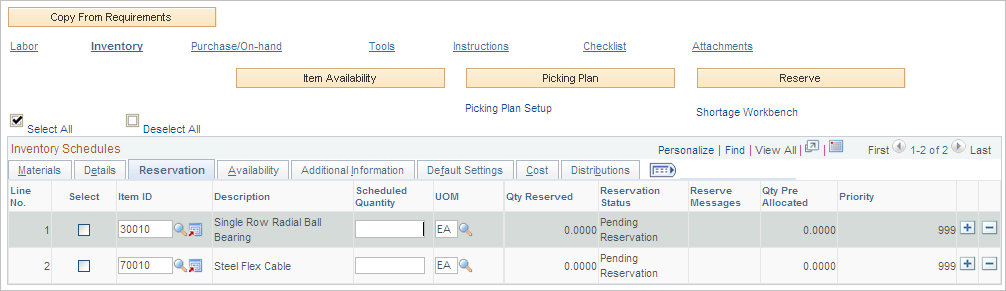
Select the Inventory Schedules - Reservation tab on the Schedules page.
Image: Inventory Schedules Reservation tab on Schedules page
This example illustrates the fields and controls on the Inventory Schedules Reservation tab on Schedules page. You can find definitions for the fields and controls later on this page.
Reservation Errors
Use the Reservation Errors page (WM_WO_RESERVE_SEC) to review reservation message errors.
Image: Reservation Errors page
This example illustrates the fields and controls on the Reservation Errors page. You can find definitions for the fields and controls later on this page.
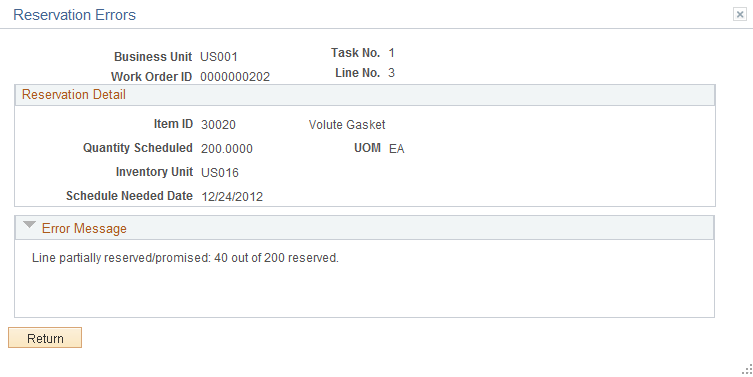
When you attempt to reserve an item on the Inventory Schedules grid and the system cannot reserve the item or can only partially reserve an item, you can click the Reserve Messages link to access the Reservation Errors page. This page describes reason that you could not reserve the item.
Inventory Schedules - Availability tab — Schedules Page
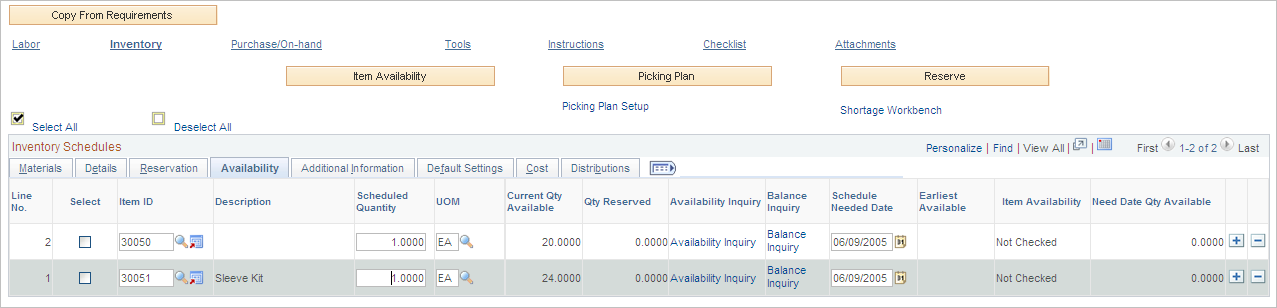
Select the Inventory Schedules - Availability tab on the Schedules page.
Image: Inventory Schedules Availability tab on Schedules page
This example illustrates the fields and controls on the Inventory Schedules Availability tab on Schedules page. You can find definitions for the fields and controls later on this page.
Item Availability Page
Use the Item/Product Availability page (ATP_SUMMARY_INV) to review the availability status of a selected item in the work order task line.
Click the Availability link in the Inventory Schedules - Additional Information tab on the Schedules page.
Image: Item Availability page
This example illustrates the fields and controls on the Item Availability page. You can find definitions for the fields and controls later on this page.
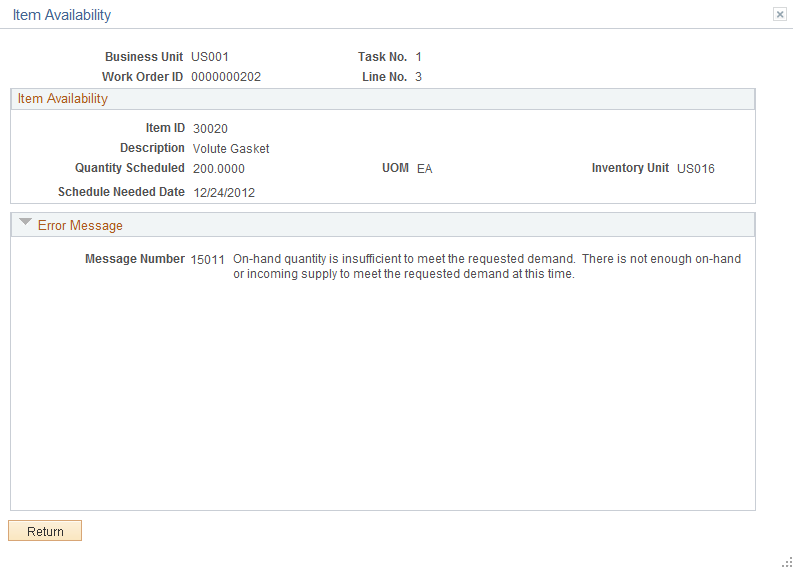
When schedule an item that is unavailable and select the Item Availability button, it displays a No in the Item Availability field of an Inventory/Schedules row. When you click the No link, the Item Availability page appears with a message describing the error.
Inventory Schedules - Additional Information tab — Schedules Page
Select the Inventory Schedules - Additional Information tab on the Schedules page.
Image: Inventory Schedules Additional Information tab on Schedules page
This example illustrates the fields and controls on the Inventory Schedules Additional Information tab on Schedules page. You can find definitions for the fields and controls later on this page.

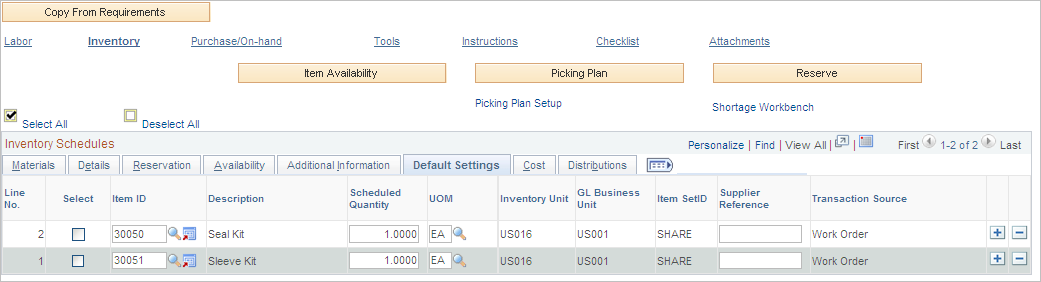
Inventory Schedules - Default Settings tab — Schedules Page
Select the Inventory Schedules - Default Settings tab on the Schedules page.
Image: Inventory Schedules Default Settings tab on Schedules page
This example illustrates the fields and controls on the Inventory Schedules Default Settings tab on Schedules page. You can find definitions for the fields and controls later on this page.
Inventory Schedules - Cost tab — Schedules Page
Select the Inventory Schedules - Cost tab on the Schedules page.
Image: Inventory Schedules Cost tab on Schedules page
This example illustrates the fields and controls on the Inventory Schedules Cost tab on Schedules page. You can find definitions for the fields and controls later on this page.

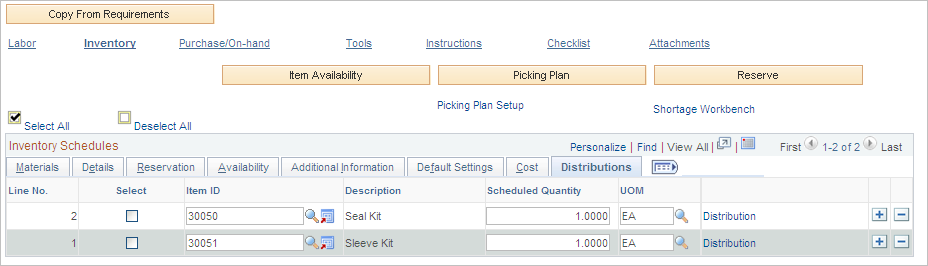
Inventory Schedules - Distributions tab — Schedules Page
Select the Inventory Schedules - Distributions tab on the Schedules page.
Image: Inventory Schedules Distributions tab on Schedules page
This example illustrates the fields and controls on the Inventory Schedules Distributions tab on Schedules page. You can find definitions for the fields and controls later on this page.
Reserve Materials Page
Image: Reserve Materials page
This example illustrates the fields and controls on the Reserve Materials page. You can find definitions for the fields and controls later on this page.
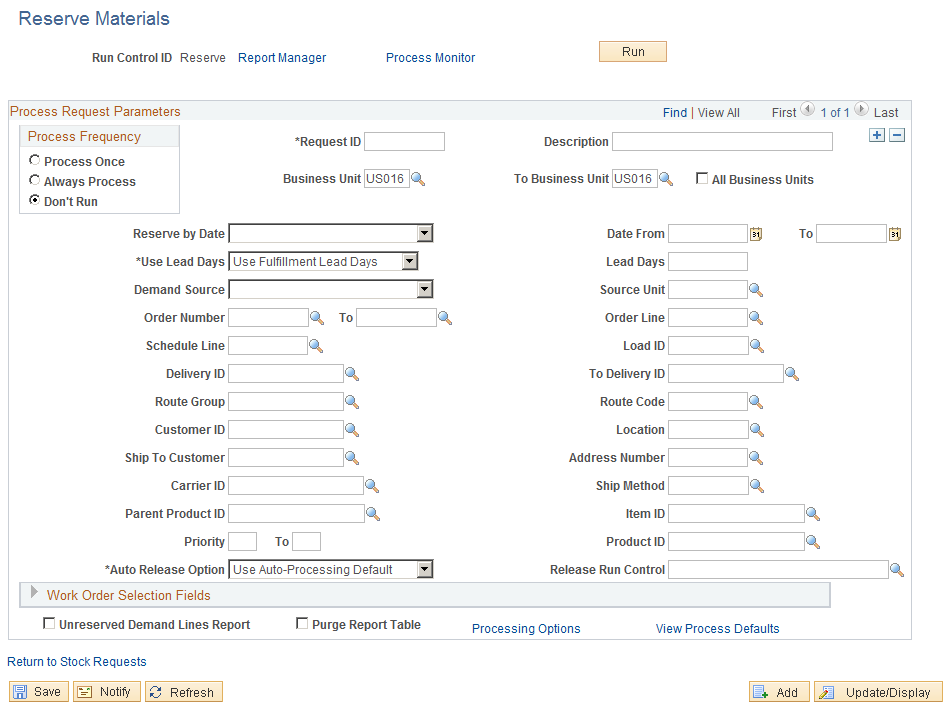
The handling of this page for work orders is described in the PeopleSoft Inventory documentation set of topics, Fulfilling Work Orders from PeopleSoft Maintenance Management.