| Project |
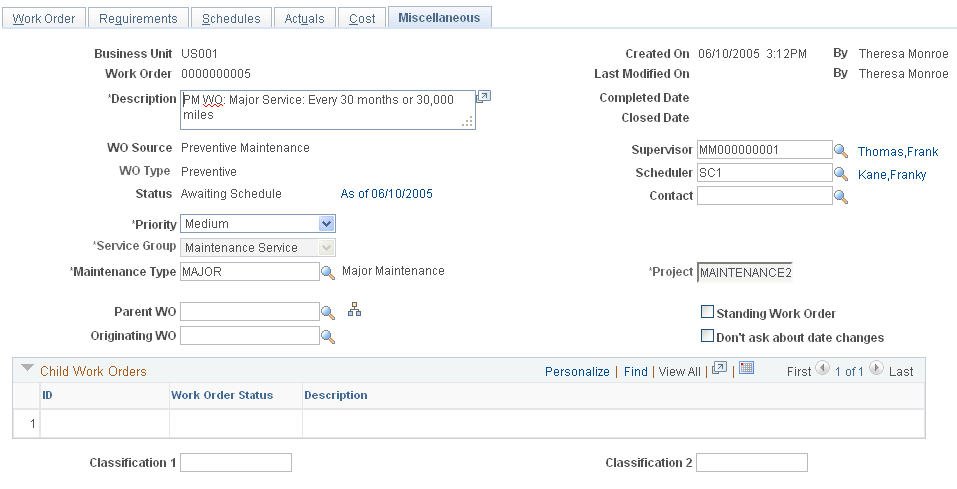
Override the default project, if necessary. The
default project ID is derived from calculations based on the setup
of the Associate Projects component and the Project Default Order
set up in the work order business unit.
Note: If this is a Project Costing-managed project, the
Project ID of the project from which you created the work order displays
in this field.
|
| Maintenance
Type |
Displays a default maintenance type value that is
derived from the work order business unit. You can override this value
when you add a new work order.
Important! This is a required field if you selected assets
for each work order task. You must select the Maintenance Type to
enable the Work Order Close batch process to close the task.
|
| Standing
Work Order |
Select this check box if you want this work order
to be a standing work order. Standing work orders do not automatically
close upon completion of the last open task. Deselect this check box
to enable a standing work order to close.
|
| Parent
Work Order |
Select another work order as the parent of this
work order, if you want this work order to be the child of another
work order.
|
| Don't
ask about date changes |
Select this check box if you do not want the system
to issue a message asking you if you want to override corresponding
dates on lower levels when you change a required date in the work
order header or task and a schedule date in the task. Selecting this
check box enables you to proceed with changes to the above dates without
the message displaying.
|
| Originating
Work Order |
Select the work order that this work order originated
from. For example, if a work order is closed and there is still work
pending, you can create a new work order and indicate that it originated
from the closed work order.
|
| Technician
Work Order Access |
Click this link to display the Work Order Access
page. The shop that was used to create the work order appears in the
list of shops. If a resource was selected for a work order task from
a cross-shop, this shop also appears on the list. The user, who has
the Allow Access to WO Security check box selected on the User Preferences
– Maintenance Management page, can add and delete shops, but cannot
delete the primary shop from the list. Once the Work Order Access
page is set up, resources assigned to the shops listed on the page
with the Apply WO Access Security check box selected on the User Preferences
– Maintenance Management page, can access the work orders and associated
work order tasks from the Work Order, Express Work Order and Technician
Workbench components.
See PeopleSoft Application Fundamentals 9.1: "Defining
User Preferences," Defining Maintenance Management User Preferences
See PeopleSoft Maintenance Management documentation:
"Setting Up PeopleSoft Maintenance Management System Parameters,"
Setting Up a Work Order Business Unit, Business Unit Setup Options,
Technician WO Security
|
| Child
Work Orders |
If one or more work orders indicate that they are
children of this work order, then these child work orders are listed
here in this grid.
|