
Managing Holds Using the Order Hold Workbench
This section provides overviews of the Order Hold Workbench, the Select All and Deselect All options, lists common elements, and discusses how to:
Use the Order Hold Workbench.
Search for holds.
Manage header holds.
View header holds
Manage line holds.
Manage schedule holds.
Pages Used to Manage Holds Using the Order Hold Workbench
|
Page Name |
Definition Name |
Navigation |
Usage |
|---|---|---|---|
|
Order Hold Workbench - Overview |
HWB_OVERVIEW |
|
Use this page to view analytic data across sales orders on hold. Hold data can be searched and summarized using business unit, hold code, or customer. |
|
Current Active Average Hold Days |
HWB_CURRHLD |
Click the More Current Active Hold Days link on the Order Hold Workbench - Overview page. |
Use to view the days on hold for additional hold codes. |
|
Average Days on Hold |
HWB_AVGHLD |
|
Change the date criteria for the average days on hold. |
|
Order Amounts by Hold Code Detail |
HWB_AMTHLD_DTL |
Click the Hold Code in the Order Amounts by Hold Code section of the Order Hold Workbench - Overview page. |
Use to view the holds for each order by line and schedule. The value of the hold appears for each line and schedule. You can navigate directly to the order by clicking the order number. |
|
Top Order Amounts on Hold Detail |
HWB_TOPORDHLD_DTL |
Click the Order Number in the Top Order Amounts on Hold section of the Order Hold Workbench - Overview page. |
Use to view the line and schedule with the corresponding value of the hold on the order. |
|
Top Order Amounts On Hold |
HWB_TOPORDHLD |
Click the More Top Orders on Hold link on the Order Hold Workbench - Overview page. |
Use to view additional top order amounts on hold. |
|
Order Hold Workbench - Search |
HWB_SEARCH |
|
Use to search for orders with holds. Additional search fields appear if you select the Advanced Search link. |
|
Order Hold Workbench - Header |
HWB_HEADER |
The page appears after selecting Advanced Search or Basic Search on the Order Hold Workbench - Overview page. |
Use to modify the hold conditions for the order. |
|
Order Hold Workbench - Line |
HWB_LINE |
Click the Show Lines button on the Order Hold Workbench - Header page. |
Use to modify the hold conditions for the line. |
|
Order Hold Workbench - Schedule |
HWB_SCHEDULE |
Click the Show Sched button on the Order Hold Workbench - Header page or the Order Hold Workbench - Line page. |
Use to modify the hold conditions of the schedule. |
|
Order Hold Workbench - Header Holds |
HWB_HEADER_HOLD |
|
Use to display additional information about the header holds. |
|
Order Hold Workbench - Line Holds |
HWB_LINE_HOLD |
|
Use to display additional information about the line holds. |
|
Order Hold Workbench - Schedule Holds |
HWB_SCHEDULE_HOLD |
|
Use to display additional information about the header holds. |
|
Header Hold History |
ORDENT_HLDHIST_SEC |
|
Use to view information about the hold, such as when it was added or updated and which user made the change. |
|
Kit Component Quantity Detail |
HWB_PRODKIT_SEC |
Click the Kit Component Qty Detail button on the Product tab on the Order Hold Workbench Line or Schedule page. |
Use to view product kit components if the product ID is for a kit. If the kit has one schedule, you can view it from the line page. If the kit has multiple schedules, you can only see the kit components from the schedule page. |
Understanding the Order Hold Workbench
The Order Hold Workbench enables visibility into holds across orders, lines and schedules and to make it easier to apply, release, and delete individual holds against multiple orders. You can release or apply holds using the workbench instead of manually manipulating the holds on the sales order or using the background processes. The workbench includes:
Search criteria for retrieving orders.
The ability to see certain analytic data about holds across your organization.
The ability to manually apply, release, or delete holds across multiple orders at the header, line or schedule level.
The ability to have a message evaluated against an order and have holds applied or deleted depending if the message should be active against a customer or product.
Role security to control the hold codes that each role can manipulate.
Links to product and customer messages and hold codes.
Understanding the Select All and Deselect All Options
This table describes the behavior of the Select All and Deselect All buttons on the header, line, and schedule hold pages:
|
Page On Which Select All/ Deselect All Button Is Selected |
Hold Action = Apply |
Hold Action = Release/Delete |
Hold Action = Message |
|---|---|---|---|
|
Header |
Select All will select all grid lines at the Header level. Deselect All will deselect all grid lines at the Header level. |
Select All will select all grid lines at the Header, Header Hold, Line, Line Hold, Schedule, and Schedule Hold level. Deselect All will deselect all grid lines at the Header Hold level. |
Select All will select all grid lines at the Header Hold level. Deselect All will deselect all grid lines at the Header Hold level. |
|
Header Hold |
Select All will select all grid lines at the Header Hold level. Deselect All will deselect all grid lines at the Header Hold level. |
Select All will select all grid lines at the Header Hold level. Deselect All will deselect all grid lines at the Header Hold level. |
Select All will select all grid lines at the Header Hold level. Deselect All will deselect all grid lines at the Header Hold level. |
|
Line |
Select All will select all grid lines at the Line level. Deselect All will deselect all grid lines at the Line level. |
Select All will select all grid lines at the Line, Line Hold, Schedule, and Schedule Hold level. Deselect All will deselect all grid lines at the Line, Line Hold, Schedule, and Schedule Hold level. |
Select All will select all grid lines at the Line, and Schedule level. Deselect All will deselect all grid lines at the Line and Schedule level. |
|
Line Hold |
Select All will select all grid lines at the Line Hold level. Deselect All will deselect all grid lines at the Line Hold level. |
Select All will select all grid lines at the Line Hold level. Deselect All will deselect all grid lines at the Line Hold level |
Select All will select all grid lines at the Line Hold level. Deselect All will deselect all grid lines at the Line Hold level. |
|
Schedule |
Select All will select all grid lines at the Schedule level. Deselect All will deselect all grid lines at the Schedule level. |
Select All will select all grid lines at the Schedule and Schedule Hold level. Deselect All will deselect all grid lines at the Schedule, and Schedule Hold level. |
Select All will select all grid lines at the Schedule level. Deselect All will deselect all grid lines at the Schedule level. |
|
Schedule Hold |
Select All will select all grid lines at the Schedule Hold level. Deselect All will deselect all grid lines at the Schedule Hold level. |
Select All will select all grid lines at the Schedule Hold level. Deselect All will deselect all grid lines at the Schedule Hold level. |
Select All will select all grid lines at the Schedule Hold level. Deselect All will deselect all grid lines at the Schedule Hold level. |
Note: Manually selecting and deselecting the Select For Change field has the same behavior in the table, but only at a particular order header, line, or schedule level.
Note: After determining your Hold Action and selecting rows, your selections will be cleared if the Hold Action is changed. The only exception is if you toggle between the Delete and Release Hold actions.
Common Elements Used in the Holds Workbench
Order Hold Workbench - Overview Page
Use the Order Hold Workbench - Overview page (HWB_OVERVIEW) to use this page to view analytic data across sales orders on hold.
Hold data can be searched and summarized using business unit, hold code, or customer.
Image: Order Hold Workbench - Overview page (1 of 2)
This example illustrates the fields and controls on the Order Hold Workbench - Overview page (1 of 2). You can find definitions for the fields and controls later on this page.
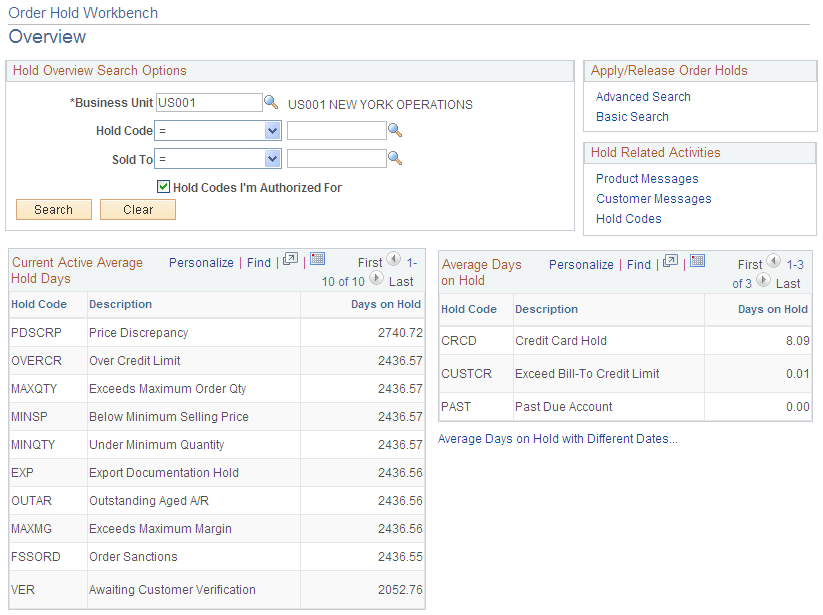
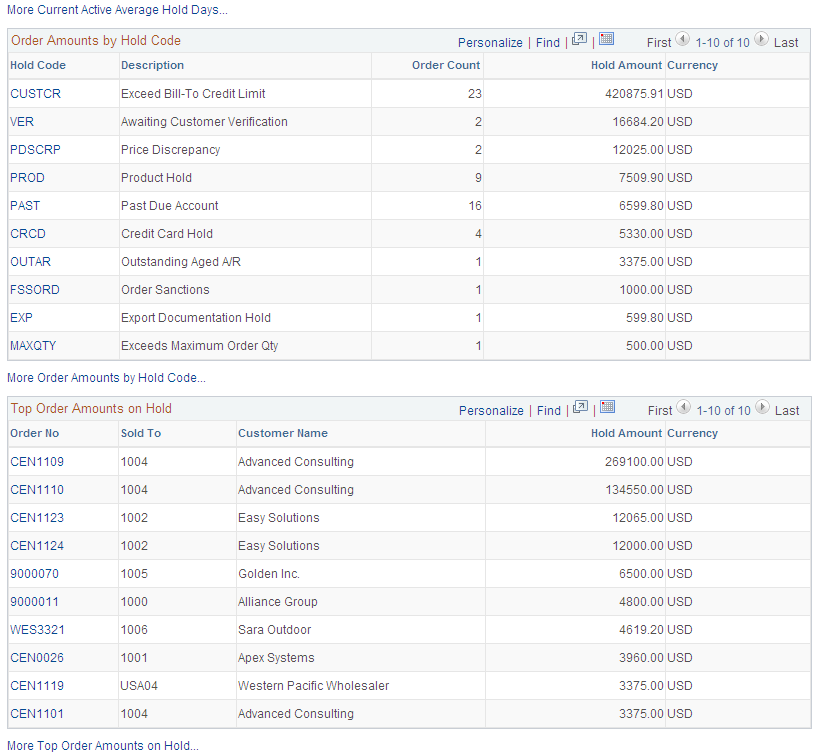
Image: Order Hold Workbench - Overview page (2 of 2)
This example illustrates the fields and controls on the Order Hold Workbench - Overview page (2 of 2). You can find definitions for the fields and controls later on this page.
Hold Overview Search Options
Search using the Business Unit, Hold Code, and Sold To or a combination of these fields.
Apply/Release Order Holds
Use the links to search for orders with holds so you can apply or release holds.
Hold Related Activities
Use this section to navigate to hold codes or products and customers with hold-related messages.
Current Active Average Hold Days
This section displays the hold codes based on your search criteria. The Days on Hold value is the active holds in the system.
Average Days on Hold
Displays the average days that a hold was active for a given time period. By default, the system calculates the average based on holds released in the last 30 days
Order Amounts by Hold Code
This section displays the Hold Codes for orders that are on hold based on the search criteria. You can view the value that is on hold and the number of orders on hold for each hold code.
Top Order Amounts on Hold
This section displays the orders that are on hold based on the search criteria.
Order Hold Workbench - Search Page
Use the Order Hold Workbench - Search page (HWB_SEARCH) to use to search for orders with holds.
Additional search fields appear if you select the Advanced Search link.
Click the Advanced Search link on the Order Hold Workbench - Overview page.
Click the Basic Search link on the Order Hold Workbench - Overview page.
Image: Order Holds Workbench - Search page
This example illustrates the fields and controls on the Order Holds Workbench - Search page. You can find definitions for the fields and controls later on this page.

Note: Additional fields appear if you are performing an advanced search.
By default, the system does not select closed or canceled orders, lines, or schedules. It also does not select orders that require processing by the Order Completion process.
The customer pickup hold is not searchable and will not be brought into the workbench because it can only be released from the sales order. However, if the customer pickup hold code is added manually, it will be brought into the workbench.
Warning! The customer pickup hold should not be granted role security.
Order Hold Workbench - Header Page
Use the Order Hold Workbench - Header page (HWB_HEADER) to use to modify the hold conditions for the order.
The page appears after selecting Advanced Search or Basic Search on the Order Hold Workbench - Overview page.
Search Criteria
The search fields that you used on the Order Hold Workbench - Search appear in this section.
Workbench Action
Use this section to make changes to holds.
Orders for Business Unit
Use this section to select holds for changing and to view additional information.
Order Hold Workbench - Line Page
Use the Order Hold Workbench - Line page (HWB_LINE) to use to modify the hold conditions for the line.
This page functions similarly to the Order Hold Workbench - Header page; however, different fields appear for the line.
Order Hold Workbench - Schedule Page
Use the Order Hold Workbench - Schedule page (HWB_SCHEDULE) to use to modify the hold conditions of the schedule.
Click the Show Sched button on the Order Hold Workbench - Header page or the Order Hold Workbench - Line page.
This page functions similarly to the Order Hold Workbench - Header page; however, different fields appear for the schedule.