
Defining Purchasing Item Attributes
To define purchasing item attributes, use the Purchasing Attributes component (PURCH_ITEM_ATTR). Use the PURCH_ITEM_ATTR_CI component interface to load data into the tables for this component.
If you have PeopleSoft Purchasing installed, you can use the Purchasing Attributes component to specify purchasing information for the items.
This section provides an overview of order multiple rounding rules and discusses how to:
Define purchasing item attributes.
Enter purchasing item specifications.
Define purchasing controls.
Define purchasing business unit attributes.
Define attributes and priorities for purchasing item supplier relationships.
Define purchasing item supplier UOM and pricing information.
Enter item supplier UOM conversion rate changes.
Update purchase orders with item supplier UOM conversion rate changes.
Pages Used to Define Purchasing Item Attributes
|
Page Name |
Definition Name |
Navigation |
Usage |
|---|---|---|---|
|
Purchasing Attributes |
ITM_TBL_PUR |
|
Enter basic purchasing information for an item. |
|
Item Specifications |
ITEM_SPEX_PUR |
Click the Item Specifications link on the Purchasing Attributes page. |
Record standard details about the item. These specifications can be sent to the supplier using the purchase order. |
|
Packing Details |
ITM_PKG_PUR_SEC, ITM_VUOM_PKG_SEC |
Click the Packing Details link on the Purchasing Attributes page or the supplier's UOM and Pricing Information page. |
Enter packing volume and weight information for the item. When accessed from the supplier's UOM and Pricing Information page, the Packing Details page also enables you to define item package dimensions, which can be useful if item package dimensions vary by supplier. |
|
VAT Defaults Setup (value-added tax defaults setup) |
VAT_DEFAULTS_DTL |
Click the VAT Default link on the Purchasing Attributes page or the Purchasing Business Unit Attributes page. |
Enter VAT defaults for this item into the VAT hierarchy tables with a VAT driver of item. |
|
Service VAT Treatment Defaults Setup (service value-added tax treatment defaults setup) |
VAT_DEFAULTS_DTL |
Click the VAT Service Treatment Setup link on the Purchasing Attributes page or the Purchasing Business Unit Attributes page. |
|
|
Purchasing Attributes - Purchasing Controls |
ITM_TBL_PUR2 |
|
Specify matching and receiving defaults for the item. Define sourcing controls and miscellaneous controls and options for the item. Set price tolerance defaults for purchased items. These tolerances are supplied by default from the item's category; you can override them during online item setup. Use these tolerances in conjunction with the price change exception rule. Item Load processes compare new item/supplier prices in the Item Loader staging table to the previous item/supplier price. If the new price exceeds tolerances, the system generates an exception. |
|
Purchasing Business Unit Attributes |
ITM_BU_PUR |
Click the BU Attributes (business unit attributes) link on the Purchasing Attributes - Purchasing Controls page. |
Define item attributes by business unit. If you do not specify tolerance values for the business unit, the system uses tolerance values defined for the item's purchasing attributes. When you access this page to specify business-unit specific attributes, tolerance values are supplied by default from the item's purchasing attributes. To define zero tolerances on this page, you must clear the tolerance fields manually. If you access this page and enter a business unit but do not enter any values, and you click OK to exit the page, the system records default tolerance values from the purchasing attributes to create business-unit specific values. Click Cancel instead to avoid this situation. The fields on this page match those on the Purchasing Attributes page and on the Purchasing Definition - Business Unit Options page. This page is not available unless at least one of the PeopleSoft Purchasing business units has the Allow Business Item Attributes option selected on the Purchasing Definition - Business Unit Options page. |
|
Purchasing Attributes - Item Supplier |
ITM_supplier |
|
Establish and update prioritized item-supplier combinations. |
|
Supplier Lookup |
VENDOR_LOOKUP_SEC |
Click the supplier Lookup link on the Purchasing Attributes - Item Supplier page. |
Search for vendors. |
|
Supplier's UOM and Pricing Information (supplier's unit of measure and pricing information) |
ITM_supplier_UOM |
Click the Item supplier UOM (item supplier unit of measure) link on the Purchasing Attributes - Item Supplier page. |
Establish valid units of measure to use when ordering the item from the supplier and to establish the pricing information for each valid UOM. |
|
Effective Dated UOM (effective-dated unit of measure) |
ITM_VNDR_UOMCHG |
Click the Effective Dated UOM link on the supplier's UOM and Pricing Information page. |
Enter effective-dated conversion rate changes along with the packing detail information. |
|
Update Purchase Order |
PO_EDUOM_UPDPO_SEC |
Click the Update PO link on the supplier's UOM and Pricing Information page or the Effective Dated UOM page. |
Update existing purchase order schedules with the new effective-dated UOM conversion rate changes. |
|
Maintain Purchase Order - Purchase Order |
PO_LINE |
Click the PO ID link on the Update Purchase Order page. |
Maintain the purchase order and all of its details. |
|
Supplier's Manufacturer Info (supplier's manufacturer information) |
ITM_supplier_MFG |
Click the supplier Item MFG (supplier item manufacturer) link on the Purchasing Attributes - Item Supplier page. |
Record the authorized manufacturers for an item-supplier combination. |
|
Supplier Item Return Fees |
ITM_VND_RTV_FEE |
Click the Return To Vendor Fees link on the Purchasing Attributes - Item supplier page. |
Add fees charged by the supplier for returning this item. |
|
Item Supplier Contracts |
ITM_VNDR_CNTRCT |
Click the Item Supplier Contracts link on the Purchasing Attributes - Item Supplier page. |
View all contracts for any specified item/supplier combination. |
Understanding Order Multiple Rounding Rules
In several industries, such as consumer goods and wholesale and distribution, for various economic and packaging reasons suppliers ship only certain items in multiples of a specific quantity. They can define the smallest quantity they are willing to ship for the item. Then when you create purchase orders to these suppliers you want a system that can use this information and calculate the rounding of the suggested order quantities to reflect the supplier's specification to these suppliers.
PeopleSoft Purchasing enables you to specify whether to have the system check for order multiples when you are ordering an item from a particular supplier and location on a purchase order.
Note: Order multiples are available only on the online purchase order. Batch sourcing and requisitions do not use the order multiples functionality.
In addition, you can also specify the rounding rule that you want the system to use when its is calculating the correct order quantity multiple for this item on the purchase order. The two available rounding rules that you can choose are natural round and round up. The following examples illustrate the different types of rounding rules and their outcomes.
Rounding Rule Examples
Refer to the following table for quantity calculation examples using the different rounding rules:
|
Item |
supplier |
Location |
Unit of Measure/Order Multiple |
Round Rule |
Order Quantity |
Suggested Order Quantity |
|---|---|---|---|---|---|---|
|
10005 |
SCM0000001 |
Main |
EA / 5 IP / 10 CS / 2 PT / 1 |
Natural Round |
14 EA |
15 EA |
|
10005 |
SCM0000001 |
Main |
EA / 5 IP / 10 CS / 2 PT / 1 |
Natural Round |
12 EA |
10 EA |
|
10005 |
SCM0000001 |
Main |
EA / 5 IP / 10 CS / 2 PT / 1 |
Round Up |
14 EA |
15 EA |
|
10005 |
SCM0000001 |
Main |
EA / 5 IP / 10 CS / 2 PT / 1 |
Round Up |
12 EA |
15 EA |
Purchasing Attributes Page
Use the Purchasing Attributes page (ITM_TBL_PUR) to enter basic purchasing information for an item..
Image: Purchasing Attributes page
This example illustrates the fields and controls on the Purchasing Attributes page. You can find definitions for the fields and controls later on this page.

Associated Picture
The fields in this group box are used to attach image files or other documents to the item descriptions. You can attach any type of file that you have defined on the File Locations page. The file that you want to attach must reside in the file directory defined for the file type on the File Location page.

Item Specifications Page
Use the Item Specifications page (ITEM_SPEX_PUR) to record standard details about the item.
These specifications can be sent to the supplier using the purchase order.
Item specifications that you enter on this page are not automatically carried to requisitions and purchase orders for the associated item unless you specify this by selecting the Copy to Transactions check box. If this check box is not selected, you must access the Include Item Specifications page to copy specifications on requisitions and purchase orders. Use the Include Item Specifications page to copy these specifications to the line comments for a transaction.
If you have selected Send to Supplier here, the Send to supplier option on the Line Comments page for the transaction is automatically selected.
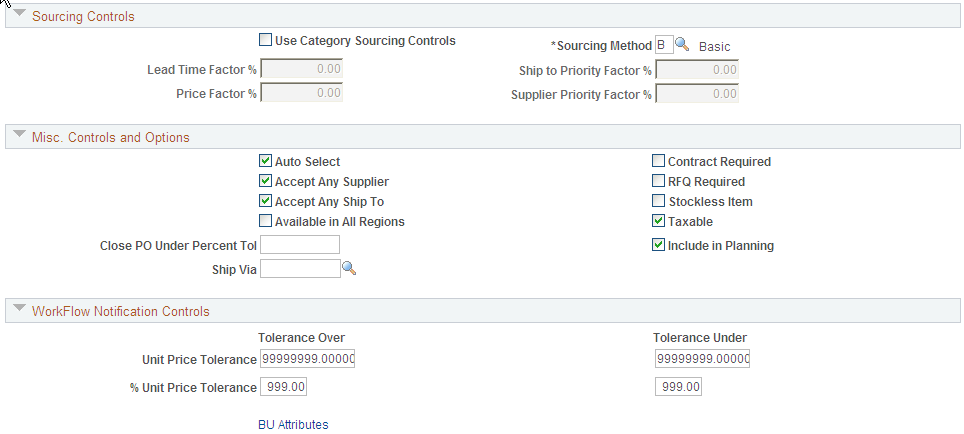
Purchasing Attributes - Purchasing Controls Page
Use the Purchasing Attributes - Purchasing Controls page (ITM_TBL_PUR2) to specify matching and receiving defaults for the item.
Define sourcing controls and miscellaneous controls and options for the item. Set price tolerance defaults for purchased items. These tolerances are supplied by default from the item's category; you can override them during online item setup. Use these tolerances in conjunction with the price change exception rule. Item Load processes compare new item/supplier prices in the Item Loader staging table to the previous item/supplier price. If the new price exceeds tolerances, the system generates an exception.
Image: Purchasing Controls page (1 of 2)
This example illustrates the fields and controls on the Purchasing Controls page (1 of 2). You can find definitions for the fields and controls later on this page.

Image: Purchasing Controls page (2 of 2)
This example illustrates the fields and controls on the Purchasing Controls page (2 of 2). You can find definitions for the fields and controls later on this page.
Matching Controls
If you do not specify tolerance values for the business unit, the system uses tolerance values defined for the item's purchasing attributes.
The fields on this tab match those on the Purchasing Business Unit Attributes page and the Purchasing Definition - Business Unit Options page.
Specify default price tolerances for the PeopleSoft Payables Matching process (AP_MATCH) that matches purchase orders, receipts, and vouchers to verify supplier charges. When you use matching with PeopleSoft Purchasing and PeopleSoft Payables to verify supplier charges, the system uses four price tolerances to determine whether the purchase order price and voucher price are within the tolerances and thus whether the purchase order and purchase order voucher match. These fields appear by default from the Item Categories - Category Definition 2 page. If you leave any of the tolerance fields set to 0 or blank, the system assumes a zero tolerance. If you don't want to use the tolerance fields, set the amount fields that you don't want to use to 9999999 and the percentage fields that you don't want to use to 100.
Receiving Controls
Define tolerances to be used in receiving this item. These become the default values for purchase order lines when this item is selected. The values appear by default from the Item Categories - Category Definition 2 page.
If you do not specify tolerance values for the business unit, the system uses tolerance values defined for the item's purchasing attributes.
The fields on this tab match those on the Purchasing Business Unit Attributes page and the Purchasing Definition - Business Unit Options page.
Sourcing Controls
Misc. Controls and Options
Purchasing Business Unit Attributes Page
Use the Purchasing Business Unit Attributes page (ITM_BU_PUR) to define item attributes by business unit
If you do not specify tolerance values for the business unit, the system uses tolerance values defined for the item's purchasing attributes.
When you access this page to specify business-unit specific attributes, tolerance values appear by default from the item's purchasing attributes. To define zero tolerances on this page, you must manually clear the tolerance fields.
If you access this page but do not enter any values, and you click OK to exit the page, the system records default tolerance values from the purchasing attributes to create business-unit specific values. Click Cancel instead to avoid this situation.
Click the BU Attributes (business unit attributes) link on the Purchasing Attributes - Purchasing Controls page.
The fields on this page match those on the Purchasing Attributes - Purchasing Controls page and the Purchasing Definition - Business Unit Options page.
Purchasing Attributes -Item Supplier (ITM_VENDOR)Page
Use the Purchasing Attributes -Item Supplier (ITM_VENDOR)page to establish and update prioritized item-supplier combinations..
Image: Purchasing Attributes -Item Supplier (1of2)
This example illustrates the fields and controls on the Purchasing Attributes -Item Supplier (1of2). You can find definitions for the fields and controls later on this page.

Image: Purchasing Attributes - Item Supplier (page 2of2)
This example illustrates the fields and controls on the Purchasing Attributes - Item Supplier (page 2of2). You can find definitions for the fields and controls later on this page.

Supplier Priorities
Item Supplier
Associated Picture
Use this section to access or define a picture for use with this item supplier.
Supplier Attributes
Item Supplier Location Substitute Items Page
Use the Item Supplier Location Substitute Items page (ITM_VNDR_SUB) to specify substitute items at the Item Supplier Location level.
Click the Substitute Items link on the Item Supplier page.
Image: Item Supplier Location Substitute Items page
This example illustrates the fields and controls on the Item Supplier Location Substitute Items page. You can find definitions for the fields and controls later on this page.
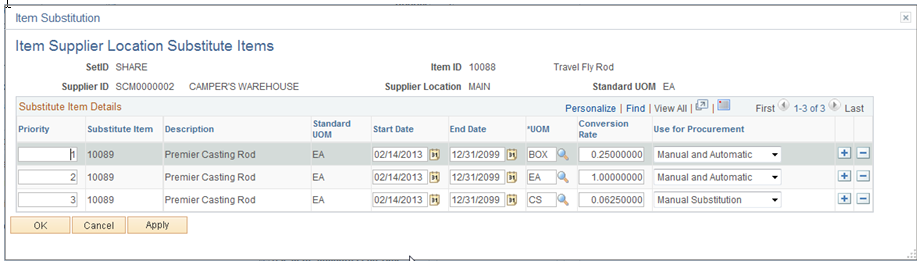
Substitute Item Details
- Priority
-
Enter a priority rank for the supplier location
- Substitute Item
-
Choose Item ID from the list of items in Purchasing Attributes. The list displays all Item IDs defined in Purchasing Attributes for the specific SetID. This includes the Item ID and the Item Category
Note: Only Item Ids that are defined in Purchasing Attributes can be used in the Purchasing/ePro system
- Description
-
Displays the Substitute Item Description of the selected Item ID
- Standard UOM
-
Displays the Substitute Item Standard UOM used for item
- Start Dateand End Date
-
Indicates the start and end date
- UOM
-
Select Substitute item UOM that will be used on the transaction. If the Substitute item does not have an existing Item Supplier relationship, or does have one and Accept Any UOM is ON, the Substitute item UOM prompt field will display all ‘Ordering’ UOMs for the Item ID. If Substitute Item has an item Supplier relationship and Accept Any UOM is OFF, then Substitute Item UOM prompt field will display only Item Supplier Location UOMs.
- Conversion Rate
-
Display the quantity of the substitute item that is required to replace the original item. The default value displayed is 1. However, you can modify the value as necessary. Conversion Rates are calculated by using the Substitute Item UOM listed and the Standard UOM of the Original Substituted Item. For example: The standard UOM is 1 EA for an item, 4 EA in a box, 16 EA in a case. The conversion rate of 0.25 represents 1 unit in a box and 0.0625 represents 1 unit in a case.
- Use for Procurement
-
Defines whether the substitute item will be available for use in Procurement to perform Automatic Item Substitution and/or Manual Item Substitution. Choose from these options:
Automatic Substitution: This Substitute Item will be eligible for use in Procurement when performing Automatic Item Substitution. Automatic Substitution includes automatic selection in the Requisition component (core and ePro), Requisition Selection, Requisition Expediter and the Purchase Order component, and during the PO Sourcing batch process
Do Not Use: This Substitute Item will not be eligible for use in the Procurement applications. This is the default value.
Manual Substitution: This Substitute Item will be eligible for use in Procurement when performing Manual Item Substitution. Manual Substitution includes manual selection in Requisition (core and ePro), Requisition Selection, Requisition Expediter and Purchase Order components.
Manual and Automatic: This Substitute Item will be eligible for use in Procurement when performing Manual and Automatic Item Substitution.
Supplier's UOM and Pricing Information (Supplier's unit of measure and pricing information) Page
Use the Supplier's UOM and Pricing Information (supplier's unit of measure and pricing information) page (ITM_SUPPLIER_UOM) to establish valid units of measure to use when ordering the item from the supplier and to establish the pricing information for each valid UOM.
Click the Item supplier UOM (item supplier unit of measure) link on the Purchasing Attributes - Item supplier page.
Image: Supplier’s UOM and Pricing Information
This example illustrates the fields and controls on the Supplier’s UOM and Pricing Information. You can find definitions for the fields and controls later on this page.

Unit Of Measure
Conversion to Item Base UOM
If the supplier ordering UOM for the item is different from the item's standard UOM, specify how to convert the supplier UOM.
UOM Price Attributes
Effective Dated UOM (effective-dated unit of measure) Page
Use the Effective Dated UOM (effective-dated unit of measure) page (ITM_VND_UOMCHG) to enter effective-dated conversion rate changes along with the packing detail information.
Image: Effective Dated UOM
This example illustrates the fields and controls on the Effective Dated UOM. You can find definitions for the fields and controls later on this page.

Unit Of Measure
Packing Details
Use all the fields in this section to specify the packing details for this effective date.
Use the Packing Details page (ITM_PKG_PUR_SEC, ITM_VUOM_PKG_SEC) to enter packing volume and weight information for the item.
When accessed from the supplier's UOM and Pricing Information page, the Packing Details page also enables you to define item package dimensions, which can be useful if item package dimensions vary by supplier.
Other Information
Update Purchase Order Page
Use the Update Purchase Order page (PO_EDUOM_UPDPO_SEC) to update existing purchase order schedules with the new effective-dated UOM conversion rate changes
Click the Update PO link on the supplier's UOM and Pricing Information page or the Effective Dated UOM page.
Image: Update Purchase Order
This example illustrates the fields and controls on the Update Purchase Order. You can find definitions for the fields and controls later on this page.

Search Criteria
You can access this page in a few different ways. If you access this page from the supplier's UOM and Pricing Information page, most of the fields in the search criteria section of this page appear by default from that page. If you access this page from the Effective Dated UOM page, most of the fields in the search criteria section of this page appear by default from that page.
Retrieved Rows - PO Schedules
Retrieved Rows - Detail
Other Buttons