
Reconciling Procurement Card Transactions Manually
This section discusses how to:
Review and approve procurement card transactions.
Defining account distributions.
Define statement line purchase order details.
Enter statement line tax information.
Split statement lines.
Use distribution templates.
View tax information for a distribution.
View VAT line information.
Pages Used to Reconcile Procurement Card Transactions Manually
|
Page Name |
Definition Name |
Navigation |
Usage |
|---|---|---|---|
|
Reconcile Statement Search |
CC_RECON_SRCH |
|
Enter search criteria for the procurement card transactions you want to reconcile. |
|
Reconcile Statement - Procurement Card Transactions |
CC_RECON_WB |
Click the Search button on the Reconcile Statement Search page. |
Review, manage, and approve procurement card transactions loaded by the Load Statement process. You can view all of the procurement card transactions that you have been granted authority to access on the Cardholder Profile - Card Data: Assign Proxies page. |
|
Reconcile Statement - Merchant Details |
CC_RECON_MERCHANT |
Click the Merchant Name link on the Reconcile Statement - Procurement Card Transactions page. |
Review merchant or preferred supplier cross-reference information. |
|
ProCard VISA Trans Detail Reconcile Statement - Visa Transaction Details |
CC_RECON_VISA |
Click the Line Details button for a Visa transaction on the Reconcile Statement - Procurement Card Transactions page. |
View the details of the Visa transaction. |
|
ProCard MasterCard Trans Reconcile Statement - MasterCard Transaction Details |
CC_RECON_MC |
Click the Line Details button for a MasterCard transaction on the Reconcile Statement - Procurement Card Transactions page. |
View the details of the MasterCard transaction. |
|
Reconcile Statement - MasterCard Transaction Details |
CC_RECON_MC_5300CU |
Click the Show Details button for a corporate card line item detail associated with a MasterCard transaction on the ProCard MasterCard Trans Reconcile Statement - MasterCard Transaction Details page. |
View the details associated with the MasterCard transaction. |
|
Reconcile Statement - Master Card Financial Adjustment Transaction Details |
CC_RECON_MC5900 |
Click the Show Detailsbutton for a corporate card line item detail associated with a MasterCard In the Adjustment Transactions – Type 5900 grid on the ProCard MasterCard Trans Reconcile Statement MasterCard Transaction Details page |
View details of adjustment transactions associated with the MasterCard transaction. Note: The Adjustment Transactions – Type 5900 grid on the ProCard MasterCard Trans Reconcile Statement MasterCard Transaction Details page appears only if Load Level 3 Data (Purchasing) check box is selected. |
|
Reconcile Statement - Line Comments |
CC_RECON_COMMENT |
Click the Comments button on the Reconcile Statement - Procurement Card Transactions page. |
Enter comment text that remains with the associated procurement card transaction line. |
|
Reconcile Statement - Account Distribution |
CC_TRANS_DIST |
Click the Distribution button on the Reconcile Statement - Procurement Card Transactions page. |
Split accounting distributions or override defaults for a statement line. The key difference between this page and the Distribution Templates/Reset Status page is that this page affects one statement line at a time. |
|
Credit Card Distribution VAT |
CC_TRANS_DIST_VAT |
Click the Distribution VAT button on the Reconcile Statement - Account Distribution page. |
View the distribution VAT details that are associated with your procurement card transactions. |
|
Reconcile Statement - Purchase Details |
CC_RECON_PO |
Click the Purchase Order link on the Reconcile Statement - Procurement Card Transactions page. |
(Optional) Define any purchasing attributes applicable to a statement line. |
|
Sales/Use Tax |
CC_TRANS_SUT |
Click the Sales/Use Tax link on the Reconcile Statement - Purchase Details page. |
Enter optional tax information related to the statement line. This data is not passed to PeopleSoft General Ledger and is for informational purposes only. |
|
Category Search |
CAT_SEARCH_SEC |
Click the Category Search link on the Reconcile Statement - Purchase Details page. |
Search for and select an appropriate category ID for the item when entering an ad hoc item. The search for the category ID is done using a category hierarchy tree. |
|
View Category Hierarchy |
CAT_PARENTAGE_SEC |
Click the View Hierarchy link on the Reconcile Statement - Purchase Details page. |
View information about where a category resides in the entire catalog tree hierarchy. |
|
Purchase Order Pick List |
CC_POPICKLIST |
Click the PO Pick List link on the Reconcile Statement - Purchase Details page. |
Select a purchase order from a list of candidates that meet the criteria specified on the Procurement Card Load Statement Options page. |
|
Reconcile Statement - Split Transaction |
CC_RECON_SPLIT |
Click the Split Line link on the Reconcile Statement - Procurement Card Transactions page. |
Enter a description to supplement level-one information given by your card provider or split the original statement line into multiple lines where you can record details of each item purchased. To split accounting lines or override default values only, use the Reconcile Statement - Account Distribution page. |
|
Reconcile Statement - Distribution Template |
CC_RECON_TEMPLATE |
Click the Distribution Template link on the Reconcile Statement - Procurement Card Transactions page. |
Change accounting distributions for all of the selected lines at once. You might use this feature to assign the same SpeedChart to several statement lines from a particular merchant. |
|
Credit Card Transaction Line VAT |
CC_TRANS_LINE_VAT |
Click the Line VAT button on the Reconcile Statement - Procurement Card Transaction page. |
View the VAT line details that are associated with your procurement card transactions. |
|
Account Summary |
RUN_POY8050 |
|
Run one of these multiprocess jobs: Purchase Summary by Issuer (POY8050) which will generate the Purchase Summary by Issuer report (POX8050), Purchase Summary by Merchant (POY8051) which will generate the Purchase Summary by Merchant report (POX8051), or Purchase Summary by Employee (POY8052) which will generate the Purchase Summary by Employee report (POX8052) |
|
Purchase Details |
RUN_POY8030 |
|
Run one of these multiprocess jobs: Purchase Detail by Issuer (POY8030) which will generate the Purchase Detail by Issuer report (POX8030), Purchase Detail by Merchant (POY8031) which will generate the Purchase Detail by Merchant report (POX8031), or Purchase Detail by Employee (POY8032) which will generate the Purchase Detail by Employee report (POX8032) |
For Information on Reports SeePeopleSoft Purchasing Reports
Reconcile Statement Search Page
Use the Reconcile Statement Search page (CC_RECON_SRCH) to enter search criteria for the procurement card transactions you want to reconcile.
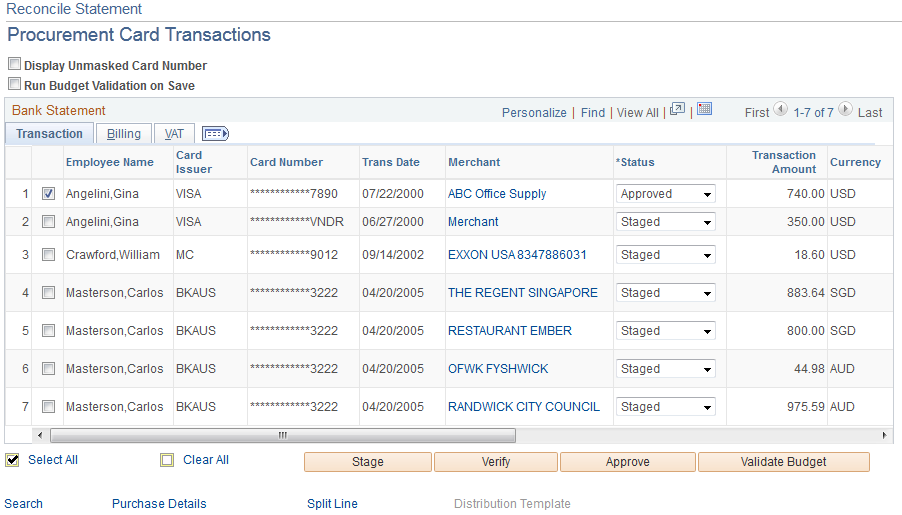
Image: Reconcile Statement - Procurement Card Transactions
This example illustrates the fields and controls on the Reconcile Statement - Procurement Card Transactions. You can find definitions for the fields and controls later on this page.
Transaction


Billing
Select the Billing tab.
VAT
Select the VAT tab.

Updating Transaction Status
You can change the status of a card transaction for individual lines or for many lines in mass.
To update the status of an individual line, select a value in the Status field.
To update the status for multiple lines at once, click the check box next to each line and use the buttons at the bottom of the Reconcile Statement - Procurement Card Transactions page to change the status to the appropriate value. You have authority to change statuses based on your procurement card roles and access rights granted to those roles defined on the Procurement Card Access Rights page.
Performing Budget Validation on Transactions
There are two ways to perform budget validation against transactions on this page if you are using commitment control. You have the option to perform budget validation on all the transactions when you save the page or you can select transactions and then perform budget validation on those transactions when you click the Validate Budget button.
Note: The Run Budget Validation on Save check box and the Validate Budget button only appear on this page if you are using commitment control for procurement cards.
Reconcile Statement - Account Distribution Page
Use the Reconcile Statement - Account Distribution page (CC_TRANS_DIST) to split accounting distributions or override defaults for a statement line.
The key difference between this page and the Distribution Templates/Reset Status page is that this page affects one statement line at a time.
Click the Distribution button on the Reconcile Statement - Procurement Card Transactions page.
| Unit Price |
Displays the cost of the item purchased on the selected statement line. |
| SpeedChart |
Select a predefined distribution template to apply to the statement line. |
ChartFields
You can manually override the distribution information for the statement line by changing any of the distribution field values in the scroll area.
Note: Once a purchase order is referenced by procurement card transactions you are no longer able to modify the ChartFields or liquidate method on this page.
Note: If the procurement card transaction is associated with a PeopleSoft Maintenance Management work order you are not able to modify the PeopleSoft General Ledger business unit, project related fields (PeopleSoft Project Costing business unit, project, and activity), and asset information.
Details/Tax
Select the Details/Tax tab.
Reconcile Statement - Purchase Details Page
Use the Reconcile Statement - Purchase Details page (CC_RECON_PO) to (Optional) Define any purchasing attributes applicable to a statement line.
Click the Purchase Order link on the Reconcile Statement - Procurement Card Transactions page.
Maintenance WO (maintenance work order)
If the purchase order selected is associated with a PeopleSoft Maintenance Management work order the fields in this section will appear. You can modify the work order information that appears on this page or you can enter the work order information using this page.
After you enter the work order information, the system will populate the account distributions on the Reconcile Statement - Account Distributions page based on the work order distribution template.
Sales/Use Tax Page
Use the Sales/Use Tax page (CC_TRANS_SUT) to enter optional tax information related to the statement line.
This data is not passed to PeopleSoft General Ledger and is for informational purposes only.
Reconcile Statement - Split Transaction Page
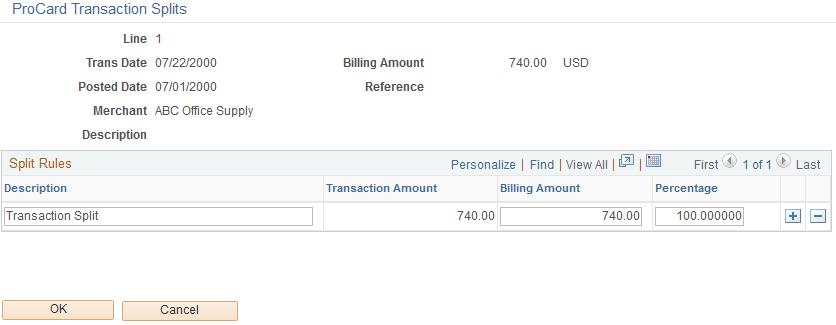
Use the Reconcile Statement - Split Transaction page (CC_RECON_SPLIT) to enter a description to supplement level-one information given by your card provider or split the original statement line into multiple lines where you can record details of each item purchased.
To split accounting lines or override default values only, use the Reconcile Statement - Account Distribution page.
Click the Split Line link on the Reconcile Statement - Procurement Card Transactions page.
Image: Reconcile Statement - Split Transaction page
This example illustrates the fields and controls on the Reconcile Statement - Split Transaction page. You can find definitions for the fields and controls later on this page.
Reconcile Statement - Distribution Template Page
Use the Reconcile Statement - Distribution Template page (CC_RECON_TEMPLATE) to change accounting distributions for all of the selected lines at once.
You might use this feature to assign the same SpeedChart to several statement lines from a particular merchant.
Click the Distribution Template link on the Reconcile Statement - Procurement Card Transactions page.
Credit Card Transaction Line VAT Page
Use the Credit Card Transaction Line VAT page (CC_TRANS_LINE_VAT) to view the VAT line details that are associated with your procurement card transactions.
Click the Line VAT button on the Reconcile Statement - Procurement Card Transaction page.
Expanding and Collapsing Sections
To manage your VAT data more efficiently, you can expand and collapse sections to this page, which makes it easier for the user to manage.
Physical Nature
| Physical Nature |
Displays the default physical nature for transactions. Values are: Goods or Services. |
VAT Locations
VAT Defaults
Adjust/Reset VAT Defaults
Any changes that you make to fields on this page may affect VAT defaults on this page. For accuracy and consistency, use the following fields to adjust affected VAT defaults or to reset all VAT defaults. Adjusting or resetting VAT defaults only affects fields within the VAT Defaults group box.
VAT Calculations