Creating an interface or mapping

Next, you create an interface in ODI 11g, or if you are using ODI 12c, you create a mapping. (Interfaces and mappings are similar constructs.)

To create an interface:

  1. In ODI Studio, select the Designer tab.
  2. Expand Projects and go to your project folder.
  3. Expand <project name> Folder.
  4. If you are using ODI 11g, right click Interfaces and select New Interface, or in ODI 12c, right click Mappings and select New Mapping
    For example, in ODI 11g:
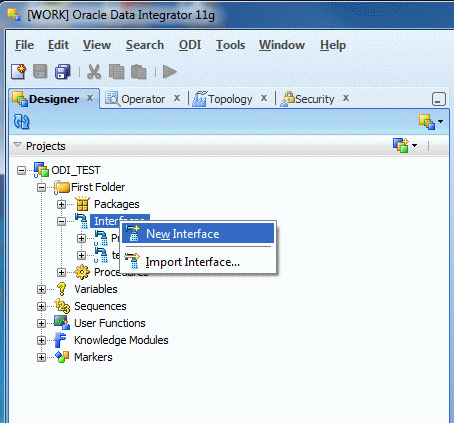
    Screenshot of the Designer tab with the New Interface option selected
  5. Select the Definition pane and specify a unique value for Name.
  6. From the drop-down list, select Endeca Server: <name of logical schema> that you created earlier.
    For example:
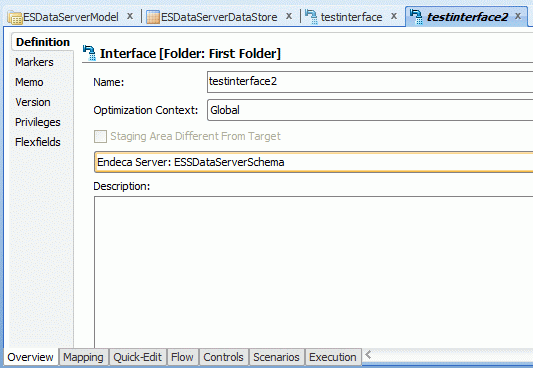
    Screenshot of the Definition pane with the target schema for the interface
  7. Select the Quick Edit tab.
  8. Click the Target Datastore Selection icon.
  9. Uncheck Use Temporary Target.
  10. Expand the Endeca Server model and select a datastore.

    For example:
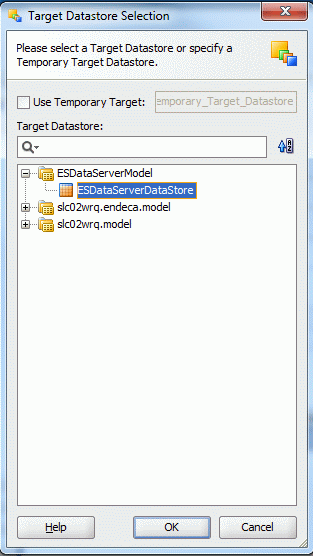

    Screenshot of the Target Datastore Selection dialog with a datastore selected
  11. Click OK.
  12. Select the Mapping tab and drag the data store of the source data into the Mapping tab.
  13. Map the source columns to the target datastore columns.
  14. Select the Overview > Definition, then check Staging Area Different From Target.
  15. From the drop-down list, select a staging database.

    The staging database must support SQL.

  16. Select the Flow tab.
  17. Click the Target component.

    The Target Area - Property Inspector dialog displays.

  18. From the IKM Selector drop-down list, select IKM SQL to Endeca Server.
  19. Under Options, modify target options as necessary.

    You must specify an Endeca data domain name for DATADOMAIN. Other options are optional. For details about the options, see Configuration reference for the IKM SQL to Endeca Server.

  20. Click Save.

You can now run the ODI Interface according to your scheduling requirements.