Configuring the group membership

For each group, you select the specific attributes that belong to the group.

If an attribute has locale-specific versions, you must add them manually to the group membership.

From the Attribute Groups page, to add and remove attributes for a group:

  1. To add attributes:
    1. Display the Add Group or Edit Group dialog.

      The Add Group dialog is displayed when you create a new group.

      To display the Edit Group dialog for an existing group, either:
      • From the groups list, click the edit icon.
      • From the attributes list for the group, click the Add Attributes button.

      The Add attributes section contains the list of attributes in the view that do not belong to the group.
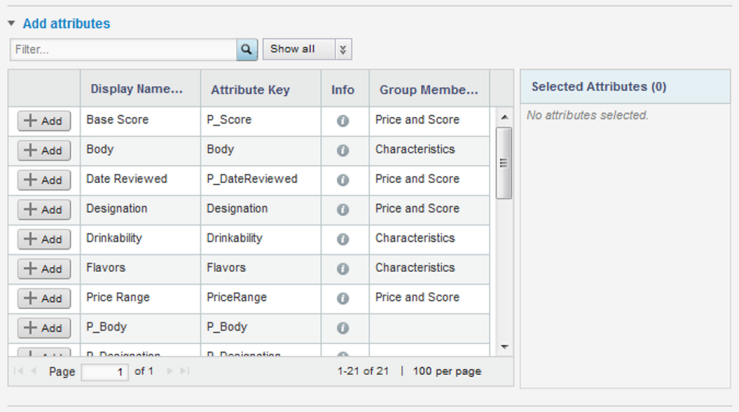

      Attribute list for adding attributes to a manual group
    2. To filter the list, either:
      • Use the search field above the attribute list to search based on the attribute display name.
      • Use the data type drop-down list to only display attributes for a specific data type.
    3. In the attribute list, click the Add button next to each attribute you want to add to the group.

      For attributes with locale-specific versions, you must manually add all of those versions to the group. Studio does not add them automatically.

      The attributes are added to the Selected Attributes list. The Add button for the selected attributes is disabled.

      To remove a selected attribute from the list of attributes to add, click the delete icon for that attribute. The Add button for that attribute is then re-enabled.

    4. To add the selected attributes, click Apply.
  2. To remove an attribute from a group, in the attribute list, click the delete icon for that attribute.