Configuring a dimension

For each Pivot Table dimension, you can configure the label for the dimension, whether to display a summary row or column for the dimension, and whether the column or row heading can be used to refine the data.

From the Table Layout tab of the Pivot Table edit view, to configure a dimension:

  1. Click the edit icon for the dimension you want to configure.

    The Configure Dimension dialog is displayed.
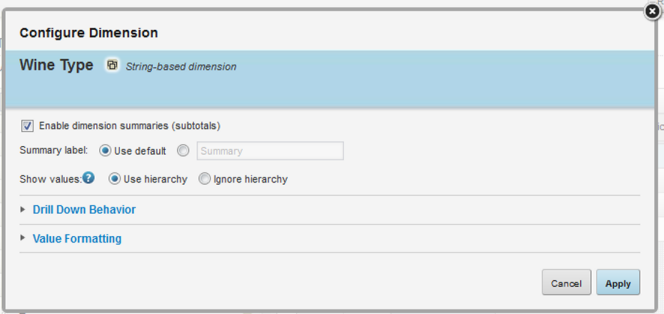

    Initial view of the Configure Dimension dialog for a Pivot Table
  2. If the dimension is a date/time attribute, then from the Date/time subset to enable drop-down list, select the default date/time subset to display.
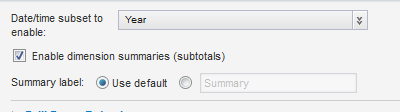
    Date/time subset drop-down list for a date/time dimension

    By default, Studio selects the largest date/time unit that is available for that attribute.

  3. On the edit dimension dialog, to display a summary row or column for the dimension, check the Enable dimension summaries (subtotals) checkbox.
  4. Under Summary label, by default, the summary label is "Summary", and the Use default radio button is checked.

    To provide a custom label, click the other radio button, then type the new label into the field.

  5. Under Show values, select how to display the dimension values if the dimension has a hierarchy of values.

    The default option is Use hierarchy, which indicates to only display one level of the hierarchy at a time. When the table is first displayed, it only shows the top level of the hierarchy. When end users refine by a value, the next level of values is then displayed.

    To display the specific values assigned to records, regardless of the hierarchy level, select Ignore hierarchy.

  6. The Drill Down Behavior section is used to configure whether users can refine by the dimension values. To expand or collapse the section, click the heading.
  7. To allow the dimension values to be used for refinement, check the Enable drilldown refinement on this value checkbox.
  8. To allow the dimension to cascade, check the Enable dimension cascade checkbox, then configure the cascade.

    For details on dimension cascading and how to configure it, see Configuring cascading for dimension refinement.

  9. To save the dimension configuration, click Apply.