For a record list Results Table, or an aggregated table without summary rows, you can sort the table using any of the displayed columns. You can also create a compound sort, where the table is sorted by multiple columns in order.
So for example, you could set up a compound sort to sort by Country, then by Year. So all of the records for the United States would be grouped together, with those records then sorted by Year.
To set the sorting for a table:
-
To set up a compound sort:
-
In the
View Options menu, click
Sort.
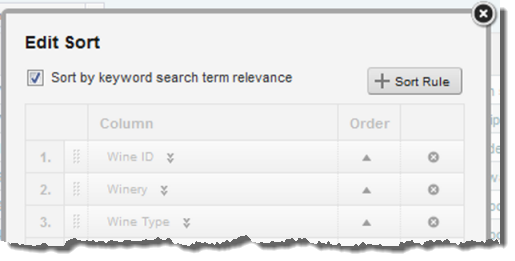
The Edit Sort dialog is displayed. It shows the current sort order for the table.
On the dialog, you create the list of sort rules. Each rule includes the column to sort by and the sort direction. The rule at the top of the list is used first.
Note that if there is currently a search refinement in place, then the Edit Sort dialog includes a checkbox to indicate whether to sort by search relevance.
-
To add a sort rule to the list, click
+Sort Rule.
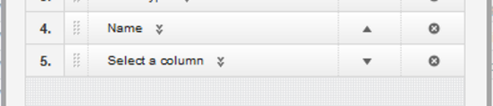
An empty sort rule is added to the bottom of the list.
-
In the
View Options menu, click
Sort.
