Installing the Web Server (IIS), ASP.NET and IIS 6 Management Compatibility
This topic details the procedure for installing the Microsoft Internet Information Services (IIS) Web Server, ASP.NET framework, and IIS 6 Management Compatibility.
To Install Microsoft Internet Information Services (IIS) Web Server, ASP.NET and IIS 6 Management Compatibility
- From your Windows server, select Start>Server Manager>ROLES.
- On the right-side of the screen, select Add Roles.
- Select Server Roles on the left-side of screen.
- Select the Web Server (IIS) option.
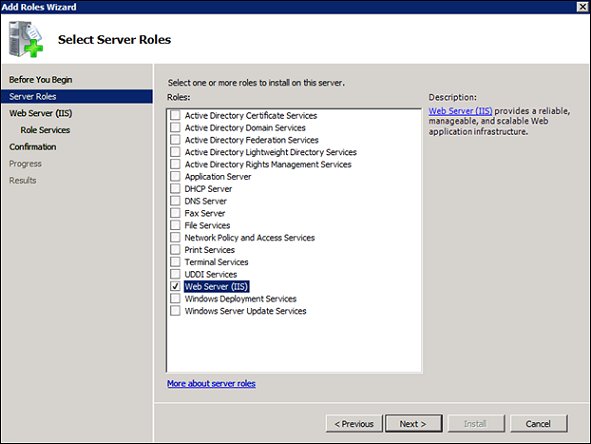
- Accept the prompt to "Add features required for Web Server (IIS)."
- Select Next. The Add Roles Wizard dialog opens.
- From the Add Roles Wizard dialog, select Add Required Features.

- Select Next.

- Under Application Development, select ASP.NET. The Add Roles Wizard dialog opens.
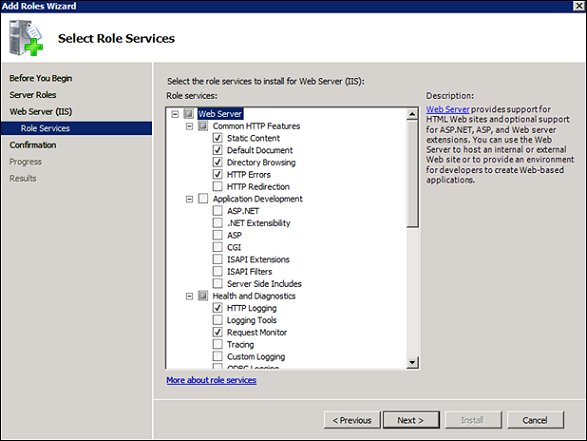
- From the Add Roles Wizard dialog, select Add Required Role Services.

- Under Security, select Windows Authentication.
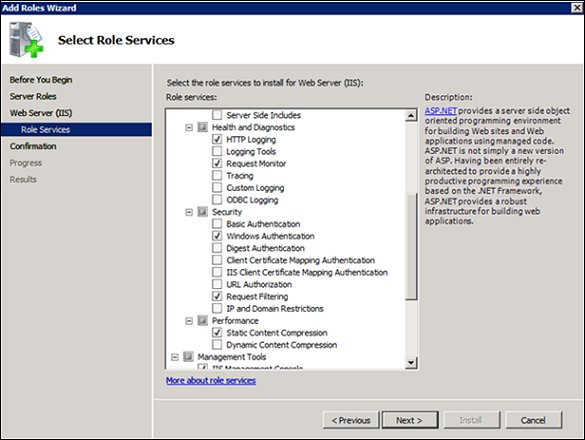
- Under Management Tools, select IIS 6 Management Compatibility. Leave all items under Management Tools selected and select Next.

- Select Install to install the IIS server.

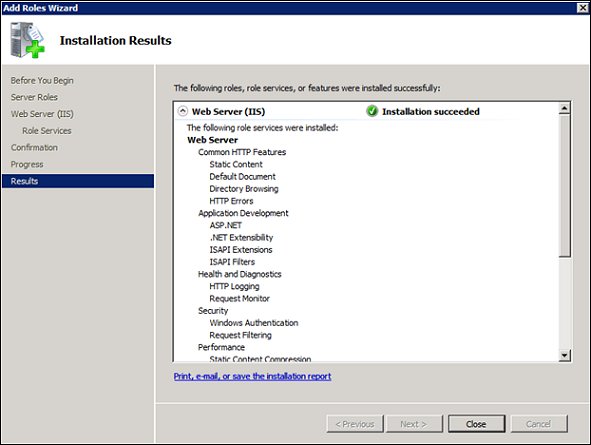
- When installation completes, select Close.