Searching a Locally Installed PeopleSoft Online Help Website
If you use Oracle Secure Enterprise Search as the search engine for your locally installed PeopleSoft Online Help website, your installation documentation discusses how to configure basic full-text search functionality. This section describes how to use that basic functionality. However, if your search administrator has customized the search functionality or installed a different search engine, consult the search engine documentation for details about how to perform searches.
See PeopleTools Installation for your database platform, “Installing PeopleSoft Online Help,” for information about setting up the search engine.
On any page, enter a word or phrase in the Search for field in the Search portlet, and click the Search button. This searches all help for the product family and release that you're viewing.
Image: Search Portlet
This example illustrates the Search portlet containing sample search text.
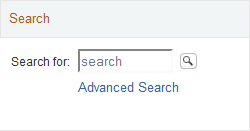
Use the advanced search if too few or too many results were obtained from the simple search. To access the advanced search, click the Advanced Search link in the Search portlet or the Search link in the universal navigation header on any page.
Enter a word or phrase in the search field, then click the Search button.
If the search page contains links above the Search field, as in the preceding example, you can click a link to narrow your search to look within a particular source group. The source group names depend on how Secure Enterprise Search is configured. A typical setup might list links for each product family that you have installed. It may also include links to source groups for documents that are located outside the PeopleSoft Online Help, such as custom documentation or PeopleBook Library sites for previous releases.
Alternatively, you can select a source group by clicking the Browse link and selecting the source group in the pop-up window. To view all documents in a source group, click the View All link to the right of the source group in the pop-up window.
If your search administrator has enabled Search Attribute filters, you can narrow search results by clicking the Attribute Filters link and entering more specific attributes, such as title and last modified date.
Note: Depending on how Secure Enterprise Search is set up for your site, the attributes list may include some default attributes that do not apply to PeopleSoft Online Help, such as mimetype. When you filter on an attribute that does not apply to PeopleSoft, the filter is ignored. Your search administrator can map search attributes to metadata in the help pages. See Adding Attribute Filters for Search Results.
Note: If you set attribute filters, they may remain active on future searches during your browser session until you remove them. Therefore, filters that you set on one search may affect other unrelated searches. To remove a filter, click the Attribute Filters link, and click the Remove Filter icon to the right of the filter.
For details on performing wildcard, fuzzy, and other complex searches, click the Help link on the Search page.
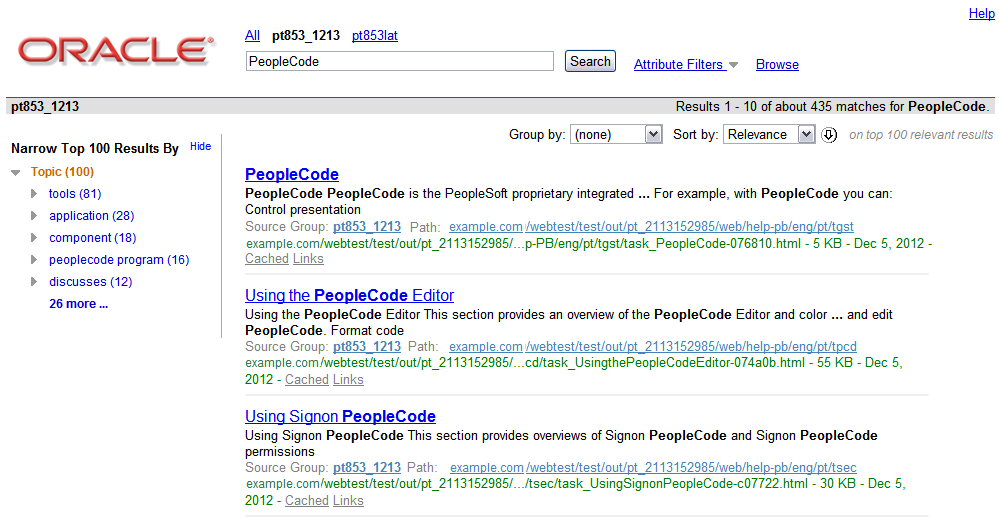
On the search results page, you can use the same filtering tools that you use on the search page, such as the Attribute Filters and Browse links.
Image: Search Results with Secure Enterprise Search
This example illustrates the fields and controls on the Search Results page with Secure Enterprise Search. You can find definitions for the fields and controls later on this page.
|
Field or Control |
Definition |
|---|---|
 |
Click the Show Results Clusters icon on the top, left side of the page to narrow the search results by various terms that appear in the results. For example, in the preceding screen shot, you can click the application (28) link to narrow the results to show only topics that include the word application. |
| Group by and Sort by |
Use these drop-down list boxes to reorganize search results on the page. |
| Cached |
Click this link to view a cached HTML version of the document with the search term highlighted throughout the document. The cached document may not be as up-to-date as the source document, but it may be retrieved more quickly. |
| Links |
Click this link to displays the Links page, which lists other documents that link to or are linked from the selected document. |
| Help |
Click the Help link on the search results page for more details on using the search results. |