Configuring the Oracle Access Manager SSO settings

After you configure the LDAP connection for your SSO integration, you configure the Oracle Access Manager SSO settings.

The settings are on the SSO tab on the Configure Authentication dialog.
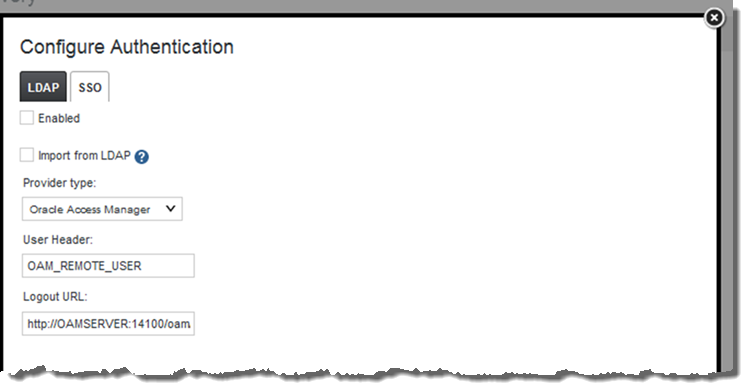

Oracle Access Manager SSO tab on the Configure Authentication dialog

To configure the SSO settings:

  1. In the Control Panel menu, click Credentials.
  2. In the Credentials page, click the Authentication tab.
  3. On the Authentication tab, click the Configure Authentication button.
  4. On the Configure Authentication dialog, click the SSO tab.
  5. Check the Enabled checkbox.
  6. Check the Import from LDAP checkbox.
  7. From the Provider Type drop-down list, select Oracle Access Manager.

    Note that the only other option is Custom, which clears the fields. You would use the Custom option if you are using some other tool that passes the user name in an HTTP header. For information on setting up an SSO tool other than Oracle Access Manager, see the documentation and support materials for that tool.

  8. Leave the default user header OAM_REMOTE_USER.
  9. In the Logout URL field, provide the URL to navigate to when users log out.

    Make sure it is the same logout redirect URL you have configured for the Webgate:
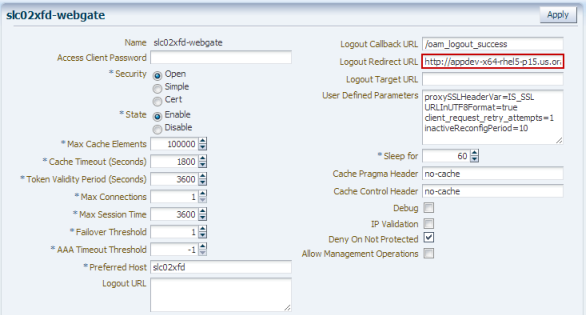

    Webgate configuration page showing the logout URL

    For the logout URL, you can add an optional end_url parameter to redirect the browser to a final location after users sign out. To redirect back to Big Data Discovery, configure end_url to point to the OHS host and port.

    For example:

    http://oamserver.us.mycompany.com:14100/oam/server/logout?end_url=http://bddhost.us.company.com:7777/
  10. To save the configuration, click Save.