 from the header to display the administration tools in a Tiles menu.
Access to Questionnaire requires mapping groups to roles. The step-by-step description of the procedure is in the following list:
1. Login to OFSAA with your system administrator credentials.
2. Click from the header to display the administration tools in a Tiles menu.
3. Click Identity Management to view the Security Management menu in a separate window.
4. Click User Administrator to expand the list further.
5. Click User Group Role Map to display the User Group Role Map window.
6. Map users to User or Approver roles.
a. Users of applications mapped to groups can access the Questionnaire menu by mapping the groups to following roles:
|
Number |
Role Codes |
Description |
|
1 |
QTNRADMNRL |
ABC Questionnaire Administrator |
|
2 |
QUESTMATRL |
ABC Questionnaire Maintenance |
|
3 |
QTNRCONFRL |
Questionnaire Configuration Execute |
b. Users of applications can be configured to be approvers by mapping their group to the QLOCAUTHRL role.
7. Authorize the user groups and role mapping. (You or another user with authorizer role (sysauth) has to login to OFSAA and authorize the mapping).
Configured users can login with the credentials created and access Questionnaire with the roles assigned. The Questionnaire window is displayed as shown.
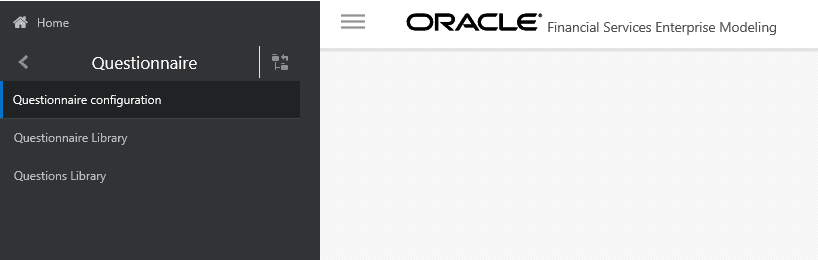
In the preceding illustration, the Questionnaire window is configured to appear in Application Builder Component in Common Tasks. Similarly, you can configure Questionnaire to appear in the menu item of your choice. For example, you can configure it to appear in the Know Your Customer (KYC) menu list.