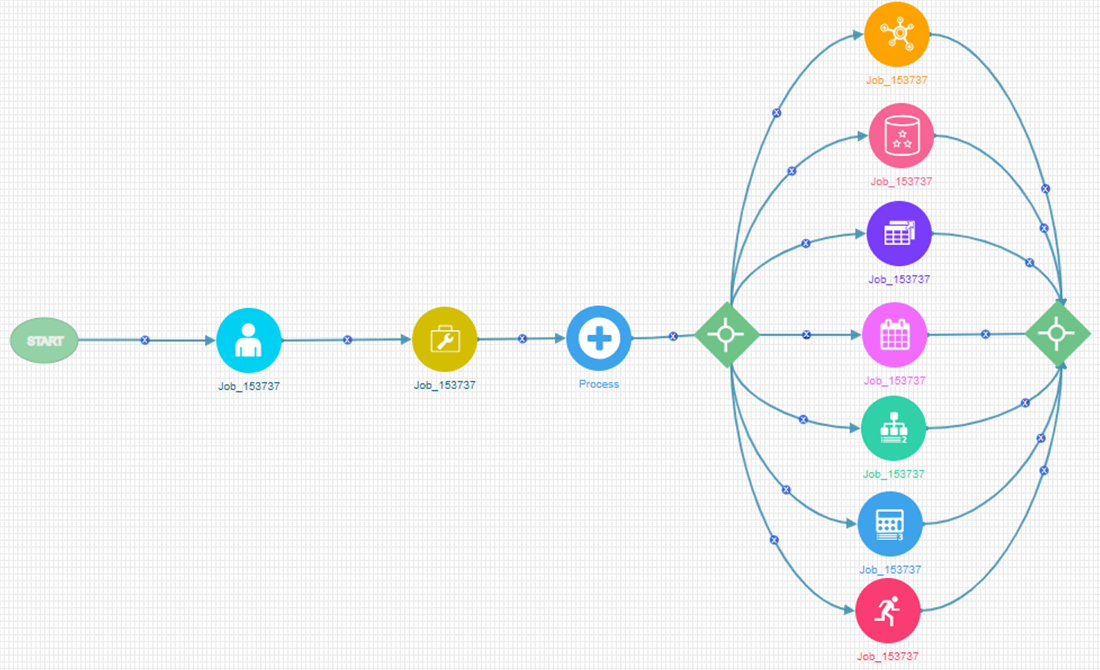
Parallel Gateway is used to execute multiple tasks in parallel. In the usual flow, tasks are executed sequentially.
In the shown example, after  is
executed, Parallel Gateway
is
executed, Parallel Gateway  gets
invoked. All the OFSAA components which are placed between Parallel Gateways
are executed simultaneously. It waits till
all components are executed, and then moves to the next activity in the
Process Flow.
gets
invoked. All the OFSAA components which are placed between Parallel Gateways
are executed simultaneously. It waits till
all components are executed, and then moves to the next activity in the
Process Flow.

This section explains how to design 3 tasks such as RuleType 2, MFModel and Run widget to be executed in parallel.
1. Create a Process Modelling Process.
2. Launch the Process. It displays the Process Flow tab.
3. Click  Start from the Tools pane in the floating toolbar and click
on the drawing canvas where you want to place it. This Start activity
indicates the beginning of the Process.
Start from the Tools pane in the floating toolbar and click
on the drawing canvas where you want to place it. This Start activity
indicates the beginning of the Process.
4. Click  Parallel Gateway from the Tools
pane in the floating toolbar and click on the drawing canvas where you
want to place it.
Parallel Gateway from the Tools
pane in the floating toolbar and click on the drawing canvas where you
want to place it.
5. Click  Transition Curve and
click Start
(from where the transition starts) and click (the
activity to which you want to have the transition).
Transition Curve and
click Start
(from where the transition starts) and click (the
activity to which you want to have the transition).

6. Click  RuleType2 from the OFSAA
Widgets pane, and then click the drawing canvas where you want
to place it.
RuleType2 from the OFSAA
Widgets pane, and then click the drawing canvas where you want
to place it.
7. Click Transition Curve from
the Tools
pane and
click  Parallel
Gateway and then click
Parallel
Gateway and then click  .
.

8. Configure the RuleType2 widget. For more information, see Configuring OFSAA Tasks in Your Process Flow section.
9. Click  MFModel from the OFSAA Widgets pane, and then click the drawing
canvas where you want to place it.
MFModel from the OFSAA Widgets pane, and then click the drawing
canvas where you want to place it.
10. Click
Transition Curve
from the Tools
pane and
click Parallel
Gateway and then click  .
.

11. Configure the MFModel widget. For more information, see Configuring OFSAA Tasks in Your Process Flow section.
12. Click  Run from the OFSAA
Widgets pane, and then click the drawing canvas where you want
to place it.
Run from the OFSAA
Widgets pane, and then click the drawing canvas where you want
to place it.
13. Click
Transition Curve
from the Tools
pane and
click Parallel
Gateway and then click  .
.

14. Configure the Run widget. For more information, see Configuring OFSAA Tasks in Your Process Flow section.
15. Click Parallel Gateway from the Tools
pane in the floating toolbar and click on the drawing canvas where you
want to place it.
16. Draw transitions
from RuleType2, MFModel and Run widgets to the merging Parallel
Gateway as shown:

You can drag and position the widgets to avoid overlapping of widgets or transition lines.