| Agile Product Lifecycle Management Security Guide Release 9.3.4 E52156-05 |
|

 Previous |
 Next |
This appendix provides information regarding Web Service Security configurations for developers.
The following sections provide some examples of using the sample code.
For more information about Agile web services, see Agile Web Services User Guide.
You need to configure the SSL certificate. Get the certificate, for example, sslclient.crt, and use the following command to generate a keystore sslclient.jks and import the certificate.
keytool -import -keystore sslclient.jks -storepass password -alias sslclientkey -file sslclient.crt
Configure the sample code as below and change all the required binding properties according to your environment. Make sure that the required jar file, com.oracle.webservices.fmw.client_12.1.3.jar, which is under Weblogic_HOME\oracle_common\modules\clients\, is added.
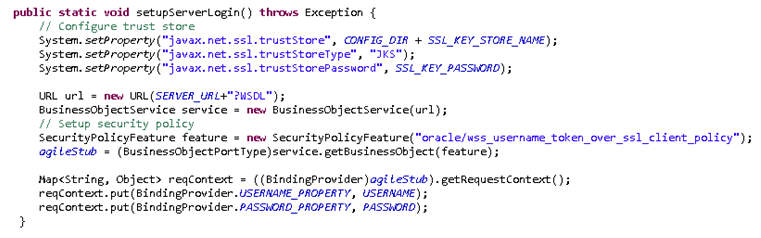
In the example, the settings were as follows:
SSL_KEY_STORE_NAME = sslclient.jks
SSL_KEY_PASSWORD = password
In order to use the SAML token bearer policy on the client side, you need to configure a signed key pair and SSL certificate. Complete the following steps to do the configuration.
Generate a signed key and import it into the server OPSS keystore in the server. The following command generates a signed key pair to be stored in JseSignKeyStore.jks:
keytool -genkeypair -alias JseSignKey -keystore JseSignKeyStore.jks -keyalg RSA -sigalg SHA1withRSA -validity 3650 -dname cn=Test,ou=Agile,O=Oracle,L=Test,ST=Test,C=Test -storepass password -keypass password
Use the -list option to check if the key is successfully generated. The alias name is jsesignkey
keytool -list -keystore JseSignKeyStore.jks -storepass password
Export the public key.
keytool -exportcert -keystore JseSignKeyStore.jks -alias jsesignkey -storepass password -rfc
Import the public key to the server. In Oracle Enterprise Manager on the Agile server, open agileDomain > WebLogic Domain menu > Security > Keystore.
In the Keystore configuration UI, check if the owsm row exists. If not, create a row named "owsm" and a keystore named "keystore",
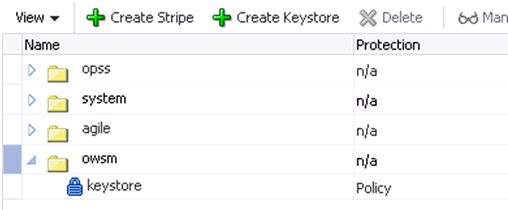
Select keystore under owsm and click Manage > Import. This opens the Import Certificate page for you to import the public key. Follow the example below and paste the encoded key context exported in step 3. Note the alias name.
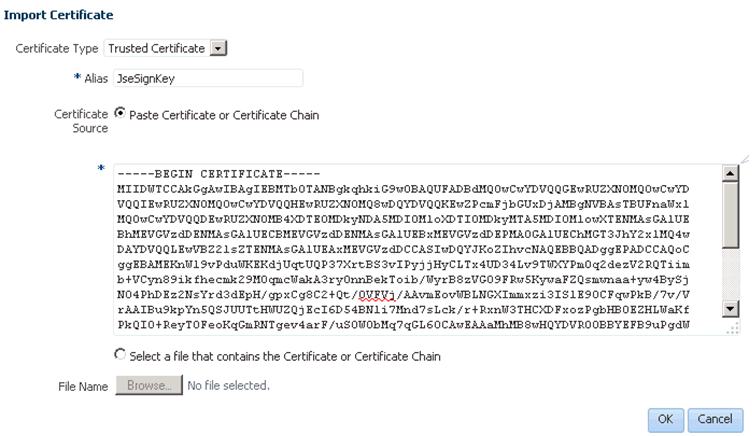
If all is successful, there should be a certificate under owsm/keystore named as JseSignKey.
Get the certificate, for example, sslclient.crt, and use the following command to import it to the keystore JseSignKeyStore.jks generated in step 1 in "Generate a SAML Signature Key" or generate a new jks.
keytool -import -keystore JseSignKeyStore.jks -storepass password -alias sslclientkey -file sslclient.crt
Change all of the required binding properties according to your environment. Make sure the required jar com.oracle.webservices.fmw.client_12.1.3.jar, which is under Weblogic_HOME\oracle_common\modules\clients\, is added.
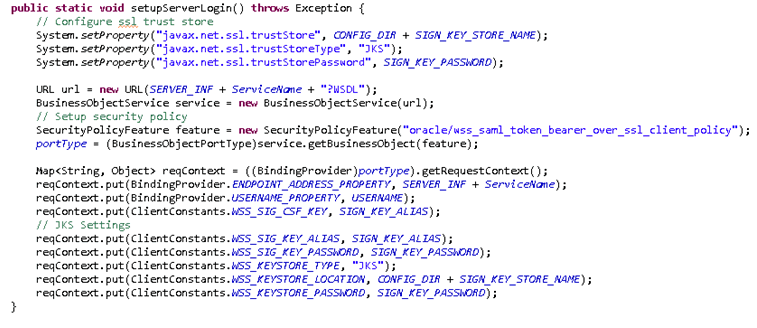
In this example, the settings were as follows:
SIGN_KEY_ALIAS = JseSignKey
SIGN_KEY_PASSWORD = password
SIGN_KEY_STORE_NAME = JseSignKeyStore.jks
Execute the sample. If everything is configured properly, the sample should work with the web service secured with SAML token bearer policy.
