| Agile Product Lifecycle Management Security Guide Release 9.3.4 E52156-05 |
|

 Previous |
 Next |
This chapter describes how to configure SSL in Agile PLM, in Agile PLM File Manager(s), and AutoVue.
You can set up SSL in your Agile PLM environment to work with the following:
SDK
Web Services
WebLogic Server
Tomcat Server
AutoVue Server
|
WARNING: Once you enable SSL for one of the components listed in the previous step, you must enable SSL for all components listed. |
Before you refer to the sections in this appendix to set up SSL for any specific environment, follow the steps described in the following section, Basic SSL Configuration.
|
Note: For instructions on how to mitigate vulnerabilities related to SSL 3.0, see Appendix B, "Checklist for Configuring Web Services Security". |
|
Tip: If you are planning on configuring SSL and Web Services Security, use the checklist in Appendix B, "Checklist for Configuring Web Services Security" to help keep track of your progress. |
In the following sections, to configure SSL in your Agile PLM environment, you will need to refer to this section to generate a separate SSL key for each of the following components:
WebLogic Server
Tomcat Server
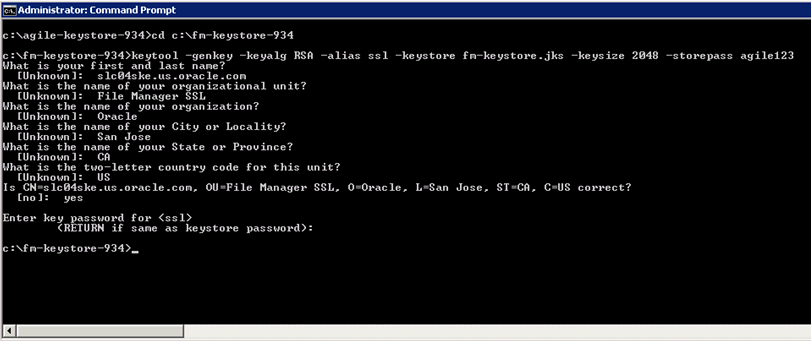
To generate the SSL keystore for File Manager, do the following:
Create a directory, C:\fm-keystore-934, then open the Command Prompt and navigate to this folder.
Execute the command:
keytool -genkey -keyalg RSA -alias ssl -keystore fm-keystore.jks -keysize 2048 -storepass agile123
Enter the following information for the key generation command: CN=<File Manager hostname>, OU=Agile PLM, O=Oracle, L=San Jose, ST=CA, C=US. For example, CN=slc04ske.us.oracle.com, OU=Agile PLM, O=Oracle, L=San Jose, S=CA, C=US
Press Enter. This creates the fm-keystore.jks in c:\fm-keystore-934 directory.
To generate the SSL keystore and truststore for WebLogic, do the following:
Create a directory, C:\agile-keystore-934, then open the Command Prompt and navigate to this folder.
To generate a key in file agile-keystore.jks, execute the following command:
keytool -genkey -keyalg RSA -alias ssl -keystore agile-keystore.jks -keysize 2048 -storepass agile123
Enter the following information for the key generation command:
CN=<Application Server hostname>, OU=Agile PLM, O=Oracle, L=San Jose, ST=CA, C=US.For example, CN=myapp.mydomain.com, OU=Agile PLM, O=Oracle, L=San Jose, S=CA, C=US
Press Enter. The file agile-keystore.jks should now exist in directory C:\agile-keystore-934.
To export the SSL certificate from agile-keystore.jks, execute the following command:
keytool -export -file agile-ssl-cert.cer -keystore agile-keystore.jks -storepass agile123 -alias ssl
To import the SSL certificate into file agile-trust-store.jks, execute the following command:
keytool -import -file agile-ssl-cert.cer -keystore agile-trust-store.jks -storepass agile123
Press Enter. The file agile-trust-store.jks should now exist in directory C:\agile-keystore-934.
You need two JKS keystores for the WebLogic SSL configuration. One is the identity keystore, for example, agile-keystore.jks, and the other is the trust keystore, for example, agile-trust-store.jks. Leverage the Java Keytool to export the public key from the identity keystore into the trust keystore. For FM/DFM SSL configuration, you only need a single keystore, for example,.fm-keystore.jks.
|
Note: If you use a CA certificate, you need to export the CSR and send it to CA, then you will receive the (A) root CA certificate, (B) sometimes intermediate certificates, and (C) CA signed certificate. You then need to import the signed certificates in the order of A-B-C back to the keystore that contains your private key. For WebLogic SSL configuration, you also need to import these certificates into the trust keystore, for example, agile-trust-store.jks. |
The following sections describe how to enable SSL for security in Agile PLM.
|
Note: When SSL is enabled, you must ensure that the agileDomain\bin\startAgile.cmd|.sh WebLogic server file is protected using File Access Permissions. Visibility/accessibility should be limited to only users with root or elevated privileges. This file contains sensitive password data. |
Complete the steps in "Creating SSL Keystores and Truststore" and then continue with the following procedures to configure SSL on the WebLogic Server that hosts the Agile PLM Application.
To configure the Keystore:
In a browser, launch http://<AgileApplicationServerName>:7001/console/login/LoginForm.jsp.
Log in to the Admin Console.
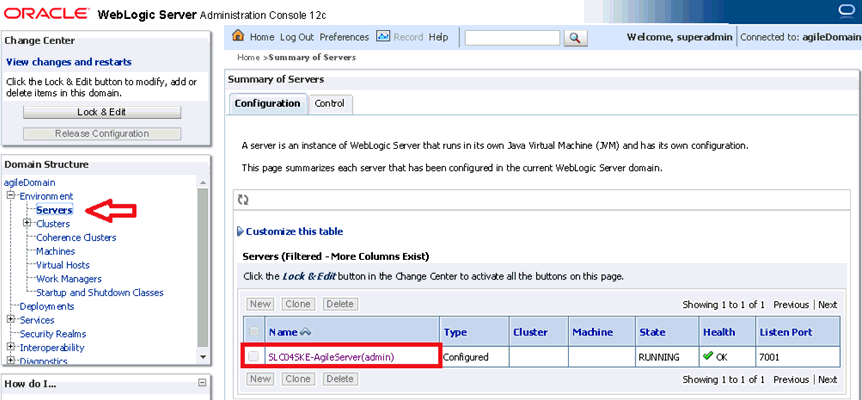
Expand Environment, click on Servers, and click on the server name on the right panel.
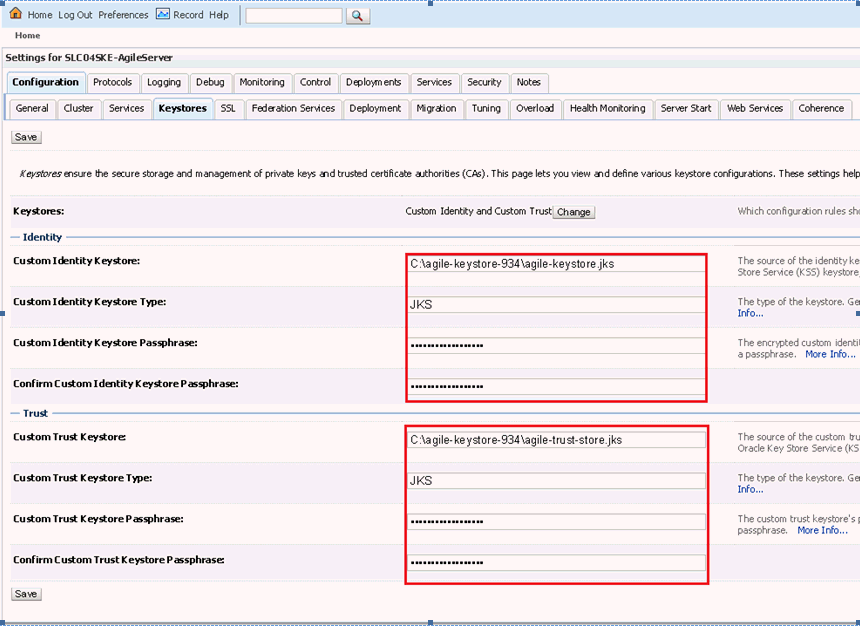
In AgileServer > Configuration > Keystores, use Custom Idenitity and Custom Trust for keystores.
In the Identity Section provide the following:
Location in Custom Identity Keystore field: C:\agile-keystore-934\agile-keystore.jks
Enter "JKS" as the Custom Identity Keystore Type.
Enter "agile123" as the Custom Identity Keystore Passphrase.
In the Trust Section provide the following:
Location in Custom Trust Keystore field: C:\agile-keystore-934\agile-trust-store.jks
Enter "JKS" as the Custom Keystore Type.
Enter "agile123" as the Custom Trust Keystore Passphrase
Click Save.
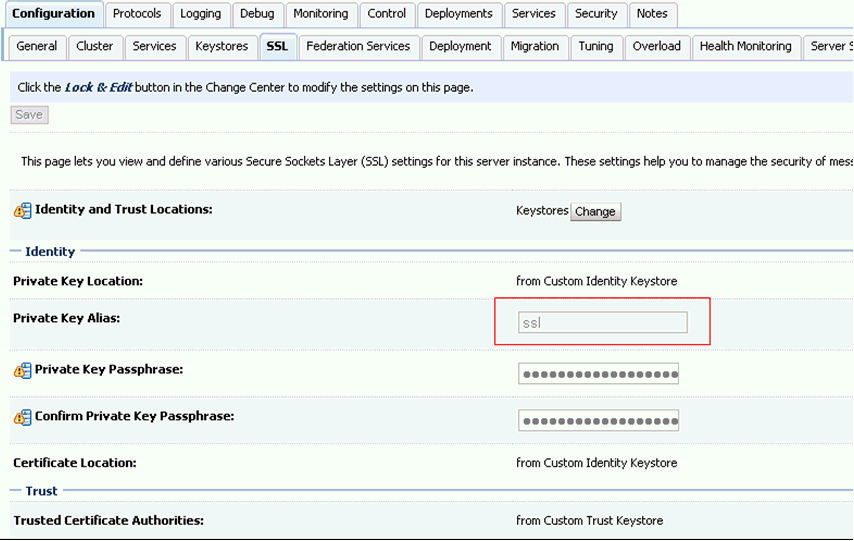
Go to AgileServer > Configuration > SSL as shown in the following figure. In this example, "ssl" is the key, and the password is "agile123".
Navigate to AgileServer > Configuration > General and select the SSL Listen Port Enabled checkbox. The default SSL port is 7002.
Click Save to activate the changes in WebLogic Console.
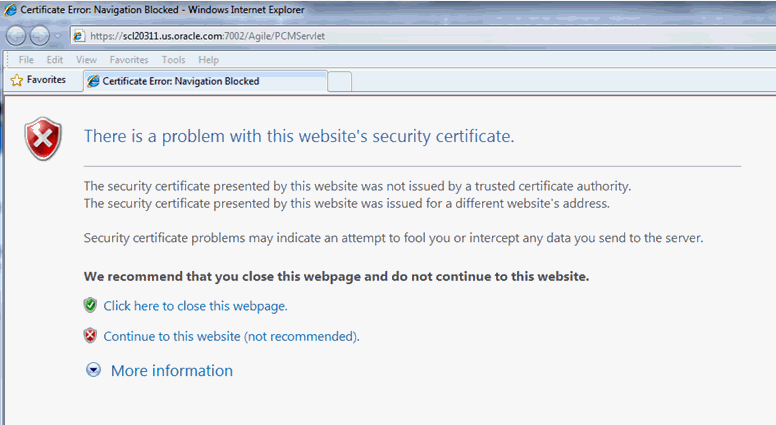
Connect to https://<hostname>:7002/Agile/PCMServlet and click Continue
Click the Certificate Errors button in URL bar. (The button is only available, if you used a self-signed certificate.)
View Certificates.
Log in to Agile.
The SSL setup is now complete and running on your WebLogic server.
You need to configure SSL for each WLS server in the cluster. You also need to configure SSL on Load Balancer (LB), and update the LB URI into Agile PLM Application SSL Configurations. Meanwhile, you have to import the LB SSL certificate into the trust keystore for every WLS server, and import all the WLS server's SSL certificates into LB trust keystore.
Modify the following configuration files for the SSL environment:
jndiurl.properties
Path: <Agile_Home>\agileDomain\application\application.ear\APP-INF\classes
server1=t3s://<app_server_alias>:7002
agile.properties
Path: <Agile_Home>\agileDomain\config
##### Common Web Security Settings ###########
# Specify whether to use the Secure flag to protect sensitive cookies
WebSecurity.ForceSecureCookies = true
ext.jnlp
Path: <AgileHome>\agileDomain\application\application.ear\JavaClient.war\wls
<jnlp spec="1.0+" codebase="https://<app_server_alias>:7002/JavaClient">
pcclient.jnlp
Path: Agile_Home>\agileDomain\application\application.ear\JavaClient.war
<jnlp spec="1.0+" codebase="https://<app_server_alias>:7002/JavaClient"><argument>serverURL=t3s://<server_url>:7002</argument><argument>jvuecodebase=https://<fm_server_alias>:8443/Filemgr/jVue</argument><argument>jvueserver=https://<app_server_alias>:7002/Agile/VueServlet</argument>
custom.jnlp
Path: <Agile_Home>\agileDomain\application\application.ear\JavaClient.war
<jnlp spec="1.0+" codebase="https://<app_server_alias>:7002/JavaClient">
startAgile.cmd |.sh
Path: <Agile_Home>\agileDomain\bin\startAgile.cmd |.sh
Append the following two parameters to JAVA_OPTIONS:
-Djavax.net.ssl.trustStore=C:\agile-keystore-934\agile-trust-store.jks -Djavax.net.ssl.trustStorePassword=Agile123
Once you have completed modifying the configuration files, restart the application server to make the settings effective.
Whenever user-sensitive cookies are generated in Agile PLM, the HTTPOnly flag is also included in the Set-Cookie HTTP Response Header. This helps mitigate the risk of a client-side script accessing the protected cookie, if the browser supports it.You can change the flag's value to false to retain legacy behavior. From a secure system perspective, however, Oracle recommends that customers keep the HTTPOnly flag set to true.
Additionally, Agile PLM does not mandate use of SSL, so setting the Secure flag prevents non-SSL enabled customers from using Agile. The solution is to introduce a setting for secure mode and if enabled, then set the Secure Flag on all the sensitive cookies. This ensures that sensitive cookies are available in another application only through HTTPS. These cookies are not available through HTTP, even if both the Agile PLM Application and the external application are deployed in the same domain. You can change the value to false to retain legacy behavior. From a secure system perspective, however, Oracle recommends that customers keep this flag set to true.
The following section describes how to configure SSL on a File Manager.
|
Note: When SSL is enabled, you must ensure that the FileManager\conf\server.xml Tomcat server file is protected using File Access Permissions. Visibility/accessibility should be limited to only users with root or elevated privileges. This file contains sensitive password data. |
Complete the steps in "Creating SSL Keystores and Truststore" and then continue with the following procedures.
Export the File Manager SSL certificate by executing following command:
keytool -export -file fm-ssl-cert.cer -keystore fm-keystore.jks -storepass agile123 -alias ssl
The fm-keystore-934 folder now contains the fm-ssl-cert.cer file and the fm-keystore.jks file.
Copy the C:\agile-keystore-934\agile-ssl-cert.cer to C:\fm-keystore-934 folder.
Import agile-ssl-cert.cer into File Manager key store.
keytool -import -file agile-ssl-cert.cer -alias a9-ssl-cert -keystore fm-keystore.jks -storepass agile123
Copy C:\fm-keystore-934\fm-ssl-cert.cer to C:\agile-keystore-934 folder.
In the command prompt, change directory to C:\agile-keystore-934.
Import FM SSL certificate into WLS SSL Trust Keystore using following command:
keytool -import -file fm-ssl-cert.cer -alias fm-ssl-cert -keystore agile-trust-store.jks -storepass agile123
Open <AgileHomePath>\FileManager\conf\server.xml and add a new connector. The file manager SSL port is 8443. Place the connector code after the code for the connector of port 8080, as shown in the following example:
<Connector port="8080" protocol="HTTP/1.1" connectionTimeout="20000"redirectPort="8443" /><Connector protocol="org.apache.coyote.http11.Http11Protocol" port="8443" maxThreads="200"scheme="https" secure="true" SSLEnabled="true" keystoreFile="C:\fm-keystore-934\fm-keystore.jks" keystorePass="agile123" keyAlias="ssl"clientAuth="false" sslProtocol="TLS"/>
To configure SSL on the File Manager application, change <AgileHomePath>\agileDomain\config\server.conf as following:
app.server.url=https://<app_server_alias>:7002/Agile/FSHelper/FSHelperWSService
file.server.url=https://<fm_server_alias>:8443/Filemgr/services/FileServer
dms.server.url=https://<app_server_alias>:7002/Agile/DmsService/DmsViewerAPIService
To configure the Java Client File Manager node, log in to Java Client, navigate to Admin >Server Settings > Locations, and do the following:
Change General Information > Web Server URL to https://<app_server_alias>:7002/Agile/PLMServlet
Change Java Client URL to https://<app_server_alias>:7002/JavaClient/start.jsp
Change File Manager > iFS to https://<fm_server_alias>:8443/Filemgr/AttachmentServlet
To configure SSL on DFM Tomcat, do the following:
Set up DFM.
Copy fm-keystore-934 folder from FileManager and place it on C:\ drive of DFM.
Change server.xml of Tomcat to enable SSL.
Remove SSL key from fm-keystore.jks of DFM as its for File Manager.
Generate New SSL key for DFM.
Export DFM SSL cert.
Import DFM SSL cert into A9 trust store (agile-trust-store.jks) and File Manager keystore (fm-keystore.jks).
Restart the file manager server and access https:// <fm_server_alias>:8443/Filemgr/Configuration to check the File Manager configuration.
SSL is now configured on File Manager. Restart the File Manager and it should work as expected.
|
Note: You may restrict IP access between the VueLink/VueServlet and the AutoVue Server. For details, refer to the Security Features section "Configuring and Using Restrict IP Access" in the Oracle AutoVue Integration Software Development Toolkit Security Guide. |
|
Note: The VueServlet is hosted by File Manager, therefore, configuring File Manager for SSL also configures the VueServlet URL for SSL. |
This section describes how to configure SSL between the AutoVue Server and the VueServlet. This guide does not provide steps for configuring SSL between the File Server and AutoVue Server, because this communication takes place behind the firewall and SSL is not commonly used.
Connect to the File Manager Server through HTTPS protocol, https://<fm_server_alias>:8443/Filemgr/Configuration.
Import the certificate into Internet Explorer.
Export the certificate from IE as base-64 encoded format and save the certificate onto the local disk, for example, C:\fmssl.cert
Import both the WebLogic server and Tomcat server certificates into the AutoVue Server's JRE using Java's keytool command:
<Java Install Directory>\bin>keytool -import -alias <appservername> -file C:\cert.cer -trustcacerts -v keystore <AutoVueHome>\jre\lib\security\cacerts
<Java Install Directory>\bin>keytool -import -alias <fmservername> -file C:\fmssl.cer -trustcacerts -v keystore <AutoVueHome>\jre\lib\security\cacerts
Restart the AutoVue server.