For detailed doclet information, click Inspect in the Performance Reporting ribbon.

The Inspect button launches the Properties dialog box.
From the Properties dialog box, you can also download previous versions of a doclet.
Note: | All steps in the following procedure are optional. |
 To view information about a doclet:
If the report package is not already open, in the Smart View Panel, navigate to the report package and open it.
Select a doclet in the list and click the Inspect button in the Performance Reporting ribbon.
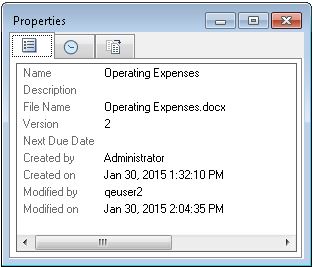
In the Properties dialog box, view the information the Properties tab (the default tab).
The Properties tab displays basic information about the doclet, such as the file name and type and the user who created it.
Click the History tab,
 , to view audit information about the doclet, such as the user who last updated it.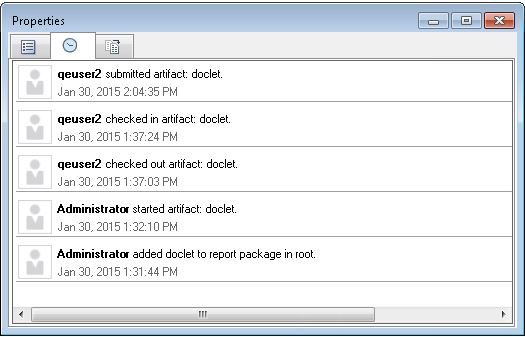
Click the Version tab,
 , to access previous versions of the doclet.
As new versions of the doclet are checked in, the previous versions are stored so that you can view them to see what changed.
To download a previous version of a doclet, click the link next to the doclet version that you want.
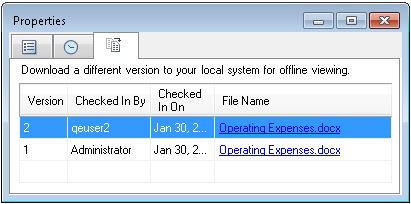
A message notifies you of the location of the downloaded doclet.