Supplier Direct Fulfillment Overview
Purpose: Use Order Broker’s Supplier Direct Fulfillment module to manage the fulfillment of drop ship purchase orders. The module provides a means to communicate with your vendors in the assignment and fulfillment of drop ship orders.
Compatibility: The Supplier Direct Fulfillment module is compatible with version 4.0+ of Order Management System, and version 13.0 of CWDirect. It is also compatible with version 17.0+ of CWDirect.
About the Routing Engine: See the Order Broker Routing Engine Overview.
In this topic:
• Supplier Direct Fulfillment Module Email Notifications Summary
• Change notification emails to retailer
• Shipment or invoice upload error notification email to retailer
• Out-of-balance invoice notification email to retailer
• New purchase order notification email to vendor
• Shipment or invoice upload error notification email to vendor
• Out-of-balance invoices approved or rejected notification email to vendor
• Change request (address change or cancellation) notification email to vendor
• Cost change notification email to vendor
Purpose: The basic process flow for purchase order fulfillment through the Supplier Direct Fulfillment module is described below:
Create purchase orders in the originating system and send to Routing Engine: When you create a purchase order to fulfill a drop ship item on a sales order, the system (such as Order Management System or CWDirect) sends the CreateDSOrder message to Order Broker. When this message creates the purchase order in Order Broker, Order Broker can notify the vendor by email, or the vendor receives notification of new purchase orders after logging into the Vendor Portal.
Information included in the purchase order: The purchase order information sent to the vendor includes the retail brand, sold-to and ship-to customer names and addresses, order totals, carrier, and information on the drop ship items to fulfill, including special handling instructions and order and detail messages.
When Order Broker receives the CreateDSOrder message, in addition to creating the purchase order it also creates:
• the vendor, if it doesn’t already exist; however, you need to complete entry of additional vendor information, including vendor preferences and creating any vendor users to have access to the Vendor Portal.
• the carrier, if it doesn’t already exist; however, you might want to rename the carrier and modify the information required at shipment confirmation and its assignment to vendors.
• the product(s), if the requesting system is the default for the organization.
• the vendor item(s).
See Setting Up Data for the Supplier Direct Fulfillment Module for more information on configuring vendors, vendor users, and carriers.
Vendor generates pack slips: Using the Vendor Portal, the vendor can generate a PDF version of a pack slip, a CSV file containing pack slip data, or both. The vendor can also generate a batch pull sheet document to use when picking stock for the purchase order. You can include your brand logo on a graphical version of the pack slip, or the vendor can generate a nongraphical pack slip if using pre-printed forms. You can also include a pack slip message.
See Vendor Integration for an overview on how a vendor can receive and confirm shipment of invoices through XML and JSON messages rather than through Vendor Portal screens.
Vendor confirms shipment: The vendor can confirm shipment using a screen at the Vendor Portal, or can upload a CSV file containing shipment confirmation data. Confirmation through an integrated shipping system, such as ADSI, is available; in this situation, you must specify the shipping weight and box dimensions. You can specify the information required for each carrier, such as tracking number, rate, and weight; also, you can select the carriers to assign to each vendor.
Sending changes and updates to the vendor: Optionally, you can send address updates or cancellation requests to the vendor through the Supplier Direct Fulfillment module.
• Address updates: When you change the shipping address on an order, Order Management System or CWDirect sends a SetDSAddressChange request message. If:
• the vendor has not yet generated a pack slip for the purchase order or performed any other updates, the address update applies automatically.
• the pack slip is in process but not yet shipped, the vendor needs to approve or reject the address change.
• the pack slip is shipped or canceled, the address change is rejected automatically.
The SetDSAddressChange message specifies whether to change both the sold-to and ship-to address, or just the ship-to address.
• Cancellation requests: When you select to cancel a drop-shipped item, a system such as Order Management System or CWDirect sends a setDSCancel request message. If:
• the vendor has not yet generated a pack slip for the item or performed any other updates, the line is canceled automatically.
• the item is in process but not yet shipped, the vendor needs to approve or reject the cancellation request.
• the item is already shipped or canceled, the cancellation is rejected automatically.
• Cost updates: If you change the cost of a line on a purchase order, a system such as Order Management System or CWDirect sends a setDSCostChange request message. If:
• the vendor has not yet generated a pack slip for the item or performed any other updates, the line is canceled automatically.
• the item is already shipped or canceled, the cancellation is rejected automatically.
Unlike address changes and cancellation requests, cost changes do not require the vendor’s approval or rejection, even if the line is in process.
Vendor updates to purchase orders: Using the Vendor Portal, the vendor can:
• put a purchase order line on hold or release it from hold
• change the due date for a purchase order line
• enter a comment about the purchase order line
• void and reprint a pack slip, including reducing the quantity of a purchase order line
Checking purchase order status: Originating systems such as Order Management System or CWDirect use the getDSChanges message to periodically request purchase order updates. Order Broker returns details on purchase order activity by vendors since the last request message was processed. Optionally, the originating system can indicate the maximum number of transactions to include in the response.
If you provide the vendor with authority to invoicing, the vendor can generate invoices either when confirming shipment at the Vendor Portal screen, or as a separate step for one or more shipments.
Invoice process flow:
• Invoice creation: The vendor can create invoices using Vendor Portal screens or by uploading a CSV file. Each invoice can include shipments for one or more purchase orders. The default information on the invoice includes the original PO unit cost and does not include any payment terms or freight, handling, or other charges at the header or detail level; however, the vendor can override these defaults.
• Held invoice? If the vendor does not override any of the default information, the invoice is created in Approved status and is eligible for posting to the originating system immediately. If the vendor overrides a PO unit cost beyond a threshold you specify, the invoice line is and the invoice is created in Held status. You need to review each Held invoice and either accept or reject it. Accepted invoices post to the originating system, while rejected invoices return to the vendor. The vendor can then edit the invoice or delete it.
Posting invoices: Originating systems such as Order Management System or CWDirect use the getDSInvoices message to periodically request any new invoices posted by vendors. Order Broker returns details on invoices posted since the last request message was processed. Optionally, the originating system can indicate the maximum number of invoices to include in the response.
You can have Order Broker generate email notifications to:
• your staff, when the vendor changes a purchase order or line or submits an invoice, or when a shipment or upload invoice fails
• vendors, when you generate new purchase orders, send an address change or cancellation request, respond to an invoice, or when a shipment or upload invoice fails
See Supplier Direct Fulfillment Module Email Notifications Summary for more information.
The Supplier Direct Fulfillment module includes the following reports:
See Reporting Options for an overview on how to generate and schedule reports.
Purchase order inquiry: You can use the Purchase Order Inquiry screen to select purchase orders for review.
Setting up data for drop ship: See Setting Up Data for the Supplier Direct Fulfillment Module for information on the setup required in Order Broker before you can start using the Supplier Direct Fulfillment module, including brands, carriers, vendors, vendor users, and the roles that control their authority.
Purpose: The Vendor Portal is a site where your drop ship vendors can log in and, depending on the individual’s authority:
• review current information on the purchase orders assigned to them for fulfillment and their current status
• generate PDF pack slips for purchase orders or download CSV files, using a variety of selection options
• confirm shipment of purchase orders
• select individual purchase orders for inquiry
• hold or release purchase order lines
• change the due dates for purchase order lines
• accept or reject address change and cancel requests for purchase orders that are currently in process
• review and change configuration settings, such as pack slip output format and email addresses for purchase order notifications
Each vendor user sees only the purchase orders assigned to his or her own vendor for fulfillment.
The Vendor Portal resides outside your firewall so that it is accessible to vendors.
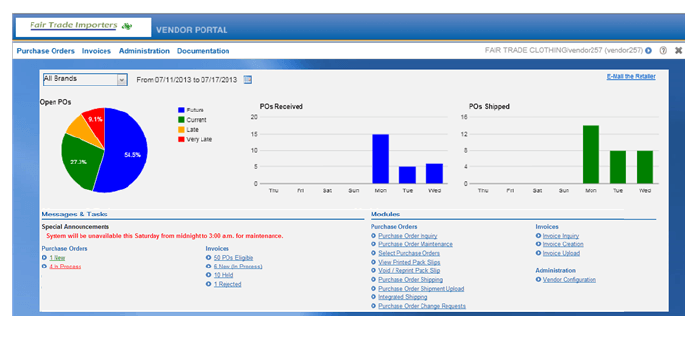
Landing page: When the vendor user logs into the Vendor Portal, the landing page includes:
• a pie chart summarizing the percentage of purchase orders with current, future, late, or very late due dates
• a bar chart summarizing the number of purchase orders received by the vendor for each day in the past week
• a bar chart summarizing the number of purchase orders shipped by the vendor for each day in the past week
Note: The vendor can restrict the chart data to a specific brand. Also, the vendor can change the range of dates included in the bar charts.
• an email link to contact you, if you have specified one
• a current special announcement from you, if you have specified one
Depending on the vendor user’s authority:
• current totals of purchase orders by status, with links to related screens where the vendor can work with the purchase orders
• current totals of invoices by status and purchase orders eligible for invoicing, with links to related screens where the vendor can work with invoices
• links to all modules which the vendor user has authority to use
Links to unauthorized modules are grayed out.
For more information: See Information on the Vendor Portal landing page for descriptions of the contents of the landing page.
Overview: A vendor can receive and confirm shipment of drop ship purchase orders by:
• using the screens in the Vendor Portal for all activities, or
• using the vendor integration between Order Broker and the vendor’s system.
A vendor can also use a combination of these options; for example, the vendor can receive purchase orders through the vendor integration, and also use the Vendor Portal screens to confirm shipments and update purchase orders.
Included in the vendor integration: The vendor integration includes:
• notifying the vendor’s system that new purchase orders are assigned by sending a “nudge” message
• sending batches of new purchase orders to the vendor’s system when the vendor’s system requests them, typically based on receiving the “nudge” message
• enabling the vendor’s system to acknowledge receipt of a batch of purchase orders
• confirming shipments of purchase orders, including the carrier (ship via) used, tracking number, weight, shipment date, and freight charges
Not included in the vendor integration: The vendor integration does not include:
• modifying purchase orders, such as changing expected ship dates or putting a line on hold
• accepting or rejecting address changes or cancellation requests from the retailer
• receiving cost changes from the retailer
• generating invoices and submitting them to the retailer
Each of these options is available in the Vendor Portal if the vendor user has authority.
Mapping to the vendor’s system: The vendor can use the messages described in this guide to map to the vendor’s system, or contact a Oracle representative for information on creating unique maps.
JSON messages: The vendor integration uses the JSON (JavaScript Object Notation) format for its messages. See the messages in this guide for examples.
For more information: See the Vendor Integration Guide for details.
Supplier Direct Fulfillment Module Email Notifications Summary
A summary of the email notifications to the retailer and the vendor are described in the table below.
Notification Type |
Generated When: |
Setup |
|---|---|---|
Retailer Notifications “From” email address: From the From Email address specified at the Event Logging screen. |
||
The vendor maintains a purchase order or line, including: • holding a purchase order line • releasing a purchase order line • changing the due date on a purchase order line • entering a reason description for a purchase order line without changing its hold status or due date • denying an address change or cancellation request Note: This email is generated when an address change does not apply to all items on the purchase order, even if one or more items are updated with the address change. |
PO Status Notification setting at the Email tab of the Drop Ship Preferences screen |
|
Shipment or invoice upload error notification email to retailer |
The vendor attempts to upload a CSV file of shipment confirmations or invoices, and there are any errors. Note: The upload files are saved in /usr/share/LocateWeb/server/webapps/ROOT/LocateUploadData/Archive, where /usr/share/ is where you have installed the Vendor Portal server. |
Upload Error Notification setting at the Email tab of the Drop Ship Preferences screen |
The vendor uploads or creates an invoice that includes at least one line that is . |
Invoice Balance Notification setting at the Email tab of the Drop Ship Preferences screen |
|
Vendor Notifications Vendor Portal link included in emails: Each email to the vendor includes a link to the Vendor Portal. Use the VPA Url setting at the Drop Ship Preferences screen to specify the URL to include. “From” email address: From the From Email address specified at the Event Logging screen. |
||
One or more new purchase orders are received by Order Broker and ready for fulfillment by the vendor. |
PO Notification setting at the Email folder of the Preferences tab of the New Vendor or Edit Vendor screen |
|
Shipment or invoice upload error notification email to vendor |
The vendor attempts to upload a CSV file of shipment confirmations or invoices, and there are any errors. |
Upload Error Notification setting at the Email folder of the Preferences tab of the New Vendor or Edit Vendor screen |
Out-of-balance invoices approved or rejected notification email to vendor |
The retailer approves or rejects an invoice submitted by the vendor. |
Invoice Balance Notification setting at the Email folder of the Preferences tab of the New Vendor or Edit Vendor screen |
Change request (address change or cancellation) notification email to vendor |
The shipping address changes for a purchase order, or the retailer requests a purchase order line cancellation. |
PO Notification setting at the Email folder of the Preferences tab of the New Vendor or Edit Vendor screen |
The retailer changes the cost of a purchase order line. |
PO Notification setting at the Email folder of the Preferences tab of the New Vendor or Edit Vendor screen |
|
Change notification emails to retailer
Drop ship orders changed by the vendor
• Subject line: Drop Ship Orders Changed by [Vendor Name]
• Sample contents:
Vendor [Vendor Name] has changed the following drop ship orders.
Order Number |
PO Number |
Line |
Item |
Description |
Status |
Orig Due Date |
New Due Date |
Reason |
12223 |
456 |
1 |
BUGHAT |
CUTE BABY BUG HAT |
Held |
08/03/2013 |
08/31/2013 |
processing delay |
12223 |
456 |
2 |
SCARF RED |
FAIR TRADE COTTON SCARF |
In Process |
08/03/2013 |
08/04/2013 |
processing delay |
Cancellations denied by the vendor
• Subject line: Denied Cancellations by [Vendor Name]
• Sample contents:
The following order cancellation requests were denied by [Vendor Name]
Order Number |
PO Number |
Line |
Item |
Description |
12220 |
453 |
1 |
BUGHAT |
CUTE BABY BUG HAT |
Address changes declined by the vendor
• Subject line: Address Changes Declined By [Vendor Name]
• Sample contents:
The following order address change(s) were declined by [Vendor Name]
Order Number |
PO Number |
12218 |
450 |
Note: This email is generated when an address change does not apply to all items on the purchase order, even if one or more items are updated with the address change.
Shipment or invoice upload error notification email to retailer
Shipment upload error
• Subject line: Shipment Upload in Error from [Vendor Name]
• Sample contents:
Shipment upload from [Vendor Name] could not process. Click Download to view.
Note: The Download link displays the error and the shipment upload record in error.
Invoice upload error
• Subject line: Invoice Upload in Error from [Vendor Name]
• Sample contents:
Invoice upload from [Vendor Name] could not process. Click Download to view.
Note: The Download link displays the error and the invoice upload record in error.
Out-of-balance invoice notification email to retailer
• Subject line: Out of Balance Invoice from [Vendor Name]
• Sample contents:
[Vendor Name] has confirmed an out of balance invoice. Access the Invoice Inquiry menu option to approve or reject held invoices.
New purchase order notification email to vendor
• Subject line: New PO Notification from [Retailer Name]
• Sample contents:
EZK Organization (http://servername.example.com/LocateVPA/) has purchase orders in New Order status for you to fulfill.
Note: Use the VPA Url setting at the Drop Ship Preferences screen to specify the link to the Vendor Portal to include in email notifications to the vendor.
Shipment or invoice upload error notification email to vendor
Shipment upload error
• Subject line: Shipment Upload Error from [Retailer Name]
• Sample contents:
Shipment upload could not process. Click Download to view.
Note: The Download link displays the error and the shipment upload record in error.
Invoice error
• Subject line: Invoice Upload Error
• Sample contents:
Invoice upload could not process. Click Download to view.
Note: The Download link displays the error and the shipment upload record in error.
Out-of-balance invoices approved or rejected notification email to vendor
• Subject line: Out of Balance Invoices Approved or Rejected by [Retailer Name]
• Sample contents:
[Retailer Name] (http://servername.example.com/LocateVPA/) has approved or rejected the following out of balance invoices.
I
Invoice Number |
Invoice Status |
|---|---|
LOC-1108E |
Posted |
Note: Use the VPA Url setting at the Drop Ship Preferences screen to specify the link to the Vendor Portal to include in email notifications to the vendor.
Change request (address change or cancellation) notification email to vendor
• Subject line: Change Requests from [Retailer Name]
• Sample contents:
[Retailer Name] (http://servername.example.com/LocateVPA/) has requested changes to order(s). Access the Purchase Order Change Request menu option to accept or decline changes.
Note: Use the VPA Url setting at the Drop Ship Preferences screen to specify the link to the Vendor Portal to include in email notifications to the vendor.
Cost change notification email to vendor
• Subject line: Cost Changes from [Retailer Name]
• Sample contents:
[Retailer Name] (http://servername.example.com/LocateVPA/) has changed the cost to the following orders.
Order Number |
PO Number |
Line |
Item |
Description |
Cost Before |
Cost After |
|---|---|---|---|---|---|---|
12434-001 |
664 |
1 |
V257BUGHAT |
CUTE BUG HAT BABY |
$1.00 |
$1.23 |
________________________________
Copyright © 2018, Oracle and/or its affiliates. All rights reserved.
Legal
Notices