| Oracle® Retail Insights Cloud Service Suite Administration Guide Release 16.0.203 E89921-01 |
|

 Previous |
 Next |
| Oracle® Retail Insights Cloud Service Suite Administration Guide Release 16.0.203 E89921-01 |
|
Previous |
Next |
This chapter describes the processes for maintaining users and roles as well as batch processes. For information regarding standard end user activities like creating and viewing reports, please see the Oracle Retail Insights User Guide.
It is considered to be a best practice to have all Oracle Retail Insights Cloud Service Suite supports requests submitted through a single point of contact for that customer environment; the client designated administrator is usually designated to perform this role.
The link to use when submitting Service Requests (SR) is:
Before users can access the Oracle Retail Insights Cloud Service Suite applications it is necessary to provision each user access to the system, and assign roles to each user to control what functionality will be available to them. The access provisioning is done using Oracle Identity Management (OIM). The following steps explain how to define users, assign roles and revoke access for users when needed. The OIM Application URL and the login with the required administrator access would be needed to execute the below steps:
Log into the OIM application.
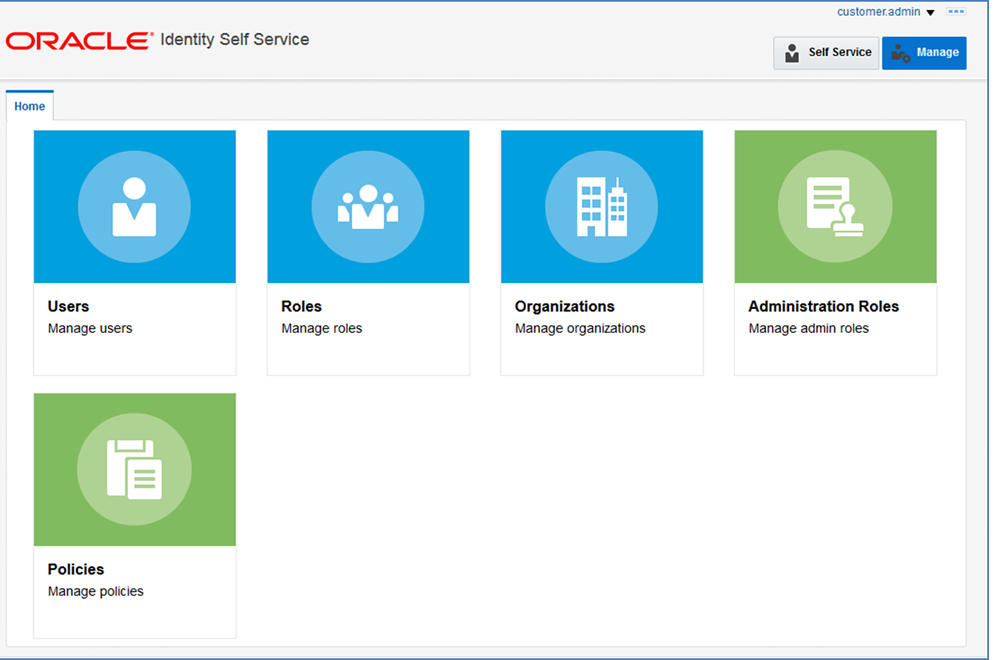
Under Administration, click Users.
Under Actions, click Create.
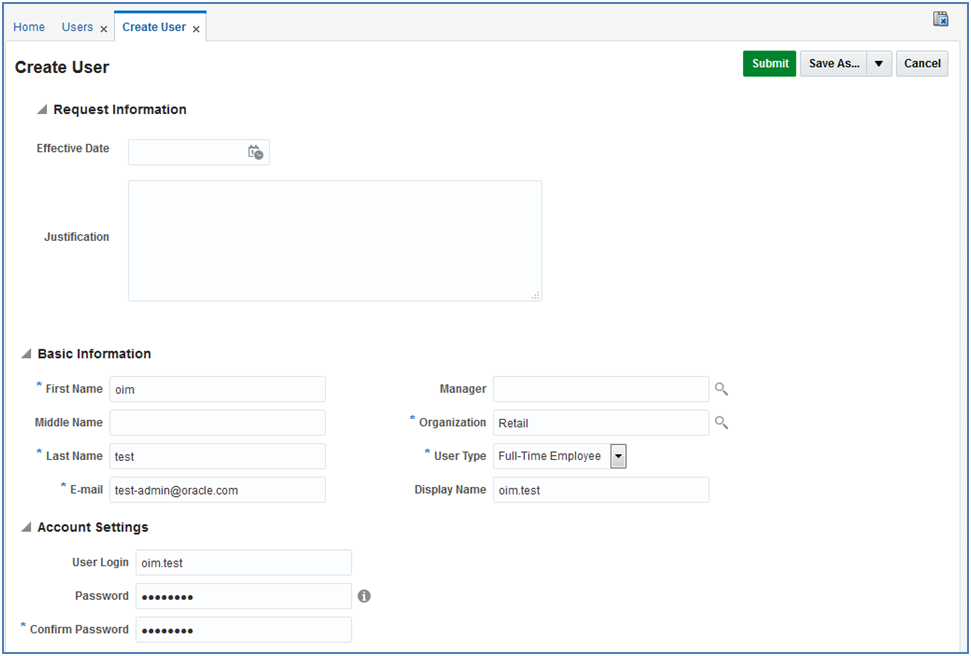
The Create User screen appears.
Under Basic Information, enter the following:
First Name
Last Name
For Organization, enter Retail
For User Type, enter Full time employee
E-mail: Email address of the employee
Under Account Settings, enter:
User Login: <firstname>.<lastname>
Password:
Confirm Password
Click Submit.
To assign members to a role, complete the following:
Log into the OIM application.
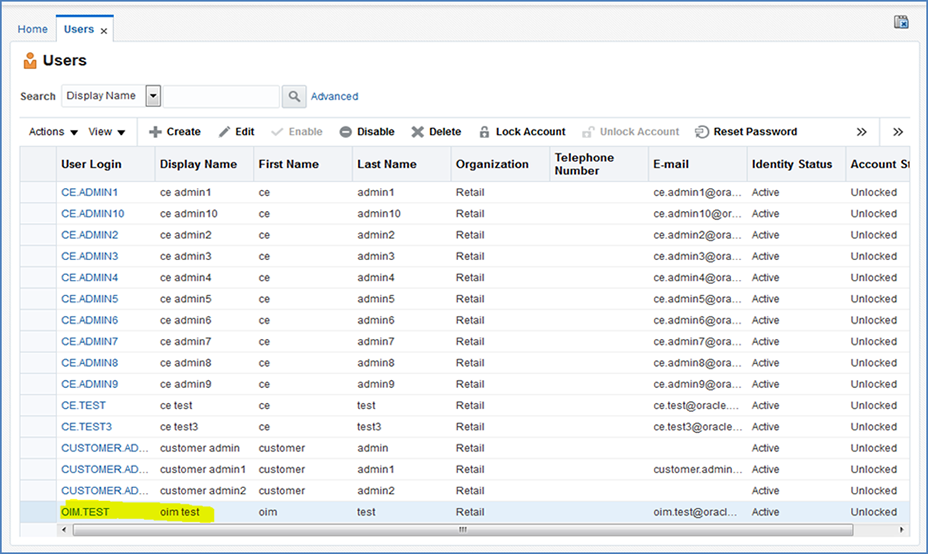
Click Users.
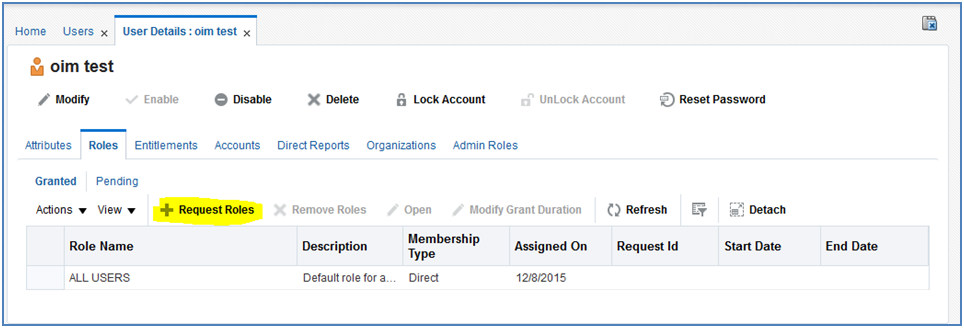
Click the oim.test user.
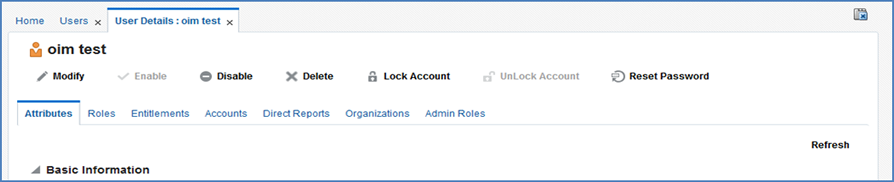
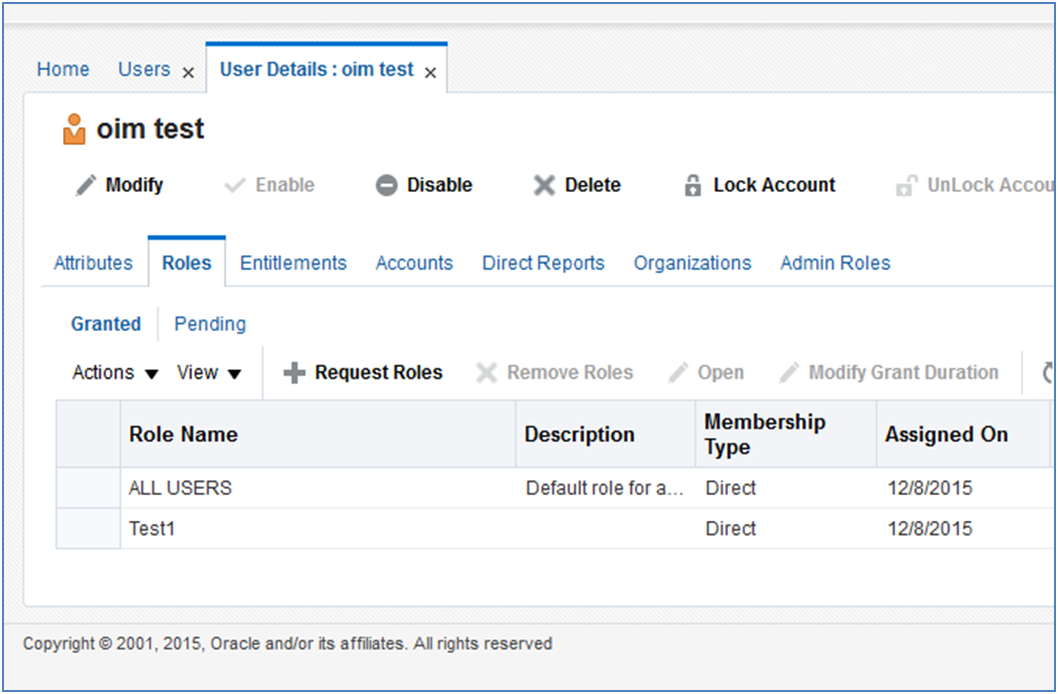
Click the Roles tab.
Click the Request Roles button.
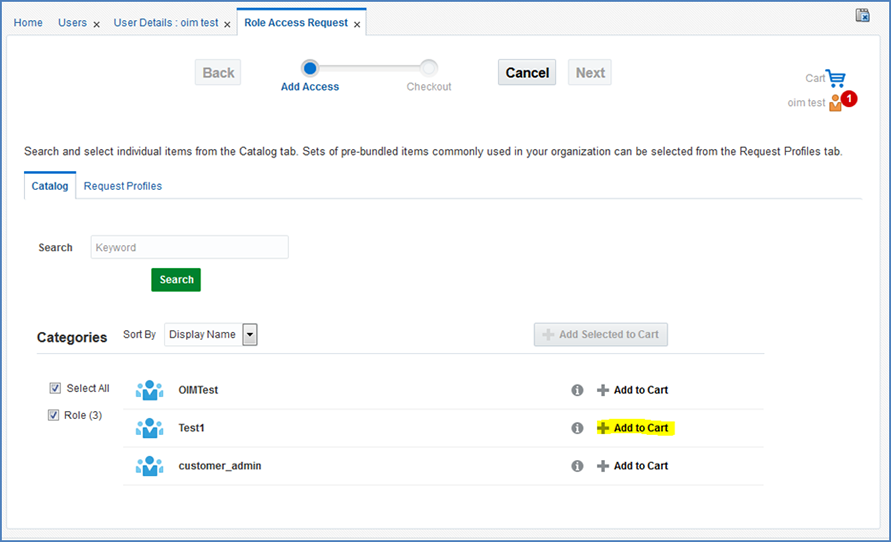
Click the Add to Cart button next to the role you want to assign.
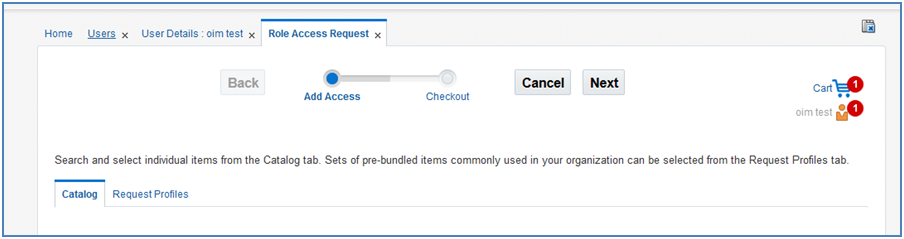
Click Next.
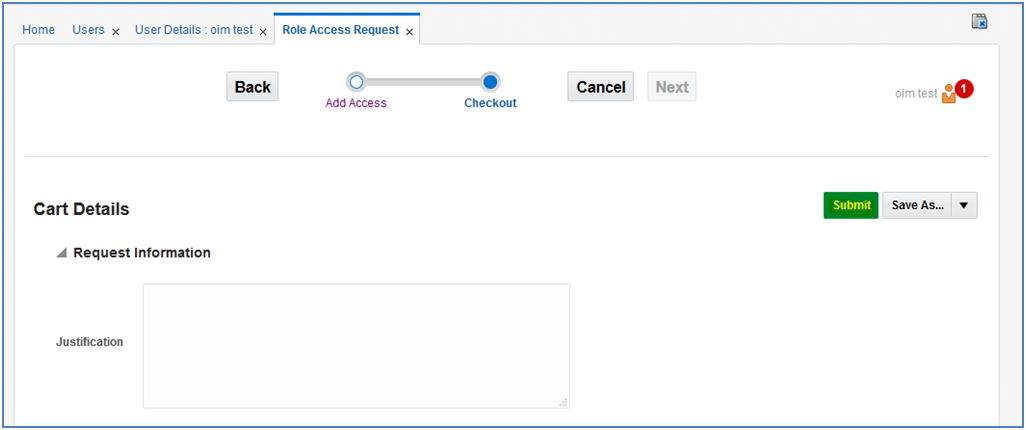
Click Submit.
The role is now assigned to the User.
Retail Insights Cloud Services is built with role-based access. Permissions are associated with roles.
The following roles are available:
Table 1-1 Retail Insights Cloud Services Default Enterprise Roles
| Application Module | Default Enterprise Roles | Corresponding Application Roles |
|---|---|---|
|
ORMI/ORCI |
RetailAnalysts |
RetailAnalyst |
|
ORMI/ORCI |
RetailBuyers |
RetailBuyer |
|
ORMI/ORCI |
RetailBuyerAnalysts |
RetailBuyerAnalyst |
|
ORMI/ORCI |
RetailInventoryAnalysts |
RetailInventoryAnalyst |
|
ORMI/ORCI |
RetailInventoryManagers |
RetailInventoryManager |
|
ORMI/ORCI |
RetailMerchandiseExecutives |
RetailMerchandiseExecutive |
|
ORMI/ORCI |
RetailMerchandiseFinancialPlanners |
RetailMerchandiseFinancialPlanner |
|
ORMI/ORCI |
RetailPlanningExecutives |
RetailPlanningExecutive |
|
ORMI/ORCI |
RetailPricingAnalysts |
RetailPricingAnalyst |
|
ORMI/ORCI |
RetailPromotionalPlanners |
RetailPromotionalPlanner |
|
ORMI/ORCI |
RetailAllocators |
RetailAllocator |
|
ORMI/ORCI |
RIApplicationAdministrators |
RIApplicationAdministrator |
Assign the above roles to the user following the steps mentioned in the previous section as per your requirement.
To revoke the membership of a member in a role:
Log into the OIM application.
Click Users.
Click the oim.test user.
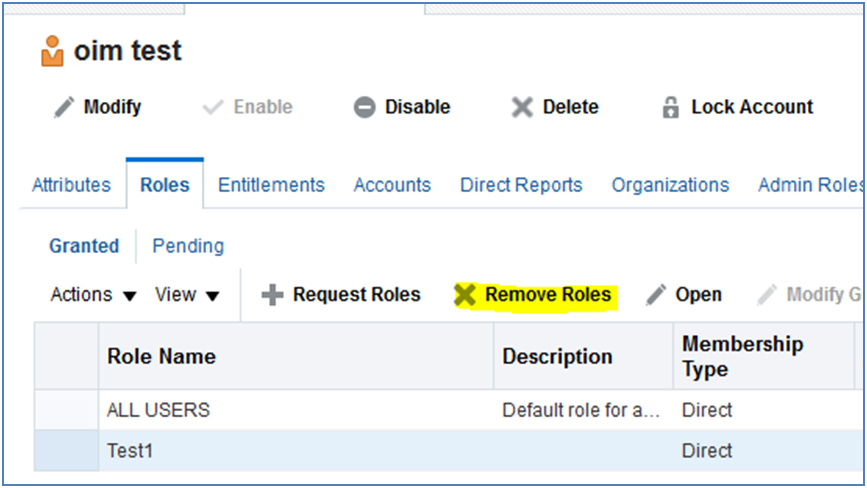
Click the Roles tab.
Select the Role you want to revoke and click the Remove Role button.
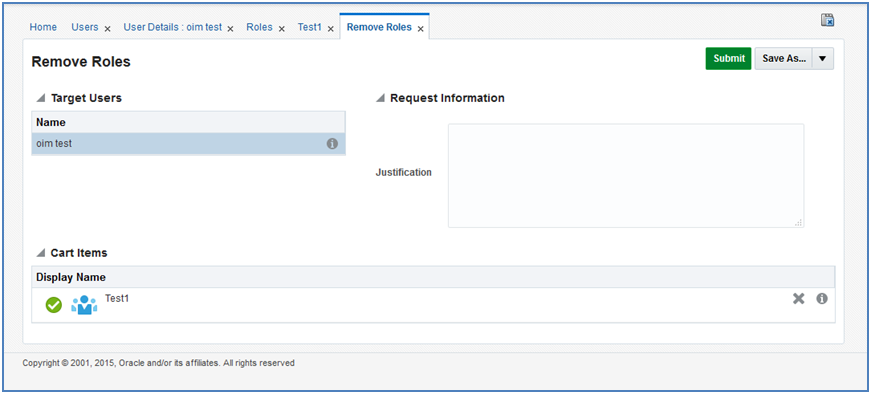
In the Remove Roles screen, click Submit.
To delete or disable a user
Log into the OIM application.
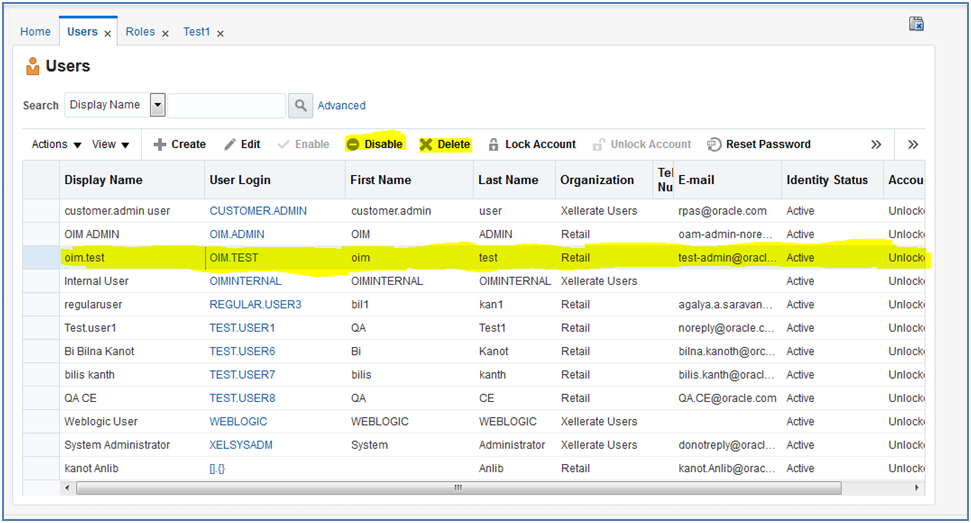
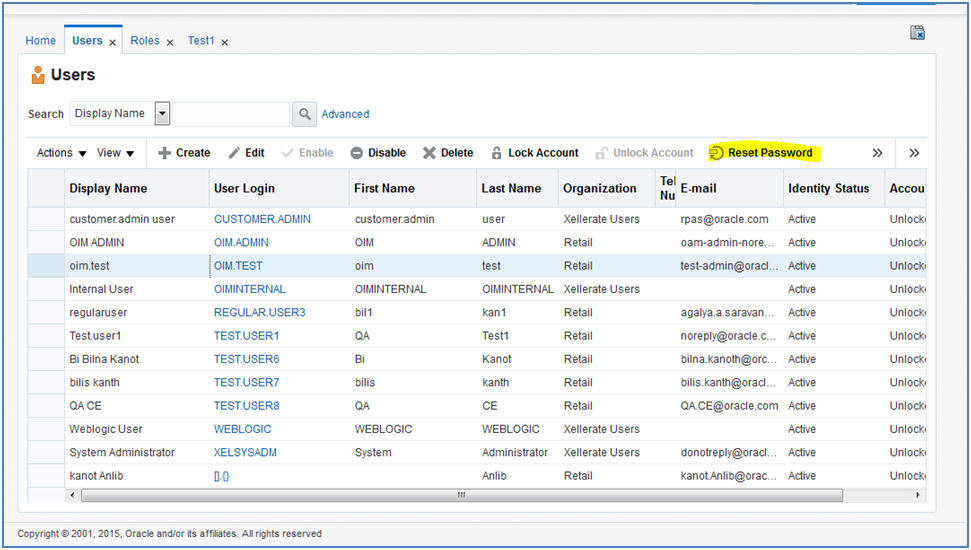
Under Administration, click Users.
Select the user and click Disable or Delete as necessary.
You can also Lock or Unlock a particular user from the same screen if needed.
To reset the password of a user:
Log into the OIM application.
Under Administration, click Users.
Click the Search tab and then select on the User you want to reset the password.
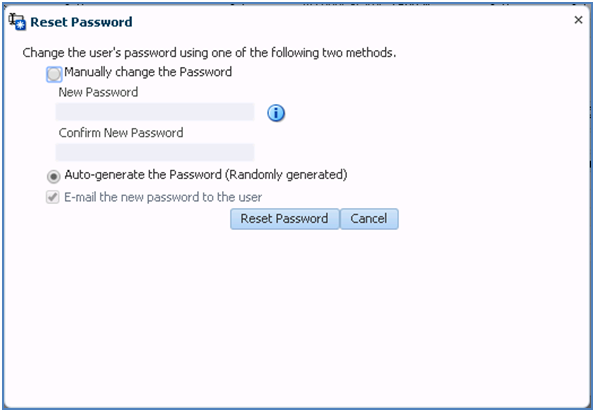
Click on Reset Password.
In the Reset Password screen, make sure Auto-generate the Password is selected and Click on Reset Password. (The system will auto generate the password and will email it to the user.)
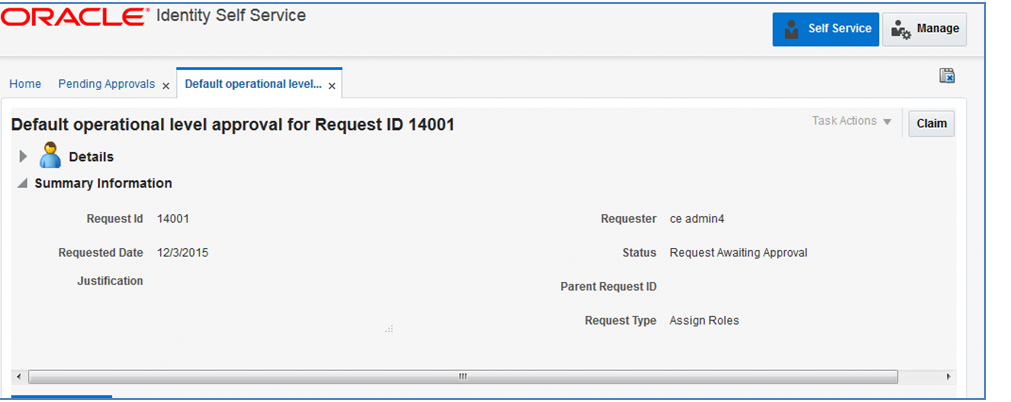
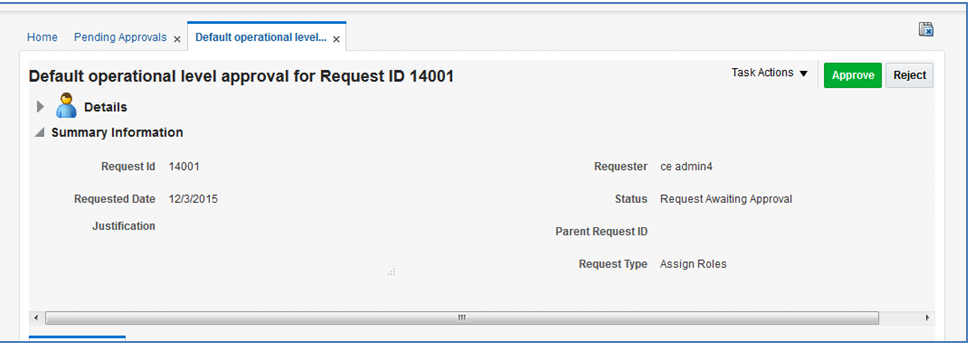
The users can also request for the Roles or revoke those that are available for him to access the RIS Service. Below are the steps to approve the request from the User.
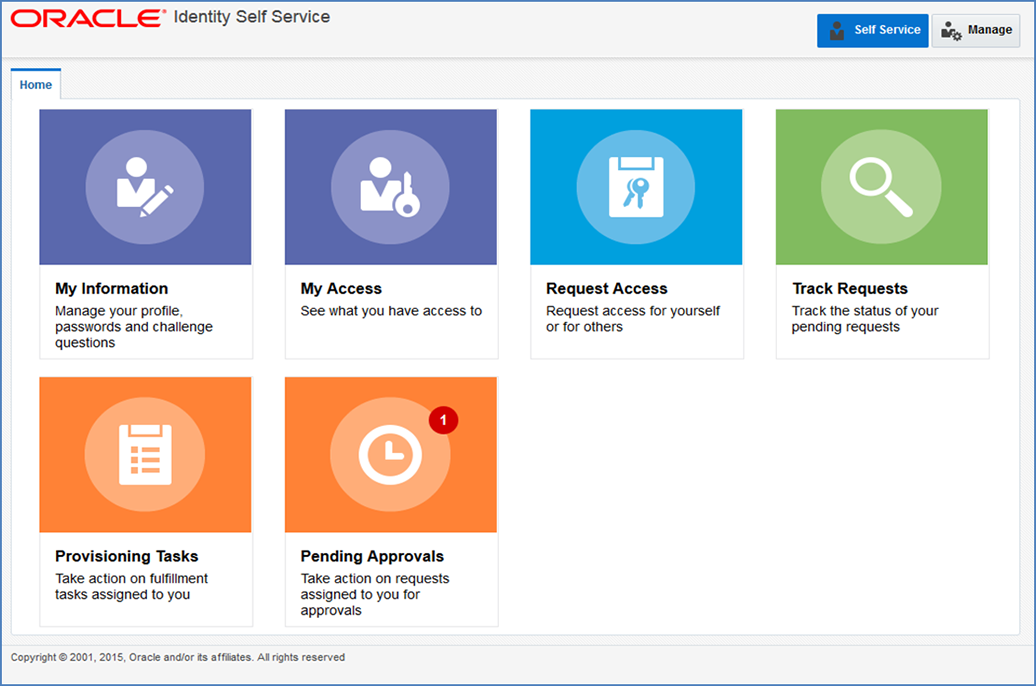
Login into OIM Application.
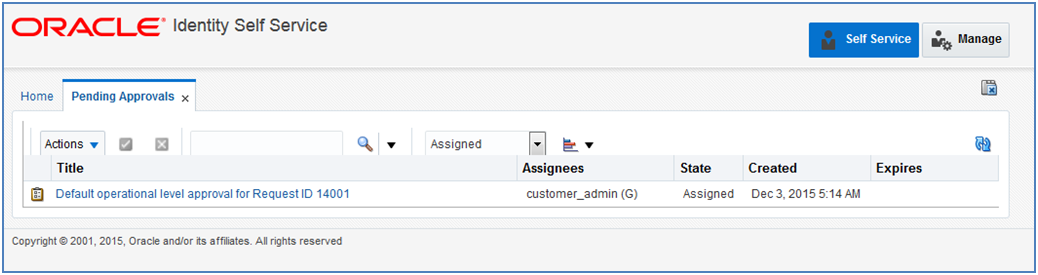
Click Pending Approvals.
Click on the Action that is assigned to you.
Click the Claim button.
Click Approve or Reject.
Once done the request is completed.
The users can also request for the multiple Roles or revoke them if they are available for him to access the RIS Service. Below are the steps to approve the request from the User.
Login into OIM Application.
Click Pending Approvals.
Click on the Action that is assigned to you.
Click the Claim button.
Click Approve or Reject.
Once done, if approved, the request is split into multiple requests, one for each role for each user. Approve all of them by following steps 3 to 5.
Once all the requests are approved, all the roles will be assigned to users.
|
Note: The customer administrator can request multiple roles for multiple users. Once this request is made, the customer administrator is required to approve the request using the Approve Requests from User for Multiple Roles process. |
If you have batch of users that have to be created, the Oracle team can bulk load the users into the OIM Application. When users are bulk loaded their initial password will be set to the current password of a template user. The new users will be required to change their password on first login.
To request the creation of accounts by bulk loading, follow the below steps.
Create CSV file listing all users to create (see example below).
Create or identify a user to whose password will be used as the initial password for all created users.
Open an SR with Oracle support and provide the CSV file and user from steps 1 and 2.
##################
 filename.csv
###################
##########################################
USR_LOGIN,USR_FIRST_NAME,USR_LAST_NAME,USR_EMAIL,ORG_NAME
ce.admin1,ce,admin1,ce.admin1@oracle.com,Retail
ce.admin2,ce,admin2,ce.admin2@oracle.com,Retail
ce.admin3,ce,admin3,ce.admin3@oracle.com,Retail
ce.admin4,ce,admin4,ce.admin4@oracle.com,Retail
ce.admin5,ce,admin5,ce.admin5@oracle.com,Retail
ce.admin6,ce,admin6,ce.admin6@oracle.com,Retail
ce.admin7,ce,admin7,ce.admin7@oracle.com,Retail
ce.admin8,ce,admin8,ce.admin8@oracle.com,Retail
ce.admin9,ce,admin9,ce.admin9@oracle.com,Retail
ce.admin10,ce,admin10,ce.admin10@oracle.com,Retail
##########################################
If you have quite a few users that have roles to be assigned to, the Oracle team can bulk update the role membership into the OIM Application.
To update the membership of the by bulk update, follow the below steps.
Create CSV file with the user role mapping. Please note that the user name must be in upper case (see example below).
Open an SR with Oracle support and provide the CSV file and user from steps 1.
##################
 role.csv
###################
##########################################
UGP_NAME,USR_LOGIN
Role1,CE.ADMIN1
Role2,CE.ADMIN1
Role1,CE.ADMIN2
Role3,CE.ADMIN3
Role4,CE.ADMIN4
Role5,CE.ADMIN5
Role6,CE.ADMIN6
Role7,CE.ADMIN7
Role8,CE.ADMIN8
Role2,CE.ADMIN8
Role2,CE.ADMIN9
##########################################
|
Note: If you want more than one role attached to a particular user, add one more row with the role that you want the user to have and the user name. Refer to the CE.ADMIN1 in above table for example. |
The following is the file upload process. For details regarding file contents and formatting please refer to the Oracle Retail Insights Cloud Services Integration Guide. The Private/Public Keys must be generated and the public Key must be associated with your SFTP Account for the file uploads. The Adding Authorized Keys section describes the step-by-step method to generate the Keys (2048 bit RSA Keys).
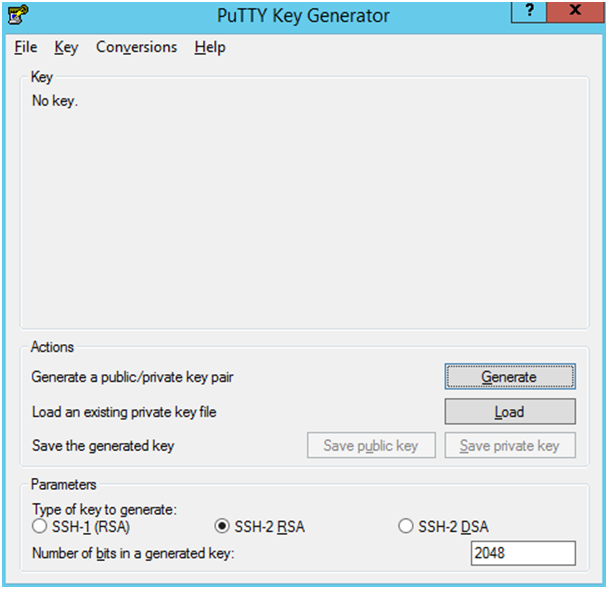
The following is the process to generate a 2048 bit RSA key and add the same to the SFTP server. This is done with the help of WinSCP tool on Windows. However the same can be done using ssh-keygen on Linux as well.
Launch WinSCP and select Tools -> Run PuttyGen.
Select "SSH-2 RSA" for the type of key to generate and enter "2048" for the number of bits in a generated key field and click Generate.
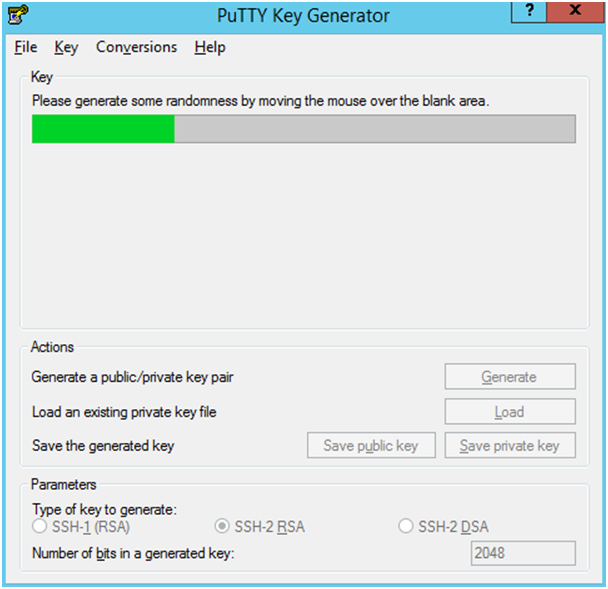
Move the mouse over the blank space in the window until the key is generated.
Once the key is generated, click the Save public key button to save the public key to a file.
Click the Save private key button to save the Private key to a file. Confirm to save it with/without a passphrase.
Open an SR with Oracle Support, to associate the Public half of the Key with your SFTP account (attach the Key with the SR).
The Upload steps uses the private key generated in the earlier section.
Launch WinSCP and connect to <SFTP Server> using port 22.
Enter the username and click Advanced.
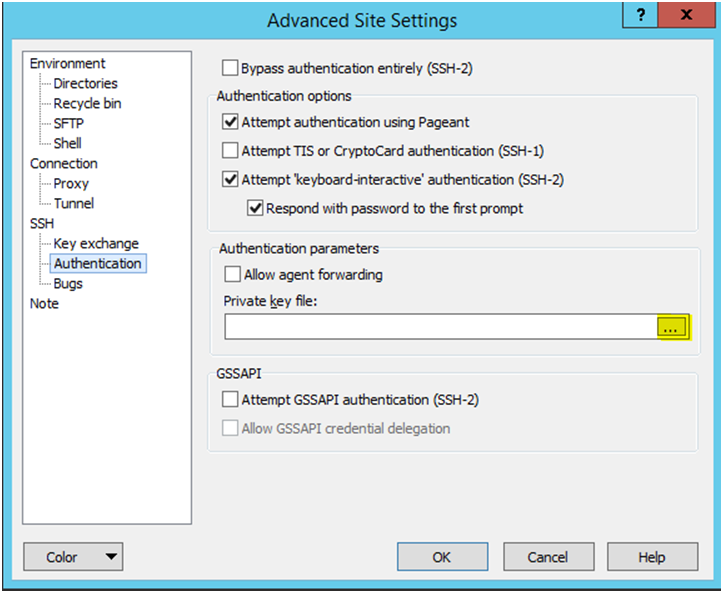
Click Authentication.
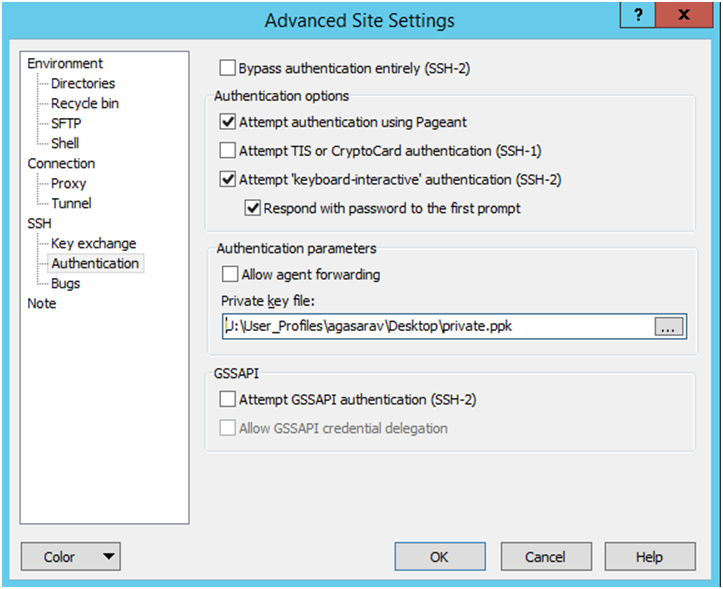
In the Private Key File field, click the Browse button and select the private key created in the earlier section.
After loading the private key file, click OK.
Click Login. The window does not prompt for a password and logs into the SFTP server. Provide a passphrase if one has been set up.
Login to the WinSCP by Following the Steps – Login to WinSCP section.
Transfer all data files to the directory /<SFTP User>.
Create a directory called COMMAND under /<SFTP User>if it does not already exist.
Change to the /<SFTP User>/COMMAND directory.
Transfer an empty file called COMPLETE.
Login to the WinSCP by following the Steps – Login to WinSCP section. The following is the download file process.
Change directory to /<SFTP User>/EXPORT.
Download all data files.
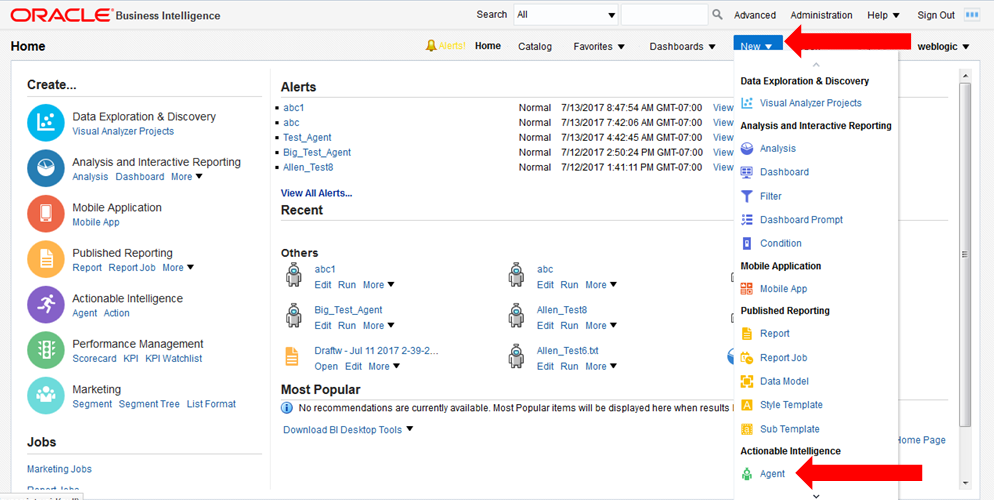
After creating an Analysis (report) that is needed to be refreshed and saved to a file for downloading, from the OBIEE home screen select New -> Agent.
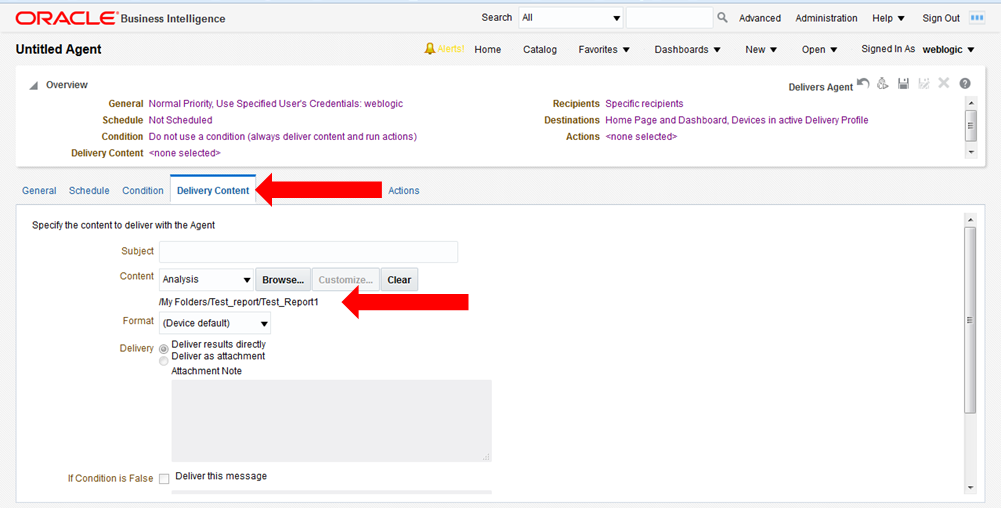
After setting the schedule for the Agent execution, go to the Delivery Content tab and select the analysis report, don't worry about the other settings on this tab such as format because these will be overridden by other selections on the Actions tab.
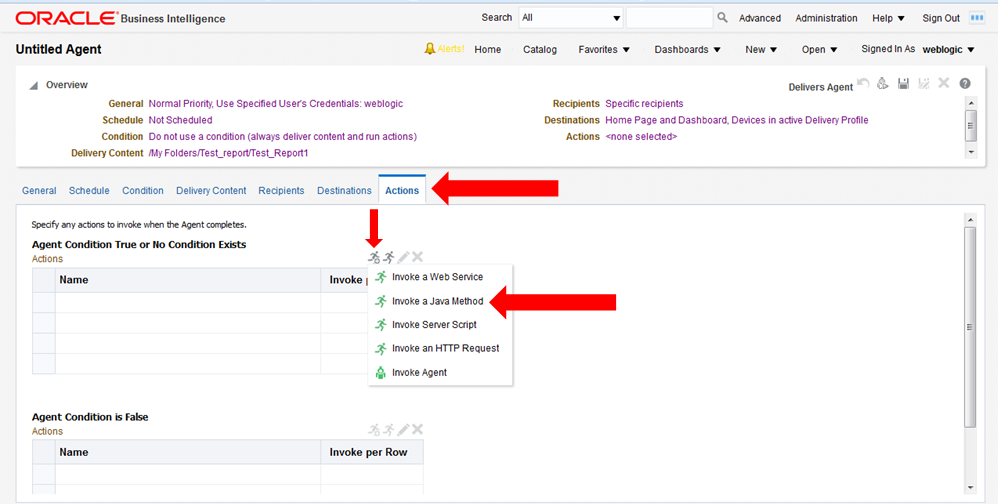
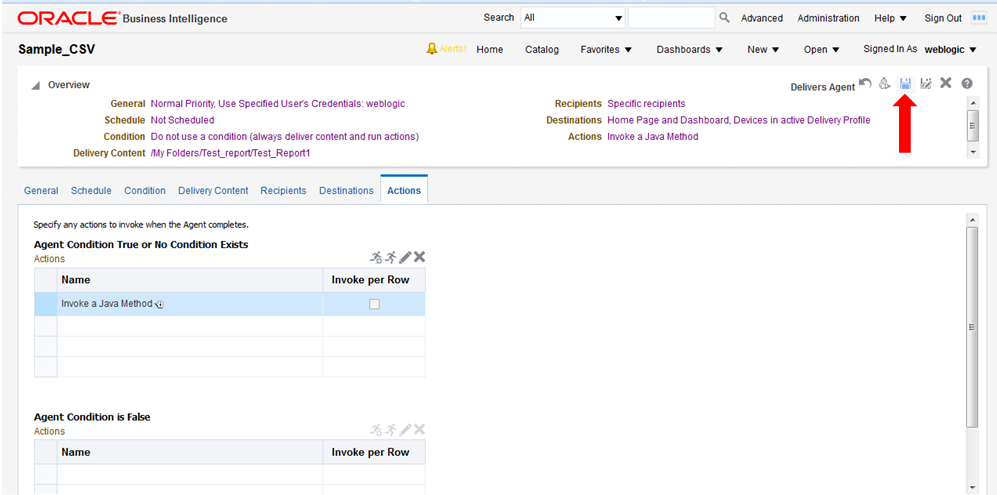
Ignore the Recipients and Destinations tabs, go to the Actions tab and add a new Action that "Invokes a Java Method".
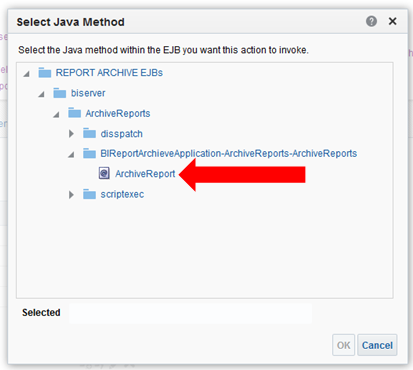
Select "REPORT ARCHIVE EJBs / biserver / ArchiveReports / BIReportArchieveApplication-ArchiveReports-ArchiveReports / ArchiveReport".
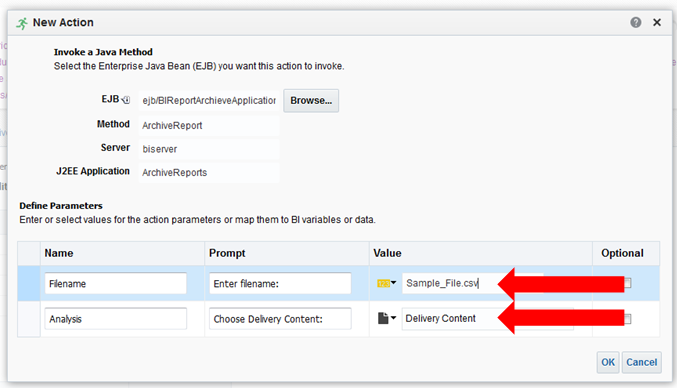
Enter the filename that the report should be written into, and select "Delivery Content".
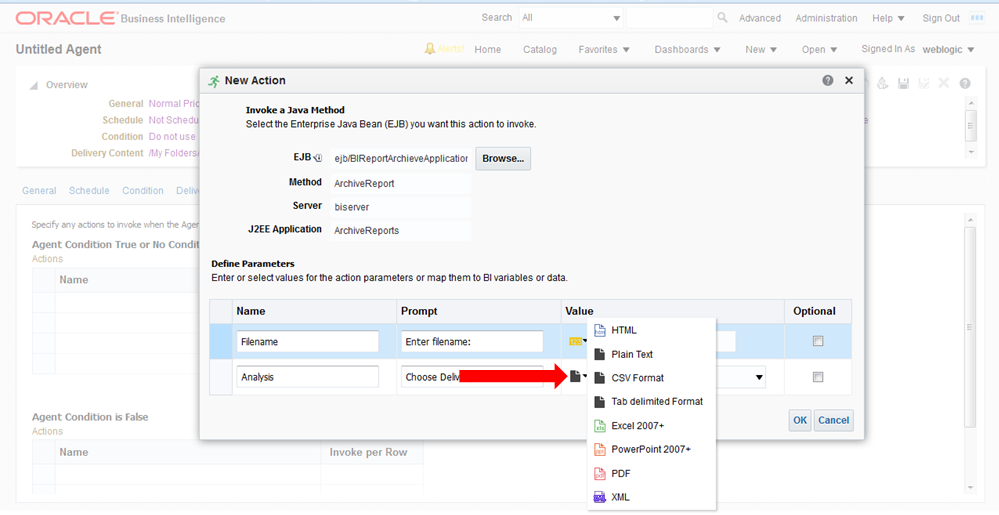
Click the small black page icon with the turned corner and select the file format to be written, then click OK.
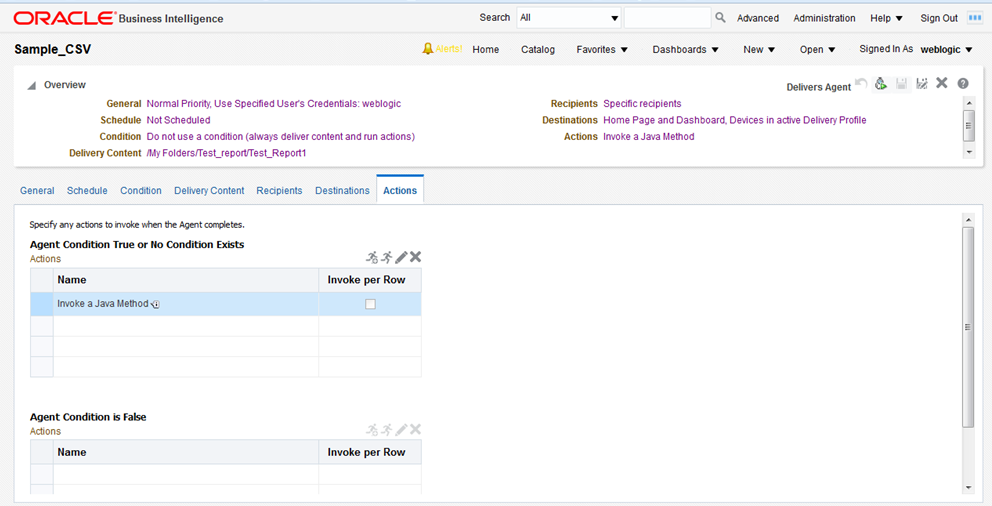
Click Save Agent and give the Agent a name. At this point the Agent has been defined and will execute according to the defined schedule.
If you would like to do an immediate execution of the Agent you can click Run Agent Now.
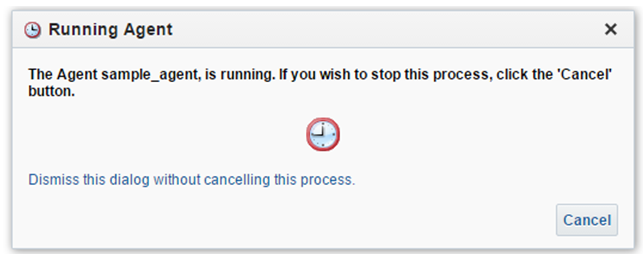
The following dialog displays while the agent is running: