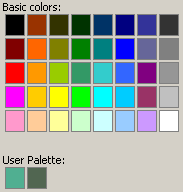
Any custom colors you create are saved in the User Palette at the bottom of the Advanced Color Picker, so you can share and re-use the new colors among different documents.
Note: Your User Palette of custom colors is also available when you work with standard reports, since it is saved as a user preference.
The user palette holds up to eight colors. If you add a ninth color, it replaces the first color added to the palette. The user palette does not display until you add a custom color.
To create and save a custom color:
Run the document.
Right click on a control and choose Advanced Formatting.
Select the Colors and Lines page.
Click the drop-down arrow next to the Color field. This displays the color palette.
Click More Colors. This displays the Advanced Color Picker dialog box.
Define the custom color:
Click the color matrix on the right or enter the hexadecimal codes for Hue, Saturation, and Brightness.
Note: You can also define the color by typing the hex code of the required color in the Hex field.
Click Apply. The color is added to the User Palette area of the dialog box.
Click OK. Depending on how you accessed the Advanced Color Picker dialog box, you may need to click OK again to return to the document. The color is added to the user palette.
_____________________________
Copyright © 2019, Oracle and/or its affiliates. All rights reserved.
Legal Notices