


|
|
|
|
|
You install the InForm core software on InForm Application Server only.
The Choose Setup Language page appears.
Note: Configuration of the language used for application pages occurs later in the installation.
The Preparing Setup progress page appears. When setup is complete, the Welcome page appears.
The Customer Information page appears.
The Choose Destination Location page appears.
The Setup Type page appears.
If you select Complete or Minimal, the Select Product Locale page appears.
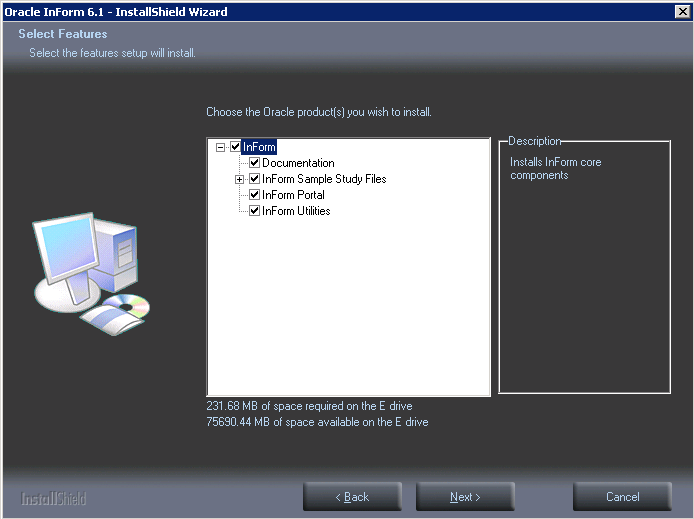
If you select Custom, the Select Features page appears. Make your choices and click Next. The Select Product Locale page appears.
This determines the language in which the InForm application pages appear after installation.
The Select the Authentication Scheme page appears.
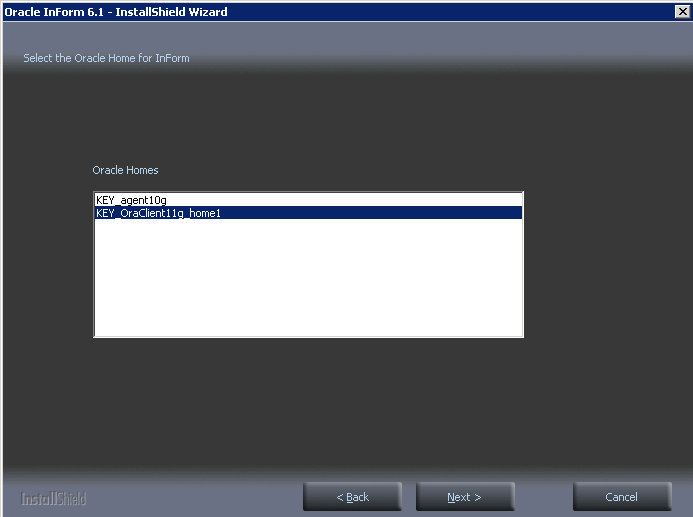
The Select the Oracle Home for InForm page appears. The Oracle Homes you configured during your Oracle client installation appear on the page with the prefix KEY_ to indicate the Windows registry key.
The Database Configuration page appears.
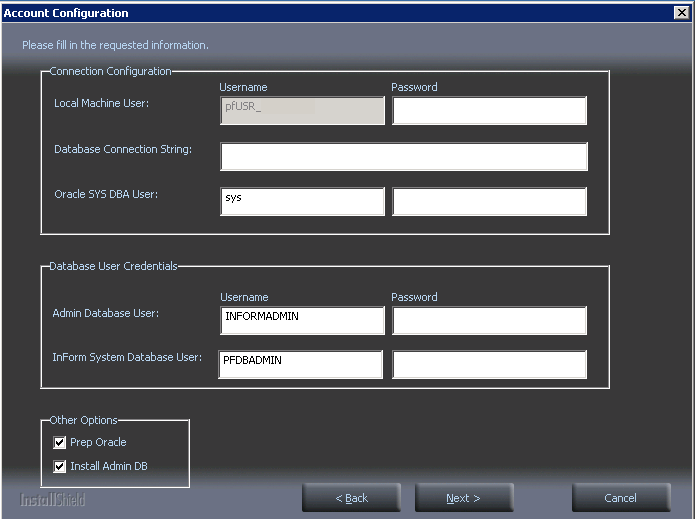
Database Configuration settings
|
Field |
Description |
|---|---|
|
Local Machine User |
The name of the local machine user. The default is pfUSR_<machinename>. |
|
Local Machine User Password |
The password for the local machine user. Note: The password for the local machine user must comply with the password requirements defined in your domain password policy. |
|
Database Connection String |
String that the InForm server uses to connect to the Oracle instance for the study. |
|
Oracle SYS DBA User |
The name of the Oracle SYS account. This value is only used if you select the Prep Oracle checkbox to create the pfdbadmin account. |
|
Oracle SYS DBA Password |
Password of the Oracle SYS account. This value is used only if you select the Prep Oracle checkbox to create the pfdbadmin account. |
|
Admin Database Username |
User name that is required to access the Admin database. The default is informadmin. |
|
Admin Database Password |
Password that is required to access the Admin database. The password is case-sensitive. Do not include a hyphen (-) character in the password. |
|
InForm System Username |
User name for the study database. If this is a new InForm installation or if you change the user name from the default during the installation, select the Prep Oracle checkbox. This instructs the InForm software installation to create the InForm account using the user name and password you specify. |
|
InForm System Password |
Password for the study database. The password is case-sensitive. Do not include a hyphen (-) character in the password. |
|
Install Admin DB |
If selected, creates the:
|
|
Prep Oracle |
If selected:
Note: You need to select the Prep Oracle checkbox only the first time you install the InForm software on an instance. |
If any of the information is incorrect (for example, the Database Connection String or InForm Username is wrong), a Database Configuration Error window appears. For more information, see Oracle MTS configuration is invalid.
The Ready to Install the Program page appears.
The installation checks both the .NET framework and ODAC, and if an upgraded version is required, a message appears.
If you exited the installation at the previous step, upgrade the .NET framework or ODAC version, and restart the installation wizard.
The Setup Status page appears. The progress of the installation is indicated on the screen.
If you exited the installation at the previous step, update the server with the required hardware or software components, and restart the installation wizard.
After rebooting, the final configuration process continues.
When the system configuration is finished, the InstallShield Wizard Complete page appears.
Copyright © 2014, 2016 Oracle and/or its affiliates. All rights reserved.