| Oracle® Retail Demand Forecasting Cloud Service User Guide Release 18.0 F16498-15 |
|

 Previous |
 Next |
| Oracle® Retail Demand Forecasting Cloud Service User Guide Release 18.0 F16498-15 |
|
Previous |
Next |
This chapter describes the Forecast Setup Short Lifecycle task for RDF Cloud Service.
The following table lists the workspaces, steps, and views for the Forecast Setup Short Lifecycle task.
The Forecast Setup SLC workspace allows you access to all of the views listed in Forecast Setup SLC Workspaces, Steps, and Views.
To build the Forecast Setup SLC workspace, perform these steps:
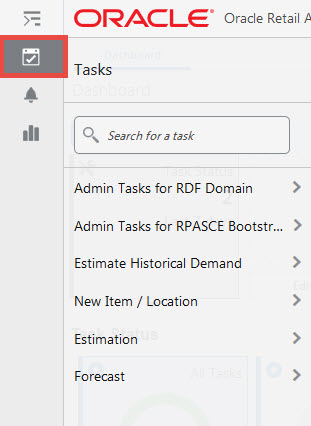
From the left sidebar menu, click the Task Module to view the available tasks.
Click the Forecast activity and then click Setup to access the available workspaces.
Click Short Lifecycle. The Short Lifecycle wizard opens.
You can open an existing workspace, but to create a new workspace, click Create New Workspace.
Enter a name for your new workspace in the label text box and click OK.
The Workspace wizard opens. Select the products you want to work with and click Next.
Select the locations you want to work with and click Finish.
The wizard notifies you that your workspace is being prepared. Successful workspaces are available from the Dashboard.
This workspace contains these steps:
This step contains these views:
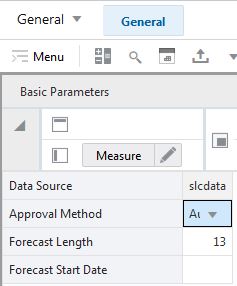
The Basic Parameters view allows you to view and set high level information. For instance, you can set the approval policy or determine the time frame for which forecast is required.
The Basic Parameters view contains the following measures:
Data Source
This measure displays the name of the data source used to create the forecast.
Approval Method
This field is a list from which you select the default automatic approval policy for forecast items. Valid values are:
Manual
The system-generated forecast is not automatically approved. Forecast values must be manually approved by accessing and amending the Forecast Review workspace
Automatic
The system-generated quantity is automatically approved as is.
By Alert
This list of values may also include any Forecast Approval alerts that have been configured for use in the forecast approval process. Alerts are configured during the implementation and can be enabled to be used for Forecast Approval in the Enable Alert for Forecast Approval view. Refer to the Oracle Retail Predictive Application Server Configuration Tools User Guide for more information on the Alert Manager. The Alert Parameters view contains a list and descriptions of available alerts, and for which level (causal/baseline) that they are designed for.
Forecast Length
The Forecast Length is used with the Forecast Start Date to determine forecast horizon. The forecast length is based on the calendar dimension of the final-level. For example, if the forecast length is to be 10 weeks, the setting for a final-level at day is 70 (10 x 7 days).
Forecast Start Date
This is the starting date of the forecast. If no value is specified at the time of forecast generation, the system uses the data/time at which the batch is executed as the default value. If a value is specified in this field and it is used to successfully generate the batch forecast, this value is cleared.
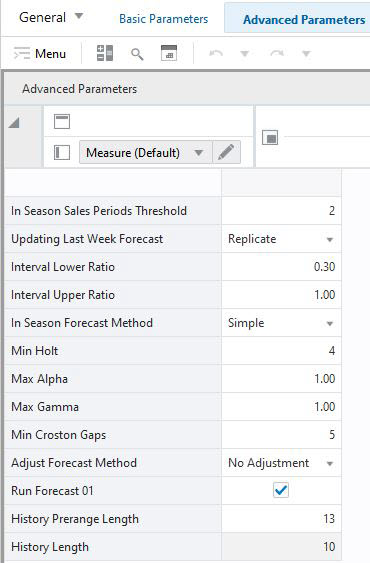
The Advanced Parameters view allows you to set default values for parameters affecting the algorithm and forecasting techniques used to generate base demand.
Base demand is the only forecast component updated during the forecasting step. The other components, such as price effect or seasonality are calculated in the estimation step.
The Advanced Parameters view contains the following measures:
Adjust Forecast Method
This measure allows you to choose how to automatically adjust the system generated forecast. The options are:
No Adjustment: no adjustment is made to the system generated forecast
Keep Last Change: if any adjustments were done to the forecast in previous runs, they are reflected in the Adjusted Forecast measure.
History Length
This measure determines how many data points prior to RPAS_TODAY are used to generate base demand.
History Prerange Length
This measure lets you control how many calendar positions are showed in the wizard prior to RPAS_TODAY when building the Forecast Review workbook.
The historical positions (before RPAS_TODAY/forecast start date) displayed in the wizard are decided by the number entered here, and the history length used to forecast the level.
If the number displayed here is 10 and the history length is 17, the number of positions before today, are pre-ranged in the wizard to:
MAX (History Prerange Length, History Length) = MAX (10, 17) = 17
In Season Sales Periods Threshold
This measure displays the number of periods elapsed from the first sale of an item before it is considered in season. Only after this number of periods, the base demand of the item is calculated its own sales.
Updating Last Week Forecast
This field is a list from which you can select the method for updating the Approved Forecast for the last specified number of weeks of the forecast horizon. This option is valid only if the Approval Method Override is set to Manual or Approve by alert, and the alert was rejected. This parameter is used with the Updating Last Week Forecast Number of Weeks parameter. The choices are:
No change
When using this method, the last week in the forecast horizon does not have an Approved Forecast value. The number of weeks is determined number of weeks elapsed between the forecast start date and the last approval date.
Replicate
When using this method the last weeks in the forecast horizon are forecast using the Approved Forecast for the week corresponding to the last approval date.
Use Forecast
When using this method, the System Forecast for the last weeks in the forecast horizon is approved.
Interval Lower Ratio
The value entered in this field multiplied by the forecast represents the lower bound of the confidence interval for a given period in the forecast horizon.
Interval Upper Ratio
The value entered in this filed multiplied by the forecast represents the upper bound of the confidence interval for a given period in the forecast horizon.
In Season Forecast Method
This is a complete list of available forecast methods from which you can select the primary forecast method that is used to generate the forecast. (Reference white paper for methods).
Min Holt
Min Holt is the minimum number of periods of historical data necessary for the system to consider Holt (TrendES) as a potential forecasting method.
Max Alpha
The system default is 13 periods. The value must be set based on the calendar dimension of the level. For example, if the value is to be 13 weeks, the setting for a final-level at day is 91 (13x7days) and a source-level at week is 13.
Max Gamma
In the Holt (TrendES) model-fitting procedure, gamma (a model parameter capturing the trend) is determined by optimizing the fit over the time series. This field displays the maximum value (cap value) of gamma allowed in the model-fitting process. The allowable range is [0, 1]
Min Croston Gaps
The Croston's Min Gaps is the default minimum number of gaps between intermittent sales for the batch forecast to consider Croston's (Simple/IntermittentES) as a potential AutoES forecasting method for a time series. If there are not enough gaps between sales in a given product's sales history, the Croston's model is not considered a valid candidate model. The system default is five minimum gaps between intermittent sales. The value must be set based on the calendar dimension of the level. For example, if the value is to be 5 weeks, the setting for a final-level at day is 35 (5x7days) and a source-level at week is 5.
Run Forecast
This field lets you specify if the forecast should be run for this final level. This is useful if multiple final levels are available, and the need is to forecast only a subset of them.
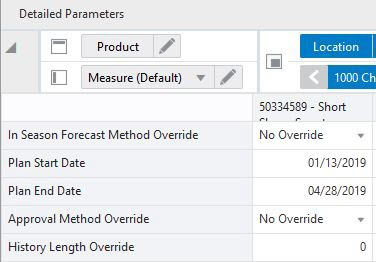
The Detailed Parameters view allows you to override some default measures, such as forecast method or override the approval policy. It also displays some measures that require a lower intersection than escalation level, like the plan start and end dates.
The Detailed Parameters view contains the following measures:
Approval Method Override
Set only at the final-level, the Approval Method Override is a list from which you select the approval policy for individual product/location combinations. The options are:
No Override
The default approval policy is used
Manual
The system-generated forecast is not automatically approved. Forecast values must be manually approved by accessing and amending the Forecast Review view
Automatic
The system-generated quantity is automatically approved as is.
By Alert
This list of values may also include any Forecast Approval alerts that have been configured for use in the forecast approval process. Alerts are configured during the implementation and can be enabled to be used for Forecast Approval in the Enable Alert for Forecast Approval view. Refer to the Oracle Retail Predictive Application Server Configuration Tools User Guide for more information on the Alert Manager. The Alert Parameters view contains a list and descriptions of available alerts, and for which level (causal/baseline) that they are designed for.
History Length Override
This measure allows you to override the History Length. It determines how many data points prior to RPAS_TODAY are used to generate base demand.
In Season Forecast Method Override
This is the override of the In Season Forecast Method available in the Advanced Parameters view.
Plan Start Date
This represents the date when the item starts selling.
Plan End Date
This represents the date when the item stops selling.
This step contains these views:
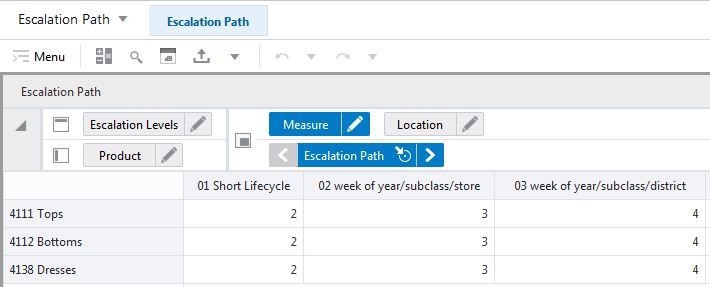
The Escalation Path view showsthe available escalation levels for short lifecycle items, and allows you to set priorities for each level.
The Escalation Path view contains the following measures:
Escalation Path
The user can specify the priority in which the system searches escalation levels for forecast parameters like seasonality curves and/or promotion effects. For instance, suppose there are three escalation levels available. The path may be defined as follows:
Escalation Level #1: priority 3
Escalation Level #2: priority 4
Escalation Level #3: priority 2
In this case, when generating the forecast, the system will first look to get parameters from Escalation Level #3 (highest priority). If the are available, they are used. If they are not available, because they were deemed unreliable and pruned, the system will go to Escalation Level #1 (second highest priority). Finally, if the search is not successful, the search continues at Escalation Level #2.
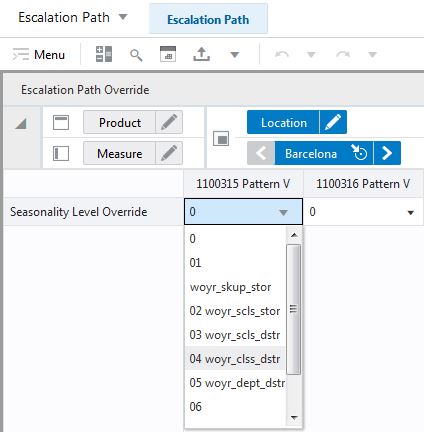
The Escalation Path Override view allows you to choose to bypass the escalation search, by suggesting a level from which the forecast parameters are used.
However, if the forecast parameters for that level were deemed unreliable and pruned, the search will follow the default escalation path.
The Escalation Path Override view contains the following measures:
Escalation Path Override
In this field the user can override the default escalation path selections. She can enter the preferred Escalation Level, and that will become the top priority. However, if the forecast parameters for that level were deemed unreliable and pruned, the search will follow the default escalation path.
This step contains this view:
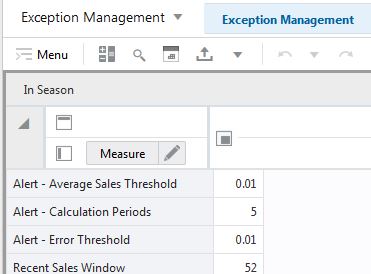
The In Season view contains metrics used in short lifecycle exceptions calculations
The In Season view contains the following measures:
Alert – Average Sales Threshold
Threshold used in deciding if average sales are high or low, depending on how they compare against the value.
Alert – Calculation Periods
The number stored in this field defines the number of calculations periods used in generating exceptions.
Alert – Error Threshold
This field stores the value that determines if a forecast error is acceptable, or if it needs to be flagged as exception.
Recent Sales Window
This field determines the time frame over which recent sales are considered in the exception calculations. The time frame is defined starting today and going back the specified number of periods.