Oracle® Retail Allocation
Installation Guide
Release 14.1.1
E63179-01
May 2015
Oracle® Retail Allocation Installation Guide, Release 14.1.1
Copyright © 2015, Oracle. All
rights reserved.
Primary Author: Jyothsna
Kamuni
Contributors: Nathan Young
This software and related
documentation are provided under a license agreement containing restrictions on
use and disclosure and are protected by intellectual property laws. Except as
expressly permitted in your license agreement or allowed by law, you may not
use, copy, reproduce, translate, broadcast, modify, license, transmit,
distribute, exhibit, perform, publish, or display any part, in any form, or by
any means. Reverse engineering, disassembly, or decompilation of this software,
unless required by law for interoperability, is prohibited.
The information contained
herein is subject to change without notice and is not warranted to be
error-free. If you find any errors, please report them to us in writing.
If this is software or
related documentation that is delivered to the U.S. Government or anyone
licensing it on behalf of the U.S. Government, then the following notice is
applicable:
U.S. GOVERNMENT END USERS:
Oracle programs, including any operating system, integrated software, any
programs installed on the hardware, and/or documentation, delivered to U.S.
Government end users are "commercial computer software" pursuant to
the applicable Federal Acquisition Regulation and agency-specific supplemental
regulations. As such, use, duplication, disclosure, modification, and
adaptation of the programs, including any operating system, integrated
software, any programs installed on the hardware, and/or documentation, shall
be subject to license terms and license restrictions applicable to the
programs. No other rights are granted to the U.S. Government.
This software or hardware is
developed for general use in a variety of information management applications.
It is not developed or intended for use in any inherently dangerous
applications, including applications that may create a risk of personal injury.
If you use this software or hardware in dangerous applications, then you shall
be responsible to take all appropriate fail-safe, backup, redundancy, and other
measures to ensure its safe use. Oracle Corporation and its affiliates disclaim
any liability for any damages caused by use of this software or hardware in
dangerous applications.
Oracle and Java are
registered trademarks of Oracle and/or its affiliates. Other names may be
trademarks of their respective owners.
Intel and Intel Xeon are
trademarks or registered trademarks of Intel Corporation. All SPARC trademarks
are used under license and are trademarks or registered trademarks of SPARC
International, Inc. AMD, Opteron, the AMD logo, and the AMD Opteron logo are
trademarks or registered trademarks of Advanced Micro Devices. UNIX is a
registered trademark of The Open Group.
This software or hardware and
documentation may provide access to or information about content, products, and
services from third parties. Oracle Corporation and its affiliates are not
responsible for and expressly disclaim all warranties of any kind with respect
to third-party content, products, and services unless otherwise set forth in an
applicable agreement between you and Oracle. Oracle Corporation and its
affiliates will not be responsible for any loss, costs, or damages incurred due
to your access to or use of third-party content, products, or services, except
as set forth in an applicable agreement between you and Oracle.
Value-Added Reseller (VAR) Language
Oracle Retail VAR Applications
The following restrictions
and provisions only apply to the programs referred to in this section and
licensed to you. You acknowledge that the programs may contain third party
software (VAR applications) licensed to Oracle. Depending upon your product and
its version number, the VAR applications may include:
(i) the MicroStrategy Components
developed and licensed by MicroStrategy Services Corporation (MicroStrategy) of
McLean, Virginia to Oracle and imbedded in the MicroStrategy for Oracle
Retail Data Warehouse and MicroStrategy for Oracle Retail Planning &
Optimization applications.
(ii) the Wavelink
component developed and licensed by Wavelink Corporation (Wavelink) of Kirkland, Washington, to Oracle and imbedded in Oracle Retail Mobile Store Inventory Management.
(iii) the software component
known as Access Via™ licensed by Access Via of Seattle, Washington, and
imbedded in Oracle Retail Signs and Oracle Retail Labels and Tags.
(iv) the software component
known as Adobe Flex™ licensed by Adobe Systems Incorporated of San Jose, California, and imbedded in Oracle Retail Promotion Planning & Optimization
application.
You acknowledge and confirm
that Oracle grants you use of only the object code of the VAR Applications.
Oracle will not deliver source code to the VAR Applications to you.
Notwithstanding any other term or condition of the agreement and this ordering
document, you shall not cause or permit alteration of any VAR Applications. For
purposes of this section, "alteration" refers to all alterations, translations,
upgrades, enhancements, customizations or modifications of all or any portion
of the VAR Applications including all reconfigurations, reassembly or reverse
assembly, re-engineering or reverse engineering and recompilations or reverse
compilations of the VAR Applications or any derivatives of the VAR
Applications. You acknowledge that it shall be a breach of the agreement to
utilize the relationship, and/or confidential information of the VAR
Applications for purposes of competitive discovery.
The VAR Applications contain
trade secrets of Oracle and Oracle's licensors and Customer shall not attempt,
cause, or permit the alteration, decompilation, reverse engineering,
disassembly or other reduction of the VAR Applications to a human perceivable
form. Oracle reserves the right to replace, with functional equivalent
software, any of the VAR Applications in future releases of the applicable
program.
Send Us Your Comments............................................... ix
Preface........................................................................... xi
Audience................................................................................................ xi
Related Documents............................................................................. xi
Customer Support................................................................................ xi
Review Patch Documentation.......................................................... xi
Improved Process for Oracle Retail
Documentation Corrections xii
Oracle Retail Documentation on the
Oracle Technology Network xii
Conventions......................................................................................... xii
1....................................................... Preinstallation
Tasks 1
Check Supported Database Server
Requirements....................... 1
Check Supported Application Server
Requirements.................. 2
Verify Single Sign-On........................................................................... 3
Check Supported Client PC and Web
Browser Requirements. 3
Configure Mozilla Firefox 31............................................................. 3
Supported Oracle Retail Products.................................................... 4
Supported Oracle Retail Integration
Technologies..................... 4
UNIX User Account Privileges to
Install the Software............... 4
2......................................................... RAC
and Clustering 5
3............................................. Database
Installation Tasks 7
Allocation Schema................................................................................ 7
4......................................... Application
Installation Tasks 9
Expand the Oracle Retail Allocation
Application Distribution 10
Install RCU Database Schemas...................................................... 10
Install and Configure ADF11g........................................................ 19
Create a New Domain and managed
server with ADF libraries and EM: 26
Start Node Manager........................................................................... 38
Start the Managed Server.................................................................. 39
Set up OPSS Schema Datasource in
WebLogic domain.......... 40
Re-Associate Policy Store to
Database.......................................... 46
Re-Associate Policy Store to
Database.......................................... 46
Rename and Update jps-config.xml
file....................................... 51
Configure OID Authenticator in
WebLogic Domain................ 52
Load LDIF Files in LDAP................................................................. 59
Retail Application Security Roles
Manager................................ 64
Clustered Installations –
Preinstallation Steps......................... 65
(Optional) Analyze Changes in the
Patch................................... 65
Run the Oracle Retail Allocation
Application Installer.......... 65
Resolving Errors Encountered During
Application Installation 66
Post-Installation Steps....................................................................... 67
Manual Updates to System Options............................................. 68
How to Increase Max JMS messages............................................. 68
Steps to Configure WebLogic Work
Manager............................ 68
Clustered Installations –
Post-Installation Steps...................... 69
Test the Oracle Retail Allocation
Application........................... 69
Allocation Batch Scripts................................................................... 69
Online Help.......................................................................................... 70
Single Sign-On..................................................................................... 70
Adding Logout URI............................................................................ 71
RETL....................................................................................................... 71
5....................................................... Patching
Procedures 73
Oracle Retail Patching Process....................................................... 73
Supported Products and Technologies........................................ 73
Patch Concepts.................................................................................... 74
Patching Utility Overview................................................................ 75
Changes with 14.1.............................................................................. 75
Patching Considerations.................................................................. 76
Patch Types.......................................................................................... 76
Incremental Patch Structure............................................................ 76
Version Tracking................................................................................. 76
Apply all Patches with Installer or
ORPatch............................. 77
Environment Configuration............................................................ 77
Retained Installation Files............................................................... 77
Reloading Content.............................................................................. 77
Java Hotfixes and Cumulative
Patches........................................ 78
Backups................................................................................................. 78
Disk Space............................................................................................. 78
Patching Operations.......................................................................... 79
Running ORPatch.............................................................................. 79
Merging Patches.................................................................................. 89
Compiling Application Components........................................... 90
Deploying Application Components............................................ 92
Maintenance Considerations.......................................................... 93
Database Password Changes.......................................................... 93
WebLogic Password Changes........................................................ 94
Infrastructure Directory Changes.................................................. 95
DBManifest Table............................................................................... 95
RETAIL_HOME relationship to
Database and Application Server 95
Jar Signing Configuration
Maintenance...................................... 95
Customization..................................................................................... 97
Patching Considerations with
Customized Files and Objects 97
Registering Customized Files.......................................................... 98
Custom Compiled Java Code........................................................ 100
Extending Oracle Retail Patch
Assistant with Custom Hooks 102
Troubleshooting Patching............................................................. 106
ORPatch Log Files............................................................................ 106
Restarting ORPatch......................................................................... 106
Manual DBManifest Updates....................................................... 106
Manual Restart State File Updates.............................................. 108
DISPLAY Settings When Compiling
Forms............................. 108
JAVA_HOME Setting...................................................................... 108
Patching Prior to First Install........................................................ 108
Providing Metadata to Oracle
Support...................................... 109
A Appendix: Oracle Retail
Allocation Application Installer Screens 111
B.................................................. Appendix:
Analyze Tool 131
Run the Analyze Tool..................................................................... 131
C............................................... Appendix:
URL Reference 133
JDBC URL for a Database............................................................... 133
D........................... Appendix:
Common Installation Errors 135
Warning: Could not create system
preferences directory..... 135
ConcurrentModificationException in
Installer GUI.............. 135
Warning: Could not find X Input
Context................................ 136
GUI screens fail to open when
running Installer.................... 136
E Appendix: Setting Up Password
Stores with wallets/credential stores 137
About Database Password Stores and
Oracle Wallet............ 137
Setting Up Password Stores for
Database User Accounts.... 138
Setting up Wallets for Database
User Accounts...................... 139
For RMS, RWMS, RPM Batch using
sqlplus or sqlldr, RETL, RMS, RWMS, and ARI 139
Setting up RETL Wallets................................................................ 141
For Java Applications (SIM, ReIM,
RPM, RIB, AIP, Alloc, ReSA, RETL) 142
How does the Wallet Relate to the
Application?.................... 145
How does the Wallet Relate to Java
Batch Program use?..... 145
Database Credential Store
Administration............................... 145
Managing Credentials with WSLT/OPSS
Scripts.................. 149
listCred................................................................................................ 150
updateCred......................................................................................... 151
createCred........................................................................................... 151
deleteCred........................................................................................... 151
modifyBootStrapCredential........................................................... 152
addBootStrapCredential................................................................. 153
Quick Guide for Retail Password
Stores (db wallet, java wallet, DB credential stores) 155
F......................... Appendix:
Single Sign-On for WebLogic 165
What Do I Need for Single Sign-On?.......................................... 165
Can Oracle Access Manager Work with
Other SSO Implementations? 165
Oracle Single Sign-on Terms and
Definitions.......................... 166
What Single Sign-On is not........................................................... 167
How Oracle Single Sign-On Works............................................. 167
Installation Overview...................................................................... 169
User Management............................................................................ 169
G........................................... Appendix:
Installation Order 171
Enterprise Installation Order........................................................ 171
Oracle Retail Allocation Installation Guide, Release 14.1.1
Oracle welcomes customers' comments
and suggestions on the quality and usefulness of this document.
Your feedback is important, and helps
us to best meet your needs as a user of our products. For example:
§ Are the
implementation steps correct and complete?
§ Did you understand
the context of the procedures?
§ Did you find any
errors in the information?
§ Does the structure of
the information help you with your tasks?
§ Do you need different
information or graphics? If so, where, and in what format?
§ Are the examples
correct? Do you need more examples?
If you find any errors or have any
other suggestions for improvement, then please tell us your name, the name of
the company who has licensed our products, the title and part number of the
documentation and the chapter, section, and page number (if available).
Note:
Before sending us your comments, you might like to check that you have the
latest version of the document and if any concerns are already addressed. To do
this, access the new Applications Release Online Documentation CD available on
My Oracle Support and www.oracle.com. It
contains the most current Documentation Library plus all documents revised or
released recently.
Send your comments to us using the
electronic mail address: retail-doc_us@oracle.com
Please give your name, address,
electronic mail address, and telephone number (optional).
If you need assistance with Oracle
software, then please contact your support representative or Oracle Support
Services.
If you require training or instruction
in using Oracle software, then please contact your Oracle local office and
inquire about our Oracle University offerings. A list of Oracle offices is
available on our Web site at www.oracle.com.
Oracle Retail Installation Guides
contain the requirements and procedures that are necessary for the retailer to
install Oracle Retail products.
This Installation Guide is written for
the following audiences:
§ Database
administrators (DBA)
§ System analysts and
designers
§ Integrators and
implementation staff
For more information, see the following documents in the
Oracle Retail Allocation
Release 14.1.1 documentation set:
§ Oracle Retail
Allocation Release Notes
§ Oracle Retail
Allocation User Guide
§ Oracle Retail
Allocation Data Model
§ Oracle Retail
Merchandising Implementation Guide
§ Oracle Retail
Merchandising Security Guide
§ Oracle Retail
Merchandising Batch Schedule
To contact Oracle
Customer Support, access My Oracle Support at the following URL:
https://support.oracle.com
When contacting
Customer Support, please provide the following:
§ Product version and
program/module name
§ Functional and
technical description of the problem (include business impact)
§ Detailed step-by-step
instructions to re-create
§ Exact error message
received
§ Screen shots of each
step you take
When you install the application for
the first time, you install either a base release (for example, 14.1) or a
later patch release (for example, 14.1.1). If you are installing the base
release or additional patch releases, read the documentation for all releases
that have occurred since the base release before you begin installation.
Documentation for patch releases can contain critical information related to
the base release, as well as information about code changes since the base
release.
To more quickly address critical
corrections to Oracle Retail documentation content, Oracle Retail documentation
may be republished whenever a critical correction is needed. For critical
corrections, the republication of an Oracle Retail document may at times not
be attached to a numbered software release; instead, the Oracle Retail document
will simply be replaced on the Oracle Technology Network Web site, or, in the
case of Data Models, to the applicable My Oracle Support Documentation
container where they reside.
This process will prevent delays in
making critical corrections available to customers. For the customer, it means
that before you begin installation, you must verify that you have the most
recent version of the Oracle Retail documentation set. Oracle Retail
documentation is available on the Oracle Technology Network at the following
URL:
http://www.oracle.com/technetwork/documentation/oracle-retail-100266.html
An updated version of the applicable
Oracle Retail document is indicated by Oracle part number, as well as print
date (month and year). An updated version uses the same part number, with a
higher-numbered suffix. For example, part number E123456-02 is an updated version of a
document with part number E123456-01.
If a more recent version of a document
is available, that version supersedes all previous versions.
Oracle Retail product documentation is
available on the following web site:
http://www.oracle.com/technetwork/documentation/oracle-retail-100266.html
(Data Model documents are not
available through Oracle Technology Network. You can obtain them through My
Oracle Support.)
Navigate: This is a navigate statement.
It tells you how to get to the start of the procedure and ends with a screen
shot of the starting point and the statement “the Window Name window opens.”
This is a code sample
It is used to display examples of
code
1
This chapter
explains the tasks required prior to installation.
General requirements for a database
server running Oracle Retail Allocations include the following:
|
Supported on
|
Versions Supported
|
|
Database Server OS
|
OS certified with Oracle
Database 12cR1 Enterprise Edition. Options are:
§
Oracle Linux 6 for
x86-64 (Actual hardware or Oracle virtual machine)
§
Red Hat
Enterprise Linux 6 for x86-64 (Actual hardware or Oracle virtual machine)
§
AIX 7.1 (Actual
hardware or LPARs)
§
Solaris 11 SPARC
(Actual hardware or logical domains)
§ HP-UX 11.31 Integrity (Actual
hardware, HPVM, or vPars)
|
|
Database Server 12cR1
|
Oracle Database Enterprise
Edition 12cR1 (12.1.0.2) with the following specifications:
Components:
§
Oracle
Partitioning
§
Examples CD
Oneoffs:
§
Patch 19623450:
MISSING JAVA CLASSES AFTER UPGRADE TO JDK 7
Other components:
§
Perl interpreter
5.0 or later
§
X-Windows
interface
§ JDK 1.7
|
General requirements for an
application server capable of running the Oracle Retail Allocations application
include the following.
|
Supported on:
|
Versions Supported:
|
|
Application Server OS
|
OS certified with Oracle Fusion
Middleware 11g Release 1 (11.1.1.7). Options are:
§
Oracle Linux 6 for
x86-64 (Actual hardware or Oracle virtual machine)
§
Red Hat
Enterprise Linux 6 for x86-64 (Actual hardware or Oracle virtual machine)
§
AIX 7.1 (Actual
hardware or LPARs)
§
Solaris 11.1
SPARC (Actual hardware or logical domains)
§ HP-UX 11.31 Integrity (Actual
hardware, HPVM, or vPars)
|
|
Application Server
|
Oracle Fusion Middleware 11g Release 1
(11.1.1.7)
Components:
§
Oracle WebLogic
Server 11g Release 1 (10.3.6)
§
Repository
Creation Utility (RCU 11.1.1.7)
§
Oracle ADF 11g
Release 1 (11.1.1.7)With patch 18277370
§
Oracle Identity
Management 11g Release 1 (11.1.1.7)
Note: Oracle Internet
Directory (OID) is the supported LDAP directory for Oracle Retail products.
For alternate LDAP directories, refer to Oracle WebLogic documentation set.
Java:
§
JDK 1.7+ 64 bit
IMPORTANT: If there is
an existing WebLogic installation on the server, you must upgrade it to
WebLogic 10.3.6. All middleware components associated with WebLogic server
should be upgraded to 11.1.1.7.
Optional (required for SSO)
§
Oracle WebTier
11g (11.1.1.7)
§
Oracle Access
Manager 11g Release 2 (11.1.2.2)
Note: A separate WebLogic 10.3.6 installation is required for Oracle
Access Manager 11g.
§ Oracle Access Manager Agent
(WebGate) 11g Release 2(11.1.2.2)
§ Oracle Directory Services Manager (ODSM) 11.1.1.7
|
If Allocation will not be deployed in
a Single Sign-On environment, skip this section.
If Single Sign-On is to be used,
verify the Oracle Access Management 11gR2 version 11.1.2.2 has been installed
along with the components listed in the above Application Server requirements
section. Verify the Oracle Access Manager Agent is registered with the Oracle
Access Manager (OAM) 11gR2 as a partner application.
|
Requirement
|
Version
|
|
Operating system
|
Windows 7 or 8
|
|
Display resolution
|
1024x768 or higher
|
|
Processor
|
2.6GHz or higher
|
|
Memory
|
1GByte or higher
|
|
Networking
|
intranet with at least 10Mbps
data rate
|
|
Oracle (Sun) Java Runtime
Environment
|
1.7+
|
|
Browser
|
Microsoft
Internet Explorer 11
Mozilla Firefox ESR 31
|
If you are using Firefox 31, you need
to configure the browser to display the list of values pop ups correctly.
1.
Open your Firefox browser and type in your address bar as
follows:
about:config
2.
A warning dialog is displayed. Accept the warning.
A list of configuration values
is displayed.
3.
Locate the browser.link.open_newwindow property, right-click
on it, and select Modify.
4.
Change the value to 2.
5.
Close and re-start the browser.
|
Requirement
|
Version
|
|
Oracle Retail
Active Retail Intelligence (ARI)
|
14.1
|
|
Oracle Retail Merchandising
System (RMS)/Oracle Retail Trade Management (RTM)/Oracle Retail Sales Audit
(ReSA)
|
14.1.1
|
|
Oracle Retail Price Management
(RPM)
|
14.1.1
|
|
Oracle Retail Curve (a module
of Oracle Retail Demand Forecasting)
|
14.1.1
|
|
Oracle Retail Size Profile
Optimization
|
14.1.1
|
|
Oracle Retail Assortment
Planning
|
14.1.1
|
|
Requirement
|
Version
|
|
Oracle Retail Extract,
Transform and Load (RETL)
|
13.2.8.0.1
|
A UNIX user account is needed to
install the software. The UNIX user that is used to install the software should
have write access to the WebLogic server installation files.
For example, oretail
Note: Installation
steps will fail when trying to modify files under the WebLogic installation,
unless the user has write access.
2
Oracle Retail Allocation has
been validated to run in two configurations on Linux:
§ Standalone WLS and
Database installations
§ Real Application
Cluster Database and WebLogic Server Clustering
The Oracle Retail products have been
validated against a 12.1.0.2 RAC database. When using a RAC database, all JDBC
connections should be configured to use THIN connections rather than OCI
connections. It is suggested that if you do use OCI connections, the Oracle
Retail products database be configured in the tnsnames.ora file used by the
WebLogic Server installations.
Clustering for WebLogic Server 10.3.6
is managed as an Active-Active cluster accessed through a Load
Balancer. Validation has been completed utilizing a RAC 12.1.0.2 Oracle
Internet Directory database with the WebLogic 10.3.6 cluster. It is suggested
that a Web Tier 11.1.1.7 installation be configured to reflect all application
server installations if SSO will be utilized.
References for Configuration:
§ Oracle® Fusion
Middleware High Availability Guide 11g Release 1 (11.1.1) Part Number E10106-09
§ Oracle Real
Application Clusters Administration and Deployment Guide
12c Release 1 (12.1) E48838-08
3
Allocation Schema
The Allocation database tables are installed with the RMS database
schema. RMS 14.1.1 is a prerequisite of the Allocation 14.1.1 installation.
4
Before
proceeding, you must install Oracle WebLogic
Server 11g Release 1 (10.3.6) with the patches listed in the Chapter 1
of this document and Oracle ADF 11g Release 1 (11.1.1.7).
If Oracle Forms 11g has been installed
in the same WebLogic being used for this application, a domain called
ClassicDomain is installed. You may choose the same Oracle Middleware Home and
install ADF component in the same location.
Note:
If applying 14.1.1 patch to an existing 14.1 Allocation, you may use the
existing Allocation domain which has been already set up in WebLogic/ADF with
14.1 Allocation installation.
These are the other prerequisites
before installing the Oracle Retail Allocation application:
If an existing Allocation domain from
14.1 is being used, you may verify all the below steps.
§ Install required RCU database
schemas for OPSS and MDS. You may use existing OPSS and MDS schemas if applying
the patch 14.1.1 to an existing 14.1 Allocation install.
§ Install ADF
§ Install WebLogic
domain with ADF and EM (Enterprise Manager). Create a managed server in the
same domain and extend ADF libraries to the managed server.
§ Set up OPSS schema
Datasource in WebLogic domain
§ Set up Loading
policies into Database
§ Set up MDS schema
Datasource in WebLogic domain
§ Configuration of OID
Authenticator in WebLogic domain
§ Load LDIF files in
LDAP to create Users and Roles
It is assumed Oracle database has
already been configured and loaded with the appropriate RMS and Oracle Retail
Allocation schemas for your installation.
MDS schema, OPSS schema and other
required schemas for ADF must be created using RCU 11.1.1.7 utility. Steps to
create the schemas are explained in the below section.
Installing a separate domain as part
of ADF configuration is recommended.
The Oracle Retail Allocation
application is deployed to a managed server (example: alloc-server) which is
created inside the new domain (example: AllocDomain). This managed server must contain
all the ADF libraries.
To expand the Oracle Retail Allocation
application distribution, complete the following steps.
1.
Log into the UNIX server as the user who owns the WebLogic
installation. Create a new staging directory for the Oracle Retail Allocation
application distribution (alloc14application.zip).
Example:
/u00/webadmin/media/alloc
This location is referred to as
INSTALL_DIR for the remainder of this chapter.
2.
Copy alloc14application.zip to INSTALL_DIR and extract its
contents.
Example:
unzip alloc14application.zip
The RCU database schemas are required
to install the Allocation application and for the ADF installation and
configuration of a domain.
Note:
If patching from 14.1 to 14.1.1, you may use your existing OPSS and MDS schemas
for Allocation application.
The following steps will show you the
creation of the database schemas required using RCU on Windows OS:
1.
Download the RCU 11.1.1.7 zip file and extract it to a new
folder named RCU 11.1.1.7. This folder (RCU 11.1.1.7) is used as RCU_HOME for
the remainder of this guide. You may use a Windows version of RCU to create the
schemas.
2. Go
to <RCU_HOME>\bin and double click rcu.bat.
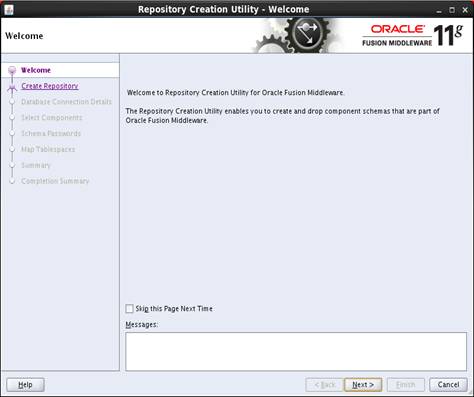
3. Click
Next.
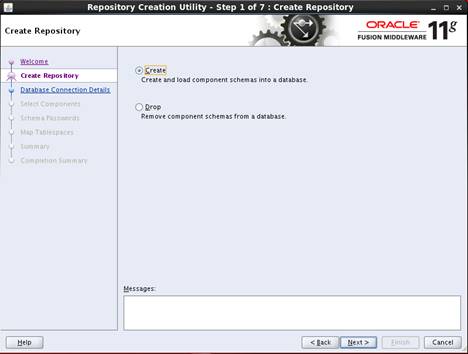
4. Select
Create and click Next.

5. Enter
all the fields as explained below and click Next:
a.
Host Name: Database server host name which Application will
use.(example: Your DB Host)
b.
Port: Database port (example: 1521)
c.
Service Name Database name (example: oolsc15)
d.
Username: SYS
e.
Password: <SYS password>
6. Prerequisite
requirements are verified and the following screen is displayed.

7. Click
OK. The following screen is displayed.

8. Add
a Prefix (Example: ALC).
9. Expand
“AS Common Schemas” and select Metadata Services and Oracle Platform Security
Services checkboxes as shown below:
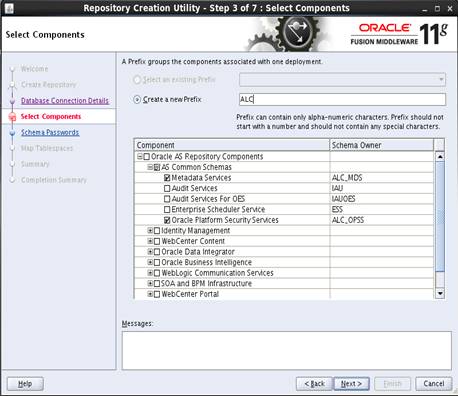
10. Click Next.
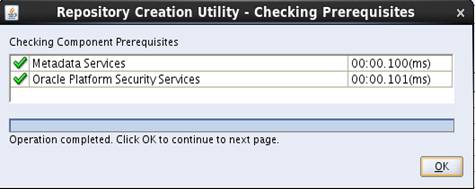
11.
Click OK.
12. Enter and
confirm your password.
Note: Make a note of the password you
give here as it will be used later.
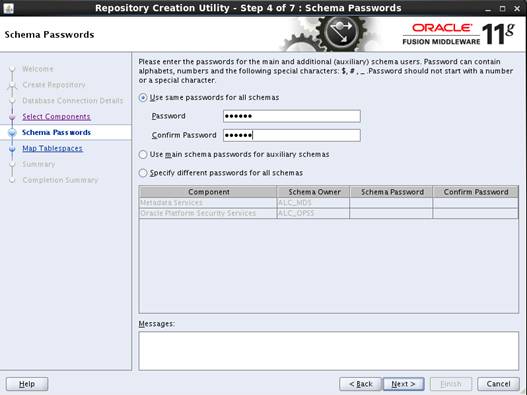
13. Click Next.
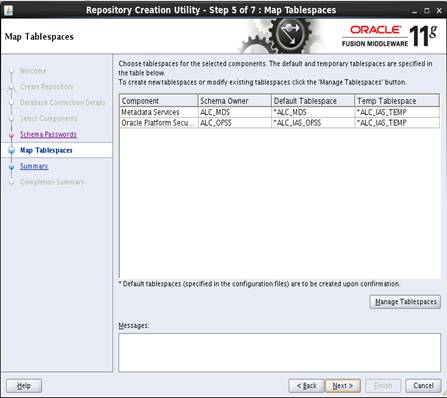
14. Click Next.

15. Click OK.
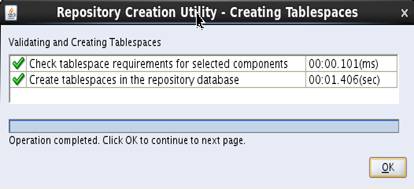
16. Click OK.

17. Click Create.
This will create the selected database schemas.

18. The
following Completion Summary screen is displayed on a successful schema
creation.
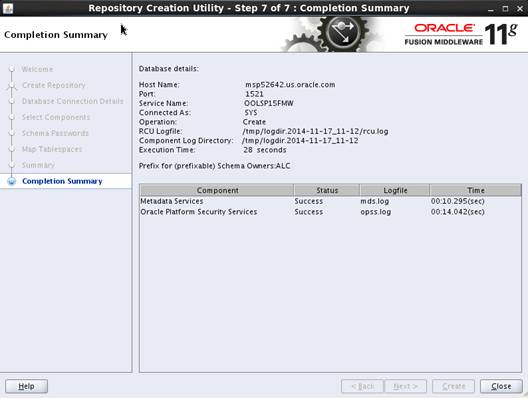
The above procedure can be used to create
database schemas for OID (Oracle Internet Directory) using the OID database
information.
Follow the steps below to install ADF.
1.
Download the ADF installation zip and extract it to a stage
location.
2.
Set the environment variables below:
export JAVA_HOME=<location of JDK>
export PATH=$JAVA_HOME/bin:$PATH
3.
Navigate to the ADF Stage location <ADF11.1.1.7>/Disk1
4.
Execute the installer command as below:
./runInstaller –jreLoc
<JAVA_HOME>
5. The
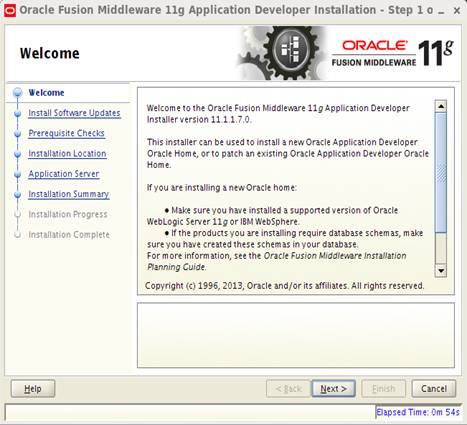
following Welcome screen is displayed. Click Next.
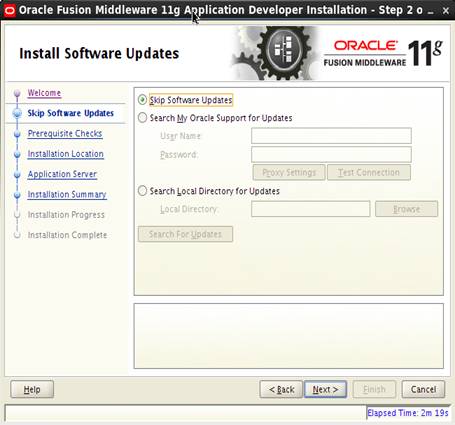
6. Select
Skip Software Updates and click Next.
7. Click
Next.

8. Enter
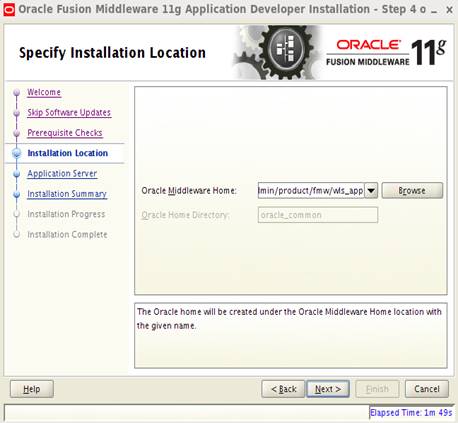
the details as below:
Oracle Middleware Home = <This should be the Middleware Home location
where Weblogic has been installed>. For example: /u00/webadmin/product/ fmw/wls_app
Oracle Home Directory = <leave this as default>. Eg: oracle_common
Click Next.
9. Select
WebLogic Server and click Next.

10. Click Install.
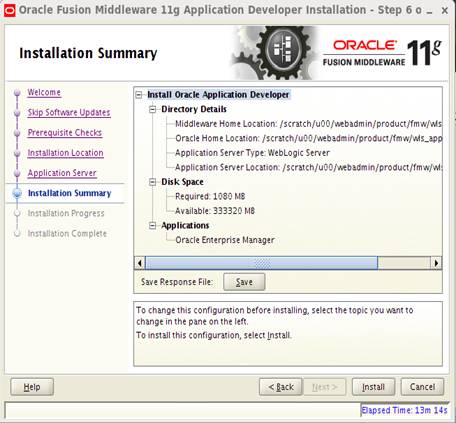
11. Click Next.
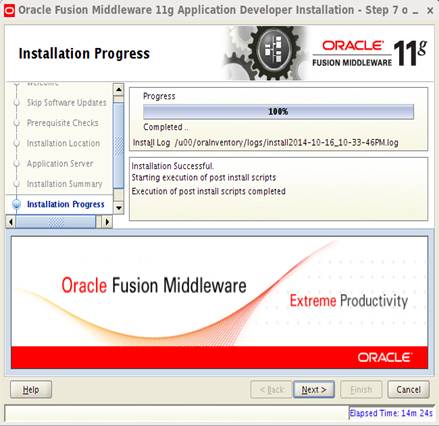
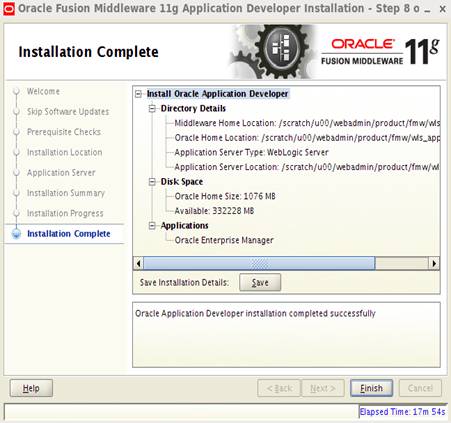
12. Click Save
to save your installation details and click Finish.
To create a new domain and managed
server with ADF libraries and EM, follow the below steps:
1.
Set the environment variables:
export JAVA_HOME=<JDK_HOME>
[JDK_HOME is the location where jdk has been installed)
export PATH=$JAVA_HOME/bin:$PATH
export
ORACLE_HOME=<WLS_HOME>/oracle_common(Example:/u00/webadmin/product/fmw/wls_app/oracle_common)
cd $WLS_HOME/wlserver_10.3/common/bin
(WLS_HOME is the location where Weblogic has been installed.)
2.
Run the following command:
./config.sh
3. The
following screen is displayed:
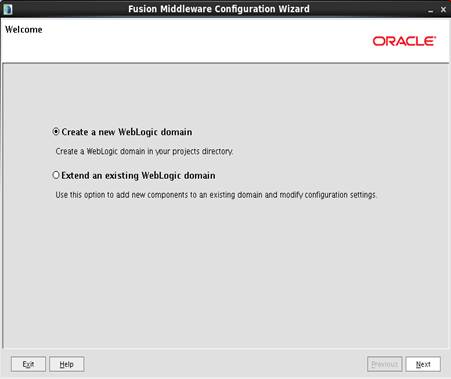
4.
Select Create a new WebLogic domain and click Next.
5. Select
the components shown in the screenshot below (Oracle Enterprise Manager and
Oracle JRF) and click Next.

6. Domain
name: <AllocDomain> (you may provide the name of the domain here). Click Next.
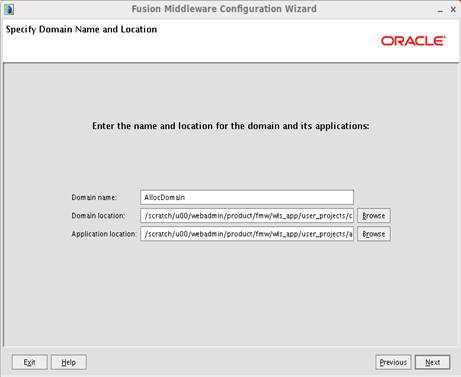
7. Enter
‘User password’ value and ‘Confirm user password’ value (same as user
password). Click Next.
User
password=<password>
Confirm
user password=<password>

8. Select
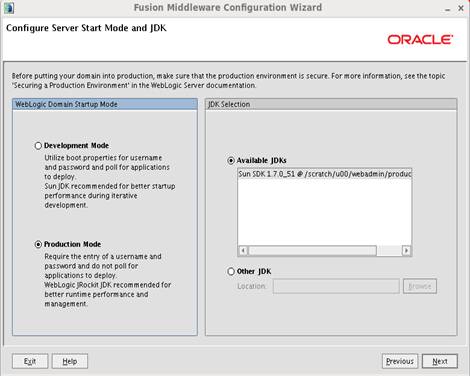
Production Mode. Click Next.
9. Select
Administration Server, Managed Servers, Clusters and Machines and Deployments
and Services. Click Next.

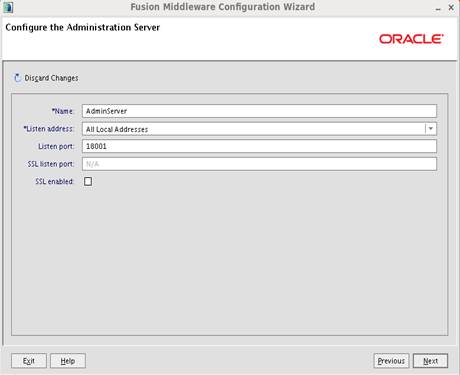
10. Enter the
Listen port and click Next.
§
Listen port: 18001 (This port must be an open port on the server)
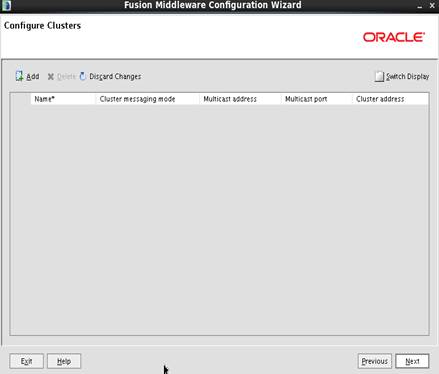
11. Click Add
and provide Name and Listen Port for the managed server.
§
Name: alloc-server (This is your managed server name)
§
Listen port: 18003 (This port must be an open port on the server)

12.
Click Next.
13.
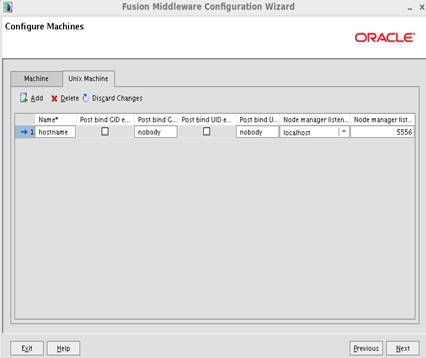
From the Unix Machine tab, click Add and provide a Name
and an open port for Node manager listen port as shown below. Click Next.
§
Name: <hostname> (This can be any name or usually your
hostname)
§
Listen port: 5556 (This port must be an open port on the server)
14.
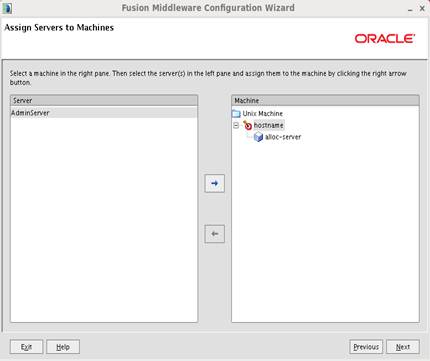
Select alloc-server from the left and and click on the arrow
(towards right). The server ‘alloc-server’ will move to the right and add to
the Nodemanager. Click Next.
15.
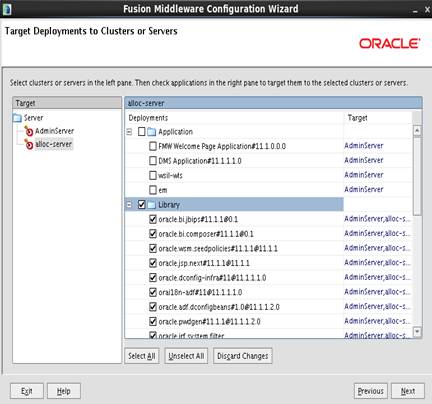
Select alloc-server in the Target panel and select Library.
This will automatically select all the libraries in the Library list. Click Next.
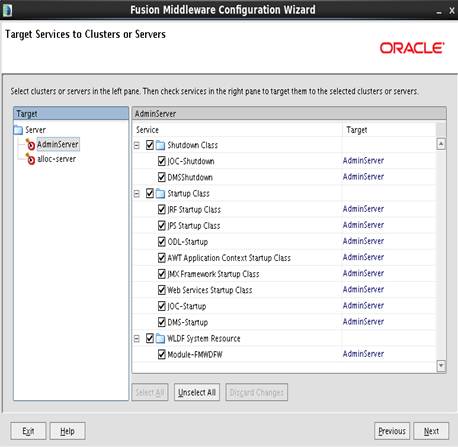
16. Leave
defaults and Click Next.
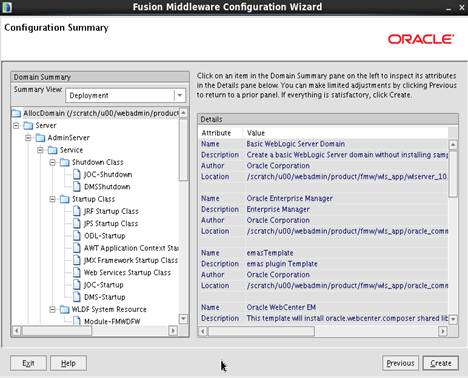
17. From the
Configuration Summary screen, click Create.
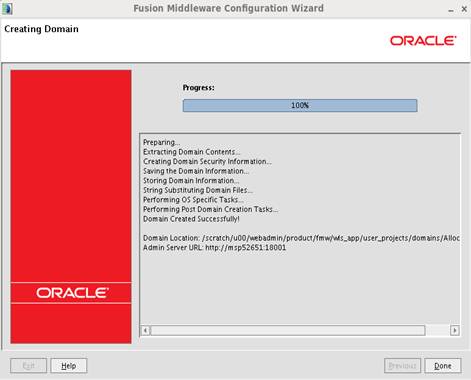
18. When the
domain is successfully created, the following screen is displayed. Click Done.
19. Start
WebLogic Server from the <DOMAIN_HOME>/bin
Example: /u00/webadmin/product/fmw/wls_app/user_projects/domains/AllocDomain/bin/startWebLogic.sh
20. Create
security folder at <DOMAIN_HOME>/servers/<AdminServer>/and create
boot.properties file under
<DOMAIN_HOME>/servers/<AdminServer>/security
The file ‘boot.properties’
should have the following:
----------------------------------
username=weblogic
password=<password>
------------------------------------
In the above, the password
value is the password of WebLogic domain which is given at the time of domain
creation.
21. Save the
boot.properties file and restart the WebLogic server.
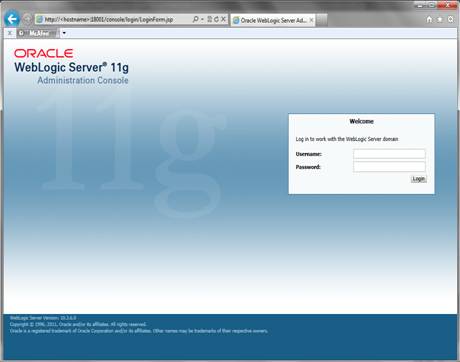
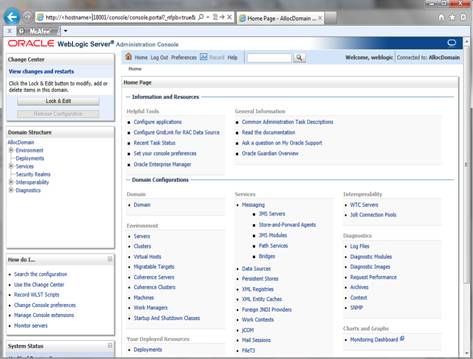
22. Login to
the Admin console of the Domain
Example:
http://<hostname>:<port>/console
In the
below screen, provide username=weblogic and password=<weblogic password>
1.
Start NodeManager from the server using the
startNodeManager.sh at $WLS_HOME/wlserver_10.3/server/bin
2.
Edit the nodemanager.properties file at the following
location with the below values:
$WLS_HOME/wlserver_10.3/common/nodemanager/nodemanager.properties
§ StartScriptEnabled=true
§ StartScriptName=startWebLogic.sh.
3.
NodeManager must be restarted after making changes to the
nodemanager.properties file.
Note: The
nodemanager.properties file is created after NodeManager is started for the
first time. It will not be available before that point.
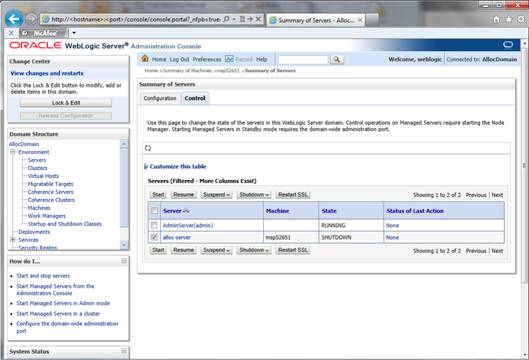
To start the managed servers, complete
the following steps.
1.
After the Node Manager is started, the managed servers can be
started via the admin console.
2.
Navigate to Environments > Servers. Click the Control tab
and Select <app-server>. Click Start.
Follow the below steps to set up the
datasource with OPSS schema in WebLogic domain.
1. Login
to the Admin console.
http://<hostname>:<port>/console
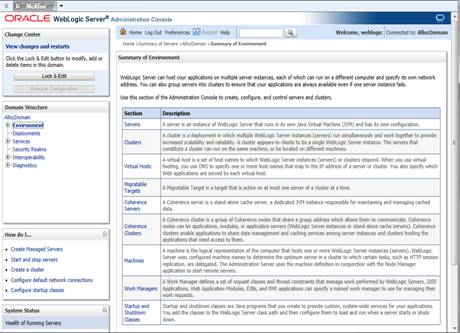
2. In
Domain Structure, go to Services-> Data Sources and click Lock & Edit.
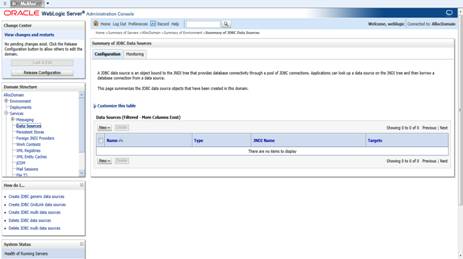
3. Click
New -> Generic Data Source

4. Enter
the details:
§ Name:
<OPSS DataSource>
§ JNDI
Name: jndi/OPSSDS
§ Database
Type: Oracle
5. Click
Next.

6. Select
Oracle’s Driver (Thin) for Instance connections; Versions: 9.0.1 and later.
Click Next.

7. Uncheck
Supports Global Transactions. Click Next.
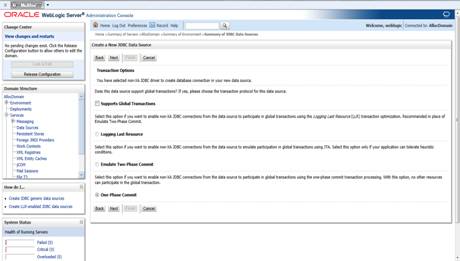
8. Enter
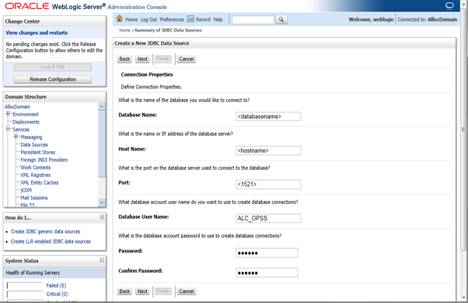
the details:
§ Database
Name: <servicename>
§ Host
Name: <database server name>
§ Port:
<database port>
§ Database
User Name: <ALC_OPSS> (This is the OPSS schema which has been created
using RCU earlier in this document.)
§ Password:
<password> (Password given at the time of OPSS schema creation)
9. Click
Next.
10.
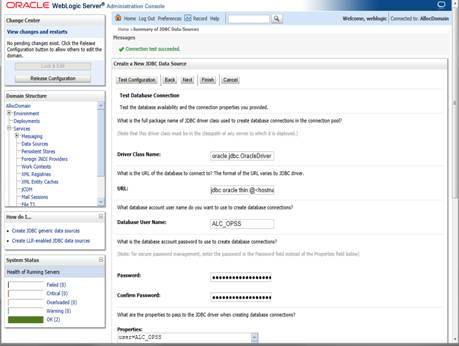
In URL: update the syntax to jdbc:oracle:thin:@<hostname>:<1521>/<servicename>
and Click Test Configuration. The message “Connection test succeeded”
will appear upon a successful connection.
11. Select
Targets Admin Server and <alloc-server>. Click Finish.

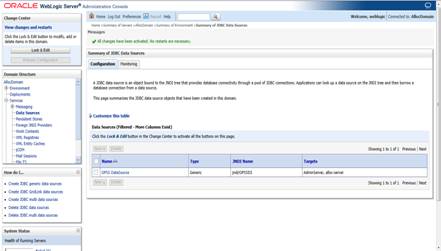
12. Click Activate
Changes. The OPSS DataSource is created as below.

13. Create
another datasource using the same process as shown above with the below
details.
§ Name:
mds-CustomPortalDS
§ JNDI
Name: jdbc/mds/CustomPortalDS
§ Database
Type: Oracle
§ Database
Name: <servicename>
§ Host
Name: <database server name>
§ Port:
<database port>
§ Database
User Name: <ALC_MDS> (This is the MDS schema which has been created using
RCU earlier in this document.)
§ Password:
<password> (Password given at the time of MDS schema creation)
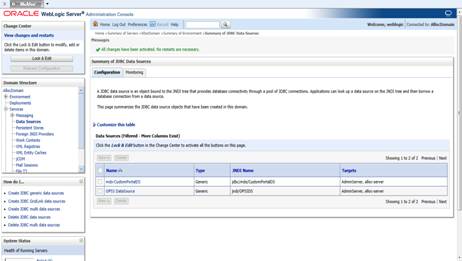
The Datasources screen looks
like below after the mds-CustomPortalDS Datasource is created.
Follow the steps below to re-associate
a policy store to the database:
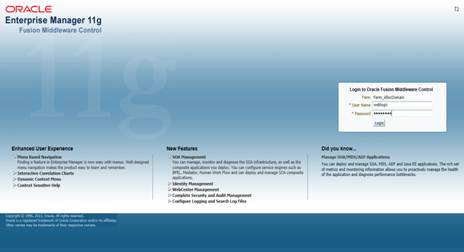
1. Login
to the WebLogic EM console.
2. Select
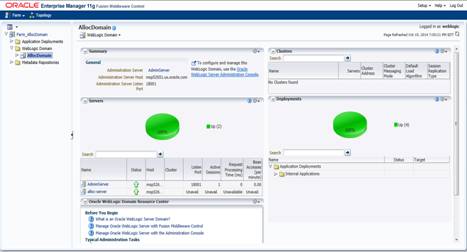
AllocDomain on the left. Go to WebLogic Domain and click AllocDomain.
3. Select
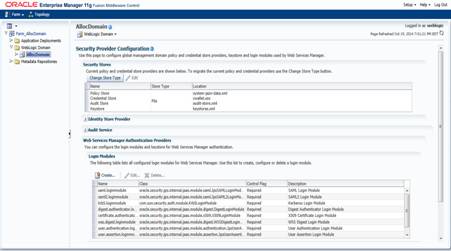
the dropdown WebLogic Domain->Security->Security Provider Configuration.
4. Click
Change Store Type.
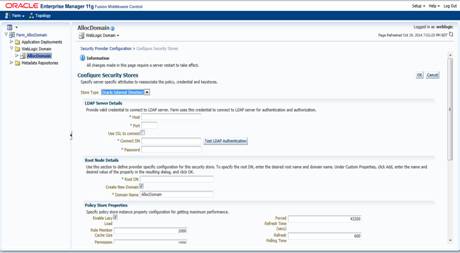
5. Select
Oracle Database in the Store Type drop down.
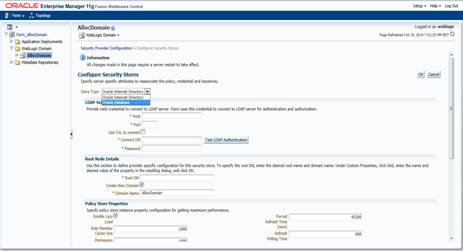
6. Click
Select and select jndi/OPSSDS JNDI name. Click OK. When you click
Ok, the Data Source Properties fields will be displayed where you enter the
values as shown in the next step.
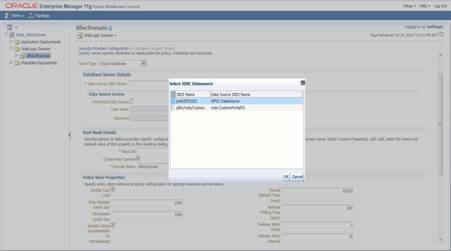
7. Enter
the values:
§ In
Data Source Properties->Username=<ALC_OPSS> (This is the OPSS Schema
created in RCU)
§ In
Data Source Properties ->Password=<OPSS schema password> (This is the
OPSS Schema Password created in RCU)
In Root Node Details:
§ Root
DN= <cn=AllocPolicies> (This can be any name, but it MUST match the
value in jps-config.xml explained in the later section)
§ Select
‘Create New Domain’
§ Domain
Name=<AllocDomain> (This must be the domain name which has been created
earlier in this document)
8. Click
OK.

9. Click
Yes.
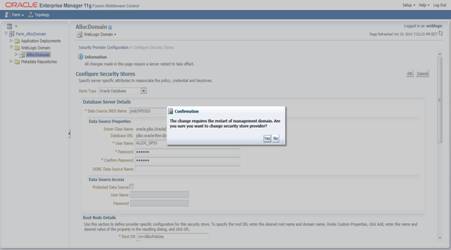
10. The message
Configure Security Stores – Completed Successfully appears. Click Close.
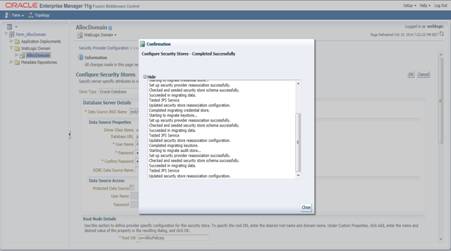
The following screen appears:

11. Restart the
WebLogic domain.
1. Go
to $WLS_HOME/user_projects/domains/AllocDomain/config/fmwconfig.
2. Copy
the file jps-config.xml and rename it with jps-config-<env>.xml (where
env can be any name matching your environment name)
Note:
Do not change the existing jps-config.xml file. The change has to be done only
to jps-config-<env>.xml.
Note:
If applying patch 14.1.1 to an existing 14.1 Allocation and using the same
Alloc Domain, you may already have done these changes at the time of 14.1
Allocation install. You may reuse the same modified jps-config-<env>.xml
file if exists.
1. Add
the following entry in the renamed file above (jps-config-<env>.xml):
<serviceInstance
location="./merged-jazn-data.xml"
provider="policystore.xml.provider"
name="policystorelocal.xml">
<description>File
based policy store Instance"</description>
</serviceInstance>
The above entry can be added
above this:
</serviceInstances>
<jpsContexts
default="default">
<jpsContext
name="default">
<serviceInstanceRef
ref="credstore.db"/>
Example:
<propertySetRef
ref="props.db.1"/>
</serviceInstance>
<serviceInstance
location="./merged-jazn-data.xml"
provider="policystore.xml.provider"
name="policystorelocal.xml">
<description>"File
based policy store Instance"</description>
</serviceInstance>
</serviceInstances>
<jpsContexts
default="default">
<jpsContext
name="default">
<serviceInstanceRef
ref="credstore.db"/>
2. In
the same file, add the following entry:
<jpsContext
name="source">
<serviceInstanceRef
ref="policystorelocal.xml"/>
</jpsContext>
Example:
<serviceInstanceRef
ref="attribute"/>
</jpsContext>
<jpsContext
name="source">
<serviceInstanceRef ref="policystorelocal.xml"/>
</jpsContext>
<jpsContext
name="bootstrap_credstore_context">
<serviceInstanceRef
ref="bootstrap.credstore"/>
</jpsContext>
The modified
jps-config-<env>.xml and the cwallet.sso (from bootstrap location
mentioned below) file will be used for deploying policies.
Wallet file is available at $WLS_HOME/user_projects/domains/<AllocDomain>/config/fmwconfig/bootstrap/cwallet.sso
Note:
Only use the wallet in the above bootstrap folder location. Make sure to check
the line break in the path mentioned for the wallet file.
3. Copy
the jps-config-<env>.xml file to the staging location <INSTALL_DIR>/alloc/application/alloc14/policysetup/jps-config.
4. Rename
the file jps-config-<env>.xml at <INSTALL_DIR>/alloc/application/alloc14/policysetup/jps-config
to jps-config.xml after copying the file jps-config-<env>.xml in step 5.
5. Copy
cwallet.sso from $WLS_HOME/user_projects/domains/<AllocDomain>/config/fmwconfig/bootstrap
to the location <INSTALL_DIR>/alloc/application/alloc14/policysetup/wallet.
The OID (Oracle Internet Directory 11.1.1.7)
must be set up in order to perform the configuration of OID Authenticator in
WebLogic Domain.
Follow the steps below to configure WebLogic
domain with OID Authenticator:
1. Login
to Admin console of the domain (Example: AllocDomain).
2. Go
to SecurityRealm.

3. Click
the MyRealm -> Providers tab.
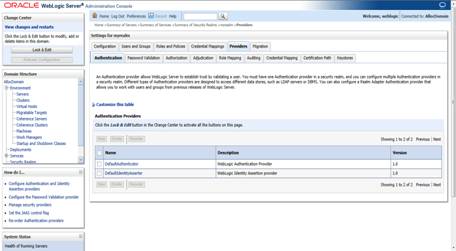
4. Click
Lock & Edit. Click DefaultAuthenticator.
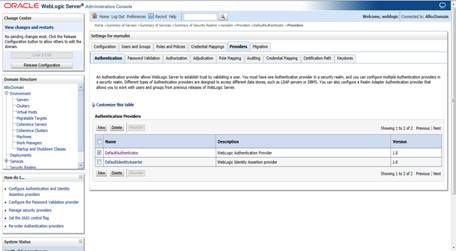
5. Select
Control Flag=OPTIONAL. Click Save and Activate changes.

6. Go
to Security Realms->MyRealm->Providers tab. Click New.

7. Enter
the values:
§ Name:
<OIDAuthenticator> (Provide a name for OID Authenticator.
Example:OIDAuthenticator)
§ Type:
OracleInternetDirectoryAuthenticator
8. Click
OK and Activate Changes.
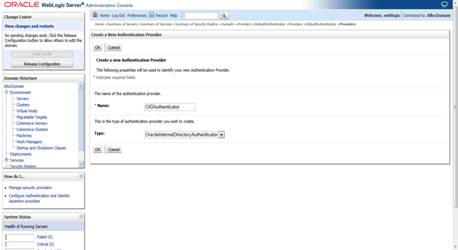
9. Click
OIDAuthenticator.

10. Select
Type: SUFFICIENT. And Click on Save button
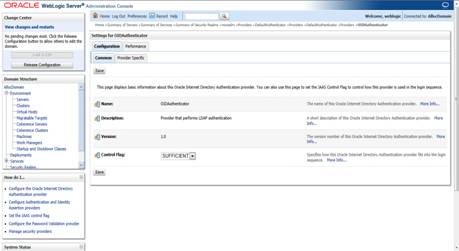
11. Click Provider
Specific tab.
Enter the values:
§ Host:
<OID Server name> (Provide OID Hostname)
§ Port:
<OID port> (Example: 3060 or 389)
§ Principal:
<cn=orcladmin> (provide the OID admin user)
§ Credential:
<password> (provide the password of cn=orcladmin)
§ User
Base DN: (Example: cn=Users,dc=us,dc=oracle,dc=com)
§ Group
Base DN: (Example: cn=Groups,dc=us,dc=oracle,dc=com)
§ Select
‘Ignore Duplicate Membership’
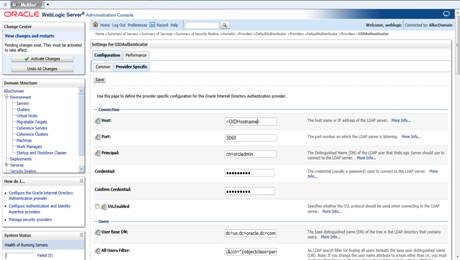
12. Save the
values and activate changes.

13. Go to
Security Realms->myrealm->Providers.
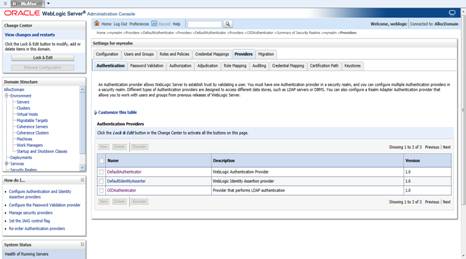
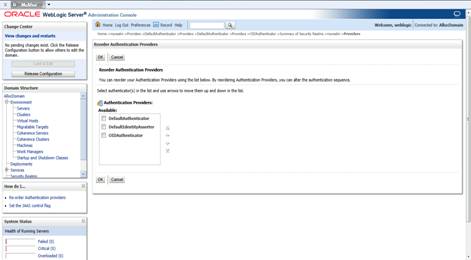
14. Click Lock
and Edit and then Click Reorder. Select OIDAuthenticator and move
it to the top of the list. Click OK.
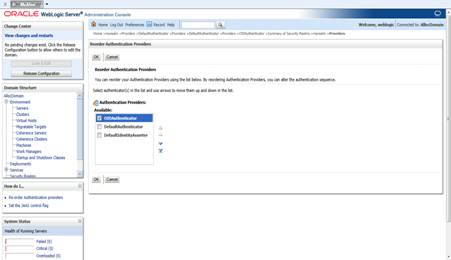
15. Click Activate
Changes. The following screen is shown with OIDAuthenticator in the
providers.

16. Restart the
WebLogic Domain and Alloc Managed server.
17. Login to
WebLogic domain->Security Realms->myrealm->Users and Groups and verify
that the users in OID appears in this screen (Users and Groups). This confirms
the OID authentication from WebLogic is successful.
The OID (Oracle Internet Directory 11.1.1.7)
must be set up in order to perform the configuration of OID Authenticator in
WebLogic Domain.
These are the four sample LDIF files
provided in the application zip (INSTALL_DIR/alloc/application/alloc14/ldifs):
§ RGBU-oid-create-groups.ldif
§ RGBU-oid-create-users.ldif
§ RGBU-oid-delete-groups.ldif
§ RGBU-oid-delete-users.ldif
Note:
You may use the existing users and existing groups if the enterprise users and
groups are already available in the LDAP. The users provided in the LDIF files
above may not be required to use the application. For more information, refer
to the Retail Role Hierarchy section in the Implementing Functional Security of
the Oracle Retail Allocation Operation Guide.
Note:
If applying patch 14.1.1 to an existing 14.1 Allocation install and if you had
imported the users and groups using RGBU-oid-create-users.ldif and
RGBU-oid-create-groups.ldif in 14.1, you will need to delete those users and
groups using the RGBU-oid-delete-users.ldif and RGBU-oid-delete-groups.ldif files
from 14.1 Allocation application zip and reimport the users and groups using
the above scripts from 14.1.1 Allocation application zip. This step is needed
as there are changes in the users and groups LDIFs in 14.1.1 patch.
The steps given below can be used to
import the Groups and Users into the LDAP using the LDIF files ‘RGBU-oid-create-groups.ldif’
and ‘RGBU-oid-create-users.ldif’.
IMPORTANT Note:
If you are using the above LDIF files to set up the users and groups, you
must update the ‘RGBU-oid-create-user.ldif’ LDIF file with your password for
the ‘userpassword’ attribute for all the users mentioned in the RGBU-oid-create-user.ldif
LDIF file. The changes must be done before importing the users LDIF file ‘RGBU-oid-create-users.ldif’
into the LDAP. Once the users are imported into the LDAP, remove the ‘userpassword’
attribute value from the LDIF file. Refer to the Oracle Internet Directory
Administration Guide for OID password policies for setting up passwords.
User DN and Group DN values
(example:dc=us,dc=oracle,dc=com) may need to be updated based on the DN values
in your OID.
Note:
LDIF files can also be imported in other ways, but the steps below are using
ODSM console. ODSM needs to be installed and up and running to perform the
steps below.
The LDIF ‘RGBU-oid-delete-groups.ldif’
can be used as needed if you need to delete the groups created from the groups
creation LDIF ‘RGBU-oid-create-groups.ldif’.
The LDIF ‘RGBU-oid-delete-users.ldif’
can be used if you need to delete the users created from the users LDIF file ‘RGBU-oid-create-users.ldif’.
1. Login
to ODSM console:
http://<oidhost>:<port>/odsm
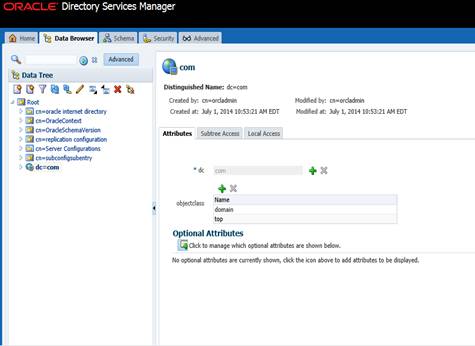
2. Go
to the Groups container or Group DN value.
Group DN
is defined at the time of OID install. Here we are using the example as
cn=Groups,dc=us,dc=oracle,dc=com.

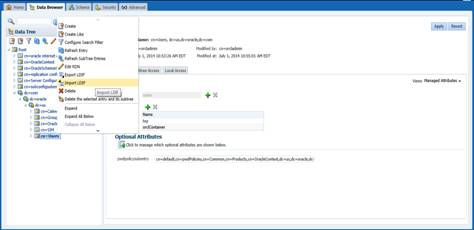
3. Right
click cn=Groups and select Import LDIF.

4. Click
Browse. Select the LDIF file ‘RGBU-oid-create-groups.ldif’ which has
been downloaded from the media. Click OK.

The Entries
successfully imported message will be shown after the import is completed.
Groups can be verified under GROUP DN, example:
cn=Groups,dc=us,dc=oracle,dc=com.
5. Go
to Users container or User DN value.
User DN is defined at the time of OID install. Here we are using the
example as cn=Users,dc=us,dc=oracle,dc=com. Right Click cn=Users and select
Import LDIF.
6. Click
Browse and select the LDIF file RGBU-oid-create-users.ldif to import the
Users in LDAP.

Users in the LDIF will be
imported and Users can be verified in your User DN location, example:
cn=Users,dc=us,dc=oracle,dc=com.
The
group cn=Administrators and user cn=weblogic must have been added to your OID
as part of OID documentation. If it is not added already, create the
cn=weblogic user and cn=Administrators group and add cn=weblogic user as
a uniquemember in cn=Administrators group. Following LDIF scripts can be
used for the creation of the user (cn=weblogic) and group (cn=Administrators).
Note: DN value need to be
changed based on your DN value in OID.
For Example:
dn:
cn=weblogic,cn=Users,dc=us,dc=oracle,dc=com
description: A user for the
'Administrators' role.
objectclass: inetOrgPerson
objectclass: organizationalPerson
objectclass: person
objectclass: top
objectclass: orcluser
objectclass: orcluserV2
objectclass: orclIDXPerson
cn: weblogic
orclsamaccountname: weblogic
sn: weblogic
uid: weblogic
givenname: weblogic
displayname: weblogic
userpassword: <your password
here>
employeeNumber:
middleName:
orclHireDate:
telephoneNumber:
facsimileTelephoneNumber:
mail:
weblogic@rgbu.generated.oracle.com
postalAddress:
street:
postalCode:
title:
cn= Administrators group LDIF:
dn:
cn=Administrators,cn=groups,dc=us,dc=oracle,dc=com
objectclass: groupOfUniqueNames
objectclass: orclGroup
objectclass: top
cn: Administrators
description: Administrators
displayname: Administrators
uniquemember:
cn=weblogic,cn=users,dc=us,dc=oracle,dc=com
Retail
Application Security Roles Manager (RASRM) is a tool to facilitate the
customization of default RGBU role mappings to suit your business role model.
This new application can be deployed along with the Allocation application to
manage the application policies of Allocation. A new installer screen is added,
so you can opt for this application which gets deployed to the managed server
of the Allocation application. Once deployment is complete, you should be able
to access this application from the main page of Allocation. You can modify the
application roles and their mappings to enterprise roles from RASRM
(application shown below).
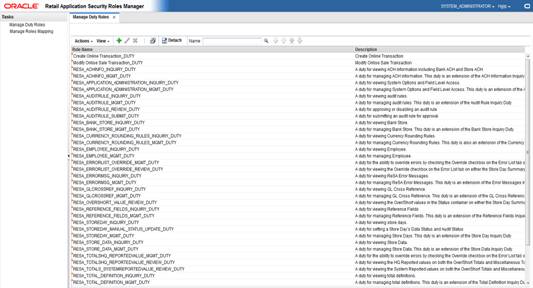
Only the user with System
Administrator privilege can access RASRM from the Allocation.
As part of the Allocation install,
RASRM gets installed with one default role SYSTEM_ADMINISTRATOR_ JOB role.
The same job role will also exist in Allocation's jazn-data.xml file. The
below options can be used for the set up.
Option 1:
Create the SYSTEM_ADMINISTRATOR_JOB
role in your LDAP and assign that role to a user who intends to execute the
role mapping process.
Option 2:
Create a job role in your LDAP and map
the intended job role in the LDAP to the SYSTEM_ADMINISTRATOR_JOB role using
enterprise manager.
Since the user is part of the
SYSTEM_ADMINISTRATOR_JOB role, the user first accesses the Allocation application
and then launches RASRM for role mapping from the user menu of Allocation.
Note: SYSTEM_ADMINISTRATOR_JOB
role must have been already created if using the sample LDIF files which are provided
as part of the Allocation application zip file.
Skip this section if you are not
clustering the application server.
1.
Make sure that you are able to start and stop the managed
servers that are part of the Allocation Cluster from the WebLogic Admin
Console.
There are no additional steps before
running the installer for Allocation.
Note:
See Appendix: Analyze Tool for details
and instructions to run the Analyze Tool. This appendix also contains screens
and fields in the tool.
Once you have a managed server that is
configured and started, you can run the Oracle Retail Allocation application
installer. This installer configures and deploys the Oracle Retail Allocation
application.
Note:
It is recommended that the installer be run as the same UNIX account which owns
the application server ORACLE_HOME files.
1.
Change directories to INSTALL_DIR/alloc/application.
2.
Set the ORACLE_HOME, JAVA_HOME, and WEBLOGIC_DOMAIN_HOME
environment variables. ORACLE_HOME should point to your WebLogic installation. .
JAVA_HOME should point to the Java JDK 1.7+. This is typically the same JDK
which is being used by the WebLogic domain where Application is getting
installed. WEBLOGIC_DOMAIN_HOME should point to the full path of the domain
into which Allocation will be installed.
3. If
a secured datasource is going to be configured you also need to set “ANT_OPTS”
so the installer can access the key and trust store that is used for the
datasource security:
export ANT_OPTS="-Djavax.net.ssl.keyStore=<PATH
TO KEY STORE> -Djavax.net.ssl.keyStoreType=jks
-Djavax.net.ssl.keyStorePassword=<KEYSTORE PASSWORD>
-Djavax.net.ssl.trustStore=<PATH TO TRUST STORE>
-Djavax.net.ssl.trustStoreType=jks -Djavax.net.ssl.trustStorePassword=<TRUSTSTORE
PASSWORD>"
An example of this would be:
export ANT_OPTS="-Djavax.net.ssl.keyStore/u00/webadmin/product/identity.keystore
-Djavax.net.ssl.keyStoreType=jks -Djavax.net.ssl.keyStorePassword=retail123
-Djavax.net.ssl.trustStore/u00/webadmin/product/identity.truststore
-Djavax.net.ssl.trustStoreType=jks -Djavax.net.ssl.trustStorePassword=retail123"
4.
If you are using an X server such as Exceed, set the DISPLAY
environment variable so that you can run the installer in GUI mode
(recommended). If you are not using an X server, or the GUI is too slow over
your network, unset DISPLAY for text mode.
5.
Run the install.sh script. This launches the installer. After
installation is completed, a detailed installation log file is created (alloc14install.<timestamp>.log).
See Appendix: Oracle Retail
Allocation Application Installer Screens for illustrations of installer
screens and details about what information needs to be entered on each screen.
If the application installer
encounters any errors, it halts execution immediately. You can run the installer
in silent mode so that you do not have to re-enter the settings for your
environment. See Appendix: Installer
Silent Mode in this document for instructions on silent mode.
See Appendix:
Common Installation Errors in this document for a list of common
installation errors.
Because the application installation
is a full reinstall every time, any previous partial installations are
overwritten by the successful installation.
Update the following settings in WebLogic:
Transaction Time Out
The transaction time out is set at the
Domain Level in Weblogic console
1.
Login to the WebLogic Console.
2.
Navigate to AllocDomain/JTA/Timeout Seconds.
3.
Set Timeout Seconds to 1200000.
WebLogic Redelivery Limit
1.
Login to the WebLogic Console.
2.
Click the JMS Modules link on the Home Screen. The JMS
Module screen is displayed.
3.
Under the list of JMS Modules, click the allocJMSModule. The
Queue List is displayed.
4.
Click the calcQueue.
5.
Click the Delivery Failure tab.
6.
Set the Redelivery Limit to 0 instead of -1.
RAFAsyncTaskDBDS Timeout
1.
Login to the WebLogic Console.
2.
Click the “Data Sources” link on the Home Screen. The Data
Source screen is displayed.
3.
Under the list of Data Sources, click the RAFAsyncTaskDBDS
data source.
4.
Click the Connection Pool tab.
5.
Expand the Advanced divider.
6.
Click the Transaction tab.
7.
Check the Set XA Transaction Timeout checkbox.
8.
Set the XA Transaction Timeout to 162000.
Data Source Capacity
Depending on your planned load, you
may need to increase the capacity on the Allocation data sources to accommodate
more concurrent connections. When increasing this setting, ensure that your
Allocation database has processes setting large enough to accommodate the new
maximum.
1.
Login to the WebLogic Console.
2.
Click the Data Sources link on the Home Screen. The Data
Source screen is displayed.
3.
Under the list of Data Sources, click the ApplicationDBDS
data source.
4.
Click the Connection Pool tab.
5.
Set the Maximum Capacity to 1000.
6.
Repeat for all data sources.
In this release of Allocation, after
following the installation steps, you should manually update the
ALC_SYSTEM_OPTIONS table in the Allocation owning schema to the correct
settings for your environment with the below settings:
§ INST_SCHEMA_OWNER –
provide the Allocations schema owner
§ TP_BATCH_PROVIDER_URL
– format as follows <t3://AppServer:Port> Where AppServerHost is the
hostname where the Allocation Server has been deployed. Port is the Allocation
managed server port, eg:18003 (your alloc-server port).
The following steps are not mandatory,
but only intended to use as per your environment needs if required.
WebLogic uses the Work Manager to
execute the Java Messages. Work Manager prioritizes tasks in queue and
allocates the thread based on an execution model. To optimize the Java
Messaging Services it is highly recommended that the Work Manager is configured
most effectively per each customers expected user volumes. The maximum number
of threads constraint should be set to a number that is appropriate for the
maximum number of anticipated Allocation users on the system at any given time.
From WebLogic Console navigate to Work
Manager pane (Domain->Environment
->Work Manager)
Create Maximum thread constraint
1.
Click New.
2.
Select the Maximum Thread Constraint radio button and click Next.
3.
Give a Name (MaxThreads) and specify maximum number of consumers
needed for your Application. Click Next.
4.
Select Target as <alloc-server> and click Finish.
Create Work Manager
1.
Click New.
2.
Select the Work Manager radio button and click Next.
3.
Give a Name (AllocWorkManager) and click Next.
4.
Select Target as <alloc-server> and click Finish.
5.
Go back to Domain-Environments->Work Manager, choose and
edit the work manager you just created: AllocWorkManager.
6.
Assign Max thread constraint to –MaxThreads as configured
above.
If you are installing the Oracle
Retail Allocation application to a clustered WebLogic environment, extra steps
are required to complete the installation. In these instructions, the
application server node with the ORACLE_HOME you used for the Oracle Retail
Allocation installer is referred to as the master node. All other nodes
are referred to as remote nodes.
1.
The Oracle Retail Installation creates security, batch, and
configuration files in the
$WEBLOGIC_DOMAIN_HOME/retail/<alloc_application_name>/directory. Copy
this directory to each remote node of the cluster, matching the full path of
the location of this directory on the master node.
After the application installer
completes you should have a working Oracle Retail Allocation application
installation. To launch the application, open a web browser and go to
http://host:httpport/contextroot/faces/pages_home
myhost is the hostname and Port is the
port of alloc-server where Allocation application has been deployed.
§ You should use a
user/password that you built in the previous section of this install guide
“Load LDIF files in LDAP”.
The default, preloaded user supplied in
the LDIF scripts for testing this installed application is ALLIE_ALLOCATOR; the
password is <the password which you have given in the LDIF file RGBU-oid-create-users.ldif
as part of loading LDIF files into the LDAP>.
The Allocation application installer
configures and installs the batch scripts under <RETAIL_HOME>/alloc-batch/batch.).
Batch user is entered as part of
the install and the user (Example: Alex_Administrator) gets created in the
wallet (<retail_ home>/orpatch/config/javaapp_alloc
at the time of install.
Verify the entry was created in the
wallet under the “retail_installer” partition by running the dump_credentials.sh
script and passing in the batch wallet location.
Example:
./dump_credentials.sh <retail_
home>/orpatch/config/javaapp_alloc
Application level key partition name:retail_installer
User Name Alias:dsallocAlias User
Name:RMSUSER
User Name Alias:alloc14 User Name:Alex_Administrator
User Name Alias:wlsAlias User
Name:weblogic
You will need the alias for running
the batch scripts.
You must run the batch script with a
Java wallet in the form of <allocbatchscript>.ksh <Alex Administrator
alias>, where <Alex_Administrator alias> is the alias given in the
‘Batch Details’ screen of the Appinstaller. For example: ./AllocBatchscript.ksh
alloc14
Note:
The JAVA_HOME used by batch is configured in the AllocBatch.ksh script by the
Oracle Retail Allocation application installer using the JAVA_HOME of the
installer.
If a new batch
user needs to be created in the wallet, follow the procedure below.
Run the save_credential.sh
script, passing in a unique alias, the location to the batch wallet(<retail_
home>/orpatch/config/javaapp_alloc
), “retail_installer” for the
partition name, and the username which needs to be created. This user must be
in LDAP and must have valid roles in LDAP. Please refer the Oracle Retail
Allocation Operations Guide for more information on the batch user.
You will need the alias you chose when
you are running the batch scripts.
Example:
./save_credential.sh
-a alloc14a -l <retail_ home>/orpatch/config/javaapp_alloc
-p alloc14 -u Alex1_Administrator
In the above, ‘alloc14a’ is the new
alias (this needs to be unique), ‘retail_installer’ is the partition name and ‘Alex1_Administrator’
is the new user. Do not use the usernames with spaces as save_credential.sh
script does not load the complete username when spaces are used for usernames.
The application installer
automatically installs Online Help to the proper location. It is accessible
from the help links within the application.
Skip this section if Oracle Retail
Allocation is not used within an Oracle Single Sign-On environment.
Note:
This section assumes the Oracle WebLogic Server has already been registered
with the Oracle Access Manager (OAM) via the oamreg tool. See the Oracle
Single Sign-On (OAM using webgate) documentation for details.
If you are using Oracle Retail
Allocation in an Oracle Single Sign-On environment, then the Allocation root
context must be protected. Modify the following files.
§ mod_wl_ohs.conf located
in <WEBLOGIC_HOME>/Oracle_WT1/instances/instance1/config/OHS/ohs1
LoadModule
weblogic_module "${ORACLE_HOME}/ohs/modules/mod_wl_ohs.so"
<IfModule
weblogic_module>
</IfModule>
<Location /console>
WebLogicHost
<weblogichostname>
WebLogicPort
<AdminServerPort>
SetHandler weblogic-handler
</Location>
<Location /alloc14/>
WebLogicHost
<weblogichostname>
WebLogicPort
<Allocserverport>
SetHandler weblogic-handler
WLCookieName
ALC_CORESESSIONID
</Location>
<Location /adfAuthentication>
WebLogicHost
<weblogichostname>
WebLogicPort
<Allocserverport>
SetHandler weblogic-handler
</Location>
Note:
In the above, modify ‘alloc14’ with the context root name used for installing
Allocation application.
After checking that the
default authenticator's control flag is set correctly as per the OAM
documentation, and that the order of the providers is correct, add an OAM SSO
provider and restart all servers as described below.
Connect to
the WebLogic domain using WLST and run the following command:
addOAMSSOProvider(loginuri="/<appcontextroot>/adfAuthentication",
logouturi="/oamsso/logout.html")
Example:
<WEBLOGIC_HOME>/common/bin/wlst.sh
Connect() and proceed with the above
step
The Allocation application installer contains
RETL files under INSTALL_DIR/ alloc/application/alloc14/retl. Copy the files
from this location to your existing RETL installation under the directory RETLforALLOC.
5
The patching process for many Oracle
Retail products has been substantially revised from prior releases. Automated
tools are available to reduce the amount of manual steps when applying
patches. To support and complement this automation, more information about the
environment is now tracked and retained between patches. This information is
used to allow subsequent patches to identify and skip changes which have
already been made to the environment. For example, the patching process uses a
database manifest table to skip database change scripts which have already been
executed.
The enhanced product patching process
incorporates the following:
§ Utilities to automate
the application of Oracle Retail patches to environments.
§ Unified patches so
that a single patch can be applied against Database, Forms, Java applications,
Batch, etc. installations.
§ Database and
Environment manifests track versions of files at a module level.
§ Centralized
configuration distinguishes installation types (Database, Forms, Java, Batch,
etc.).
§ Patch inventory
tracks the patches applied to an environment.
These enhancements make installing and
updating Oracle Retail product installations easier and reduce opportunities
for mistakes. Some of these changes add additional considerations to patching
and maintaining Oracle Retail product environments. Additional details on
these considerations are found in later sections.
With version 14.1.1, several
additional products and technologies are supported by the enhanced patching
process. The utilities, processes and procedures described here are supported
with the following products and listed technologies:
|
Product
|
Supported Technology
|
|
Oracle Retail Merchandising
System (RMS)
|
§ Database
scripts
§ Batch
scripts
§ RETL
scripts
§ Data
Conversion Scripts
§ Forms
§ BI
Publisher Reports
|
|
Oracle Retail Warehouse
Management System (RWMS)
|
§ Database
scripts
§ Batch
scripts
§ Forms
§ BI
Publisher Reports
|
|
Oracle Retail Price Management
(RPM)
|
§ Database
scripts (included with RMS)
§ Java
Application
§ Batch
scripts
|
|
Oracle Retail Invoice Matching
(ReIM)
|
§ Database
scripts (included with RMS)
§ Java
Application
§ Batch
scripts
|
|
Oracle Retail Allocation
|
§ Database
scripts (included with RMS)
§ Java
Application
§ Batch
scripts
|
|
Oracle Retail Sales Audit
(ReSA)
|
§ Database
scripts (included with RMS)
§ Java
Application
|
|
Oracle Retail Analytics (RA)
|
§ Database
scripts
|
|
Oracle Retail Advanced Science
Engine (ORASE)
|
§ Database
scripts
§ Batch
scripts
|
|
Oracle Retail Application
Security Role Manager (RASRM)
|
§ Java
Application
|
During the lifecycle of an Oracle
Retail environment, patches are applied to maintain your system. This
maintenance may be necessary to resolve a specific issue, add new
functionality, update to the latest patch level, add support for new
technologies, or other reasons.
A patch refers to a collection of
files to apply to an environment. Patches could be cumulative, such as the
14.1.0 or 14.1.1 release, or incremental, such as a hot fix for just a few
modules. Patches may contain updates for some or all components of a product
installation including database, application code, forms, and batch. In a
distributed architecture the same patch may need to be applied to multiple
systems in order to patch all of the components. For example, if a patch
contains both database and application changes, the patch would need to be
applied to both the database server and the application server.
The top-level directory for the
installation of an Oracle Retail product is referred to as the RETAIL_HOME.
Underneath RETAIL_HOME are all of the files related to that product
installation, as well as configuration and metadata necessary for the Oracle
Retail Patch Assistant to maintain those files. In some cases the runtime
application files also exist under RETAIL_HOME. For example, the compiled RMS
forms, compiled RMS batch files, or Java Application batch scripts.
Patches are applied and tracked using
utilities that are specifically designed for this purpose. The primary utility
is described briefly below and additional information is available in later
sections.
ORPatch is the utility used to apply
patches to an Oracle Retail product installation. It is used in the background
by the installer when creating a new installation or applying a cumulative
patch. It is used directly to apply an incremental patch to an environment.
ORMerge is a utility to allow multiple
patches to be combined into a single patch. Applying patches individually may
require some steps to be repeated. Merging multiple patches together allows
these steps to be run only once. For example, applying several incremental
patches to database packages will recompile invalid objects with each patch.
Merging the patches into a single patch before applying them will allow invalid
objects to be recompiled only once.
ORCompile is a utility to compile
components of Oracle Retail products outside of a patch. It allows RMS Forms,
RMS Batch, and RWMS Forms to be fully recompiled even if no patch has been
applied. It also contains functionality to recompile invalid database objects
in product schemas.
Oracle Retail Deploy Patch (ORDeploy)
ORDeploy is a utility to deploy
components of Oracle Retail Java products outside of a patch. It allows RPM,
ReIM, Allocation and ReSA java applications to be redeployed to WebLogic even
if a patch has not been applied. It contains functionality to optionally
include or not include Java customizations when redeploying.
Many products and technologies are
supported by the enhanced patching process for the first time in 14.1. In
those cases all of the content in this chapter is new with 14.1.
MMHOME changed to
RETAIL_HOME
For RMS and RWMS, which were
previously supported in 14.0, there is a change when using ORPatch and related
tools. Previously the MMHOME environment variable was used to refer to the RMS
and RWMS installation area. Starting with 14.1, RETAIL_HOME is now used to
refer to the installation area. So where previously it was necessary to set
MMHOME before executing ORPatch, you must now set RETAIL_HOME.
Note: RMS
Batch continues to use MMHOME to refer to the area where batch is installed,
and requires it to be set when executing batches. The change to using
RETAIL_HOME relates only to ORPatch and related utilities.
Java batch script
location
For Java products with batch scripts,
starting with 14.1 the location of batch scripts has been changed to
$RETAIL_HOME/<app>-batch. Previously batch scripts were stored within
the WebLogic domain in the retail directory. Credential store files continue
to be stored within the WebLogic domain.
Oracle Retail produces two types of
patches for their products: cumulative and incremental.
Cumulative
Patches
A cumulative patch includes all of the
files necessary to patch an environment to a specific level or build a new
environment at that level. Examples of cumulative patches would be 14.1.1,
14.1.2, and so on. Cumulative patches come with a standard Oracle Retail
installer and so can be applied to an environment with the installer rather
than with ORPatch or other utilities.
Incremental
Patches
An incremental patch includes only
selected files necessary to address a specific issue or add a feature.
Examples of incremental patches would be a hot fix for a specific defect.
Incremental patches do not include an installer and must be applied with
ORPatch.
An Oracle Retail incremental patch
generally contains several files and one or more subdirectories. The
subdirectories contain the contents of the patch, while the individual files
contain information about the patch and metadata necessary for patching
utilities to correctly apply the patch. The most important files in the
top-level directory are the README.txt, the manifest files.
The README.txt file contains
information about the incremental patch and how to apply it. This may include
manual steps that are necessary before, after or while applying the patch. It
will also contain instructions on applying the patch with ORPatch.
Each patch contains manifest files
which contain metadata about the contents of a patch and are used by ORPatch to
determine the actions necessary to apply a patch. Patches should generally be
run against all installations a product in an environment, and ORPatch will
only apply the changes from the patch that are relevant to that installation.
Note:
Cumulative patches use a different patch structure because they include a full
installer which will run ORPatch automatically.
The patching infrastructure for 14.1
tracks version information for all files involved with a product installation.
The RETAIL_HOME now contains files which track the revision of all files within
the RETAIL_HOME including batch, forms, database, Java archives and other
files. In addition, records of database scripts that have been applied to the
product database objects are kept within each database schema.
In order to ensure that environment
metadata is accurate all patches must be applied to the Oracle Retail product
installation using patching utilities. For cumulative patches this is done
automatically by the installer. For incremental patches ORPatch must be used
directly. This is especially important if database changes are being applied,
in order to ensure that the database-related metadata is kept up-to-date.
A configuration file in $RETAIL_HOME/orpatch/config/env_info.cfg
is used to define the details of a specific Oracle Retail environment. This
file defines:
§ The location of
critical infrastructure components such as the ORACLE_HOME on a database or
middleware server.
§ The location of Oracle
Wallets to support connecting to the database users.
§ The type of file
processing which is relevant to a particular host. For example, if this is a
host where database work should be done, or a host where batch compilation
should be done, a host where Java applications should be deployed, etc. This
allows a single database, forms and batch patch to be run against all types of
hosts, applying only the relevant pieces on each server.
§ Other configuration
necessary to determine proper behavior in an environment.
Retained Installation Files
The RETAIL_HOME location of an Oracle
Retail product installation contains all of the files associated with that
installation. This can include database scripts, Java files, Forms, Batch,
RETL and Data Conversion files as with previous versions and also includes all
database scripts. This allows objects to be reloaded during patching,
including any necessary dependencies.
In order to ensure that database
contents and generated files exactly match patched versions, when applying
cumulative patches some content is regenerated even if it does not appear to
have changed.
On a cumulative patch this includes:
§ All re-runnable
database content will be reloaded
– Packages
and Procedures
– Database
Types (excluding RIB objects)
– Control
scripts
– Triggers
– WebService
jars and packages
– Form
Elements
§ All RMS and RWMS
forms files will be recompiled
§ All RMS batch files
will be recompiled
When applying incremental patches,
only changed files will be reloaded. However this does not apply to RMS batch,
which is fully recompiled with any change.
When applying cumulative patches to
Java applications components with ORPatch, all hotfixes related to base product
ear files included with the patch will be rolled back. This increases the
likelihood of a successful deployment because hotfixes may not be compatible
with updated product ear files, or may already be included with the ear.
Before applying a cumulative patch to Java applications, check the patch
documentation to determine which hotfixes are not included in the ear. Then
work with Oracle Support to obtain compatible versions of the fixes for the
updated ear version. In some cases this may be the same hotfix, in which case
it can be re-applied to the environment. In other cases a new hotfix may be
required.
Before applying a patch to an
environment, it is extremely important to take a full backup of both the
RETAIL_HOME file system and the Oracle Retail database. Although ORPatch makes
backups of files modified during patching, any database changes cannot be
reversed. If a patch fails which contains database changes, and cannot be
completed, the environment must be restored from backup.
When patches are applied to an environment,
the old version of files which are updated or deleted are backed up to
$RETAIL_HOME/backups/backup-<timestamp>. When applying large patches,
ensure there is sufficient disk space on the system where you unzip the patch
or the patching process may fail. Up to twice as much disk space as the
unzipped patch may be required during patching.
In addition to backups of source
files, the existing compiled RMS or RWMS Forms and RMS Batch files are saved
before recompilation. These backups may be created during patches:
§ Batch ‘lib’ directory
in $RETAIL_HOME/oracle/lib/bin-<timestamp>
§ Batch ‘proc’
directory in $RETAIL_HOME/oracle/proc/bin-<timestamp>
§ Forms ‘toolset’
directory in $RETAIL_HOME/base/toolset/bin-<timestamp>
§ Forms ‘forms’
directory in $RETAIL_HOME/base/forms/bin-<timestamp>
Periodically both
types of backup files can be removed to preserve disk space.
ORPatch is used to apply patches to an
Oracle Retail product installation. When applying a patch which includes an
installer, ORPatch does not need to be executed manually as the installer will
run it automatically as part of the installation process. When applying a
patch that does not include an installer, ORPatch is run directly.
ORPatch performs the tasks necessary
to apply the patch:
§ Inspects the patch
metadata to determine the patch contents and patch type.
§ Reads the environment
configuration file to determine which product components exist in this
installation.
§ Assembles a list of
patch actions which will be run on this host to process the patch.
§ Executes pre-checks
to validate that all patch actions have the necessary configuration to proceed.
§ Compares version
numbers of files from the patch against the files in the environment.
§ Backs up files which
will be updated.
§ Copies updated files
into the installation.
§ Loads updated files
into database schemas, if applicable.
§ Recompiles RMS batch,
if applicable.
§ Recompiles RMS forms,
if applicable.
§ Constructs updated
Java archives and deploys them to WebLogic, if applicable
§ Updates Java batch
files and libraries, if applicable
§ Records the patch in
the patch inventory.
If a patch does not contain updated
files for the database or system, no action may be taken. If a previously
failed ORPatch session is discovered, it will be restarted.
Before applying a patch to your
system, it is important to properly prepare the environment.
Single Patching Session
It is extremely important that only a
single ORPatch session is active against a product installation at a time. If
multiple patches need to be applied, you can optionally merge them into a
single patch and apply one patch to the environment. Never apply multiple
patches at the same time.
Shutdown Applications
If a patch updates database objects,
it is important that all applications are shutdown to ensure no database
objects are locked or in use. This is especially important when applying
changes to Oracle Retail Integration Bus (RIB) objects as types in use will not
be correctly replaced, leading to “ORA-21700: object does not exist or marked
for delete” errors when restarting the RIB.
Backup Environment
Before applying a patch to an
environment, it is important to take a full backup of both the RETAIL_HOME file
system and the retail database. Although ORPatch makes backups of files
modified during patching, any database changes cannot be reversed. If a patch
which contains database changes fails and cannot be completed, the environment
must be restored from backup.
Log Files
When applying a patch, ORPatch will
create a number of log files which contain important information about the
actions taken during a patch and may contain more information in the event of
problems. Log files are created in the $RETAIL_HOME/orpatch/logs directory.
Logs should always be reviewed after a patch is applied.
After a patch session the log
directory will contain at a minimum an ORPatch log file and may also contain
other logs depending on the actions taken. The following table describes logs
that may exist.
|
Log File
|
Used For
|
|
orpatch-<date>-<time>.log
|
Primary ORPatch log file
|
|
detail_logs/dbsql_<component>/invalids/*
|
Details on the errors causing a
database object to be invalid
|
|
detail_logs/analyze/details
|
Detail logs of files that will
be created/updated/removed when a patch is applied
|
|
detail_logs/compare/details
|
Detail logs of the differences
between two sets of environment metadata
|
|
orpatch_forms_<pid>_child_<num>.log
|
Temporary logs from a child
process spawned to compile forms in parallel. After the child process
completes, the contents are append to the primary orpatch log file
|
|
detail_logs/forms/rms_frm_toolset/*
|
Detail logs of the compilation
of each RMS Toolset file
|
|
detail_logs/forms/rms_frm_forms/*
|
Detail logs of the compilation
of each RMS Forms file
|
|
detail_logs/rmsbatch/lib/*
|
Detail logs of the compilation
of RMS Batch libraries
|
|
detail_logs/rmsbatch/proc/*
|
Detail logs of the compilation
of RMS Batch programs
|
|
detail_logs/dbsql_rms/rms_db_ws_consumer_jars/*
|
Detail logs of the loadjava
command to install RMS WebService Consumer objects
|
|
detail_logs/dbsql_rms/rms_db_ws_consumer_libs/*
|
Detail logs of the loadjava
command to install RMS WebService Consumer libraries
|
|
detail_logs/forms/rwms_frm_forms/*
|
Detail logs of the compilation
of each RWMS Forms file
|
|
detail_logs/dbsql_rwms/rwms_db_sp
_jars/*
|
Detail logs of the loadjava
command to install RWMS SP jars
|
|
detail_logs/javaapp_<product>/deploy/*
|
Detail logs of the deploy of a
Java product
|
Unzip Patch Files
Before executing ORPatch, the patch
files must be unzipped into a directory. This directory will be passed to
ORPatch as the “-s <source directory>” argument on the command-line when
applying or analyzing a patch.
Location of ORPatch
The ORPatch script will be located in
$RETAIL_HOME/orpatch/bin.
Command Line Arguments
ORPatch behavior is controlled by
several command-line arguments. These arguments may be actions or options.
Command and option names can be specified in upper or lower case, and will be
converted to upper-case automatically. Arguments to options, for example the
source directory patch, will not be modified.
ORPatch command-line actions:
|
Action
|
Description
|
|
apply
|
Tells ORPatch to apply a patch,
requires the –s option
Example: orpatch apply -s
$RETAIL_HOME/stage/patch123456
|
|
analyze
|
Tells ORPatch to analyze a
patch, requires the –s option
Example: orpatch analyze -s
$RETAIL_HOME/stage/patch123456
|
|
lsinventory
|
Tells ORPatch to list the
inventory of patches that have been applied to this installation
|
|
exportmetadata
|
Tells ORPatch to extract all
metadata information from the environment and create a $RETAIL_HOME/support
directory to contain it. Requires the –expname option.
|
|
diffmetadata
|
Tells ORPatch to compare all
metadata from the current environment with metadata exported from some other environment.
Requires the –expname and –srcname options.
|
|
revert
|
Tells ORPatch to revert the
files related to a patch, requires the –s option
Example: orpatch revert –s
$RETAIL_HOME/backups/backup-09302013-153010
|
Note: An
action is required and only one action can be specified at a time.
ORPatch
command-line arguments:
|
Argument
|
Valid For Actions
|
Description
|
|
-s <source dir>
|
apply
analyze
|
Specifies where to find the
top-level directory of the patch to apply or analyze. The source directory
should contain the manifest.csv and patch_info.cfg files.
|
|
-new
|
apply
|
Forces ORPatch to not attempt
to restart a failed ORPatch session
|
|
-expname
|
exportmetadata
diffmetadata
lsinventory
|
Defines the top-level name to
be used for the export or comparison of environment metadata. When used with
lsinventory, it allows an exported inventory to be printed.
|
|
-srcname
|
diffmetadata
|
Defines the ‘name’ to use when
referring to the current environment during metadata comparisons.
|
|
-dbmodules
|
diffmetadata
|
When comparing metadata at a
module-level, compare the dbmanifest information rather than the environment
manifest. This method of comparing metadata is less accurate as it does not
include non-database files.
|
|
-jarmodules
|
analyze
diffmetadata
|
When used with analyze,
requests a full comparison of the metadata of Java archives included in the
patch versus the metadata of the Java archives in the environment. This
behavior is automatically enabled when Java customizations are detected in
the environment. Analyzing the contents of Java archives allows for detailed
investigation of the potential impacts of installing a new Java ear to an
environment with customizations.
When used with diffmetadata,
causes metadata to be compared using jarmanifest information rather than the
environment manifest. This provides more detailed information on the exact
differences of the content of Java archives, but does not include non-Java
files.
|
|
-selfonly
|
apply
analyze
|
Only apply or analyze changes
in a patch that relate to orpatch itself. This is useful for applying
updates to orpatch without applying the entire patch to an environment.
|
|
-s <backup dir>
|
revert
|
Specifies the backup from a
patch that should be reverted to the environment. This restores only the
files modified during the patch, the database must be restored separately or
the environment will be out-of-sync and likely unusable.
|
In some cases, it may be desirable to
see a list of the files that will be updated by a patch, particularly if files
in the environment have been customized. ORPatch has an ‘analyze’ mode that
will evaluate all files in the patch against the environment and report on the
files that will be updated based on the patch.
To run ORPatch in analyze mode,
include ‘analyze’ on the command line. It performs the following actions:
§ Identifies files in
the environment which the patch would remove.
§ Compares version
numbers of files in the patch to version numbers of files in the environment.
§ Prints a summary of
the number of files which would be created, updated or removed.
§ Prints an additional
list of any files that would be updated which are registered as being
customized.
§ Prints an additional
list of any files which are in the environment and newer than the files
included in the patch. These files are considered possible conflicts as the
modules in the patch may not be compatible with the newer versions already
installed. If you choose to apply the patch the newer versions of modules in
the environment will NOT be overwritten.
§ If a Java custom file
tree is detected, prints a detailed analysis of the modules within Java ear
files that differ from the current ear file on the system.
§ Saves details of the
files that will be impacted in
$RETAIL_HOME/orpatch/logs/detail_logs/analyze/details.
This list of files can then be used to
assess the impact of a patch on your environment.
To analyze a patch, perform the
following steps:
1.
Log in as the UNIX user that owns the product installation.
2.
Set the RETAIL_HOME environment variable to the top-level directory
of your product installation.
export RETAIL_HOME=/u00/oretail/14.1/tst
3.
Set the PATH environment variable to include the orpatch/bin
directory
export
PATH=$RETAIL_HOME/orpatch/bin:$PATH
4.
Set the JAVA_HOME environment variable if the patch contains
Java application files.
export JAVA_HOME=/u00/oretail/java_jdk
Note:
If the JAVA_HOME environment variable is not specified, the value from
RETAIL_HOME/orpatch/config/env_info.cfg will be used.
5.
Create a staging directory to contain the patch, if it does
not already exist.
mkdir –p $RETAIL_HOME/stage
6.
Download the patch to the staging directory and unzip it.
7.
Execute orpatch to analyze the patch.
orpatch analyze -s $RETAIL_HOME/stage/patch123456
8.
Repeat the patch analysis on all servers with installations
for this product environment.
9.
Evaluate the list(s) of impacted files.
For more information on registering
and analyzing customizations, please see the Customization section later in
this document.
Once the system is prepared for
patching, ORPatch can be executed to apply the patch to the environment. The
patch may need to be applied to multiple systems if it updates components that
are installed on distributed servers.
To apply a patch, perform the
following steps:
1.
Log in as the UNIX user that owns the product installation.
2.
Set the RETAIL_HOME environment variable to the top-level
directory of your product installation.
export RETAIL_HOME=/u00/oretail/14.1/tst
3.
Set the PATH environment variable to include the orpatch/bin
directory
export
PATH=$RETAIL_HOME/orpatch/bin:$PATH
4.
Set the DISPLAY environment variable if the patch contains
Forms.
export DISPLAY=localhost:10.0
Note:
If the DISPLAY environment variable is not specified, the value from
RETAIL_HOME/orpatch/config/env_info.cfg will be used.
5.
Set the JAVA_HOME environment variable if the patch contains
Java application files.
export JAVA_HOME=/u00/oretail/java_jdk
Note:
If the JAVA_HOME environment variable is not specified, the value from
RETAIL_HOME/orpatch/config/env_info.cfg will be used.
6.
Create a staging directory to contain the patch, if it does
not already exist.
mkdir –p $RETAIL_HOME/stage
7.
Download the patch to the staging directory and unzip it.
8.
Review the README.txt included with the patch. If manual
steps are specified in the patch, execute those steps at the appropriate time.
9.
Shutdown applications.
10.
Execute ORPatch to apply the patch.
orpatch apply -s $RETAIL_HOME/stage/patch123456
11.
After ORPatch completes, review the log files in
$RETAIL_HOME/orpatch/logs.
12.
Repeat the patch application on all servers with
installations for this product environment.
13.
Restart applications.
Restarting
ORPatch
If ORPatch is interrupted while
applying a patch, or exits with an error, it saves a record of completed work
in a restart state file in $RETAIL_HOME/orpatch/logs. Investigate and resolve
the problem that caused the failure, then restart ORPatch.
By default when ORPatch is started
again, it will restart the patch process close to where it left off. If the
patch process should not be restarted, add ‘-new’ to the command-line of
ORPatch.
Please note that starting a new patch
session without completing the prior patch may have serious impacts that result
in a patch not being applied correctly. For example, if a patch contains
database updates and batch file changes and ORPatch is aborted during the load
of database objects, abandoning the patch session will leave batch without the
latest changes compiled in the installation.
After a patch is successfully applied
by ORPatch the patch inventory in $RETAIL_HOME/orpatch/inventory is updated
with a record that the patch was applied. This inventory contains a record of
the patches applied, the dates they were applied, the patch type and products
impacted.
To list the patch inventory, perform
the following steps:
1.
Log in as the UNIX user that owns the product installation.
2.
Set the RETAIL_HOME environment variable to the top-level
directory of your product installation.
export RETAIL_HOME=/u00/oretail/14.1/tst
3.
Set the PATH environment variable to include the orpatch/bin
directory
export PATH=$RETAIL_HOME/orpatch/bin:$PATH
4.
Execute orpatch to list the inventory.
orpatch lsinventory
ORPatch functionality is driven based
on additional metadata that is stored in the environment to define what version
of files are applied to the environment, and which database scripts have been
applied to database schemas. This environment metadata is used to analyze the
impact of patches to environments and controls what actions are taken during a
patch. The metadata is stored in several locations depending on the type of
information it tracks and in some cases it may be desirable to extract the
metadata for analysis outside of ORPatch. For example, Oracle Support could
ask for the metadata to be uploaded to assist them in triaging an application
problem.
ORPatch provides a capability to
export all of the metadata in an environment into a single directory and to
automatically create a zip file of that content for upload or transfer to
another system. The exact metadata collected from the environment depends on
the products installed in the RETAIL_HOME.
ORPatch metadata exported:
|
Installed Product Component
|
Exported Metadata
|
Description
|
|
Any
|
orpatch/config/env_info.cfg
orpatch/config/custom_hooks.cfg
ORPatch inventory files
|
ORPatch configuration and
settings
|
|
Any
|
All env_manifest.csv and
deleted_env_manifest.csv files
|
Environment manifest files
detailing product files installed, versions, customized flags and which patch
provided the file
|
|
Database Schemas
|
DBMANIFEST table contents
|
Database manifest information
detailing which database scripts were run, what version and when they were
executed
|
|
Java Applications
|
All files from
javaapp_<product>/config except jar files
|
Environment-specific product
configuration files generated during installation
|
|
Java Applications
|
Combined export of all
META-INF/env_manifest.csv files from all product ear files
|
Jar manifest information
detailing files, versions, customized flags and which patch provided the file
|
|
Java Applications
|
orpatch/config/javaapp_<product>/ant.deploy.properties
|
Environment properties file
created during product installation and used during application deployment
|
|
Java Applications
|
<weblogic_home>/server/lib/weblogic.policy
|
WebLogic server java security
manager policy file
|
|
Java Applications
|
<weblogic_home>/common/nodemanager/nodemanager.properties
|
Weblogic nodemanager
configuration file
|
|
Java Applications
|
<domain_home>/config/fmwconfig/jps-config.xml
|
JPS configuration file for the
Weblogic application domain.
|
|
RMS Batch
|
orpatch/config/rmsbatch_profile
|
Batch compilation shell profile
|
|
RMS Forms
|
orpatch/config/rmsforms_profile
|
Forms compilation shell profile
|
|
RWMS Forms
|
orpatch/cofngi/rwsmforms_profile
|
Forms compilation shell profile
|
Exports of environment metadata are
always done to the $RETAIL_HOME/support directory. When exporting metadata,
you must specify the –expname argument and define the name that should be given
to the export. The name is used for the directory within $RETAIL_HOME/support
and for the name of the zip file.
To extract an environment’s metadata,
perform the following steps:
1.
Log in as the UNIX user that owns the product installation.
2.
Set the RETAIL_HOME environment variable to the top-level
directory of your product installation.
export RETAIL_HOME=/u00/oretail/14.1/tst
3.
Set the PATH environment variable to include the orpatch/bin
directory
export
PATH=$RETAIL_HOME/orpatch/bin:$PATH
4.
Execute orpatch to export the metadata.
orpatch exportmetadata –expname test_env
This example would export all metadata
from the environment to the $RETAIL_HOME/support/test_env directory. A zip
file of the metadata would be created in $RETAIL_HOME/support/test_env.zip.
Note: The
$RETAIL_HOME/support/<name> directory should be empty or not exist prior
to running exportmetadata in order to ensure accurate results.
Once metadata has been exported from
an environment, it can be used to compare the environment manifest metadata of
two environments. ORPatch provides a capability to compare metadata of the
current environment with the exported metadata of another environment. Note
that even though there are many types of metadata exported by ORPatch, only
environment manifest metadata is evaluated during comparisons. Metadata
comparison happens in four phases: product comparison, patch comparison,
ORPatch action comparison, and module-level comparison.
Product comparison compares the
products installed in one environment with the products installed in another
environment. Patch comparison compares the patches applied in one environment
with the patches applied in another environment, for common products. This
provides the most summarized view of how environments differ. Patches which
only apply to products on one environment are not included in the comparison.
Since each patch may impact many
files, the comparison then moves on to more detailed analysis. The third phase
of comparison is to compare the enabled ORPatch actions between environments.
These actions roughly correspond to the installed ‘components’ of a product.
For example, one environment may have database and forms components installed
while another has only forms. Action comparison identifies components that are
different between environments. The final phase of comparison is at the module
level for actions that are common between environments. Modules which exist
only on one environment, or exist on both environments with different
revisions, or which are flagged as customized are reported during the
comparison.
Differences between environment
metadata are reported in a summarized fashion during the ORPatch execution.
Details of the comparison results are saved in
$RETAIL_HOME/orpatch/logs/detail_logs/compare/details. One CSV file is created
for each phase of comparison: product_details.csv, patch_details.csv,
action_details.csv and module_details.csv.
In order to be compared by ORPatch,
exported metadata must be placed in the $RETAIL_HOME/support directory. The
metadata should exist in the same structure that it was originally exported
in. For example, if the metadata was exported to $RETAIL_HOME/support/test_env
on another system, it should be placed in $RETAIL_HOME/support/test_env on this
system.
When reporting differences between two
environments, ORPatch uses names to refer to the environments. These names are
defined as part of the diffmetadata command. The
–expname parameter, which defines the directory containing the metadata, is
also used as the name when referring to the exported metadata. The –srcname
parameter defines the name to use when referring to the current environment.
As an example, if you had exported the ‘test’ environment’s metadata and copied
it to the ‘dev’ environment’s $RETAIL_HOME/support/test_env directory, you
could run “orpatch diffmetadata -expname test_env -srcname dev_env”. The
detail and summary output would then refer to things that exist on dev but not
test, revisions in the test environment versus revisions in the dev
environment, etc.
ORPatch will automatically export the
environment’s current metadata to $RETAIL_HOME/support/compare prior to
starting the metadata comparison.
To compare two environment’s metadata,
perform the following steps:
1.
Export the metadata from another environment using orpatch
exportmetadata.
2.
Transfer the metadata zip from the other system to
$RETAIL_HOME/support.
3.
Log in as the UNIX user that owns the product installation.
4.
Set the RETAIL_HOME environment variable to the top-level
directory of your product installation.
export RETAIL_HOME=/u00/oretail/14.1/dev
5.
Set the PATH environment variable to include the orpatch/bin
directory
export
PATH=$RETAIL_HOME/orpatch/bin:$PATH
6.
Unzip the metadata zip file.
unzip test_env.zip
7.
Execute orpatch to compare the metadata
orpatch diffmetadata –expname test_env
–srcname dev_env
This example would compare the current
environment against the metadata extracted in $RETAIL_HOME/support/test_env
directory.
Note:
The $RETAIL_HOME/support/compare directory will be automatically removed before
environment metadata is exported at the start of the comparison.
Reverting a Patch
In general it is best to either
completely apply a patch, or restore the entire environment from the backup
taken before starting the patch. It is important to test patches in test or
staging environments before applying to production. In the event of problems,
Oracle Retail recommends restoring the environment from backup if a patch is
not successful.
Note:
Reverting patches in an integrated environment can be extremely complex and
there is no fully automated way to revert all changes made by a patch.
Restoring the environment from a backup is the recommended method to remove
patches.
It is, however, possible to revert
small patches using the backups taken by ORPatch during a patch. This will
restore only the files modified, and it is still necessary to restore the
database if any changes were made to it.
Note:
Reverting a patch reverts only the files modified by the patch, and does not
modify the database, or recompile forms or batch files after the change.
When multiple patches have been
applied to an environment, reverting any patches other than the most recently
applied patch is strongly discouraged as this will lead to incompatible or
inconsistent versions of modules applied to the environment. If multiple
patches are going to be applied sequentially it is recommended to first merge
the patches into a single patch that can be applied or reverted in a single
operation.
To revert a patch, perform the
following steps:
1.
Log in as the UNIX user that owns the product installation.
2.
Set the RETAIL_HOME environment variable to the top-level
directory of your product installation.
export RETAIL_HOME=/u00/oretail/14.1/tst
3.
Set the PATH environment variable to include the orpatch/bin
directory
export
PATH=$RETAIL_HOME/orpatch/bin:$PATH
4.
Identify the backup directory in $RETAIL_HOME/backups that
contains the backup from the patch you want to restore.
§ The
backup directory will contain a patch_info.cfg file which contains the name of
the patch the backup is from.
§ It
is possible to have two directories for the same patch, if ORPatch was updated
during the patch. It is not possible to revert the updates to ORPatch. Select
the backup directory that does not contain orpatch files.
§ If
it is not clear which backup directory to use, restore the environment from
backup
5.
Execute orpatch to revert the environment using the contents
of the backup directory
orpatch revert –s
$RETAIL_HOME/backups/backup-11232013-152059
6.
Restore the database from backup if the patch made database
changes
7.
Use the orcompile script to recompile forms if the patch
included RMS or RWMS forms files
orcompile –a RMS –t FORMS
orcompile –a RWMS –t FORMS
8.
Use the orcompile script to recompile batch if the patch
included RMS batch files
orcompile –a RMS –t BATCH
9.
Use the ordeploy script to redeploy the appropriate Java
applications if the patch included Java files
ordeploy –a RPM –t JAVA
ordeploy –a REIM –t JAVA
ordeploy –a ALLOC –t JAVA
ordeploy –a RESA –t JAVA
When patches are applied individually
some ORPatch tasks such as compiling forms and batch files or deploying Java
archives are performed separately for each patch. This can be time-consuming.
An alternative is to use the ORMerge utility to combine several patches into a
single patch, reducing application downtime by eliminating tasks that would
otherwise be performed multiple times. Patches merged with ORMerge are applied
with ORPatch after the merge patch is created.
ORMerge uses source and destination
areas in order to merge patch files. The source area is a single directory
that contains the extracted patches to merge. The destination area is the
location where the merged patch will be created. If a file exists in one or
more source patches, only the highest revision will be copied to the merged
patch.
The source and destination directories
should exist under the same parent directory. That is, both the source and
destination directories should be subdirectories of a single top-level
directory.
The source directory must have all
patches to be merged as immediate child directories. For example if three
patches need to be merged the directory structure would look like this:
Source and Destination
Directory Example
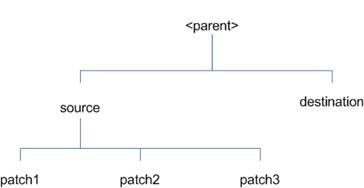
In the example above, the manifest.csv
and patch_info.cfg files for each patch to be merged must exist in
source/patch1, source/patch2, and source/patch3.
ORMerge Command-line Arguments
|
Argument
|
Required
|
Description
|
|
-s
|
Yes
|
Path to source directory
containing patches to merge
|
|
-d
|
Yes
|
Path to destination directory
that will contain merged patch
|
|
-name
|
No
|
The name to give the merged
patch. If not specified, a name will be generated. When the merged patch is
applied to a system, this name will appear in the Oracle Retail patch
inventory.
|
|
-inplace
|
No
|
Used only when applying a patch
to installation files prior to the first installation. See “Patching prior
to the first install” in the Troubleshooting section later, for more
information.
|
To merge patches, perform the
following steps:
1.
Log in as the UNIX user that owns the product installation.
2.
Set the RETAIL_HOME environment variable to the top-level
directory of your product installation.
export RETAIL_HOME=/u00/oretail/14.1/tst
3.
Set the PATH environment variable to include the orpatch/bin
directory
export
PATH=$RETAIL_HOME/orpatch/bin:$PATH
4.
Create a staging directory to contain the patches.
mkdir –p $RETAIL_HOME/stage/merge/src
5.
Download the patches to the staging directory and unzip them
so that each patch is in a separate subdirectory.
6.
Review the README.txt included with each patch to identify
additional manual steps that may be required. If manual steps are specified in
any patch, execute them at the appropriate time when applying the merged patch.
7.
Create a destination directory to contain the merged patches.
mkdir -p
$RETAIL_HOME/stage/merge/dest
8.
Execute ORMerge to merge the patches.
ormerge -s $RETAIL_HOME/stage/merge/src
–d $RETAIL_HOME/stage/merge/dest –name merged_patch
The merged patch can now be applied as
a single patch to the product installation using ORPatch.
In some cases it may be desirable to
recompile RMS Forms, RWMS Forms or RMS Batch outside of a product patch. The
ORCompile utility is designed to make this easy and remove the need to manually
execute ‘make’ or ‘frmcmp’ commands which can be error-prone. ORCompile
leverages ORPatch functions to ensure that it compiles forms and batch exactly
the same way as ORPatch. In addition ORCompile offers an option to compile
invalid database objects using ORPatch logic.
ORCompile takes two required command
line arguments each of which take an option. Arguments and options can be
specified in upper or lower case.
ORCompile Command Line Arguments
|
Argument
|
Description
|
|
-a <app>
|
The application to compile.
|
|
-t <type>
|
The type of application objects
to compile
|
ORCompile Argument Options
|
Application
|
Type
|
Description
|
|
RMS
|
BATCH
|
Compile RMS Batch programs
|
|
RMS
|
FORMS
|
Compile RMS Forms
|
|
RWMS
|
FORMS
|
Compile RWMS Forms
|
|
RMS
|
DB
|
Compile invalid database
objects in the primary RMS schema
|
|
RMS
|
DB-ASYNC
|
Compile invalid database
objects in the RMS_ASYNC_USER schema
|
|
ALLOC
|
DB-ALC
|
Compile invalid database
objects in the Allocations user schema
|
|
ALLOC
|
DB-RMS
|
Compile invalid database
objects in the RMS schema
|
|
REIM
|
DB
|
Compile invalid database
objects in the RMS schema
|
|
RME
|
DB
|
Compile invalid database
objects in the RME schema
|
|
ASO
|
DB
|
Compile invalid database
objects in the ASO schema
|
|
RA
|
DB-DM
|
Compile invalid database
objects in the RA DM schema
|
|
RA
|
DB-RABATCH
|
Compile invalid database
objects in the RA batch schema
|
|
RA
|
DB-RMSBATCH
|
Compile invalid database
objects in the RA RMS batch schema
|
|
RA
|
DB-FEDM
|
Compile invalid database
objects in the RA front-end schema
|
Note:
Compiling RMS type DB, ReIM type DB, and Allocation type DB-RMS, are all
identical as they attempt to compile all invalid objects residing in the RMS
schema.
To compile files, perform the
following steps:
1.
Log in as the UNIX user that owns the product installation.
2.
Set the RETAIL_HOME environment variable to the top-level
directory of your product installation.
export RETAIL_HOME=/u00/oretail/14.1/tst
3.
Set the PATH environment variable to include the orpatch/bin
directory
export
PATH=$RETAIL_HOME/orpatch/bin:$PATH
4.
Execute orcompile to compile the desired type of files.
orcompile –a <app> -t
<type>
Compile RMS Batch.
orcompile -a RMS -t BATCH
Compile RWMS Forms.
orcompile -a RWMS -t FORMS
Compile invalid objects in the RA DM
schema.
orcompile -a RA -t DB-DM
Compile invalid objects in the RMS
owning schema.
orcompile -a RMS -t DB
In some cases it may be desirable to
redeploy Java applications outside of a product patch. For example, when
troubleshooting a problem, or verifying the operation of the application with
different WebLogic settings. Another situation might include wanting to deploy
the application using the same settings, but without customizations to isolate
behavior that could be related to customized functionality.
The ordeploy utility is designed to
make this easy and remove the need to re-execute the entire product installer
when no configuration needs to change. ORDeploy leverages Oracle Retail Patch
Assistant functions to ensure that it deploys applications exactly the same way
as ORPatch. In addition ORDeploy offers an option to include or not include
custom Java files, to ease troubleshooting.
ORDeploy takes two required command
line arguments each of which take an option. Arguments and options can be
specified in upper or lower case.
ORDeploy Command Line Arguments
|
Argument
|
Description
|
|
-a <app>
|
The application to deploy.
|
|
-t <type>
|
The type of application objects
to deploy
|
ORDeploy
Argument Options
|
Application
|
Type
|
Description
|
|
ALLOC
|
JAVA
|
Deploy the Allocations Java
application and Java batch files, including any custom Java files.
|
|
ALLOC
|
JAVANOCUSTOM
|
Deploy the Allocations Java
application and Java batch files, NOT including any custom Java files.
|
|
REIM
|
JAVA
|
Deploy the REIM Java
application and Java batch files, including any custom Java files.
|
|
REIM
|
JAVANOCUSTOM
|
Deploy the REIM Java
application and Java batch files, NOT including any custom Java files.
|
|
RESA
|
JAVA
|
Deploy the RESA Java
application, including any custom Java files.
|
|
RESA
|
JAVANOCUSTOM
|
Deploy the RESA Java
application, NOT including any custom Java files.
|
|
RPM
|
JAVA
|
Deploy the RPM Java application
and Java batch files, including any custom Java files.
|
|
RPM
|
JAVANOCUSTOM
|
Deploy the RPM Java application
and Java batch files, NOT including any custom Java files.
|
Running the ORDeploy utility
To deploy Java applications, perform
the following steps:
1.
Log in as the UNIX user that owns the product installation.
2.
Set the RETAIL_HOME environment variable to the top-level
directory of your product installation.
export RETAIL_HOME=/u00/oretail/14.1/tst
3.
Set the PATH environment variable to include the orpatch/bin
directory
export
PATH=$RETAIL_HOME/orpatch/bin:$PATH
4.
Execute ORDeploy to deploy the desired Java application.
ordeploy –a <app> -t
<type>
ORDeploy Examples
Deploy RPM.
ordeploy -a RPM -t JAVA
Deploy ReIM without including Java
customizations.
ordeploy -a REIM -t JAVANOCUSTOM
The additional information stored
within the RETAIL_HOME and within database schemas adds some considerations
when performing maintenance on your environment.
Oracle wallets are used to protect the
password credentials for connecting to database schemas. This includes all database
schemas used during an install. If the password for any of these users is
changed the wallet’s entry must be updated.
The wallet location is configurable
but by default is in the following locations:
|
Location
|
Installation Type
|
|
$RETAIL_HOME/orpatch/rms_wallet
|
RMS Database
RMS Batch
|
|
$RETAIL_HOME/orpatch/rms_wallet_app
|
RMS Forms
|
|
$RETAIL_HOME/orpatch/rwms_wallet
|
RWMS Database
|
|
$RETAIL_HOME/orpatch/rwms_wallet_app
|
RWMS Forms
|
|
$RETAIL_HOME/orpatch/oraso_wallet
|
ASO Database
|
|
$RETAIL_HOME/orpatch/orme_wallet
|
RME Database
|
|
$RETAIL_HOME/orpatch/ra_wallet
|
RA Database
|
The wallet alias for each schema will
be <username>_<dbname>. Standard mkstore commands can be used to
update the password.
For example:
mkstore -wrl $RETAIL_HOME/orpatch/rms_wallet
–modifyCredential rms_rmsdb rms01 rmspassword
This command will update the password
for the RMS01 user to ‘rmspassword’ in the alias ‘rms_rmsdb’.
The Oracle wallets are required to be
present when executing ORPatch. Removing them will prevent you from being able
to run ORPatch successfully. In addition the Oracle wallet location is
referenced in the RMS batch.profile, and in the default RMS and RWMS Forms URL
configuration, so removing them will require reconfiguration of batch and
forms. If batch and forms were reconfigured after installation to use other
wallet files, it is possible to backup and remove the wallets, then restore
them when running ORPatch.
Java wallets are used to protect the
password credentials used when deploying Java products. This includes the
WebLogic administrator credentials, LDAP connection credentials, batch user
credentials and any other credentials used during an install. If the password
for any of these users is changed the wallet’s entry must be updated, or the
Java product installation can be run again.
The wallet location is in the
following locations:
|
Location
|
Installation Type
|
|
$RETAIL_HOME/orpatch/config/javapp_rpm
|
RPM Java
|
|
$RETAIL_HOME/orpatch/config/javapp_reim
|
ReIM Java
|
|
$RETAIL_HOME/orpatch/config/javapp_alloc
|
Allocation Java
|
|
$RETAIL_HOME/orpatch/config/javapp_resa
|
RESA Java
|
|
$RETAIL_HOME/orpatch/config/javaapp_rasrm
|
RASRM Java
|
The wallet aliases will be stored in
the retail_installer partition. The names of the aliases will vary depending
on what was entered during initial product installation.
The dump_credentials.sh script can be
used to list the aliases in the wallet.
For example:
cd
$RETAIL_HOME/orpatch/deploy/retail-public-security-api/bin
./dump_credentials.sh
$RETAIL_HOME/orpatch/config/javapp_alloc
Apapplication level key
partition name:retail_installer
User Name Alias:dsallocAlias
User Name:rms01app
User Name Alias:BATCH-ALIAS
User Name:SYSTEM_ADMINISTRATOR
User Name Alias:wlsAlias User
Name:weblogic
The easiest way to update the credential
information is to re-run the Java product installer. If you need to manually
update the password for a credential, the save_credential.sh script can be
used.
For example:
cd
$RETAIL_HOME/orpatch/deploy/retail-public-security-api/bin
./save_credential.sh –l
$RETAIL_HOME/orpatch/config/javapp_alloc –p retail_installer –a wlsAlias –u
weblogic
This command will prompt for the new
password twice and update the aslias wlsAlias, username weblogic with the new
password.
The
RETAIL_HOME/orpatch/config/env_info.cfg file contains the path to the database
ORACLE_HOME on database or RMS Batch installations, to the WebLogic Forms and
Reports ORACLE_HOME and ORACLE_INSTANCE on RMS or RWMS Forms installations, and
to the WEBLOGIC_DOMAIN_HOME, WL_HOME and MW_HOME on Java product installations.
If these paths change, the related configuration variables in the env_info.cfg
file must be updated.
The table dbmanifest within Oracle
Retail database schemas is used to track the database scripts which have been
applied to the schema. It is critical not to drop or truncate this table.
Without it, ORPatch will attempt to re-run scripts against the database which
have already been applied which can destroy a working environment. Similarly,
if copying a schema from one database to another database, ensure that the
dbmanifest table is preserved during the copy.
The RETAIL_HOME associated with an
Oracle Retail product installation is critical due to the additional metadata
and historical information contained within it. If a database or application
installation is moved or copied, the RETAIL_HOME related to it should be copied
or moved at the same time.
The RPM product installation includes
an option to configure a code signing certificate so that jar files modified
during installation or patching are automatically re-signed. This
configuration is optional, but recommended. If it is configured, the code
signing keystore is copied during installation to
$RETAIL_HOME/orpatch/config/jarsign/orpkeystore.jks. The keystore password and
private key password are stored in a Java wallet in the
$RETAIL_HOME/orpatch/config/jarsign directory. The credentials are stored in a
wallet partition called orpatch:
|
Alias
|
Username
|
Description
|
|
storepass
|
discard
|
Password for the keystore
|
|
keypass
|
discard
|
Password for the private key
|
The keystore file and passwords can be
updated using the product installer. This is the recommended way to update the
signing configuration.
If only the credentials need to be
updated, the sign_jar.sh script can be used.
5.
Log in as the UNIX user that owns the product installation.
6.
Set the RETAIL_HOME environment variable to the top-level
directory of your installation.
export RETAIL_HOME=/u00/oretail/14.1/tst
7.
Change directories to the location of sign_jar.sh
cd
$RETAIL_HOME/orpatch/deploy/bin
8.
Execute sign_jar.sh
sign_jar.sh changepwd
9.
When prompted, enter the new keystore password
10.
When prompted, enter the new private key password
In general, the additional
capabilities provided by the ORPatch should make it easier to evaluate the
potential impacts of patches to your customizations of Oracle Retail products.
However, the additional metadata maintained by the Oracle Retail patching
utilities does add some considerations when making customizations.
It is always preferred to customize
applications by extension rather than by direct modification. For example,
adding new database objects and forms rather than modifying existing Oracle
Retail objects and forms. You can also leverage built-in extension points such
as User Defined Attributes, the Custom Flexible Attribute Solution, or seeded
customization points in ADF Applications.
It is strongly discouraged to directly
modify Oracle Retail database objects, especially tables, as your changes may
be lost during patching or may conflict with future updates. When adding or
modifying database objects, Oracle Retail recommends that all objects be added
with scripts to ensure that they can be rebuilt if necessary after a patch.
When you create new database objects,
Oracle Retail recommends placing them in an Oracle database schema specifically
for your customizations. You must use synonyms and grants to allow the Oracle
Retail product schema owner and other users to access your objects, and use
synonyms and grants to allow your customizations to access Oracle Retail
objects. A separate schema will ensure that your customizations are segregated
from base Oracle Retail code.
ORPatch expects that there will be no
invalid objects in the database schemas it manages after a patch is applied.
For this reason adding extra objects to the product schema could result in
failures to apply patches as changes to base objects may cause custom objects
to go invalid until they are updated. In this situation, manually update the
custom objects so that they compile, and restart the patch.
When creating new custom forms, Oracle
Retail recommends placing them in a separate directory specifically for your
customizations. This directory should be added to the FORMS_PATH of your RMS or
RWMS Forms URL configuration to allow the forms to be found by the Forms
Server. This will ensure that your customizations are segregated from base
Oracle Retail code. If you choose to place customizations in the Forms bin
directory, then your custom forms will need to be recopied each time Forms are
fully recompiled.
ADF Application Customization
Oracle Retail ADF-based applications
such as Allocation and ReSA can be customized using a process called ‘seeded
customization’. The customization process involves using JDeveloper in
Customizer mode to create changes to product configurations, and then building
a MAR archive containing the changes. The generated MAR is deployed to the MDS
repository used by the application and applied to the application at runtime.
These types of customizations are handled outside of ORPatch and are not
reported during patch analysis or tracked by the custom file registration
utility. More information can be found in the respective product customization
guides.
Custom Compiled Java Code
When customizing Oracle Retail
Java-based products such as RPM and ReIM via product source code, ORPatch
supports automatically adding compiled customizations into the application ear
file prior to deployment. This allows customizations to be applied to the
application without directly modifying the base product ear, enabling
customizations and defect hotfixes to co-exist when they do not change the same
file or a dependent file. See the later “Custom Compiled Java Code” section
for additional information and considerations.
Whenever you have customized a product
by directly modifying Oracle Retail files or database objects, it is important
to ensure you analyze each the files that will be updated by a patch before
applying the patch. This will allow you to identify any customized files which
may be overwritten by the patch and either merge your customization with the
new version of the file, or re-apply the customization after applying the patch.
If you choose to customize Oracle
Retail files directly, it is extremely important not to update the
revision number contained in the env_manifest.csv. This could cause future
updates to the file to be skipped, invalidating later patch applications as
only a partial patch would be applied. The customized revision number for
modified files will need to be tracked separately.
The ORPatch contains utilities and
functionality to allow tracking of files that have been customized through
direct modification. This process is referred to as ‘registering’ a customized
file. Registration only works for files which are shipped by Oracle Retail. It
is not possible to register new files created in the environment as part of
extensions or customizations.
When patches are analyzed with
ORPatch, special reporting is provided if any registered files would be updated
or deleted by the patch. Customized files impacted by the patch are listed at
the end of the analysis report from ORPatch. The detail files generated during
the analyze will contain a column called ‘customized’ which will have a Y for
any files which were registered as customized. This allows easier
identification of customizations which will be overwritten by a patch.
All files delivered by Oracle Retail
are considered ‘base’ and so when they are applied to an environment any
registrations of those files as customized will revert back to un-customized. Each
time a patch overwrites customized files, you must re-register the files as
customized once you have applied customizations.
To register customized files, use the
$RETAIL_HOME/orpatch/bin/orcustomreg script.
The orcustomerg script operates in one
of two modes: registration and list.
§ Registration mode registers
or unregisters one or more files as customized.
§ List mode lists all
files in the environment that are registered as customized.
|
Argument
|
Description
|
|
-f <file>
|
Adds <file> to the list
of files that will be registered. Can be specified more than once.
|
|
-bulk <file>
|
Specifies a file to read,
containing one filename per line. All filenames listed inside <file>
will be registered.
|
|
-register
|
Files specified with -f or
-bulk will be registered as ‘customized’
|
|
-unregister
|
Files specified with -f or
-bulk will be registered as ‘base’
|
§
At least one of -f or -bulk is required.
§
If neither -register nor -unregister is specified, the default is
‘-register’.
§
File names specified with -f must either be fully-qualified or be
relative to RETAIL_HOME. The same is true for filenames specified within a
-bulk file.
|
Argument
|
Description
|
|
-list
|
List all files in the
environment registered as customized
|
Perform the following procedure to run
the orcustomreg script:
1.
Log in as the UNIX user that owns the product installation.
2.
Set the RETAIL_HOME environment variable to the top-level
directory of your product installation.
export RETAIL_HOME=/u00/oretail/14.1/tst
3.
Set the PATH environment variable to include the orpatch/bin
directory
export
PATH=$RETAIL_HOME/orpatch/bin:$PATH
4.
Execute orcustomreg script to register the desired file(s).
orcustomreg –register –f <file>
Register
$RETAIL_HOME/dbsql_rms/Cross_Pillar/control_scripts/source/oga.sql as
customized.
orcustomreg -f
dbsql_rms/Cross_Pillar/control_scripts/source/oga.sql
Unregister customizations for
$RETAIL_HOME/dbsql_rwms/Triggers/Source/TR_WAVE.trg
orcustomreg –unregister –f
$RETAIL_HOME/dbsql_rwms/Triggers/Source/TR_WAVE.trg
Bulk register several files as
customized.
echo
“$RETAIL_HOME/oracle/proc/src/mrt.pc” > custom.txt
echo
“$RETAIL_HOME/oracle/proc/src/saldly.pc” >> custom.txt
echo “$RETAIL_HOME/oracle/proc/src/ccprg.pc”
>> custom.txt
orcustomreg –bulk custom.txt
List all files
registered as customized.
orcustomreg –list
When customizing Oracle Retail
Java-based products such as RPM and ReIM via product source code, ORPatch
supports automatically adding compiled customizations into the application ear
file prior to deployment. This allows customizations to be applied to the
application without directly modifying the base product ear, enabling
customizations and defect hotfixes to co-exist when they do not change the same
file or a dependent file
This functionality is enabled by
creating a directory called $RETAIL_HOME/javaapp_<app>/custom, where
<app> is the application the customizations apply to. Files stored
within this directory will be combined with the base product ear files before
the application is deployed to WebLogic. ORPatch will attempt to consider
customizations stored within the ‘custom’ directory during patch analysis by
triggering more detailed ear file change analysis to assist with identifying
which customizations might be impacted by changes in the patches.
Note:
It is not possible, nor necessary, to register compiled Java customizations
with the orcustomreg tool.
As with other customization techniques
for other technologies, Oracle Retail recommends making Java customizations in
new files as much as possible, versus overwriting base product or configuration
files. In the past it was necessary to build complete replacement product ear
files, but this method of customization is no longer required nor recommended.
Replacement ear and jar files will not contain the META-INF/env_manifest.csv
files which are required in order to be able to apply incremental patches.
Instead, compile the specific Java classes being customized and place them
along with any custom configuration files in
$RETAIL_HOME/javaapp_<app>/custom.
Building Deployable ear files
When constructing the product ear file
to deploy to WebLogic, ORPatch applies changes to the ear file in a specific
order, with files from later steps overwriting files in earlier steps. The
resulting ear is stored in $RETAIL_HOME/javaapp_<app>/deploy, and then
deployed to WebLogic.
Sequence for ORPatch Java Product
ear file updates
|
Order
|
File Type
|
Location
|
|
1
|
Base product ear
|
$RETAIL_HOME/javaapp_<app>/base
|
|
2
|
Updated configuration files
|
$RETAIL_HOME/javaapp_<app>/config
|
|
3
|
Oracle Retail-supplied hotfixes
|
$RETAIL_HOME/javaapp_<app>/internal
|
|
4
|
Compiled customizations
|
$RETAIL_HOME/javaapp_<app>/custom
|
Merging Custom Files
When merging files from the custom
directory with the product ear, ORPatch uses the directory path of the files
within custom to calculate where the file should be stored within the ear.
This allows arbitrary nesting of files, even when placing files within jars
stored in jars, stored within the ear. The following examples below use RPM,
but apply to adding compiled customizations to any Java-based product.
Custom
directory location and product ear location Examples
|
File path within
javaapp_<app>/custom/
|
Final Ear File Location
|
|
rpm14.ear/company/ui/MyCustom.class
|
In rpm14.ear:
/company/ui/MyCustom.class
|
|
rpm14.ear/rpm14.jar/company/bc/MyCustom2.class
|
In rpm14.ear:
In rpm14.jar:
/company/bc/MyCustom2.class
|
|
rpm14.ear/lib/ourcustomlibs.jar
|
In rpm14.ear
/lib/ourcustomlibs.jar
|
|
rpm14.ear/WebLaunchServlet.war/lib/
rpm14.jar/company/bc/MyCustom2.class
|
In rpm14.ear:
In WebLaunchServlet.war:
In lib/rpm14.jar:
/company/bc/MyCustom2.class
|
Analyzing patches when customizations are
present
When analyzing a patch which contains
a base product ear and the custom directory contains files, ORPatch will
automatically trigger a more detailed analysis of the changes coming in a
patch. This includes calculating what files inside the product ear have been
added, removed or updated and which files appear to be customized based on the
contents of the ‘custom’ directory. The detailed results of the ear file
comparison during patch analysis will be saved in
javaapp_<app>_archive_compare_details.csv. Any custom files which appeared
to be impacted by the patch are saved in
javapp_<app>_archive_custom_impacts.csv. Both files will be in the
$RETAIL_HOME/orpatch/logs/detail_logs/analyze/details directory.
Note:
This detailed analysis is not available when analyzing individual hotfixes,
so special care must be taken when applying hotfixes to a customized product
installation, to ensure there are no conflicts between customizations and
hotfix changes.
Customizations and cumulative patches
By default, when applying a cumulative
patch, ORPatch will not include customizations in the deployed product ear,
even if they are present in the appropriate directory. This allows
verification that the application is functioning properly using base code,
before applying customizations. After verifying the initial deployment, use
ORDeploy with the “-t JAVA” option to construct and deploy the product ear
including customizations.
If customizations need to be removed
outside of a patch, use ORDeploy with the “-t JAVANOCUSTOM” option to create
and deploy an ear containing only Oracle Retail code. To force ORPatch to
include customizations in the deployed ear even when applying a cumulative
patch, set JAVAAPP_<app>_INCLUDE_CUSTOM=Y in the
$RETAIL_HOME/orpatch/config/env_info.cfg file.
Changing configuration
files
It is possible to directly change
product configuration files in $RETAIL_HOME/javaapp_<app>/config. These
updates can be deployed to the environment using the ORDeploy utility.
However, the ‘config’ directory is completely recreated each time the product
installer is used. This means that modifications will be lost and must be
manually reapplied after each installer run. It is recommended to make
configuration changes via the installer where possible, and retain the
ant.install.properties file for use in later installer sessions.
The default ORPatch actions and
processing logic is sufficient to install and patch the base Oracle Retail
product code. However there may be situations where custom processing is
desired during patching activities such as executing a shell script prior to
the start of patching, or running a SQL script at the end of the patch.
ORPatch supports extensions in the
form of custom hooks. These hooks allow external scripts to be run at specific
points during ORPatch processing.
Action
ORPatch supports a variety of
‘actions’ which define the steps necessary to apply updates to a particular
area of the Oracle Retail application. Each action is generally specific to
updates to a single technology or logical component of the environment. For
example, one action might handle making updates to the RMS database schema,
while a separate action is responsible for compiling RWMS forms, and a
different action deploys the RPM Java application. These actions are enabled
and disabled within the environment configuration file, allowing ORPatch to
determine what types of changes to apply to each product installation.
ORPatch Actions
|
Order
|
Action Name
|
Description
|
|
1
|
DBSQL_RMS
|
Loads RMS and RPM database
objects into the primary RMS schema
|
|
2
|
DBSQL_RMSASYNC
|
Loads database objects into the
RMS_ASYNC_USER schema
|
|
3
|
DBSQL_REIM
|
Loads ReIM database objects
into the RMS schema
|
|
4
|
DBSQL_RAF
|
Loads Retail Application
Framework database objects into the RMS schema
|
|
5
|
DBSQL_ALCRMS
|
Loads Allocation database
objects into the RMS schema
|
|
6
|
DBSQL_ALLOC
|
Loads Allocation database
objects into the Allocation user schema
|
|
7
|
DBSQL_RMSDEMO
|
Used to create demo data in the
RMS schema if demo data was selected during initial installation
|
|
8
|
DBSQL_RMSDAS
|
Loads database objects into the
RMS Data Access Schema
|
|
9
|
RMSBATCH
|
Compiles RMS Batch
|
|
10
|
ORAFORMS_RMS
|
Compiles RMS Forms, copies RMS
reports to $RETAIL_HOME
|
|
11
|
RMSRETLSCRIPTS
|
Copies Oracle Retail Extract
and Load scripts for RMS
|
|
12
|
RMSDCSCRIPTS
|
Copies Oracle Retail
Merchandising System data conversion scripts
|
|
13
|
DBSQL_RWMS
|
Loads database objects into the
primary RWMS schema
|
|
14
|
DBSQL_RWMSADF
|
Loads database objects into the
RWMS ADF user schema
|
|
15
|
DBSQL_RWMSUSER
|
Loads database objects into the
RWMS user schema
|
|
16
|
ORAFORMS_RWMS
|
Compiles RWMS Forms, copies
RWMS batch scripts and reports to $RETAIL_HOME
|
|
17
|
JAVAAPP_RPM
|
Deploys the RPM Java
application and batch scripts
|
|
18
|
JAVAAPP_REIM
|
Deploys the REIM Java
application and batch scripts
|
|
19
|
JAVAAPP_ALLOC
|
Deploys the Allocation Java
application and batch scripts
|
|
20
|
JAVAAPP_RESA
|
Deploys the ReSA Java
application
|
|
21
|
JAVAAPP_RASRM
|
Deploys the RASRM Java
application
|
|
22
|
DBSQL_RARMSBATCH
|
Loads database objects into the
RMS Batch schema for RA
|
|
23
|
DBSQL_RADM
|
Loads database objects into the
RA Data Mart schema
|
|
24
|
DBSQL_RAFEDM
|
Loads database objects into the
RA Front-end schema
|
|
25
|
DBSQL_RABATCH
|
Loads database objects into the
RA Batch schema
|
|
26
|
DBSQL_RASECORE
|
Loads core database objects
into the ORASE schema
|
|
27
|
DBSQL_RASEASO
|
Loads ASO database objects into
the ORASE schema
|
|
28
|
DBSQL_RASECDT
|
Loads CDT database objects into
the ORASE schema
|
|
29
|
DBSQL_RASECIS
|
Loads CIS database objects into
the ORASE schema
|
|
30
|
DBSQL_RASEDT
|
Loads DT database objects into
the ORASE schema
|
|
31
|
DBSQL_RASEMBA
|
Loads MBA database objects into
the ORASE schema
|
|
32
|
RASECOREBATCH
|
Copies ORASE core batch scripts
and libraries
|
|
33
|
RASEASOBATCH
|
Copies ORASE ASO batch scripts
and libraries
|
|
34
|
RASECDTBATCH
|
Copies ORASE CDT batch scripts
and libraries
|
|
35
|
RASECISBATCH
|
Copies ORASE CIS batch scripts
and libraries
|
|
36
|
RASEDTBATCH
|
Copies ORASE DT batch scripts
and libraries
|
|
37
|
RASEMBABATCH
|
Copies ORASE MBA batch scripts
and libraries
|
Phase
ORPatch processes patches in phases.
Each action relevant to a patch and host is provided an opportunity to process
the patch for each phase. The standard phases which allow hooks are:
|
Restart Phase Number
|
Phase Name
|
Description
|
|
N/A
|
PRECHECK
|
Actions verify that their
configuration appears complete and correct. This phase and the associated
hooks will be run every time orpatch is executed, even if processing will be
restarted in a later phase.
|
|
10
|
PREACTION
|
Actions do processing prior to
when files are copied to the environment. Files are deleted during this
phase.
|
|
20
|
COPYPATCH
|
Actions copy files included in
a patch into the destination environment and the environment manifest is
updated.
|
|
30
|
PATCHACTION
|
Actions take the more detailed
steps necessary to apply the new files to the environment. For database
actions in particular, this is the phase when new and updated sql files are
loaded into the database.
|
|
40
|
POSTACTION
|
Actions do processing after
files have been copied and PatchActions are completed. The Forms actions,
for example, use this phase to compile the forms files as this must happen
after database packages are loaded.
|
|
50
|
CLEANUP
|
Actions do any additional
processing. Currently no actions implement activities in this phase.
|
Custom hooks are configured in a
configuration file RETAIL_HOME/orpatch/config/custom_hooks.cfg. The
configuration file is a simple text file where blank lines and lines starting
with # are ignored and all other lines should define a custom hook.
To define a custom hook, a line is
added to the file in the form:
<hook name>=<fully qualified
script>
The hook name must be in upper case
and is in the form:
<action name>_<phase
name>_<sequence>
The action name is any action name
understood by ORPatch. The phase name is one of the five phase names from the
table above. The sequence is either ‘START’ or ‘END’. Hooks defined with a
sequence of ‘START’ are run before the action’s phase is invoked. Hooks
defined with a sequence of ‘END’ are run after the action’s phase is invoked.
Multiple scripts can be associated
with a single hook by separating the script names with a comma. If a hook name
appears in the configuration file multiple times only the last entry will be
used.
The script defined as a custom hook
must be an executable shell script that does not take any arguments or inputs.
The only environment variable that is guaranteed to be passed to the custom
hook is RETAIL_HOME. The script must return 0 on success and non-zero on
failure.
If an action is a DBSQL action (i.e.
has a name like DBSQL_), the custom hook can optionally be a .sql file. In
this case the SQL script will be run against the database schema that the DBSQL
action normally executes against. The SQL script must not generate any ORA- or
SP2- errors on success. In order to be treated as a database script, the
extension of the file defined as the custom hook must be .sql in lower-case.
Any other extension will be treated as if it is a shell script. If you have
database scripts with different extensions, they must be renamed or wrapped in
a .sql script.
When using the PRECHECK phase and
START sequence, please note that the custom hook will be executed prior to any
verification of the configuration. Invalid configuration, such as invalid
database username/password or a non-existent ORACLE_HOME, may cause the custom
hook to fail depending on the actions it tries to take. However in these
cases, the normal orpatch PRECHECK activities would likely have failed as
well. All that is lost is the additional context that orpatch would have
provided about what was incorrect about the configuration.
If a custom hook fails, for example a
shell script hook returns non-zero or a sql script generates an ORA- error in
its output, the custom hook will be treated as failing. A failing custom hook
causes ORPatch to immediately stop the patching session.
When ORPatch is restarted it always
restarts with the same phase and action, including any START sequence custom
hooks. If the START sequence custom hook fails, the action’s phase is never
executed. With an END sequence custom hook, the action’s phase is re-executed
when ORPatch is restarted and then the custom hook is re-executed. When an
action’s phase is costly, for example the DBSQL_RMS action which does a lot of
work, this can mean a lot of duplicate processing.
For this reason it is preferred to use
START sequence custom hooks whenever possible. If necessary, use a START
sequence hook on a later phase or a later action, rather than an END sequence
custom hook.
In addition to action-specific hooks,
there are two patch-level hook points available. These hooks allow scripts to
be run before any patching activities start and after all patching activities
are completed. The hooks are defined in the same configuration file, with a
special hook name.
To run a script before patching,
define:
ORPATCH_PATCH_START=<fully
qualified script>
To run a script after patching,
define:
ORPATCH_PATCH_END=<fully qualified
script>
These hooks only support executing
shell scripts, database scripts must be wrapped in a shell script. It is also
important to note that these hooks are run on every execution of ORPatch to
apply a patch, even when restarting a patch application. If the START sequence
patch-level hook returns a failure, patching is aborted. If the END sequence
patch-level hook returns a failure, it is logged but ignored as all patching
activities have already completed.
Please note that the ORPATCH_PATCH_START
hook is executed prior to any verification of the configuration. Invalid
configuration may cause the custom hook to fail depending on the actions it
tries to take. However in these cases, the normal ORPatchactivities would
likely fail as well.
Example Custom Hook Definitions
A shell script that is executed prior
to the Pre-Action phase of RMS Batch:
RMSBATCH_PREACTION_START=/u00/oretail/prepare_custom_header.sh
A shell script that is executed after
RETL script files are copied into the RETAIL_HOME:
RETLSCRIPTS_COPYPATCH_END=/u00/oretail/copy_custom_files.sh
A SQL script that is executed against
the RWMS owning schema at the start of the Clean-up Phase:
DBSQL_RWMS_CLEANUP_START=/dba/sql/recompile_synonyms.sql
There is not a general method for
determining the cause of a patching failure. It is important to ensure that
patches are thoroughly tested in a test or staging system several times prior
to attempting to apply the patch to a production system, particularly if the
patch is a large cumulative patch. After the test application is successful,
apply the patch to the production system.
ORPatch records extensive information
about the activities during a patch to the log files in RETAIL_HOME/orpatch/logs.
This includes a summary of the actions that are planned for a patch,
information about all files that were updated by the patch, and detailed
information about subsequent processing of those files. The ORPatch log files
also contain timestamps to assist in correlating log entries with other logs.
Even more detailed logs are available
in RETAIL_HOME/orpatch/logs/detail_logs for some activities such as forms
compilation, invalid database object errors, and output from custom hooks. If
the standard ORPatch log information is not sufficient, it might be helpful to
check the detailed log if it exists.
The restart mechanism in ORPatch is
designed to be safe in nearly any situation. In some cases to ensure this, a
portion of work may be redone. If the failure was caused by an intermittent
issue that has been resolved, restarting ORPatch may be sufficient to allow the
patch to proceed.
A possible cause for database change
script failures is that a database change was already made manually to the
database. In this event, you may need to update the dbmanifest table to record
that a specific script does not need to be run. Before doing this, it is
extremely important to ensure that all statements contained in the script have
been completed.
Use the
$RETAIL_HOME/orpatch/bin/ordbmreg script to register database scripts in the
dbmanifest table.
Command Line Arguments for ordbmreg
|
Argument
|
Description
|
|
-f <file>
|
Adds <file> to the list
of files that will be registered. Can be specified more than once.
|
|
-bulk <file>
|
Specifies a file to read,
containing one filename per line. All filenames listed inside <file>
will be registered.
|
|
-register
|
Files specified with -f or
-bulk will be registered in the dbmanifest table
|
|
-unregister
|
Files specified with -f or
-bulk will be removed from the dbmanifest table
|
§
At least one of -f or -bulk is required.
§
If neither -register nor -unregister is specified, the default is
‘-register’.
§
File names specified with -f must either be fully-qualified or be
relative to RETAIL_HOME. The same is true for filenames specified within a
-bulk file.
§
Registering a file in the dbmanifest table will cause it to be
completely skipped. Before doing so, ensure that all commands contained in it
have been completed.
§
Removing a file from the dbmanifest table will cause it to be run
again. This will fail if the commands in the script cannot be re-run. For
example if they create a table that already exists.
Running the ordbmreg Script
Perform the following procedure to run
the ordbmreg script:
1.
Log in as the UNIX user that owns the product installation.
2.
Set the RETAIL_HOME environment variable to the top-level
directory of your product installation.
export RETAIL_HOME=/u00/oretail/14.1/tst
3.
Set the PATH environment variable to include the orpatch/bin
directory
export
PATH=$RETAIL_HOME/orpatch/bin:$PATH
4.
Execute ordbmreg script to register the desired file(s).
ordbmreg –register –f <file>
Examples of using the ordbmreg Script
Register $RETAIL_HOME/dbsql_rms/Cross_Pillar/db_change_scripts/source/000593_system_options.sql
with the dbmanifest table.
ordbmreg -f
dbsql_rms/Cross_Pillar/db_change_scripts/source/000593_system_options.sql
Remove the dbmanifest row for
$RETAIL_HOME/dbsql_radm/ra_db/radm/database_change_scripts/000035_s12733240_w_party_per_d.sql.
ordbmreg –unregister –f $RETAIL_HOME/dbsql_radm/ra_db/radm/database_change_scripts/000035_s12733240_w_party_per_d.sql
Bulk register several files in the
dbmanifest table.
echo “$RETAIL_HOME/dbsql_rwms/DBCs/Source/000294_container.sql”
> dbcs.txt
echo
“$RETAIL_HOME/dbsql_rwms/DBCs/Source/000457_drop_object.sql” >> dbcs.txt
ordbmreg –bulk dbcs.txt
Restarting after registration
Once the row has been added to the
dbmanifest table, restart ORPatch and the script will be skipped. If the file
is not skipped there are several possibilities:
§ The script registered
is not the failing script.
§ The file type is not
a type that is filtered by the dbmanifest. The only file types that skip files
listed in the dbmanifest are:
– Initial
install DDL Files
– Installation
scripts that cannot be rerun
– Database
Change Scripts
Oracle Retail strongly discourages
manually updating the ORPatch restart state files. Updating the file
improperly could cause necessary steps in the patching process to be skipped or
patches to be incorrectly recorded as applied.
When compiling RMS or RWMS forms, it
is necessary to have a valid X-Windows Display. ORPatch allows this setting to
come from one of two places:
§ DISPLAY environment
variable set before executing ORPatch
or
§ DISPLAY setting in
RETAIL_HOME/orpatch/config/env_info.cfg
The DISPLAY variable in the
environment overrides the env_info.cfg, if both are set. The destination X-Windows
display must be accessible to the user running ORPatch, and for best
compilation performance it should be on the network ‘close’ to the server where
RMS Forms are installed and compiled. Using a local display or VNC display is
preferred. Compiling forms across a Wide-Area Network will greatly increase
the time required to apply patches to environments.
When working with Java application
jar, ear or war files, it is necessary to have a valid JAVA_HOME setting.
ORPatch allows this setting to come from one of two places:
§ JAVA_HOME environment
variable set before executing ORPatch
or
§ JAVA_HOME setting in
RETAIL_HOME/orpatch/config/env_info.cfg
The JAVA_HOME variable in the
environment overrides the env_info.cfg, if both are set. The specified Java
home location must be accessible to the user running ORPatch and be a full Java
Development Kit (JDK) installation. The JAVA_HOME must contain the jar utility
and if automatic Jar file signing is configured, must also contain the keytool
and jarsigner utilities.
In some situations, it may be
necessary to apply a patch to product installation files before the initial
install. For example, if there is a defect with a script that would be run
during the install and prevent proper installation. In this rare situation, it
may be necessary to apply a patch to the installation files prior to starting
installation.
Note: These
steps should only be undertaken at the direction of Oracle Support.
Perform the following steps to patch
installation files prior to starting an installation. The steps assume an RMS
installation, but apply to any product supported by ORPatch:
1.
Unzip the installation files to a staging area.
Note:
The following steps assume the files are in /media/oretail14.1
2.
Locate the patch_info.cfg within the product media. The
directory it resides in will be used for later steps.
find /media/oretail14.1/rms/installer
–name patch_info.cfg
Output Example:
/media/oretail14.1/rms/installer/mom14/patch_info.cfg
3.
Get the PATCH_NAME for the standard product installation.
The patch name to use in subsequent steps will be the portion following the “=”
sign.
grep “PATCH_NAME=”
/media/oretail14.1/rms/installer/mom14/patch_info.cfg
Output Example:
PATCH_NAME=MOM_14_1_0_0
4.
Create a directory that will contain the patch that must be
applied, next to the directory with the product installation files.
Note:
The following steps assume this directory is in /media/patch.
5.
Unzip the patch into the directory created in step 2.
Note:
This should place the patch contents in /media/patch/<patch num>.
6.
Export RETAIL_HOME to point within the installation staging
area.
export
RETAIL_HOME=/media/oretail14.1/rms/installer/mom14/Build
7.
Create a logs directory within the installation staging area
mkdir $RETAIL_HOME/orpatch/logs
8.
Ensure the ORMerge shell script is executable.
chmod u+x $RETAIL_HOME/orpatch/bin/ormerge
9.
Run ORMerge to apply the patch to the installation media,
using a –name argument that is the same as what was found in step 3.
$RETAIL_HOME/orpatch/bin/ormerge -s /media/patch
-d /media/oretail14.1/rms/installer/mom14 –name MOM_14_1_0_0 –inplace
Note: The
–inplace argument is critical to ensure that the patching replaces files in the
mom14 directory.
10.
Unset the RETAIL_HOME environment variable.
unset RETAIL_HOME
At this point, the installation files
will have been updated with the newer versions of files contained within the
patch. Log files for the merge will be in
/media/oretail14.1/rms/installer/mom14/Build/orpatch/logs.
In some situations, it may be
necessary to provide details of the metadata from an environment to Oracle
support in order to assist with investigating a patching or application
problem. ORPatch provides built-in functionality through the ‘exportmetadata’
action to extract and consolidate metadata information for uploading to Oracle
Support or for external analysis. For more information, see the ORPatch
‘Exporting Environment Metadata’ section.
A
Appendix: Oracle Retail Allocation
Application Installer Screens
You need the following details about
your environment for the installer to successfully deploy the Oracle Retail
Allocation application. Depending on the options you select, you may not see
some screens or fields.
Screen: Allocation Application RETAIL_HOME
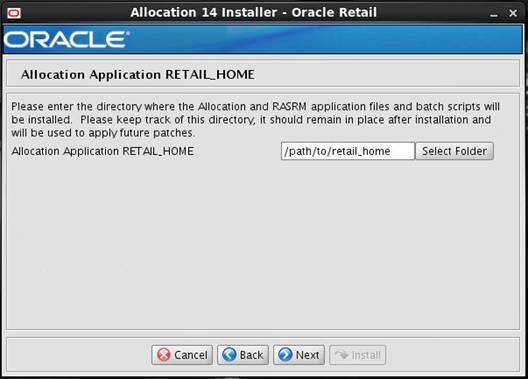
|
Field Title
|
Alloc Application RETAIL_HOME
|
|
Field Description
|
Retail Home
is used to keep ORPatch related files by default. Please keep track of this
directory, it should remain in place after installation and will be used to
apply future patches.
|
|
Examples
|
/path/to/retail_home
|
Screen: Host Details

|
Field Title
|
Hostname
|
|
Field Description
|
Provide the hostname where the
Retail Home will be installed. This shall match your current host.
|
|
Examples
|
apphostname
|
Screen: Security Details
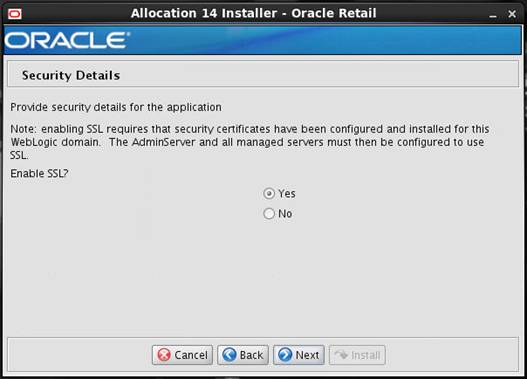
|
Field Title
|
Enable SSL for WLS AllocDomain
Admin server
|
|
Field Description
|
Chose “Yes” only if you are
using SSL. The following screen will appear only if you chose ‘Yes’ in this
screen.
|
Screen: Turn off the application server’s non-SSL
port (shown if ‘SSL is enabled’)

|
Field Title
|
Disable non-SSL port?
|
|
Field Description
|
This screen will only appear if
you have selected ‘Yes’ for SSL in the previous screen. Chose ‘Yes’ if you
want the installer to disable the Non-SSL port.
|
Screen: Application Server Details
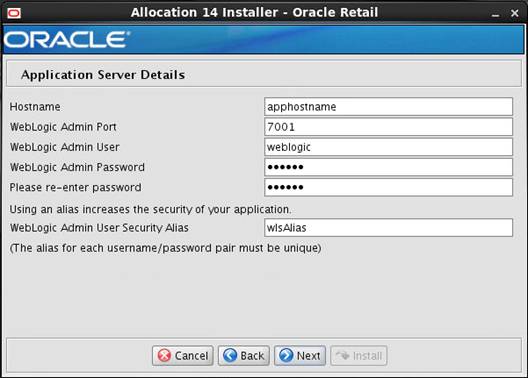
|
Field Title
|
Hostname
|
|
Field Description
|
Hostname of the application
server
|
|
Example
|
apphostname
|
|
Field Title
|
WebLogic Admin Port
|
|
Field Description
|
Port number of the WebLogic
AdminServer
|
|
Example
|
7001
|
|
Field Title
|
WebLogic Admin User
|
|
Field Description
|
Username of the admin user for
the WebLogic instance to which the Allocation application is being deployed.
|
|
Example
|
weblogic
|
|
Field Title
|
WebLogic Admin Password
|
|
Field Description
|
Password for the WebLogic admin
user. You chose this password when you created the WebLogic instance or when
you started the instance for the first time.
|
|
Field Title
|
WebLogic Admin User Security
Alias
|
|
Field Description
|
An alias for the WebLogic admin
user.
|
|
Example
|
wlsAlias
|
|
Note
|
This alias must be unique. Do
not use the same value for any other alias fields in the installer. If the
same alias is used, entries in the wallet can override each other and cause
problems with the application.
|
Screen: Application Deployment Details
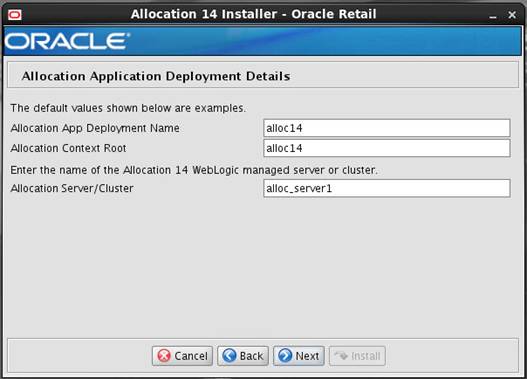
|
Field
Title
|
Allocation App Deployment Name
|
|
Field
Description
|
Name by which this Allocation
application is identified in the application server.
|
|
Example
|
alloc14
|
|
Field Title
|
Allocation Context Root
|
|
Field Description
|
Path under the HTTP URL that is
used to access the Allocation application. For example, a context root of alloc
results in the application being accessed at
http://host:port/alloc/index.jsp.
|
|
Example
|
alloc14
|
|
Field Title
|
Allocation Server/Cluster
|
|
Field Description
|
The name of the Allocation 14 WebLogic
managed server or cluster.
|
|
Example
|
alloc_server1
|
Screen: JDBC Security
Details
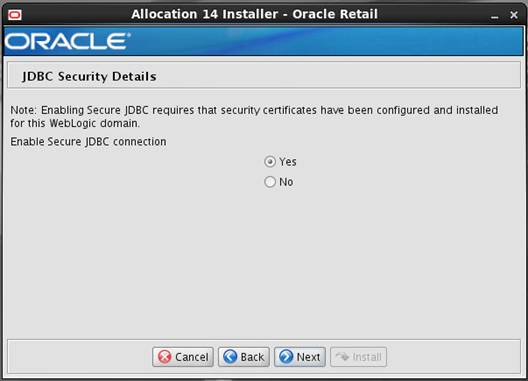
|
Field Title
|
Enable Secure JDBC connection
|
|
Field Description
|
Chose ‘Yes’ if the database
being used for Allocation App installation is using secure configuration.
|
Screen: Allocation Data
Source Details

|
Field Title
|
Alloc/RMS 14 JDBC URL
|
|
Field Description
|
URL used by the Allocation
application to access the Allocation database schema. See Appendix: URL Reference for
expected syntax.
When deploying in SSL mode,
JDBC URL format should include complete description as shown below.
|
|
Destination
|
allocation.properties
|
|
Example
|
jdbc:oracle:thin:@myhost:1521/dbname
OR
jdbc:oracle:thin:@(DESCRIPTION=(ADDRESS_LIST=(ADDRESS=(PROTOCOL=tcps)(HOST=ordbhost)(PORT=2484)))(CONNECT_DATA=(SERVICE_NAME=dbname)))
|
|
Field Title
|
Allocation Schema User
|
|
Field Description
|
Database schema user of the
Allocation application. This value should match what was given in the
Allocation database schema field of the Allocation database installer. This
is where the Allocation temporary tables and temporary views reside, with
synonyms to other Allocation objects that are in the RMS main schema.
|
|
Destination
|
allocation.properties
|
|
Example
|
ALLOCUSER
|
|
Field Title
|
Allocation Schema Password
|
|
Field Description
|
Password for the Allocation
schema user. This should match what was given in the Allocation 14.1 schema
to create field of the Allocation database installer.
|
|
Destination
|
allocation.properties
|
|
Field Title
|
Database User Security Alias
|
|
Field Description
|
An alias for the Database user.
|
|
Destination
|
allocation.properties
|
|
Example
|
DsAlias
|
|
Field Title
|
RMS 14.1 Schema Owner
|
|
Field Description
|
RMS schema user into which the
Allocation schema user has synonyms. This should match the RMS schema that
was given during execution of the Allocation database schema installer. This
is the RMS main schema, where the Allocation non temporary tables and objects
are stored.
|
|
Destination
|
allocation.properties
|
|
Example
|
RMSUSER
|
|
Note
|
This alias must be unique. Do
not use the same value for any other alias fields in the installer. If the
same alias is used, entries in the wallet can override each other and cause
problems with the application.
|
Screen: Secure Data Source Details (shown if
‘Secure JDBC connection enabled’)
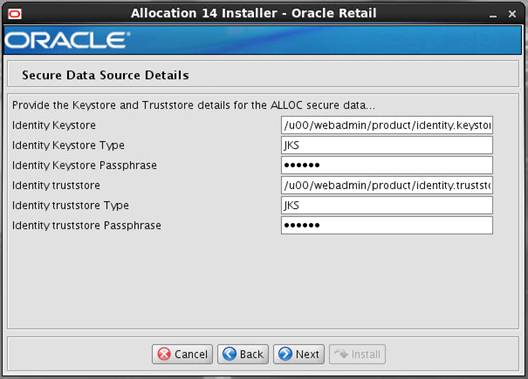
|
Field Title
|
Identity Keystore
|
|
Field Description
|
Path to the identity keystore,
i.e.:
/u00/webadmin/product/identity.keystore
|
|
Field Title
|
Identity Keystore Type
|
|
Field Description
|
i.e. JKS
|
|
Field Title
|
Identity Keystore Password
|
|
Field Description
|
Password used to access the
identity keystore defined above
|
|
Field Title
|
Identity Trustore
|
|
Field Description
|
Path to the identity
truststore, i.e.:
/u00/webadmin/product/identity.truststore
|
|
Field Title
|
Identity Truststore Type
|
|
Field Description
|
i.e. JKS
|
|
Field Title
|
Identity Truststore Password
|
|
Field Description
|
Password used to access the
identity truststore defined above
|
Screen: Batch Details

|
Field Title
|
Batch User Name
|
|
Field Description
|
This is the username with which
Batch will login. This MUST be given as SYSTEM_ ADMINISTRATOR and SYSTEM_ADMINISTRATOR
is your LDAP user. SYSTEM_ADMINISTRATOR user gets loaded as part of the LDIFs
provided with Alloc App installer.
|
|
Destination
|
<WEBLOGIC_DOMAIN_HOME>/retail/<alloc14>/config/cwallet.sso
|
|
Example
|
ALEX ADMINISTRATOR
|
|
Field Title
|
Batch User Alias
|
|
Field Description
|
This is the user alias for
SYSTEM_ADMINISTRATOR User which gets created in retail wallet.
|
|
Destination
|
<WEBLOGIC_DOMAIN_HOME>/retail/<alloc14>/config/cwallet.sso
|
|
Example
|
alloc14
|
|
Field Title
|
Batch Passphrase
|
|
Field Description
|
Password of
SYSTEM_ADMINISTRATOR user.
|
|
Destination
|
<WEBLOGIC_DOMAIN_HOME>/retail/<alloc14>/config/cwallet.sso
|
|
Example
|
The password that you proivided
in the RGBU-oid-create-users.ldif LDIF file as part of loading LDIF files
into the LDAP.
|
Screen: JMS Provider
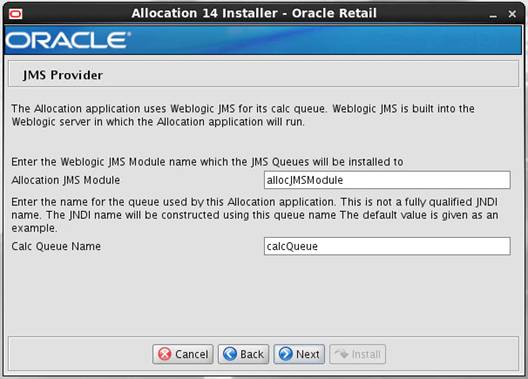
|
Field Title
|
Allocation JMS Module
|
|
Field Description
|
The JMS Module name to which
the JMS queues will be installed.
|
|
Example
|
allocJMSModule
|
|
Field Title
|
Calc Queue Name
|
|
Field Description
|
The name of the queue used by
this Allocation application. This is not a fully qualified JNDI name.
|
|
Example
|
calcQueue
|
Screen: Install RASRM?

|
Field Title
|
Install RASRM (Retail
Application Security Roles Manager)?
|
|
Field Description
|
Select Yes to install RASRM
application installation on the same managed server as Allocation. This
provides you access to RASRM application as explained in the ’Retail
Application Security Roles Manager’ section above. This application can be
used to update and manage the enterprise users and roles.
|
Screen: Policy Setup
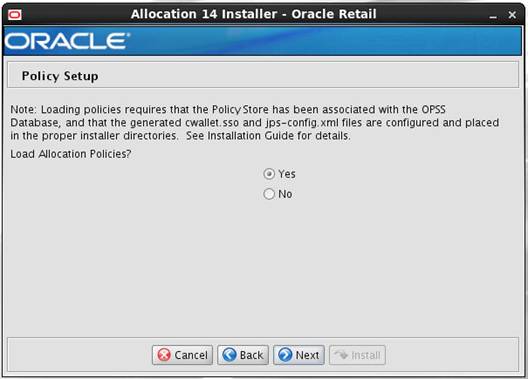
|
Field Title
|
Load Allocation Policies?
|
|
Field Description
|
This will decide if the
installer should load required Allocation Policies into the database. .Select
Yes if patching 14.1.1 to an existing 14.1 install and for a new
14.1.1 install. For any reinstall of 14.1.1, you may select No.
|
|
Note
|
For the installer to load
policies, you will need to have the cwallet.sso and jps-config.xml configured
and copied to the installer. See the section “Rename and Update
jps-config.xml file” in the chapter Application Installation Tasks.
|
Screen: Default JAZN
Mappings
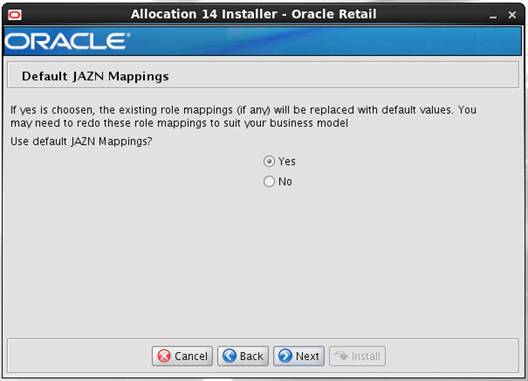
|
Field Title
|
Use default JAZN Mappings?
|
|
Field Description
|
If yes is selected, the
existing role mappings will be replaced with default values. You may need to
redo these mappings to suit your business model
|
Screen: Custom JAZN
Mappings
Note: The Custom JAZN Mappings screen is only shown if
No is selected for “Use default JAZN Mappings?”.

|
Field Title
|
jazn-data.xml Location
|
|
Field Description
|
The location of the custom
jazn-data.xml file.
|
|
Example
|
/path/to/jazn-data.xml
|
B
It may be
desirable to see a list of the files that will be updated by a patch,
particularly if files in the environment have been customized. The installer
has an ‘analyze’ mode that will evaluate all files in the patch against the
environment and report on the files that will be updated based on the patch.
See the section “Analyzing the Impact of a Patch” in the chapter “Patching
Procedures” for more details.
1.
 Log onto the server as a user with access to the RETAIL_HOME for the
installation you want to analyze.
Log onto the server as a user with access to the RETAIL_HOME for the
installation you want to analyze.
2.
Change directories to STAGING_DIR/alloc/application.
STAGING_DIR is the location where you extracted the 14.1.1 installer.
3.
Set and export the following environment variables.
|
Variable
|
Description
|
Example
|
|
JAVA_HOME
|
Location
of a Java 1.7+ 64Bit JDK.
|
JAVA_HOME=
/u00/webadmin/java/jdk1.7.0
export
JAVA_HOME
|
|
DISPLAY
|
Address
and port of X server on desktop system of user running install. Optional when
running the Analyze tool
|
DISPLAY=<IP
address>:0.0
export DISPLAY
|
4.
If you are going to run the installer in GUI mode using an X
server, you need to have the XTEST extension enabled. This setting is not
always enabled by default in your X server. See Appendix: Common Installation Errors
for more details.
5.
Run the analyze.sh script to start the analyze tool.
Note:
Below are the usage details for analyze.sh. The typical usage for GUI mode is
no arguments.
./analyze.sh [text | silent]
Screen: RETAIL_HOME to Analyze
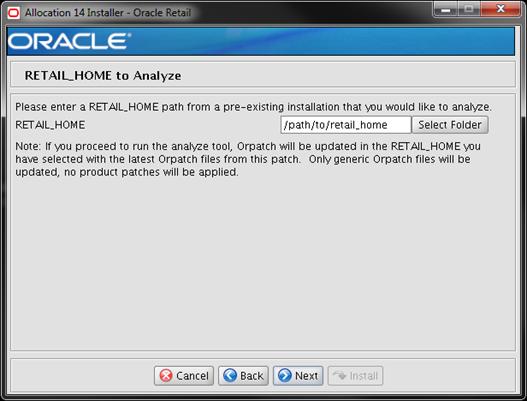
|
Field
Title
|
RETAIL_HOME
|
|
Field
Description
|
The
pre-existing RETAIL_HOME location created and used during Allocation installation.
This location should contain directories with your installed files as well as
the “orpatch” directory.
|
|
Example
|
/path/to/retail_home
|
|
Note
|
The
Orpatch files in this RETAIL_HOME may need to be updated in order to be able
to run the analysis. The Analyze tool will take care of this automatically.
|
6.
After clicking “install”, the Analyze tool will generate a report of
the files that will be patched if you apply this patch to the selected
RETAIL_HOME. A high level report can be found in the log file: STAGING_DIR/rwms/installer/logs/rwms-analyze.<timestamp>.log.
The detailed list of patch files can
be found in RETAIL_HOME/ orpatch/logs/detail_logs/analyze/details/
C
The database schema and application
installers for the Oracle Retail Allocation product asks for several different
URLs. These include the following.
Used by the Java application and by
the installer to connect to the database.
Thick Client Syntax:
jdbc:oracle:oci:@<sid>
<sid>: system identifier for
the database
Example: jdbc:oracle:oci:@mysid
Standard Thin Client
Syntax jdbc:oracle:thin:@<host>:<port>:<sid>
Standard Pluggable DB Thin connection
Syntax using SID: jdbc:oracle:thin:@<host>:<port>/<sid>
Standard Pluggable DB
Thin connection Syntax using ServiceName
jdbc:oracle:thin:@<host>:<port>/<mydbservicename>
<host>: hostname of the database
server
<port>: database listener port
<sid>: system identifier for
the database
<mydbservicename>: system
identifier for the database
Example:
jdbc:oracle:thin:@myhost:1521/<mydbservicename>
D
Appendix: Common Installation Errors
This section provides some common
errors encountered during installation of Oracle Retail Allocation.
Symptom
The following text
appears in the installer Errors tab:
May 22, 2006 11:16:39 AM
java.util.prefs.FileSystemPreferences$3 run
WARNING: Could not create system
preferences directory. System preferences are unusable.
May 22, 2006 11:17:09 AM
java.util.prefs.FileSystemPreferences checkLockFile0ErrorCode
WARNING: Could not lock System prefs.
Unix error code -264946424.
Solution
This is related to
Java bug 4838770. The /etc/.java/.systemPrefs directory may not have been
created on your system. See http://bugs.sun.com
for details.
This is an issue
with your installation of Java and does not affect the Oracle Retail product
installation.
Symptom
In GUI mode, the errors tab shows the following error:
java.util.ConcurrentModificationException
at
java.util.AbstractList$Itr.checkForComodification(AbstractList.java:448)
at
java.util.AbstractList$Itr.next(AbstractList.java:419)
… etc
Solution
You can ignore this error. It is
related to third-party Java Swing code for rendering of the installer GUI and
does not affect the retail product installation.
Symptom
The following text appears in the console window during
execution of the installer in GUI mode:
Couldn't find X Input Context
Solution
This message is harmless and can be
ignored.
GUI
screens fail to open when running Installer
Symptom
When running the
installer in GUI mode, the screens fail to open and the installer ends, returning
to the console without an error message. The ant.install.log file contains
this error:
Fatal exception: Width (0) and height
(0) cannot be <= 0
java.lang.IllegalArgumentException: Width (0) and height (0) cannot be <= 0
Solution
This error is
encountered when Antinstaller is used in GUI mode with certain X Servers.
To work around this issue, copy ant.install.properties.sample to
ant.install.properties and rerun the installer.
E
As part of an application
installation, administrators must set up password stores for user accounts
using wallets/credential stores. Some password stores must be installed on the
application database side. While the installer handles much of this process, the
administrators must perform some additional steps.
Password stores for the application
and application server user accounts must also be installed; however, the
installer takes care of this entire process.
ORACLE Retail Merchandising
applications now have three different types of password stores. They are
database wallets, java wallets, and database credential stores. Background and
how to administer them below are explained in this appendix
Oracle databases have allowed other
users on the server to see passwords in case database connect strings
(username/password@db) were passed to programs. In the past, users could
navigate to ps –ef|grep
<username> to see the password if the password was supplied
in the command line when calling a program.
To make passwords more secure, Oracle
Retail has implemented the Oracle Software Security Assurance (OSSA) program.
Sensitive information such as user credentials now must be encrypted and stored
in a secure location. This location is called password stores or wallets. These
password stores are secure software containers that store the encrypted user
credentials.
Users can retrieve the credentials
using aliases that were set up when encrypting and storing the user credentials
in the password store. For example, if username/password@db is entered in the
command line argument and the alias is called db_username, the argument to a program is
as follows:
sqlplus /@db_username
This would connect to the database as
it did previously, but it would hide the password from any system user.
After this is configured, as in the
example above, the application installation and the other relevant scripts are
no longer needed to use embedded usernames and passwords. This reduces any security
risks that may exist because usernames and passwords are no longer exposed.
When the installation starts, all the
necessary user credentials are retrieved from the Oracle Wallet based on the
alias name associated with the user credentials.
There are three different types of
password stores. One type explain in the next section is for database connect
strings used in program arguments (such as sqlplus /@db_username). The others are
for Java application installation and application use.
After the database is installed and
the default database user accounts are set up, administrators must set up a
password store using the Oracle wallet. This involves assigning an alias for
the username and associated password for each database user account. The alias
is used later during the application installation. This password store must be
created on the system where the application server and database client are
installed.
This section describes the steps you
must take to set up a wallet and the aliases for the database user accounts.
For more information on configuring authentication and password stores, see the
Oracle Database Security Guide.
Note: In
this section, <wallet_location>
is a placeholder text for illustration purposes. Before running the command,
ensure that you specify the path to the location where you want to create and
store the wallet.
To set up a password store for the
database user accounts, perform the following steps:
1.
Create a wallet using the following command:
mkstore -wrl
<wallet_location> -create
After you run the command, a
prompt appears. Enter a password for the Oracle Wallet in the prompt.
Note: The
mkstore
utility is included in the Oracle Database Client installation.
The wallet is created with the
auto-login feature enabled. This feature enables the database client to access
the wallet contents without using the password. For more information, refer to
the Oracle Database Advanced Security Administrator's
Guide.
2.
Create the database connection credentials in the wallet
using the following command:
mkstore -wrl
<wallet_location> -createCredential <alias-name>
<database-user-name>
After you run the command, a
prompt appears. Enter the password associated with the database user account in
the prompt.
3.
Repeat Step 2 for all the database user accounts.
4.
Update the sqlnet.ora file to
include the following statements:
WALLET_LOCATION = (SOURCE = (METHOD =
FILE) (METHOD_DATA = (DIRECTORY = <wallet_location>)))
SQLNET.WALLET_OVERRIDE = TRUE
SSL_CLIENT_AUTHENTICATION = FALSE
5.
Update the tnsnames.ora file to
include the following entry for each alias name to be set up.
<alias-name> =
(DESCRIPTION =
(ADDRESS_LIST =
(ADDRESS = (PROTOCOL =
TCP) (HOST = <host>) (PORT = <port>))
)
(CONNECT_DATA =
(SERVICE_NAME =
<service>)
)
)
In the previous example, <alias-name>,
<host>, <port>,
and <service> are
placeholder text for illustration purposes. Ensure that you replace these with
the relevant values.
The following examples show how to set
up wallets for database user accounts for the following applications:
§ For RMS, RWMS, RPM Batch using sqlplus or sqlldr, RETL,
RMS, RWMS, and ARI
To set up wallets for database user
accounts, do the following.
1.
Create a new directory called wallet under your
folder structure.
cd /projects/rms14/dev/
mkdir .wallet
Note: The
default permissions of the wallet allow only the owner to use it, ensuring the
connection information is protected. If you want other users to be able to use
the connection, you must adjust permissions appropriately to ensure only authorized
users have access to the wallet.
2.
Create a sqlnet.ora in the wallet directory with the
following content.
WALLET_LOCATION = (SOURCE
= (METHOD = FILE) (METHOD_DATA
= (DIRECTORY = /projects/rms14/dev/.wallet))
)
SQLNET.WALLET_OVERRIDE=TRUE
SSL_CLIENT_AUTHENTICATION=FALSE
Note:
WALLET_LOCATION must be on line 1 in the file.
3.
Setup a tnsnames.ora in the wallet directory. This
tnsnames.ora includes the standard tnsnames.ora file. Then, add two custom
tns_alias entries that are only for use with the wallet. For example, sqlplus /@dvols29_rms01user.
ifile =
/u00/oracle/product/11.2.0.1/network/admin/tnsnames.ora
Examples for a NON pluggable db:
dvols29_rms01user =
(DESCRIPTION = (ADDRESS_LIST =
(ADDRESS = (PROTOCOL = tcp)
(host = xxxxxx.us.oracle.com)
(Port = 1521)))
(CONNECT_DATA
= (SID = <sid_name> (GLOBAL_NAME = <sid_name>)))
dvols29_rms01user.world =
(DESCRIPTION = (ADDRESS_LIST =
(ADDRESS = (PROTOCOL = tcp)
(host = xxxxxx.us.oracle.com)
(Port = 1521)))
(CONNECT_DATA
= (SID = <sid_name>) (GLOBAL_NAME = <sid_name>)))
Examples for a pluggable db:
dvols29_rms01user =
(DESCRIPTION = (ADDRESS_LIST =
(ADDRESS = (PROTOCOL = tcp)
(host = xxxxxx.us.oracle.com)
(Port = 1521)))
(CONNECT_DATA
= (SERVICE_NAME = <pluggable db name>)))
dvols29_rms01user.world =
(DESCRIPTION = (ADDRESS_LIST =
(ADDRESS = (PROTOCOL = tcp)
(host = xxxxxx.us.oracle.com)
(Port = 1521)))
(CONNECT_DATA
= (SERVICE_NAME = <pluggable db name>)))
Note:
It is important to not just copy the tnsnames.ora file because it can quickly
become out of date. The ifile clause (shown above) is key.
4.
Create the wallet files. These are empty initially.
a.
Ensure you are in the intended location.
$ pwd
/projects/rms14/dev/.wallet
b.
Create the wallet files.
$ mkstore -wrl . –create
c.
Enter the wallet password you want to use. It is recommended
that you use the same password as the UNIX user you are creating the wallet on.
d. Enter
the password again.
Two wallet files are created
from the above command:
–
ewallet.p12
–
cwallet.sso
5.
Create the wallet entry that associates the user name and
password to the custom tns alias that was setup in the wallet’s tnsnames.ora
file.
mkstore –wrl . –createCredential
<tns_alias> <username> <password>
Example:
mkstore –wrl .
–createCredential dvols29_rms01user rms01user passwd
6.
Test the connectivity. The ORACLE_HOME used with the wallet
must be the same version or higher than what the wallet was created with.
$ export TNS_ADMIN=/projects/rms14/dev/.wallet
/* This is very import to use wallet to point at the alternate tnsnames.ora
created in this example */
$ sqlplus /@dvols29_rms01user
SQL*Plus: Release 12
Connected to:
Oracle Database 12g
SQL> show user
USER is “rms01user”
Running batch programs or shell
scripts would be similar:
Ex: dtesys /@dvols29_rms01user
script.sh
/@dvols29_rms01user
Set the UP unix variable to help with
some compiles :
export UP=/@dvols29_rms01user
for use in RMS batch compiles, and
RMS, RWMS, and ARI forms compiles.
As shown in the example above, users
can ensure that passwords remain invisible.
Additional Database Wallet Commands
The following is a list of additional
database wallet commands.
§ Delete a credential
on wallet
mkstore –wrl . –deleteCredential
dvols29_rms01user
§ Change the password
for a credential on wallet
mkstore –wrl . –modifyCredential
dvols29_rms01user rms01user passwd
§ List the wallet
credential entries
mkstore –wrl . –list
This command returns values such
as the following.
oracle.security.client.connect_string1
oracle.security.client.user1
oracle.security.client.password1
§ View the details of a
wallet entry
mkstore –wrl . –viewEntry
oracle.security.client.connect_string1
Returns the value of the entry:
dvols29_rms01user
mkstore –wrl . –viewEntry
oracle.security.client.user1
Returns the value of the entry:
rms01user
mkstore –wrl . –viewEntry
oracle.security.client.password1
Returns the value of the entry:
Passwd
RETL creates a wallet under
$RFX_HOME/etc/security, with the following files:
§ cwallet.sso
§ jazn-data.xml
§ jps-config.xml
§ README.txt
To set up RETL wallets, perform the
following steps:
1.
Set the following environment variables:
§
ORACLE_SID=<retaildb>
§
RFX_HOME=/u00/rfx/rfx-13
§
RFX_TMP=/u00/rfx/rfx-13/tmp
§
JAVA_HOME=/usr/jdk1.6.0_12.64bit
§
LD_LIBRARY_PATH=$ORACLE_HOME
§
PATH=$RFX_HOME/bin:$JAVA_HOME/bin:$PATH
2. Change
directory to $RFX_HOME/bin.
3.
Run setup-security-credential.sh.
§ Enter
1 to add a new database credential.
§ Enter
the dbuseralias. For example, retl_java_rms01user.
§ Enter
the database user name. For example, rms01user.
§ Enter
the database password.
§ Re-enter
the database password.
§ Enter
D to exit the setup script.
4.
Update your RETL environment variable script to reflect the
names of both the Oracle Networking wallet and the Java wallet.
For example, to configure RETLforRPAS,
modify the following entries in
$RETAIL_HOME/RETLforRPAS/rfx/etc/rmse_rpas_config.env.
§ The
RETL_WALLET_ALIAS should point to the Java wallet entry:
–
export
RETL_WALLET_ALIAS="retl_java_rms01user"
§ The
ORACLE_WALLET_ALIAS should point to the Oracle network wallet entry:
–
export
ORACLE_WALLET_ALIAS="dvols29_rms01user"
§ The
SQLPLUS_LOGON should use the ORACLE_WALLET_ALIAS:
–
export
SQLPLUS_LOGON="/@${ORACLE_WALLET_ALIAS}"
5.
To change a password later, run setup-security-credential.sh.
§ Enter
2 to update a database credential.
§ Select
the credential to update.
§ Enter
the database user to update or change.
§ Enter
the password of the database user.
§ Re-enter
the password.
For Java applications, consider the
following:
§ For database user
accounts, ensure that you set up the same alias names between the password
stores (database wallet and Java wallet). You can provide the alias name during
the installer process.
§ Document all aliases
that you have set up. During the application installation, you must enter the
alias names for the application installer to connect to the database and
application server.
§
Passwords are not used to update entries in Java wallets. Entries
in Java wallets are stored in partitions, or application-level keys. In each
retail application that has been installed, the wallet is located in
<WEBLOGIC_DOMAIN_HOME>/retail/<appname>/config Example:
/u00/webadmin/product/10.3.6/WLS/user_projects/domains/14_mck_soa_domain/retail/reim14/config
§
Application installers should create the Java wallets for
you, but it is good to know how this works for future use and understanding.
§ Scripts
are located in <WEBLOGIC_DOMAIN_HOME>/retail/<appname>/retail-public-security-api/bin
for administering wallet entries.
§ Example:
§
/u00/webadmin/product/10.3.6/WLS/user_projects/domains/REIMDomain/retail/reim14/retail-public-security-api/bin
§ In this directory is
a script to help you update each alias entry without having to remember the
wallet details. For example, if you set the RPM database alias to rms01user,
you will find a script called update-RMS01USER.sh.
Note:
These scripts are available only with applications installed by way of an
installer.
§ Two main scripts are
related to this script in the folder for more generic wallet operations:
dump_credentials.sh and save_credential.sh.
§ If you have not
installed the application yet, you can unzip the application zip file and view
these scripts in <app>/application/retail-public-security-api/bin.
§ Example:
§ /u00/webadmin/reim14/application/retail-public-security-api/bin
update-<ALIAS>.sh
update-<ALIAS>.sh updates the
wallet entry for this alias. You can use this script to change the user name
and password for this alias. Because the application refers only to the alias,
no changes are needed in application properties files.
Usage:
update-<username>.sh
<myuser>
Example:
/u00/webadmin/product/10.3.x/WLS/user_projects/domains/RPMDomain/retail/rpm14/retail-public-security-api/bin>
./update-RMS01USER.sh
usage: update-RMS01USER.sh
<username>
<username>: the username to
update into this alias.
Example: update-RMS01USER.sh myuser
Note: this script will ask you for the
password for the username that you pass in.
/u00/webadmin/product/10.3.x/WLS/user_projects/domains/RPMDomain/retail/rpm14/retail-public-security-api/bin>
dump_credentials.sh
dump_credentials.sh is used to
retrieve information from wallet. For each entry found in the wallet, the
wallet partition, the alias, and the user name are displayed. Note that the
password is not displayed. If the value of an entry is uncertain, run
save_credential.sh to resave the entry with a known password.
dump_credentials.sh <wallet
location>
Example:
dump_credentials.sh location:/u00/webadmin/product/10.3.x/WLS/user_projects/domains/REIMDomain/retail/reim14/config
Retail Public Security API Utility
=============================================
Below are the credentials found
in the wallet at the location:/u00/webadmin/product/10.3.x/WLS/user_projects/domains/REIMDomain/retail/reim14/config
=============================================
Application level key partition
name:reim14
User Name Alias:WLS-ALIAS User Name:weblogic
User Name Alias:RETAIL-ALIAS User Name:retail.user
User Name Alias:LDAP-ALIAS User Name:RETAIL.USER
User Name Alias:RMS-ALIAS User Name:rms14mock
User Name Alias:REIMBAT-ALIAS User Name:reimbat
save_credential.sh
save_credential.sh is used to
update the information in wallet. If you are unsure about the information that
is currently in the wallet, use dump_credentials.sh as indicated above.
save_credential.sh -a <alias> -u
<user> -p <partition name> –l <path of the wallet file location
where credentials are stored>
Example:
/u00/webadmin/mock14_testing/rtil/rtil/application/retail-public-security-api/bin>
save_credential.sh -l wallet_test -a myalias -p mypartition -u myuser
=============================================
Retail Public Security API Utility
=============================================
Enter password:
Verify password:
Note: -p in the above
command is for partition name. You must specify the proper partition name used
in application code for each Java application.
save_credential.sh and dump_credentials.sh scripts are the
same for all applications. If using save_credential.sh to add a wallet entry or
to update a wallet entry, bounce the application/managed server so that your
changes are visible to the application. Also, save a backup copy of your
cwallet.sso file in a location outside of the deployment path, because
redeployment or reinstallation of the application will wipe the wallet entries
you made after installation of the application. To restore your wallet entries
after a redeployment/reinstallation, copy the backed up cwallet.sso file over
the cwallet.sso file. Then bounce the application/managed server.
Usage
=============================================
Retail Public Security API Utility
=============================================
usage: save_credential.sh -au[plh]
E.g. save_credential.sh -a rms-alias
-u rms_user -p rib-rms -l ./
-a,--userNameAlias
<arg> alias for which the credentials
needs to be stored
-h,--help
usage information
-l,--locationofWalletDir
<arg> location where the wallet file is
created.If not specified, it creates
the wallet under secure-credential-wallet directory which is already present
under the retail-public-security-api/ directory.
-p,--appLevelKeyPartitionName
<arg> application level key partition name
-u,--userName
<arg> username to be stored in secure
credential wallet for specified alias*
The ORACLE Retail Java applications
have the wallet alias information you create in an <app-name>.properties
file. Below is the reim.properties file. Note the database information and the
user are presented as well. The property called
datasource.credential.alias=RMS-ALIAS uses the ORACLE wallet with the argument
of RMS-ALIAS at the csm.wallet.path and csm.wallet.partition.name = reim14 to
retrieve the password for application use.
Reim.properties code sample:
datasource.url=jdbc:oracle:thin:@xxxxxxx.us.oracle.com:1521:pkols07
datasource.schema.owner=rms14mock
datasource.credential.alias=RMS-ALIAS
#
=================================================================
# ossa related Configuration
#
# These settings are for ossa
configuration to store credentials.
#
=================================================================
csm.wallet.path=/u00/webadmin/product/10.3.x/WLS/user_projects/domains/REIMDomain/retail/reim14/config
csm.wallet.partition.name=reim14
Some of the ORACLE Retail Java batch
applications have an alias to use when running Java batch programs. For
example, alias REIMBAT-ALIAS maps through the wallet to dbuser RMS01APP,
already on the database. To run a ReIM batch program the format would be:
reimbatchpgmname REIMBAT-ALIAS <other arguments as needed by the program in
question>
The following section describes a
domain level database credential store. This is used in RPM login processing,
SIM login processing, RWMS login processing, RESA login processing and
Allocation login processing and policy information for application permission.
Setting up the database credential store is addressed in the RPM, SIM, ReSA,
RWMS, and Allocation 14.1 install guides.
The following sections show an example
of how to administer the password stores thru ORACLE Enterprise Manger Fusion
Middleware Control, a later section will show how to do this thru WLST scripts.
1. The
first step is to use your link to Oracle Enterprise Manager Fusion Middleware
Control for the domain in question. Locate your domain on the left side of the
screen and do a right mouse click on the domain and select Security >
Credentials
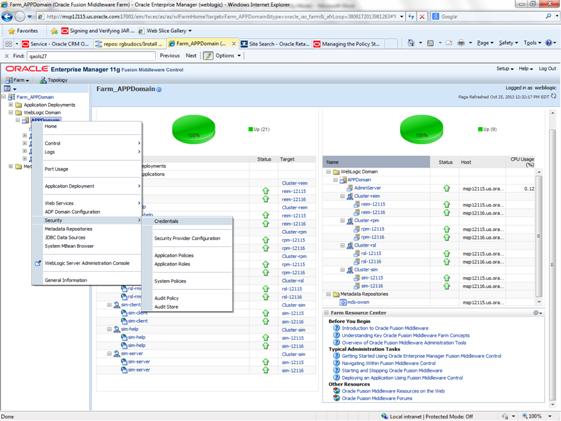
2. Click
on Credentials and you will get a screen similar to the following. The
following screen is expanded to make it make more sense. From here you can
administer credentials.
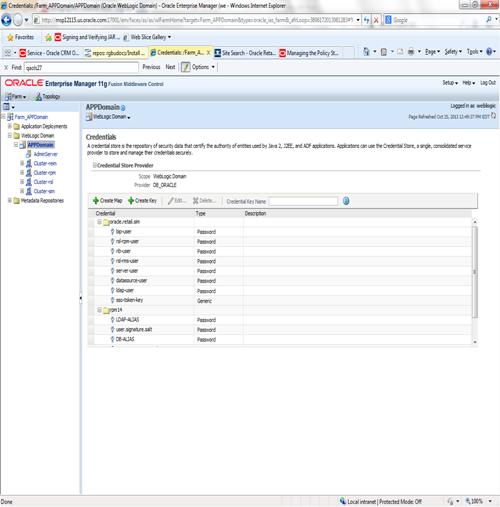
The Create Map add above is to create a new map with keys under it. A map would
usually be an application such as rpm14. The keys will usually represent alias
to various users (database user, WebLogic user, LDAP user, etc). The
application installer should add the maps so you should not often have to add a
map.
Creation of the main keys for an
application will also be built by the application installer. You will not be
adding keys often as the installer puts the keys out and the keys talk to the
application. You may be using EDIT on a key to see what user the key/alias
points to and possibly change/reset its password. To edit a key/alias,
highlight the key/alias in question and push the edit icon nearer the top of
the page. You will then get a screen as follows:

The screen above shows the map (rpm14)
that came from the application installer, the key (DB-ALIAS) that came from the
application installer (some of the keys/alias are selected by the person who
did the application install, some are hard coded by the application installer
in question), the type (in this case password), and the user name and password.
This is where you would check to see that the user name is correct and reset
the password if needed. REMEMBER, a change to an item like a database password
WILL make you come into this and also change the password. Otherwise your application
will NOT work correctly.
This procedure is optional as you can
administer the credential store through the Oracle enterprise manager
associated with the domain of your application install for RPM, SIM, RESA, or
Allocation.
An Oracle Platform Security Scripts
(OPSS) script is a WLST script, in the context of the Oracle WebLogic Server.
An online script is a script that requires a connection
to a running server. Unless otherwise stated, scripts listed in this section
are online scripts and operate on a database credential store. There are a few
scripts that are offline, that is, they do not require
a server to be running to operate.
Read-only scripts can be performed
only by users in the following WebLogic groups: Monitor, Operator,
Configurator, or Admin. Read-write scripts can be performed only by users in
the following WebLogic groups: Admin or Configurator. All WLST scripts are
available out-of-the-box with the installation of the Oracle WebLogic Server.
WLST scripts can be run in interactive
mode or in script mode. In interactive mode, you enter the script at a
command-line prompt and view the response immediately after. In script mode,
you write scripts in a text file (with a py file name extension) and run it
without requiring input, much like the directives in a shell script.
For platform-specific requirements to
run an OPSS script, see http://docs.oracle.com/cd/E21764_01/core.1111/e10043/managepols.htm#CIHIBBDJ
The weakness with the WLST/OPSS
scripts is that you have to already know your map name and key name. In many
cases, you do not know or remember that. The database credential store way
through enterprise manager is a better way to find your map and key names
easily when you do not already know them. A way in a command line mode to find
the map name and alias is to run orapki. An example of orapki is as follows:
/u00/webadmin/product/wls_apps/oracle_common/bin>
./orapki wallet display –wallet /u00/webadmin/product/wls_apps/user_projects/domains/APPDomain/config/fmwconfig
(where the path above is the domain
location of the wallet)
Output of orapki is below. This shows
map name of rpm14 and each alias in the wallet:
Oracle PKI Tool : Version 11.1.1.7.0
Requested Certificates:
User Certificates:
Oracle Secret Store entries:
rpm14@#3#@DB-ALIAS
rpm14@#3#@LDAP-ALIAS
rpm14@#3#@RETAIL.USER
rpm14@#3#@user.signature.salt
rpm14@#3#@user.signature.secretkey
rpm14@#3#@WEBLOGIC-ALIAS
rpm14@#3#@WLS-ALIAS
Trusted Certificates:
Subject: OU=Class 1 Public Primary
Certification Authority,O=VeriSign\, Inc.,C=US
OPSS provides the following scripts on
all supported platforms to administer credentials (all scripts are online, unless otherwise stated. You need the map name and
the key name to run the scripts below
§ listCred
§ updateCred
§ createCred
§ deleteCred
§ modifyBootStrapCredential
§ addBootStrapCredential
The script listCred returns
the list of attribute values of a credential in the credential store with given
map name and key name. This script lists the data encapsulated in credentials
of type password only.
Script Mode Syntax
listCred.py -map mapName -key keyName
Interactive Mode Syntax
listCred(map="mapName",
key="keyName")
The meanings of the arguments (all
required) are as follows:
§ map
specifies a map name (folder).
§ key
specifies a key name.
Examples of Use:
The following invocation returns all
the information (such as user name, password, and description) in the
credential with map name myMap and key name myKey:
listCred.py -map myMap -key myKey
The following example shows how to run
this command and similar credential commands with WLST:
/u00/webadmin/product/wls_apps/oracle_common/common/bin>
sh wlst.sh
Initializing WebLogic Scripting Tool
(WLST)...
Welcome to WebLogic Server
Administration Scripting Shell
wls:/offline>
connect('weblogic','password123','xxxxxx.us.oracle.com:17001')
Connecting to t3://xxxxxx.us.oracle.com:17001
with userid weblogic ...
Successfully connected to Admin Server
'AdminServer' that belongs to domain 'APPDomain'.
wls:/APPDomain/serverConfig>
listCred(map="rpm14",key="DB-ALIAS")
Already in Domain Runtime Tree
[Name : rms01app, Description : null,
expiry Date : null]
PASSWORD:retail
*The above means for map rpm14 in
APPDomain, alias DB-ALIAS points to database user rms01app with a password of
retail
The script updateCred
modifies the type, user name, and password of a credential in the credential
store with given map name and key name. This script updates the data
encapsulated in credentials of type password only. Only the interactive mode is
supported.
Interactive Mode Syntax
updateCred(map="mapName",
key="keyName", user="userName", password="passW",
[desc="description"])
The meanings of the arguments
(optional arguments are enclosed by square brackets) are as follows:
§ map
specifies a map name (folder) in the credential store.
§ key
specifies a key name.
§ user
specifies the credential user name.
§ password
specifies the credential password.
§ desc
specifies a string describing the credential.
Example of Use:
The following invocation updates the
user name, password, and description of the password credential with map name myMap
and key name myKey:
updateCred(map="myMap",
key="myKey", user="myUsr", password="myPassw")
The script createCred
creates a credential in the credential store with a given map name, key name,
user name and password. This script can create a credential of type password
only. Only the interactive mode is supported.
Interactive Mode Syntax
createCred(map="mapName",
key="keyName", user="userName", password="passW",
[desc="description"])
The meanings of the arguments
(optional arguments are enclosed by square brackets) are as follows:
§ map
specifies the map name (folder) of the credential.
§ key
specifies the key name of the credential.
§ user
specifies the credential user name.
§ password
specifies the credential password.
§ desc
specifies a string describing the credential.
Example of Use:
The following invocation creates a
password credential with the specified data:
createCred(map="myMap",
key="myKey", user="myUsr", password="myPassw")
The script deleteCred
removes a credential with given map name and key name from the credential
store.
Script Mode Syntax
deleteCred.py -map mapName -key keyName
Interactive Mode Syntax
deleteCred(map="mapName",key="keyName")
The meanings of the arguments (all
required) are as follows:
§ map
specifies a map name (folder).
§ key specifies
a key name.
Example of Use:
The following invocation removes the
credential with map name myMap and key name myKey:
deleteCred.py -map myMap -key myKey
The offline script modifyBootStrapCredential
modifies the bootstrap credentials configured in the default jps context, and
it is typically used in the following scenario: suppose that the policy and
credential stores are LDAP-based, and the credentials to access the LDAP store
(stored in the LDAP server) are changed. Then this script can be used to seed
those changes into the bootstrap credential store.
This script is available in
interactive mode only.
Interactive Mode Syntax
modifyBootStrapCredential(jpsConfigFile="pathName",
username="usrName", password="usrPass")
The meanings of the arguments (all
required) are as follows:
§ jpsConfigFile
specifies the location of the file jps-config.xml relative to the
location where the script is run. Example location: /u00/webadmin/product/wls_apps/user_projects/domains/APPDomain/config/fmwconfig.
Example location of the bootstrap wallet is /u00/webadmin/product/wls_apps/user_projects/domains/APPDomain/config/fmwconfig/bootstrap
§ username
specifies the distinguished name of the user in the LDAP store.
§ password
specifies the password of the user.
Example of Use:
Suppose that in the LDAP store, the
password of the user with distinguished name cn=orcladmin has been
changed to welcome1, and that the configuration file jps-config.xml
is located in the current directory.Then the following invocation changes the
password in the bootstrap credential store to welcome1:
modifyBootStrapCredential(jpsConfigFile='./jps-config.xml',
username='cn=orcladmin', password='welcome1')
Any output regarding the audit service
can be disregarded.
The offline script addBootStrapCredential
adds a password credential with given map, key, user name, and user password to
the bootstrap credentials configured in the default jps context of a jps
configuration file.
Classloaders contain a hierarchy with parent
classloaders and child classloaders. The relationship between parent and child
classloaders is analogous to the object relationship of super classes and
subclasses. The bootstrap classloader is the root of the Java classloader
hierarchy. The Java virtual machine (JVM) creates the bootstrap classloader,
which loads the Java development kit (JDK) internal classes and java.*
packages included in the JVM. (For example, the bootstrap classloader loads java.lang.String.)
This script is available in interactive
mode only.
Interactive Mode Syntax
addBootStrapCredential(jpsConfigFile="pathName", map="mapName",
key="keyName", username="usrName", password="usrPass")
The meanings of the arguments (all
required) are as follows:
§ jpsConfigFile
specifies the location of the file jps-config.xml relative to the
location where the script is run. Example location: /u00/webadmin/product/wls_apps/user_projects/domains/APPDomain/config/fmwconfig
§ map
specifies the map of the credential to add.
§ key
specifies the key of the credential to add.
§ username
specifies the name of the user in the credential to add.
§ password
specifies the password of the user in the credential to add.
Example of Use:
The following invocation adds a
credential to the bootstrap credential store:
addBootStrapCredential(jpsConfigFile='./jps-config.xml',
map='myMapName', key='myKeyName', username='myUser', password =’myPass’)
|
Retail app
|
Wallet type
|
Wallet loc
|
Wallet partition
|
Alias name
|
User name
|
Use
|
Create by
|
Alias Example
|
Notes
|
|
RMS batch
|
DB
|
<RMS batch install dir (RETAIL_HOME)>/.wallet
|
n/a
|
<Database
SID>_<Database schema owner>
|
<rms schema owner>
|
Compile, execution
|
Installer
|
n/a
|
Alias hard-coded by installer
|
|
RMS forms
|
DB
|
<forms install
dir>/base/.wallet
|
n/a
|
<Database
SID>_<Database schema owner>
|
<rms schema owner>
|
Compile
|
Installer
|
n/a
|
Alias hard-coded by installer
|
|
ARI forms
|
DB
|
<forms install
dir>/base/.wallet
|
n/a
|
<Db_Ari01>
|
<ari schema owner>
|
Compile
|
Manual
|
ari-alias
|
|
|
RMWS forms
|
DB
|
<forms install
dir>/base/.wallet
|
n/a
|
<Database
SID>_<Database schema owner>
|
<rwms schema owner>
|
Compile forms, execute batch
|
Installer
|
n/a
|
Alias hard-coded by installer
|
|
RPM batch plsql and sqlldr
|
DB
|
<RPM batch install
dir>/.wallet
|
n/a
|
<rms schema owner alias>
|
<rms schema owner>
|
Execute batch
|
Manual
|
rms-alias
|
RPM plsql and sqlldr batches
|
|
RWMS auto-login
|
JAVA
|
<forms install
dir>/base/.javawallet
|
|
|
|
|
|
|
|
|
|
|
|
<RWMS Installation name>
|
<RWMS database user
alias>
|
<RWMS schema owner>
|
RWMS forms app to avoid dblogin
screen
|
Installer
|
rwms14inst
|
|
|
|
|
|
<RWMS Installation name>
|
BI_ALIAS
|
<BI Publisher administrative
user>
|
RWMS forms app to connect to BI
Publisher
|
Installer
|
n/a
|
Alias hard-coded by installer
|
|
AIP app
|
JAVA
|
<weblogic domain
home>/retail/<deployed aip app
name>/config
|
|
|
|
|
|
|
Each alias must be unique
|
|
|
|
|
aip14
|
<AIP weblogic user alias>
|
<AIP weblogic user name>
|
App use
|
Installer
|
aip-weblogic-alias
|
|
|
|
|
|
aip14
|
<AIP
database schema user alias>
|
<AIP database schema user
name>
|
App use
|
Installer
|
aip01user-alias
|
|
|
|
|
|
aip14
|
<rib-aip
weblogic user alias>
|
<rib-aip weblogic user
name>
|
App use
|
Installer
|
rib-aip-weblogic-alias
|
|
|
RPM app
|
DB credential store
|
|
Map=rpm14 or what you called
the app at install time.
|
Many for app use
|
|
|
|
|
<weblogic
domain home>/config/fmwconfig/jps-config.xml has info on the credential
store. This directory also has the domain cwallet.sso file.
|
|
RPM app
|
JAVA
|
<weblogic domain
home>/retail/<deployed rpm app
name>/config
|
|
|
|
|
|
|
Each alias must be unique
|
|
|
|
|
rpm14
|
<rpm weblogic user alias>
|
<rpm weblogic user name>
|
App use
|
Installer
|
rpm-weblogic-alias
|
|
|
|
|
|
rpm14
|
<rpm batch user name> is
the alias. Yes, here alias name = user name
|
<rpm batch user name>
|
App, batch use
|
Installer
|
RETAIL.USER
|
|
|
|
JAVA
|
<retail_home>/orpatch/config/javaapp_rpm
|
|
|
|
|
|
|
Each alias must be unique
|
|
|
|
|
retail_installer
|
<rpm weblogic user alias>
|
<rpm weblogic user name>
|
App use
|
Installer
|
weblogic-alias
|
|
|
|
|
|
retail_installer
|
<rms shema user alias>
|
<rms shema user name>
|
App, batch use
|
Installer
|
rms01user-alias
|
|
|
|
|
|
retail_installer
|
<reim batch user alias>
|
<reim batch user name>
|
App, batch use
|
Installer
|
reimbat-alias
|
|
|
|
|
|
retail_installer
|
<LDAP-ALIAS>
|
cn=rpm.admin,cn=Users,dc=us,dc=oracle,dc=com
|
LDAP user use
|
Installer
|
LDAP_ALIAS
|
|
|
ReIM app
|
JAVA
|
<weblogic domain home>/retail/<deployed
reim app
name>/config
|
|
|
|
|
|
|
Each alias must be unique
|
|
|
|
|
<installed app name, ex:
reim14>
|
<reim weblogic user
alias>
|
<reim weblogic user name>
|
App use
|
Installer
|
weblogic-alias
|
|
|
|
|
|
<installed app name, ex:
reim14>
|
<rms shema user alias>
|
<rms shema user name>
|
App, batch use
|
Installer
|
rms01user-alias
|
|
|
|
|
|
<installed app name, ex:
reim14>
|
<reim webservice validation
user alias>
|
<reim webservice validation
user name>
|
App use
|
Installer
|
reimwebservice-alias
|
|
|
|
|
|
<installed app name, ex: reim14>
|
<reim batch user alias>
|
<reim batch user name>
|
App, batch use
|
Installer
|
reimbat-alias
|
|
|
|
|
|
<installed app name, ex:
reim14>
|
<LDAP-ALIAS>
|
cn=REIM.ADMIN,cn=Users,dc=us,dc=oracle,dc=com
|
LDAP user use
|
Installer
|
LDAP_ALIAS
|
|
|
|
JAVA
|
<retail_home>/orpatch/config/javaapp_reim
|
|
|
|
|
|
|
Each alias must be unique
|
|
|
|
|
retail_installer
|
<reim weblogic user
alias>
|
<reim weblogic user name>
|
App use
|
Installer
|
weblogic-alias
|
|
|
|
|
|
retail_installer
|
<rms shema user alias>
|
<rms shema user name>
|
App, batch use
|
Installer
|
rms01user-alias
|
|
|
|
|
|
retail_installer
|
<reim webservice validation
user alias>
|
<reim webservice validation
user name>
|
App use
|
Installer
|
reimwebservice-alias
|
|
|
|
|
|
retail_installer
|
<reim batch user alias>
|
<reim batch user name>
|
App, batch use
|
Installer
|
reimbat-alias
|
|
|
|
|
|
retail_installer
|
<LDAP-ALIAS>
|
cn=REIM.ADMIN,cn=Users,dc=us,dc=oracle,dc=com
|
LDAP user use
|
Installer
|
LDAP_ALIAS
|
|
|
RESA app
|
DB credential store
|
|
Map=resa14 or what you called
the app at install time
|
Many for login and policies
|
|
|
|
|
<weblogic
domain home>/config/fmwconfig/jps-config.xml has info on the credential
store. This directory also has the domain cwallet.sso file. The bootstrap
directory under this directory has bootstrap cwallet.sso file.
|
|
RESA app
|
JAVA
|
<weblogic domain
home>/retail/<deployed resa app
name>/config
|
|
|
|
|
|
|
Each alias must be unique
|
|
|
|
|
<installed app name>
|
<resa weblogic user
alias>
|
<resa weblogic user name>
|
App use
|
Installer
|
wlsalias
|
|
|
|
|
|
<installed app name>
|
<resa schema db user
alias>
|
<rmsdb shema user name>
|
App use
|
Installer
|
Resadb-alias
|
|
|
|
|
|
<installed app name>
|
<resa schema user alias>
|
<rmsdb shema user name>>
|
App use
|
Installer
|
resa-alias
|
|
|
|
JAVA
|
<retail_home>/orpatch/config/javaapp_resa
|
|
|
|
|
|
|
Each alias must be unique
|
|
|
|
|
retail_installer
|
<resa weblogic user
alias>
|
<resa weblogic user name>
|
App use
|
Installer
|
wlsalias
|
|
|
|
|
|
retail_installer
|
<resa schema db user
alias>
|
<rmsdb shema user name>
|
App use
|
Installer
|
Resadb-alias
|
|
|
|
JAVA
|
<retail_ home>/orpatch/config/javaapp_rasrm
|
|
|
|
|
|
|
Each alias must be unique
|
|
|
|
|
retail_installer
|
<alloc weblogic user
alias>
|
<alloc weblogic user
name>
|
App use
|
Installer
|
weblogic-alias
|
|
|
Alloc app
|
DB credential store
|
|
Map=alloc 14 or what you called
the app at install time
|
Many for login and policies
|
|
|
|
|
<weblogic
domain home>/config/fmwconfig/jps-config.xml has info on the credential
store. This directory also has the domain cwallet.sso file. The bootstrap
directory under this directory has bootstrap cwallet.sso file.
|
|
Alloc app
|
JAVA
|
<weblogic domain
home>/retail/config
|
|
|
|
|
|
|
Each alias must be unique
|
|
|
|
|
<installed app name>
|
<alloc weblogic user
alias>
|
<alloc weblogic user
name>
|
App use
|
Installer
|
weblogic-alias
|
|
|
|
|
|
<installed app name>
|
<rms schema user alias>
|
<rms schema user name>
|
App use
|
Installer
|
dsallocAlias
|
|
|
|
|
|
<installed app name>
|
<alloc batch user alias>
|
<SYSTEM_ADMINISTRATOR>
|
Batch use
|
Installer
|
alloc14
|
|
|
|
JAVA
|
<retail_ home>/orpatch/config/javaapp_alloc
|
|
|
|
|
|
|
Each alias must be unique
|
|
|
|
|
retail_installer
|
<alloc weblogic user
alias>
|
<alloc weblogic user
name>
|
App use
|
Installer
|
weblogic-alias
|
|
|
|
|
|
retail_installer
|
<rms schema user alias>
|
<rms schema user name>
|
App use
|
Installer
|
dsallocAlias
|
|
|
|
|
|
retail_installer
|
<alloc batch user alias>
|
<SYSTEM_ADMINISTRATOR>
|
Batch use
|
Installer
|
alloc14
|
|
|
|
JAVA
|
<retail_ home>/orpatch/config/javaapp_rasrm
|
|
|
|
|
|
|
Each alias must be unique
|
|
|
|
|
retail_installer
|
<alloc weblogic user
alias>
|
<alloc weblogic user
name>
|
App use
|
Installer
|
weblogic-alias
|
|
|
SIM app
|
DB credential store
|
|
Map=oracle.retail.sim
|
Aliases required for SIM app
use
|
|
|
|
|
<weblogic
domain home>/config/fmwconfig/jps-config.xml has info on the credential
store. This directory also has the domain cwallet.sso file.
|
|
|
JAVA
|
<weblogic domain
home>/retail/<deployed sim app
name>/batch/resources/conf
|
oracle.retail.sim
|
<sim batch user alias>
|
<sim batch user name>
|
App use
|
Installer
|
BATCH-ALIAS
|
|
|
|
JAVA
|
<weblogic domain
home>/retail/<deployed sim app
name>/wireless/resources/conf
|
oracle.retail.sim
|
<sim wireless user alias>
|
<sim wireless user name>
|
App use
|
Installer
|
WIRELESS-ALIAS
|
|
|
RETL
|
JAVA
|
<RETL home>/etc/security
|
n/a
|
<target application user
alias>
|
<target application db
userid>
|
App use
|
Manual
|
retl_java_rms01user
|
|
|
RETL
|
DB
|
<RETL home>/.wallet
|
n/a
|
<target application user alias>
|
<target application db
userid>
|
App use
|
Manual
|
<db>_<user>
|
|
|
RIB
|
JAVA
|
<RIBHOME
DIR>/deployment-home/conf/security
|
|
|
|
|
|
|
<app> is one of aip, rfm,
rms, rpm, sim, rwms, tafr
|
|
JMS
|
|
|
jms<1-5>
|
<jms user alias> for
jms<1-5>
|
<jms user name> for
jms<1-5>
|
Integra-
tion use
|
Installer
|
jms-alias
|
|
|
WebLogic
|
|
|
rib-<app>-app-server-instance
|
<rib-app
weblogic user alias>
|
<rib-app weblogic user
name>
|
Integra-
tion use
|
Installer
|
weblogic-alias
|
|
|
Admin GUI
|
|
|
rib-<app>#web-app-user-alias
|
<rib-app
admin gui user alias>
|
<rib-app admin gui user
name>
|
Integra-
tion use
|
Installer
|
admin-gui-alias
|
|
|
Application
|
|
|
rib-<app>#user-alias
|
<app weblogic user alias>
|
<app weblogic user name>
|
Integra-
tion use
|
Installer
|
app-user-alias
|
Valid only for aip, rpm, sim
|
|
DB
|
|
|
rib-<app>#app-db-user-alias
|
<rib-app
database schema user alias>
|
<rib-app
database schema user name>
|
Integra-
tion use
|
Installer
|
db-user-alias
|
Valid only for rfm, rms, rwms,
tafr
|
|
Error Hospital
|
|
|
rib-<app>#hosp-user-alias
|
<rib-app
error hospital database schema user alias>
|
<rib-app error hospital
database schema user name>
|
Integra-
tion use
|
Installer
|
hosp-user-alias
|
|
|
RFI
|
Java
|
<RFI-HOME>/retail-financial-integration-solution/service-based-integration/conf/security
|
|
|
|
|
|
|
|
|
|
|
|
<installed
app name>
|
rfiAppServerAdminServerUserAlias
|
<rfi weblogic user name>
|
App use
|
Installer
|
rfiAppServerAdminServerUserAlias
|
|
|
|
|
|
<installed
app name>
|
rfiAdminUiUserAlias
|
<ORFI admin user>
|
App use
|
Installer
|
rfiAdminUiUserAlias
|
|
|
|
|
|
<installed
app name>
|
rfiDataSourceUserAlias
|
<ORFI schema user name>
|
App use
|
Installer
|
rfiDataSourceUserAlias
|
|
|
|
|
|
<installed
app name>
|
ebsDataSourceUserAlias
|
<EBS schema user name>
|
App use
|
Installer
|
ebsDataSourceUserAlias
|
|
|
|
|
|
<installed
app name>
|
smtpMailFromAddressAlias
|
<From email address>
|
App use
|
Installer
|
smtpMailFromAddressAlias
|
|
F
Single Sign-On (SSO) is a term for the
ability to sign onto multiple Web applications via a single user ID/Password. There
are many implementations of SSO. Oracle provides an implementation with Oracle
Access Manager.
Most, if not all, SSO technologies use
a session cookie to hold encrypted data passed to each application. The SSO
infrastructure has the responsibility to validate these cookies and, possibly,
update this information. The user is directed to log on only if the cookie is
not present or has become invalid. These session cookies are restricted to a
single browser session and are never written to a file.
Another facet of SSO is how these
technologies redirect a user’s Web browser to various servlets. The SSO
implementation determines when and where these redirects occur and what the
final screen shown to the user is.
Most SSO implementations are performed
in an application’s infrastructure and not in the application logic itself.
Applications that leverage infrastructure managed authentication (such as
deployment specifying Basic or Form authentication) typically have little or no
code changes when adapted to work in an SSO environment.
A Single Sign-On system involves the
integration of several components, including Oracle Identity Management and
Oracle Access Management. This includes the following components:
§ An Oracle Internet
Directory (OID) LDAP server, used to store user, role, security, and other
information. OID uses an Oracle database as the back-end storage of this
information.
§ An Oracle Access
Manager (OAM) 11g Release 2 server and administrative console for implementing
and configuring policies for single sign-on.
§ A Policy Enforcement
Agent such as Oracle Access Manager 11g Agent (WebGate), used to authenticate
the user and create the Single Sign-On cookies.
§ Oracle Directory
Services Manager (ODSM) application in OIM11g, used to administer users and
group information. This information may also be loaded or modified via standard
LDAP Data Interchange Format (LDIF) scripts.
§ Additional
administrative scripts for configuring the OAM system and registering HTTP
servers.
Additional WebLogic managed servers
will be needed to deploy the business applications leveraging the Single
Sign-On technology.
Yes, Oracle Access Manager has the
ability to interoperate with many other SSO implementations, but some
restrictions exist.
The following terms apply to single
sign-on.
Authentication
Authentication is the process of
establishing a user’s identity. There are many types of authentication. The
most common authentication process involves a user ID and password.
Dynamically Protected URLs
A Dynamically Protected URL is a URL
whose implementing application is aware of the Oracle Access Manager
environment. The application may allow a user limited access when the user has
not been authenticated. Applications that implement dynamic protection
typically display a Login link to provide user authentication and gain greater
access to the application’s resources.
Oracle Identity Management (OIM) and Oracle
Access Manager (OAM) for 11g
Oracle Identity Management (OIM) 11g
includes Oracle Internet Directory and ODSM. Oracle Access Manager (OAM) 11g R2
should be used for SSO using WebGate. Oracle Forms 11g contains Oracle HTTP
server and other Retail Applications will use Oracle WebTier11g for HTTP Server.
MOD_WEBLOGIC
mod_WebLogic operates as a module
within the HTTP server that allows requests to be proxied from the OracleHTTP
server to the Oracle WebLogic server.
Oracle Access Manager 11g Agent (WebGate)
Oracle WebGates are policy enforcement
agents which reside with relying parties and delegate authentication and
authorization tasks to OAM servers.
Oracle Internet Directory
Oracle Internet Directory (OID) is an
LDAP-compliant directory service. It contains user ids, passwords, group
membership, privileges, and other attributes for users who are authenticated
using Oracle Access Manager.
Partner Application
A partner application is an
application that delegates authentication to the Oracle Identity Management
Infrastructure. One such partner application is the Oracle HTTP Server (OHS)
supplied with Oracle Forms Server or WebTier11g Server if using other Retail
Applications other than Oracle Forms Applications.
All partner applications must be
registered with Oracle Access Manager (OAM) 11g. An output product of this
registration is a configuration file the partner application uses to verify a
user has been previously authenticated.
Statically Protected URLs
A URL is considered to be Statically
Protected when an Oracle HTTP server is configured to limit access to this URL
to only SSO authenticated users. Any unauthenticated attempt to access a
Statically Protected URL results in the display of a login page or an error
page to the user.
Servlets, static HTML pages, and JSP
pages may be statically protected.
Single Sign-On is NOT a user
ID/password mapping technology.
However, some applications can store
and retrieve user IDs and passwords for non-SSO applications within an OID LDAP
server. An example of this is the Oracle Forms Web Application framework, which
maps Single Sign-On user IDs to a database logins on a per-application basis.
Oracle Access Manager involves several
different components. These are:
§ The Oracle Access
Manager (OAM) server, which is responsible for the back-end authentication of
the user.
§ The Oracle Internet
Directory LDAP server, which stores user IDs, passwords, and group (role)
membership.
§ The Oracle Access
Manager Agent associated with the Web application, which verifies and controls
browser redirection to the Oracle Access Manager server.
§ If the Web
application implements dynamic protection, then the Web application itself is
involved with the OAM system.
About SSO Login Processing with OAM Agents
1.
The user requests a resource.
2.
Webgate forwards the request to OAM for policy evaluation
3.
OAM:
a.
Checks for the existence of an SSO cookie.
b.
Checks policies to determine if the resource is protected and
if so, how?
4.
OAM Server logs and returns the decision
5.
Webgate responds as follows:
§ Unprotected
Resource: Resource is served to the user
§ Protected
Resource:
Resource is redirected to the credential collector.
The login form is served based on the authentication policy.
Authentication processing begins
6.
User sends credentials
7.
OAM verifies credentials
8.
OAM starts the session and creates the following host-based
cookies:
§ One
per partner: OAMAuthnCookie set by 11g WebGates using authentication token
received from the OAM Server after successful authentication.
Note: A valid cookie is required for a session.
§ One
for OAM Server: OAM_ID
9.
OAM logs Success of Failure.
10.
Credential collector redirects to WebGate and authorization
processing begins.
11.
WebGate prompts OAM to look up policies,
compare them to the user's identity, and determine the user's level of authorization.
12.
OAM logs policy decision and checks the session cookie.
13.
OAM Server evaluates authorization policies and cache the
result.
14.
OAM Server logs and returns decisions
15.
WebGate responds as follows:
§ If
the authorization policy allows access, the desired content or applications are
served to the user.
§ If
the authorization policy denies access, the user is redirected to another URL
determined by the administrator.
SSO Login Processing with OAM Agents
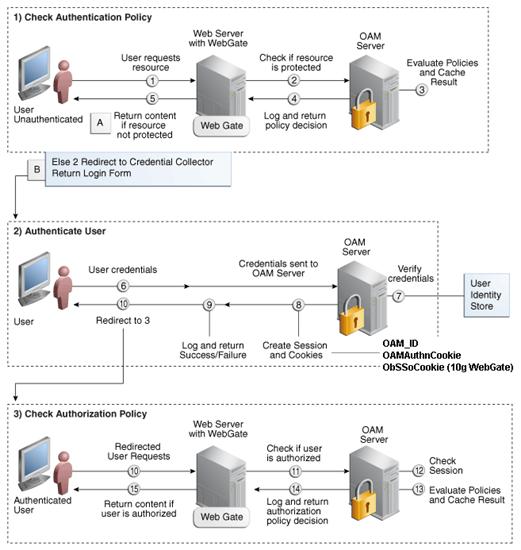
Installing an Oracle Retail supported
Single Sign-On installation using OAM11g requires installation of the
following:
1.
Oracle Internet Directory (OID) LDAP server and the Oracle
Directory Services Manager. They are typically installed using the Installer of
Oracle Identity Management. The ODSM application can be
used for user and realm management within OID.
2.
Oracle Access Manager 11gR2 has to be installed and
configured.
3.
Additional midtier instances (such as Oracle Forms 11gr2) for
Oracle Retail applications based on Oracle Forms technologies (such as RMS).
These instances must be registered with the OAM installed in step 2.
4.
Additional application servers to deploy other Oracle Retail
applications and performing application specific initialization and deployment
activities must be registered with OAM installed in step 2.
Infrastructure Installation and Configuration
The Infrastructure installation for
Oracle Access Manager (OAM) is dependent on the environment and requirements
for its use. Deploying Oracle Access Manager (OAM) to be used in a test
environment does not have the same availability requirements as for a
production environment. Similarly, the Oracle Internet Directory (OID) LDAP
server can be deployed in a variety of different configurations. See the Oracle Identity Management Installation Guide11g.
OID User Data
Oracle Internet
Directory is an LDAP
v3 compliant directory server. It provides
standards-based user definitions out of the box.
Customers with
existing corporate LDAP implementations may need to synchronize user
information between their existing LDAP directory servers and OID. OID supports
standard LDIF file formats and provides a JNDI compliant set of Java classes as
well. Moreover, OID provides additional synchronization and replication
facilities to integrate with other corporate LDAP implementations.
Each user ID
stored in OID has a specific record containing user specific information. For
role-based access, groups of users can be defined and managed within OID.
Applications can thus grant access based on group (role) membership saving
administration time and providing a more secure implementation.
User Management consists of
displaying, creating, updating or removing user information. There are many
methods of managing an LDAP directory including LDIF scripts or Oracle
Directory Services Manager (ODSM) available for OID11g.
ODSM
Oracle Directory Services Manager (ODSM)
is a Web-based application used in OID11g is designed for both administrators
and users which enables you to configure the structure of the directory, define
objects in the directory, add and configure users, groups, and other entries.
ODSM is the interface you use to manage entries, schema, security, adapters,
extensions, and other directory features.
LDIF Scripts
Script based user management can be
used to synchronize data between multiple LDAP servers. The standard format for
these scripts is the LDAP Data Interchange Format (LDIF). OID supports LDIF
script for importing and exporting user information. LDIF scripts may also be
used for bulk user load operations.
User Data Synchronization
The user store for Oracle Access
Manager resides within the Oracle Internet Directory (OID) LDAP server. Oracle
Retail applications may require additional information attached to a user name
for application-specific purposes and may be stored in an application-specific
database. Currently, there are no Oracle Retail tools for synchronizing changes
in OID stored information with application-specific user stores. Implementers
should plan appropriate time and resources for this process. Oracle Retail
strongly suggests that you configure any Oracle Retail application using an
LDAP for its user store to point to the same OID server used with Oracle Access
Manager.
G
This
section provides a guideline as to the order in which the Oracle Retail
applications should be installed. If a retailer has chosen to use some, but
not all, of the applications the order is still valid less the applications not
being installed.
Note:
The installation order is not meant to imply integration between products.
Enterprise Installation Order
1.
Oracle Retail Merchandising System (RMS), Oracle Retail Trade
Management (RTM)
2.
Oracle Retail Sales Audit (ReSA)
3.
Oracle Retail Extract, Transform, Load (RETL)
4.
Oracle Retail Active Retail Intelligence (ARI)
5.
Oracle Retail Warehouse Management System (RWMS)
6.
Oracle Retail Invoice Matching (ReIM)
7.
Oracle Retail Price Management (RPM)
8.
Oracle Retail Allocation
9.
Oracle Retail Central Office (ORCO)
10.
Oracle Retail Returns Management (ORRM)
11.
Oracle Retail Back Office (ORBO)
12.
Oracle Retail Store Inventory Management (SIM)
13.
Oracle Retail Predictive Application Server (RPAS)
14.
Oracle Retail Demand Forecasting (RDF)
15.
Oracle Retail Category Management (RCM)
16.
Oracle Retail Replenishment Optimization (RO)
17.
Oracle Retail Analytic Parameter Calculator Replenishment
Optimization (APC RO)
18.
Oracle Retail Regular Price Optimization (RPO)
19.
Oracle Retail Merchandise Financial Planning (MFP)
20.
Oracle Retail Size Profile Optimization (SPO)
21. Oracle
Retail Assortment Planning (AP)
22.
Oracle Retail Item Planning (IP)
23.
Oracle Retail Item Planning Configured for COE (IP COE)
24.
Oracle Retail Advanced Inventory Planning (AIP)
25.
Oracle Retail Analytics
26.
Oracle Retail Advanced Science Engine (ORASE)
27.
Oracle Retail Integration Bus (RIB)
28.
Oracle Retail Service Backbone (RSB)
29.
Oracle Retail Financial Integration (ORFI)
30.
Oracle Retail Point-of-Service (ORPOS)
§ Oracle
Retail Mobile Point-of-Service (ORMPOS) (requires ORPOS)
31.
Oracle Retail Markdown Optimization (MDO)
32.
Oracle Retail Clearance Optimization Engine (COE)
33.
Oracle Retail Analytic Parameter Calculator for Markdown
Optimization
(APC-MDO)
34.
Oracle Retail Analytic Parameter Calculator for Regular Price
Optimization
(APC-RPO)
35.
Oracle Retail Macro Space Planning (MSP)
The Oracle Retail Enterprise
suite includes Macro Space Planning. This can be installed independently of and
does not affect the installation order of the other applications in the suite.
If Macro Space Planning is installed, the installation order for its component
parts is:
§ Oracle
Retail Macro Space Management (MSM)
§ Oracle
Retail In-Store Space Collaboration (ISSC) (requires MSM)
§ Oracle
Retail Mobile In-Store Space Collaboration (requires MSM and ISSC)