Understanding Microsoft Project XML Import Mappings
When you import a Microsoft Project XML file, Primavera Cloud converts some Microsoft Project values instead of copying them directly.
The predefined import mapping, called the Microsoft Project default business flow, identifies which Microsoft Project fields supply data to Primavera Cloud fields. Additional rules determine how some values are converted. For example, milestone status, resource assignments, and the Scheduling Ignores Resource Calendars setting determine the imported activity type. Task, effort, and calendar settings can affect imported durations and dates.
Use this topic to understand these conversions and investigate unexpected import results. For a complete list of mapped fields, see Import MSP Project Data to Primavera Cloud Mappings.
Before you import, review the following Microsoft Project settings. These settings can affect imported activity types, duration types, dates, durations, calendars, planned lag, and resource curves.
- Task settings: Milestone status, resource assignments, Scheduling Ignores Resource Calendars, Task Type, Effort Driven, task durations, assignment delays, and work contours.
- Calendar settings: Task-assigned calendars, project calendars, and resource calendars, including their working days and hours.
Activity Types
Primavera Cloud supports both Task-dependent and Resource-dependent activity types. A Task-dependent activity uses its assigned activity calendar for scheduling. A Resource-dependent activity uses the calendars of its assigned resources.
The diagram below covers the impact of milestone status, assignments, and Scheduling Ignores Resource Calendars. The remaining effects are explained in the duration, calendar, and resource-assignment sections.
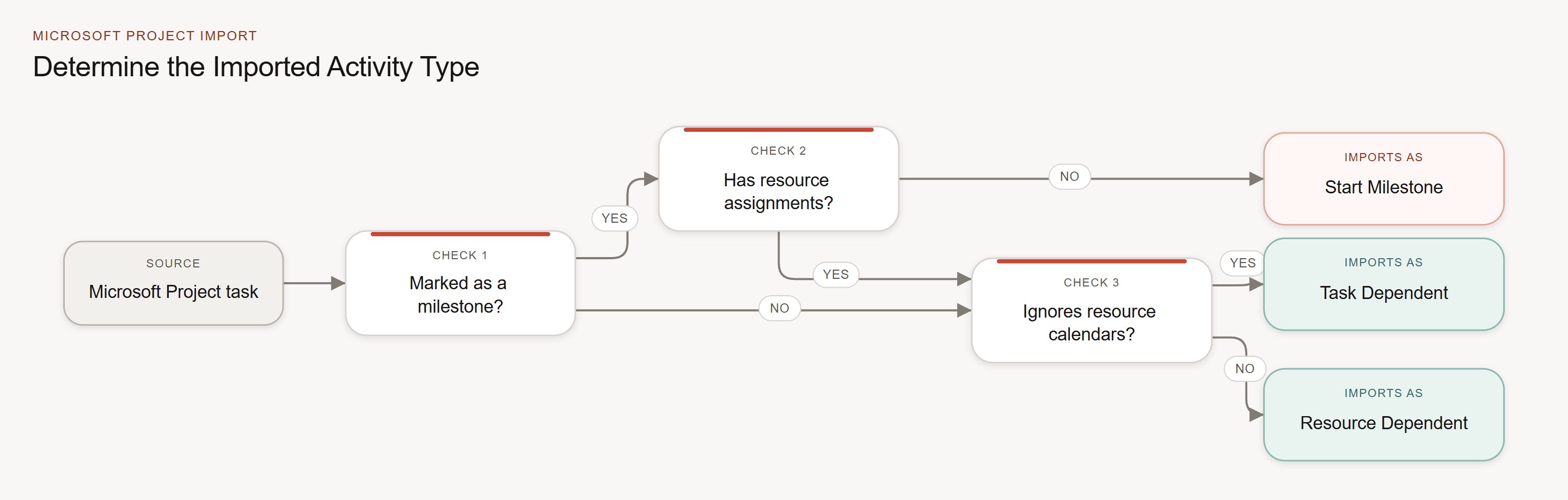
Note A Microsoft Project milestone with resource assignments is imported as a regular activity because Primavera Cloud milestone activities cannot have resource assignments.
Task Settings and Duration Type
Duration type determines which scheduling values can change when an activity is scheduled, such as its duration, assigned work, or resource allocation rate.
The Microsoft Project Effort Driven setting for tasks controls how a task responds when resources are added or removed. Primavera Cloud uses this setting together with the Microsoft Project task type to select the duration type. For example, a Microsoft Project task type that is Fixed Duration with no Effort Driven setting is imported into Primavera Cloud with the duration type Fixed Duration and Units/Time.
Status and Progress
The following tables show how Primavera Cloud converts Microsoft Project status and progress fields.
Microsoft Project Activity Status | Primavera Cloud Activity Status |
|---|---|
Complete | Completed |
On Schedule | In Progress |
Late | In Progress |
Future Task | Not Started |
Microsoft Project Field | Primavera Cloud Value | Percent Complete Type |
|---|---|---|
% Complete | Duration % Complete | Duration |
% Work Complete | Units % Complete | Units |
Physical % Complete | Physical % Complete | Physical |
Constraints
The following table shows how Primavera Cloud converts Microsoft Project constraints.
Microsoft Project Constraint | Primavera Cloud Primary Constraint |
|---|---|
Must Start On | Mandatory Start |
Start No Later Than | Start On or Before |
Start No Earlier Than | Start On or After |
Must Finish On | Mandatory Finish |
Finish No Earlier Than | Finish On or After |
Finish No Later Than | Finish On or Before |
As Late As Possible | As Late As Possible |
As Soon As Possible | No constraint is applied |
Note If the source activity uses a constraint, review the activity dates after import. Differences in calendars and scheduling rules can affect the calculated dates even when the constraint is imported correctly.
Priorities
The following table shows how Primavera Cloud converts Microsoft Project activity priorities.
Microsoft Project Priority | Primavera Cloud Activity Priority |
|---|---|
Highest | Top |
Higher | High |
Medium | Normal |
Lower | Low |
Lowest | Lowest |
Calendars
A working time calendar defines the days and hours when work can occur. When you import Microsoft Project data, Primavera Cloud imports working time calendars as project-level calendars and resource working time calendars as resource-level calendars. If an imported calendar matches an existing calendar, Primavera Cloud updates the existing calendar instead of creating a new calendar.
Microsoft Project does not provide values that map directly to the Primavera Cloud Work Hours Per Month and Work Hours Per Year fields. Primavera Cloud calculates Work Hours Per Month by multiplying Days Per Month by Hours Per Day. It then calculates Work Hours Per Year by multiplying Work Hours Per Month by 12.
Note Because calendar settings can affect imported activity dates and durations, review the working hours in Microsoft Project before you import. If an imported duration is not what you expected, compare the working hours in the Microsoft Project calendar with those in the resulting Primavera Cloud calendar.
Resource Assignments
A resource assignment connects a resource to an activity and can include dates, work, units, lag, and a resource curve. During import, Primavera Cloud maps these values from the corresponding Microsoft Project assignment settings.
Planned Lag maps from Microsoft Project Assignment Delay, which is the time between the start of a task and the start of its resource assignment. If the imported activity is in progress, Primavera Cloud does not update Planned Lag. Instead, it calculates Remaining Lag.
Resource Curve maps from Microsoft Project Work Contour, which defines how assignment work is distributed over time. Primavera Cloud does not import a resource curve when the activity duration type is Fixed Units or Fixed Units/Time. For other duration types, supported Microsoft Project work contours are converted as follows:
Microsoft Project Work Contour | Primavera Cloud Resource Curve Type |
|---|---|
Flat | Linear |
Back Loaded | Back Loaded |
Front Loaded | Front Loaded |
Late Peak | Offset Triangular |
Bell | Bell |
Turtle | Trapezoidal |
Double Peak | Not imported |
Early Peak | Not imported |
Contoured | Not imported |
Last Published Monday, September 14, 2026