| Agile Product Lifecycle Management Database Upgrade Guide Release 9.3.6 E71161-01 |
|

 Previous |
 Next |
| Agile Product Lifecycle Management Database Upgrade Guide Release 9.3.6 E71161-01 |
|
Previous |
Next |
This chapter describes preparing your installation to upgrade from the currently installed version of Agile PLM to Release 9.3.6. Oracle provides the Automated Upgrade Tool (AUT). AUT takes inputs from a property file and completes the upgrade using your existing database as the source database. When complete, the destination database is upgraded to release 9.3.6.
To become familiar with the upgrade procedure, Oracle recommends that you prepare a separate test environment and perform the upgrade on this environment before upgrading the production environment and run the upgrade on the system that is hosting the destination database.
Agile PLM supports the Oracle 12c databases and you MUST install and run the Oracle Database Server on the system that you are planning to install the Agile PLM database before initiating the upgrade process. For information on installing Oracle databases, refer to the relevant documentation that is available on the Oracle Technology Network (OTN) at: http://www.oracle.com/technetwork/documentation/agile-085940.html.
If you are upgrading from an 8.5 product and your Oracle 8i home is not installed on the system that you are performing the upgrade, you must map (or mount) a local drive on the destination system to point to the existing Oracle 8i home. Also, if you are upgrading from an 8.5 product, you must create a new Oracle database instance for the new Agile PLM product version and try to reuse the existing 8.5 Oracle instance.
|
Note: Make sure there is binary compatibility of the mounted binaries. For example, make sure that you map a drive containing the Windows binaries to a Windows system only. |
|
Note: You must install JRE 1.8 and set the JAVA_HOME environment variable to the proper path, for this instance of JRE on the system that AUT is running the JRE. |
The duration of the upgrade process is a function of the size of the database and the configuration of your hardware system. In general, 75% of the upgrade process is spent on upgrading and backing up the database. Oracle recommends running the schema backup and upgrade on a test system to allocate appropriate time for the production deployment
There are two types of upgrade described below:
Upgrade destination in place- Source database is upgraded with the existing database user. In the aut.properties file, the parameter sourceEqualsDestination is set to true.
Upgrade source to destination - A new database user is created in the destination database instance. In the aut.properties file, the parameter sourceEqualsDestination is set to false.
For Agile PLM or Agile Advantage (AA) upgrade, a new database user is created in the destination database instance, using useragile.sql, and then the source database is upgraded to that user.
The sequence of tasks in an upgrade process are listed below.
Stop the Agile PLM application.
On the server running the PLM, click Start > Services > Agile PLM > Stop (The black square).
On the server running the PLM, click Start > Services > Agile Tomcat Release # > Stop (The black square).
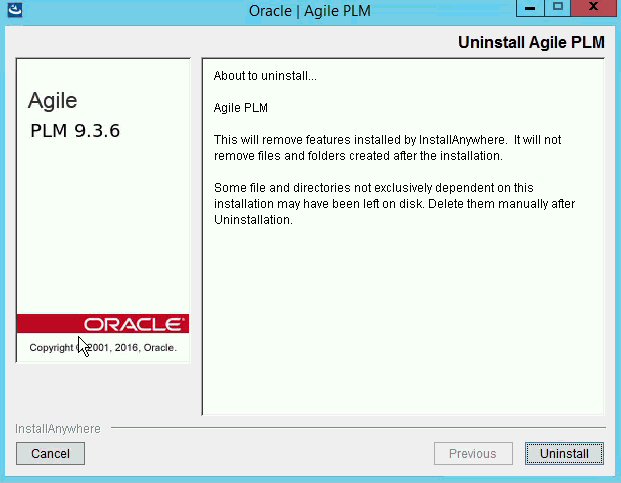
Undeploy (uninstall) the Agile PLM by selecting Start > Agile > Agile PLM > Unistall Agile PLM.
When the following dialog appear, select Uninstall followed by Done when the last dialog appears.
Drop the Repository (RCU).
On the server running the PLM application, click Start > All Programs > Oracle > Oracle_Home > oracle_common > bin > rcu.bat.
Click the Drop Repository radio button in the Drop Repository page of the Repository Creation Utility.
Provide the requested information as follows.
- Host Name: Type the name of the server running the PLM.- Port: 1521- Service Name: agile9 (or the name you had provided during installation).- Username: sys- Password: oracle
Copy Release 9.3.6 files as shown below:
a. Download the Agile PLM database installer and the Automated Upgrade Tool (AUT).
For procedures to download the database installer, refer to the Agile PLM Database Installation Guide.
For instructions to download the AUT, see "Downloading the Automated Upgrade Tool".
b. Configure and run AUT.
For procedures to configure the AUT for each type of upgrade, see "Understanding the Property Files".
For procedures, see "Whether Source Equals Destination".
c. Generate the maintenance scripts for the target release: Run the database installer, choosing the Generate Maintenance Scripts only option. See "Generating Database Maintenance Scripts Only".
d. Configure the database as described in "Configuring the Agile PLM Database".
Upgrade the Data Schema file.
Create the Repository
On the server running the PLM, select the C > Oracle > Middleware > Oracle_Home > oracle_common > bin > rcu.bat.
The Repository Creation dialog displaying the Welcome page appears.
In the Repository Creation dialog, select Next.
The Repository Creation Utility dialog appears.
In Repository Creation Utility dialog, select Create Repository and System Load and Product Load radio buttons and the select Next.
The Database Connection Detail page appears.
Provide the requested information as follows:
- Host Name: Type your host name
- Port: 1521
- Service Name: agile9 (or the name you had provided during installation).
- Username: sys
- Password: oracle
Click Next followed by OK until the Select Components dialog appears.
Complete the requested data as follows and then click Next:
- Create new prefix field: Type AGILE9, or the name you had provided during installation.
- Components: Select Metadata Services, Oracle Platform Security Services, Audit Services, Audit Services Append, Audit Services Viewer.
When the Checking Prerequisites dialog appears, click OK.
When prompted by the Schema Passwords field, type tartan and then click Next.
When prompted by the Repository Creation Utility - Confirmation prompt, click OK.
In the Summary page, click Create.
In the Completion Summary page, click Close.
This completes the upgrade process. To install and deploy the Agile PLM, refer to Release 936 Application Installation Guide.
You can download the Automated Upgrade Tool from Oracle Support Services.
To download the software:
Log in to My Oracle Support (https://support.oracle.com).
Under Patches & Updates, click the Product or Family (Advanced Search) option.
1. Select the Include all products in a family check box.
2. Type the following search parameters:
Product: Oracle Agile Applications
Release: Agile PLM Tools
Platform: Select the appropriate platform, for example, Microsoft Windows (32-bit).
3. Click Search.
Links to Averify and AUT are displayed in the search results.
4. Select the Patch ID and click Download.
Extract the contents of the AUT.zip file from the Patchset zip file to your destination database server. After the AUT is extracted, all of the files are located in an AUT directory on the local drive. In this guide, this directory is called AUT_HOME.
Unless you plan to upgrade in-place, you must create a new database instance before upgrading your existing database. This database instance is then used as the destination database during the upgrade process.
To create the Agile PLM 9.3.6 database instance, follow the instructions in the Agile PLM Database Installation Guide.
After the 9.3.5 database instance is created, run the useragile.sql script, located in the <ORACLE_HOME>/admin/<SID>/create/<agile schema user> directory, to create an empty user in the database.
|
Note: Change the token values inside the @ symbols in the .sql file before running the script. Replace username agile with the desired username to create the user. |
To upgrade an existing Agile schema, you do not need to recreate the database instance. You only need to generate the database maintenance scripts for the target release.
To generate the maintenance scripts on Windows:
Run the database installer file, agile9360db_oracle.exe, and type the appropriate information for Destination Location, Database Size and Oracle home, as described in the Agile PLM Database Installation Guide.
When prompted for the Oracle SID, change the default SID agile9 to the existing SID.
Select the Generate database maintenance scripts only option and click Next.
Follow on-screen directions to generate scripts.
A confirmation message appears when you successfully generate the maintenance scripts.
To generate the maintenance scripts on UNIX:
Run the agile9database.sh script as described in the Agile PLM Database Installation Guide.
$ chmod u+x agile9database.sh
$ ./agile9database.sh [Enter]
When prompted to choose the installation mode, enter S to generate maintenance scripts only. This action generates the database scripts but does not execute them.
Follow on-screen directions to generate scripts.
A confirmation message appears when you have successfully generated the maintenance scripts.
You should validate the source and destination databases to ensure a successful upgrade by performing the following checks:
Run the latest Averify script on the source and fix any errors.
For each database upgrade, you must know the following:
Source and destination database user and password
Destination sys user and password
TNS configuration for source and destination database on the respective database systems.
Paths to the Oracle homes
Map the source and destination Oracle homes, if necessary.
Validate the TNS entries of the source and destination databases.
On a command line, change to point to the Oracle home of the source database, then try to connect to it using the TNS name. Repeat this procedure for the destination database.
Make sure the destination database user exists and there are no objects in the schema.
|
Note: This does not apply if your source database is also your destination database. |
Make sure the source and destination database users have the same roles and privileges.
Make sure the Agile tablespaces in the destination and source databases match. Also, the destination database should have unlimited tablespace.
Verify that the available tablespace in the destination database is sufficient to complete the database upgrade.