|

 Previous |
This document addresses new capabilities added in Agile PLM 9.3.6 as compared to prior Agile PLM releases. As with the last releases, there are detailed Transfer of Information (TOI) recordings accessed through My Oracle Support that cover all of these features.
|
Note: This document is a supplement to the release Readme and all other manuals, like the Capacity Planning Guide. It is intended to be an overview of the other documentation and does not replace the need to read and understand those documents. Errors contained in this document are not commitments to provide features. |
Oracle offers extensive training and documentation for customers to learn about Agile PLM 9.3.6. Below is a list of resources:
Installation software is available as a download from Oracle Software Delivery Cloud: http://edelivery.oracle.com/
New versions of Automated Upgrade Tool (AUT) and Averify are published to My Oracle Support. Patch numbers will be available on the Resource Summary Blog Post: https://blogs.oracle.com/PLM/entry/agile_plm_resources_know_agile
Agile PLM Documentation Page at Oracle Technology Network (OTN): http://www.oracle.com/technetwork/documentation/agile-085940.html
Samples for Agile PLM 9.3.3 are added to the new Sample Code website
Transfer of Information Recordings available through My Oracle Support:
|
Note: These are recording of Agile PLM Product Managers discussing the major new features each release. They are available to any customer with licenses and support for Agile PLM. |
9.3.6 recordings are available through Support Note 2220238.1
9.3.5 recordings are available through Support Note 2090862.1
9.3.4 recordings are available through Support Note 1962485.1
9.3.3 recordings are available through Support Note 1589164.1
9.3.2 recordings are available through Support Note 1512952.1
9.3.1 recordings are available through Support Note 1220374.1
9.3.0 recordings are available through Support Note 854537.1
Agile PLM blog: http://blogs.oracle.com/PLM
Agile PLM Solution Space: http://www.oracle.com/goto/plmsolutionspace
Twitter: http://twitter.com/agileplm
Facebook: https://www.facebook.com/OracleAgilePLM
With the 9.3.6 release, we are focusing on customer enhancement requests coming directly from our customers. The ones around user experience are detailed below.
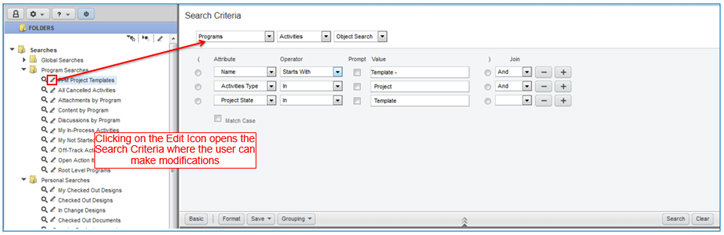
Prior to 9.3.6, a user has to run a saved search prior to editing it. Users would like to edit a search without having to run it first.
In 9.3.6, we have added an edit button. Clicking on it bring up the search criteria where the user can make edits. The edit button applies to all saved searches.
Prior to 9.3.6, there was no routed date on the Workflow Routing Tab. Users would like to sort by routed date.
In 9.3.6, we have added a Routed Date column to the Workflow Routing table
For routable objects, the routed date is the date the object entered that workflow status. For example, when an ECO is routed for approval, the date it first enters CCB status is the routed date. If more approvers are added later, they will still see the original routed date. The routed date is stored with the workflow status for performance reasons. It would be a large performance hit to store and access the routed date for each workflow routing.
For non-routable PCM objects (sourcing projects, RFQs), the date the owner is added to the sourcing project or RFQ is the routed date. If the owner is updated, the routed date is updated.
Prior to 9.3.6, there were only 2 numeric formats and they exist only on the user preference:
987,654,321.09
987 654 321,09
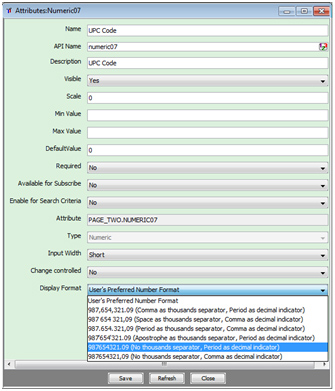
In 9.3.6, there are 4 additional number formats:
987.654.321,09 (Period as thousands separator, Comma as decimal indicator)
987'654'321.09 (Apostrophe as thousands separator, Period as decimal indicator)
987654321.09 (No thousands separator, Period as decimal indicator)
987654321,09 (No thousands separator, Comma as decimal indicator)
Users can select one of the new formats as their preferred number format
Upgrade will retain their selection prior to upgrade
All Numeric and Money attributes now have a Display format that default's to the User's Preferred Number Format
This overrides the user's preferred number format
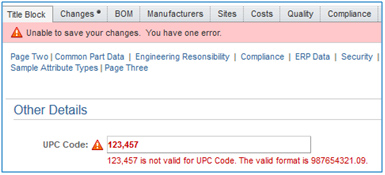
The system issues an error message if the numeric format entered does not match the valid format defined either on the numeric/money attribute or the user's preferred number format
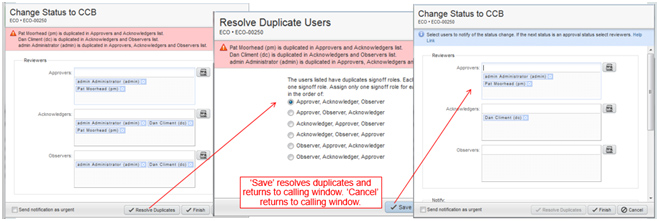
Prior to 932, the user saw a popup when a user was assigned as both an observer and approver. After 932, if there are duplicate signoff users, an error message is issued, but there is no easy way to remove unwanted signoff roles.
In 9.3.6, we provide a popup window that allows the user to select the order in which signoff roles should be kept.
The default hierarchy is Approver, Acknowledger, Observer because this is the order of importance of the signoff role. Both Approver and Acknowledger have required sign off, but the Observer is optional for sign off.
A user can change the default hierarchy if desired
When the user clicks 'Save', they return to the calling window with the duplicates removed
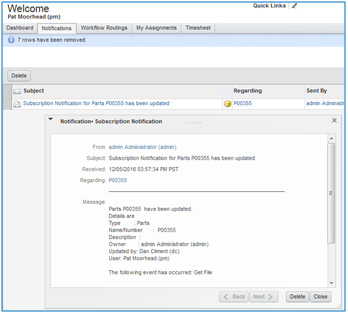
Prior to 9.3.6, we allow subscribe on all file actions except GetFile, OpenFile and ViewFile.
In 9.3.6, we allow subscribe on GetFile, OpenFile and ViewFile. The new feature is supported:
The new feature is supported in Web Client, SDK and Web Services
The new feature is supported for all objects with attachments that support the Subscribe Action
Change object additionally supports Affected Files and Affected Item Redline Attachment (Get File, View File)
The notifications use the existing Subscription Notification Template - no modifications are needed to send the file notifications
Prior to 9.3.6, when a user exports an entire BOM and its attachments using PDX or aXML, export only writes a history record at the top level. There is no record of the export of the attachment itself.
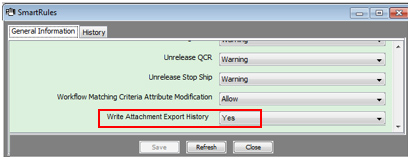
In 9.3.6, a new smart rule controls if attachment export history is written and it is written for every level of the BOM that has an attachment exported. The default is 'No' to keep the current behavior.
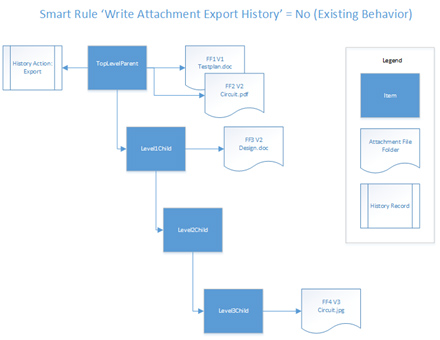
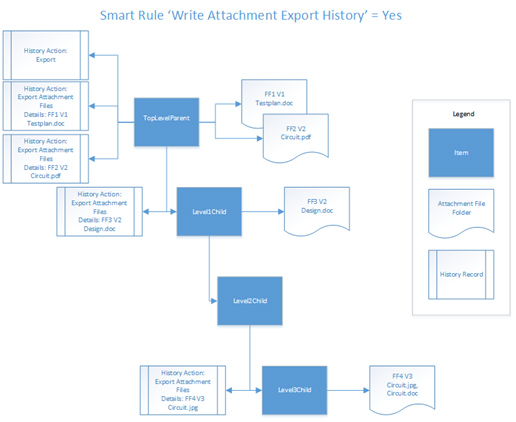
The smart rule also applies to ACS export of Transfer Orders.
See the Agile 9.3.6 TOI Functional Release Overview for more details
The following are Administrator Experience enhancements:
Prior to 9.3.6, Actions Menu and Tools Menu PXs were only available to users of the Home Organization. Users have visibility to PXs that they do not have privileges to run. Additionally, Supplier users were only able to access PGC PXs.
With the 9.3.6 release, we have added a new setting 'User Role Required to See PX'
The role defaults to 'My User Profile' for users of the home organization
The administrator can add specific role(s) to control who has visibility of PXs
If a user does not have the specified role, he cannot see the PX in the Actions or Tools menu
Prior to 9.3.6, the Web Client set the list Display Type to Search automatically if the number of results is greater than the system preference for Maximum List Values Displayed. In some cases, lists with a smaller number of values were converted from List to Search Display Type.
In 9.3.6, we now control the list Display Type only in the Java Client. The administrator can decide which lists should have a List or Search Display type.
With the 9.3.4 release we added an HTML sanitizer that clears out HTML tags that are not in a predefined list. Customers have requested to allow additional HTML tags.
In 9.3.6, we added a properties file AllowedHTMLTags.properties that lists all of the allowed HTML tags. A customer can modify this file to include other allowed HTML tags.
For security reasons, we have another property file called ForbidHTMLTag.properties. Customers cannot allow any of these forbidden tags.
The following Product Collaboration enhancements were made:
Prior to 9.3.6, the New Rev attribute could not be set as a workflow Entry/Exit Required Field. Customers requested being able to set the New Rev earlier in the release cycle.
In 9.3.6, the New Rev attribute can be set as an Entry/Exit Required Field for all workflow statuses. If the user does not enter the New Rev prior to the workflow setting, an audit message is displayed and clicking on it navigates the user to the Affected Items tab and highlights the New Rev cell.
Prior to 9.3.6, change orders can be released with outstanding redlines that have not been resolved.
In 9.3.6, we have a new smart rule 'Release Change Order with Affected Item Attachment Redlines'.
The default value is 'Warning'
If the smart rule is set to 'Warning' or 'Disallow', then the user gets either a warning or error message when they try to release a change order that has outstanding redlines.

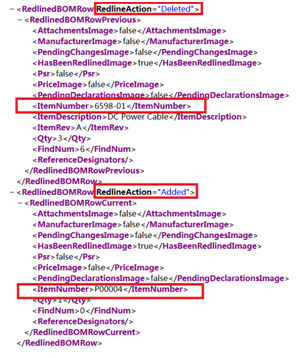
Prior to 9.3.6, when a user replaces a part on the Affected Item BOM or AML, aXML records the action as 'Changed' which may can confusion in a downstream system as 'change' implies the BOM/AML attributes were changed.

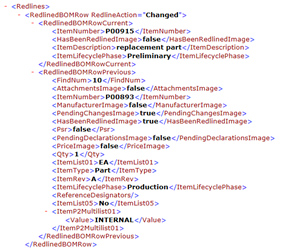
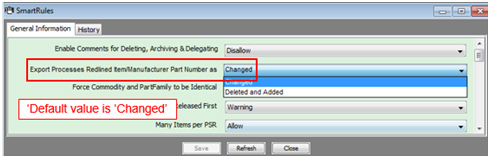
In 9.3.6, we added a new smart rule 'Export Processes Redline Item/Manufacturer Part Number as'. The default is 'Changed' since that is the current behavior. If you want this recorded as a delete of the original part and an add of a new part, you can select 'Deleted and Added'
The following sections describe Product Portfolio Management enhancements.
In 9.3.6, we made several enhancements to resource utilization related reports including:
Change the default Start Date and End Date logic for non-object launch: Start Date will be current date and End Date will be 3 months after Start Date
Retain report parameters including Display Type and Include Proposed Project Allocation
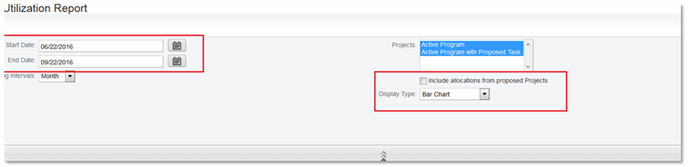
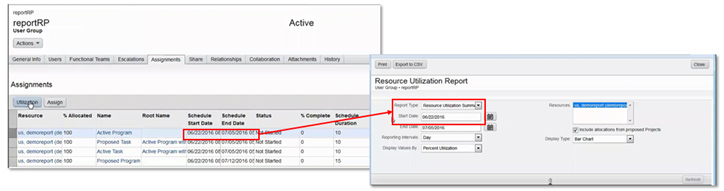
Change the default Start Date and End Date logic for object launch: Start Date/End Date will be retrieved from the current assignment/task
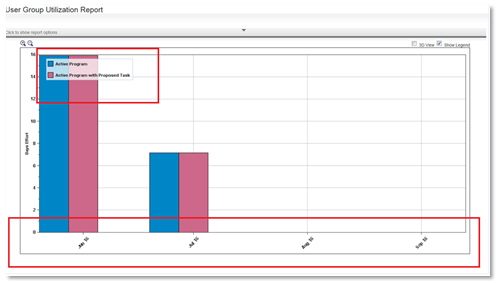
Change the legend position of the content
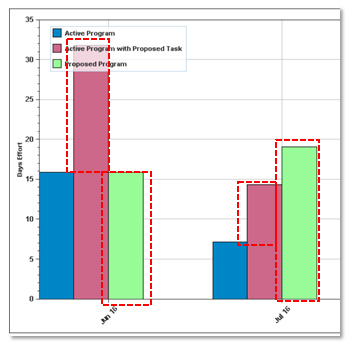
Change logic of Include Proposed Projects Allocation checkbox
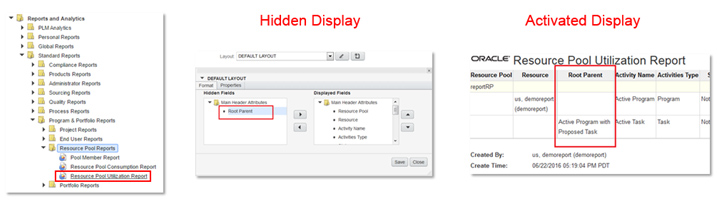
Add a new attribute to Resource Pool Utilization Report of Standard Reports
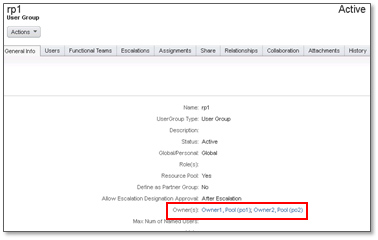
In 9.3.6, we change the Resource Pool Owner from List to MultiList to adopt multiple-owner use cases. Each owner in the list can manage resource pool exactly the same as the original owner.
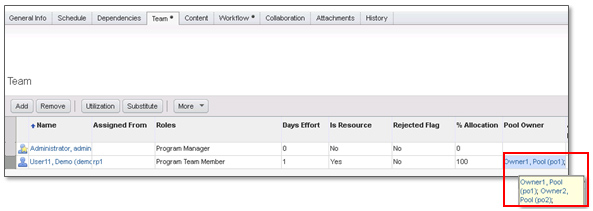
Pool Owner attribute on Team tab of Activity or Gate is also changed accordingly.
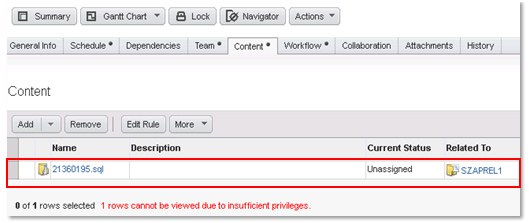
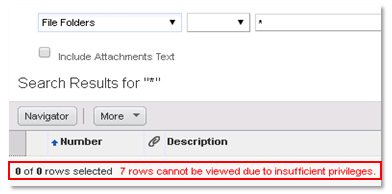
In 9.3.6, we change the privilege check on Content tab for File Folder object to allow a team member to view the attachment in Content tab without File Folder discovery privilege, which is aligned with Attachment tab behavior.
The following sections describe Platform Changes.
Application Server
Oracle FMW Infrastructure (Weblogic) 12cR2 12.2.1.1 on 64-bit JDK 7
Note: Only 64-bit JDK 8u20+ certified
Note: WebLogic Suite, WebLogic Server Enterprise Edition, WebLogic Server Standard Edition certified.
Database
Only Database 12cR1 (12.1.0.1+)
Note: Enterprise Edition, Standard Edition, Standard Edition One, Standard Edition Two certified
Web Browser
Firefox (ESR 45 and 38) on Windows/Linux
Safari 10, 9 and 8 on Mac OS
Microsoft Edge and Internet Explorer 11 Windows
Note that the RMW modules are only supported on IE
Chrome 55 and 46 on Windows
Server Operating Systems
Oracle Solaris 11.2+
Oracle Linux 7 and 6 (64-bit)
Red Hat Enterprise Linux 7 and 6 (64-bit)
Microsoft Windows Server 2012 R2 and 2012
IBM AIX 7.2 and 7.1 (POWER 64-bit)
SUSE Linux 12 (64-bit)
Add HP-UX 11.31 (Itanium64)
Also certified on Exadata (database) and Exalogic V2 (app server)
AutoVue for Agile:
Oracle AutoVue for Agile PLM 21.0.1
Server Virtualization
Oracle VM 3 with Oracle Linux, Solaris, and Windows Server
Oracle Solaris Containers/Zones
IBM AIX LPARs
Microsoft HyperV (see Support Note 1563794.1)
|
Note: Review the Oracle Agile PLM 9.3.6 Capacity Planning Guide for the official, detailed platform certification matrix. Any errors in the list above do not override the official intended software support. |
The following sections describe AutoVue for Agile 21.0.1 and 21.0.0 enhancements for 9.3.6.
From Release 21.0.1 AutoVue Client is a Java application that can be started through Java Web Start framework. This framework requires a JNLP file to start the application. The AutoVue client as applet is being deprecated in 21.0.1. AutoVue client is now launched using the Web Start technology.
|
Note: There is currently a known issue with Microsoft Edge that makes performance unreliable and it is not recommended at this time. |
From AutoVue 21.0.1, the following formats are supported:
CatiaV5-6R2015
SolidEdge ST8
Inventor 2016
AutoCAD 2016 and 2017
SolidWorks 2016
Adobe Acrobat DC 2015
From AutoVue 21.0.0, when you view files, this setting determines whether a new AutoVue Viewer window is created for each file that you view (enabled) or whether one Viewer window is reused to view different files (disabled, the default). To toggle this setting, select this menu item in the drop-down menu. The setting is enabled when a check mark is displayed next to this menu item. NOTE: When View files in separate Viewer windows is enabled for a user, then files viewed in Java Client are also displayed in separate Viewer windows.