Configuring the email server settings

In order for users to be able to email bookmarks, you must configure the email server settings. The email address associated with the outbound server is used as the From address on the bookmark email message.

To configure the email server settings:

  1. In the Big Data Discovery header, click the Configuration Settings icon and select Control Panel.
  2. Select Platform Settings and then Email Settings.
  3. Click the Sender tab.
  4. Fill out the fields for the incoming mail server:
    1. In the Incoming POP Server field, enter the name of the POP server to use to receive email.
    2. In the Incoming Port field, enter the port number for the POP server.
    3. If you are not using the SMTPS mail protocol to send the email, then you must deselect the Use a Secure Network Connection.
    4. In the User Name field, type the email address to associate with the mail server.

      This is the email address used as the From: address when end users email bookmarks.

    5. In the Password field, type the email password associated with the email address.
  5. Fill out the fields for the outbound mail server:
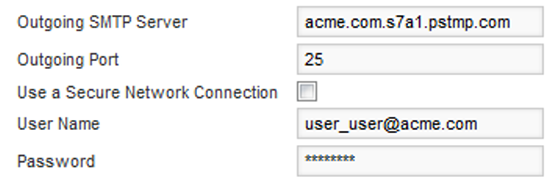
    Fields for configuring the outbound mail server
    1. In the Outgoing SMTP Server field, enter the name of the SMTP server to use to send the email.
    2. In the Outgoing Port field, enter the port number for the SMTP server.
    3. If you are not using the SMTPS mail protocol to send the email, then the Use a Secure Network Connection check box must be deselected.
    4. In the User Name field, type the name to display for the notification sender.

      This is the email address used as the From address when end users email bookmarks.

    5. In the Password field, type the email password associated with the email address.
  6. Click Save.