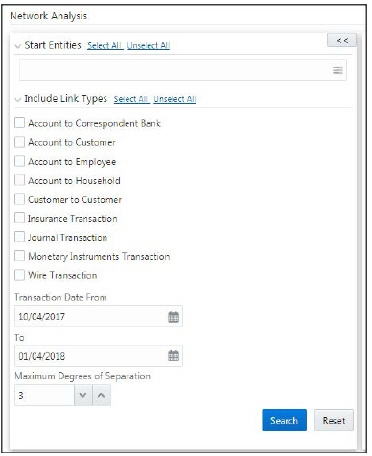
To filter network analysis information, follow these steps:
1. Navigate to the Network Analysis tab. Go to the LHS section.
2. Enter the following information in the respective fields.
|
Field |
Description |
|---|---|
|
Start Entities |
Select entities from the Start Entities list. Or, click Select All to select all entities. Use the start entities list to build the network around entities associated with the event. These entities are considered the starting point of the network. The following entity types are displayed based on which entities are associated with the events. · Accounts · Customers · Households · External Entity · Employee · Correspondent Banks If the Case has one or more linked events, then use the entity ID(s) from each populated business tab (that is, Account, Customer, Correspondent Bank, Employee, External Entity, and Household) that are not already represented by an events focal ID as a possible starting entity.
If the Case does not have one or more linked events: · Use the entity ID(s) from each populated business tab (that is, Account, Customer, Correspondent Bank, Employee, External Entity and Household) as a starting entity. The entities are highlighted in the Network Graph.
|
|
Include Link Types |
Select the links from Include Link Types (Account to Customer, Account to Employee, and so on). Or, click Select All to select all links. The Link Types List contains all the valid links, or relationship types, that are identified between two nodes (entities) in the Network Graph. The links are created based on Shared Activity and Known Relationship between two nodes. For more information on Link Types, see Table 15.
Selecting a Link Type displays links of the selected type in the graph. For example, the Account to Household link type discovers accounts or household nodes. Some of the Link Type and Starting Entity combinations may result in no results being returned. For example, selecting only a Household entity in the Entity Name list and selecting Wire Transaction in the Include Link Types list returns no nodes other than the starting Household entity. This is because transactions do not focus on household entities. Table 16 provides the Valid Link Types for each node.
The system uses this information to find the most recent information to determine known relationships and shared attributes. For more information, see Table 17. |
|
Transaction Date |
Select the from and to transaction date. · Transaction Date From § Used to build a network based on shared activity. Whenever this date is selected, the system checks for the transaction between Transaction Date From and Transaction Date To for establishing the link for Wire, Journal, MI and Insurance Transaction. § It is defaulted to three months prior to the current date. § It cannot be greater than or equal to Transaction Date To. An error message is displayed: Please enter a From date that is less than or equal to the To Date. § It cannot be a future date and when the user enters or select a future date. An error message is displayed: Please do not enter a future date.
· Transaction Date To § Used to build a network based on shared activity. Whenever this date is selected, the system checks for the transaction between Transaction Date From and Transaction Date To for establishing the link for Wire, Journal, MI and Insurance Transaction. § It has defaulted to the current date. § It cannot be less than Transaction Date From. An error message is displayed: Please enter a From date that is less than or equal to the To Date. § The Transaction Date To cannot be a future date. When the user enters or select a future date, an error message is displayed: Please do not enter a future date. |
|
Maximum Degrees of Separation |
Select the maximum degrees of separation from the drop-down list. The value you provide determines how many cycles out from starting entity a repetition of queries will go, that is, how many levels of entities need to be identified. This number must be within your institution’s limits (the default is 1-10). You cannot enter 0, decimals, or negative numbers. If you do not enter a number, the value displays the default of 3. |
|
Transaction Activity Options |
Select transaction activities such as transaction amount equal, more, or less than. This field is displayed only when you select transaction-related link types (Journal Transaction, Wire transaction, and so on). Transaction Activity Options filter the network based on the transaction activity. The following Transaction Activity Options display: · Transaction Amount >= filters out transactions with amounts greater than or equal to the specified amount. · Transaction Amount <= filters out transactions with amounts less than or equal to the specified amount. |
3. Click Search. In the Right Hand Side (RHS) pane, the Network Graph is displayed.