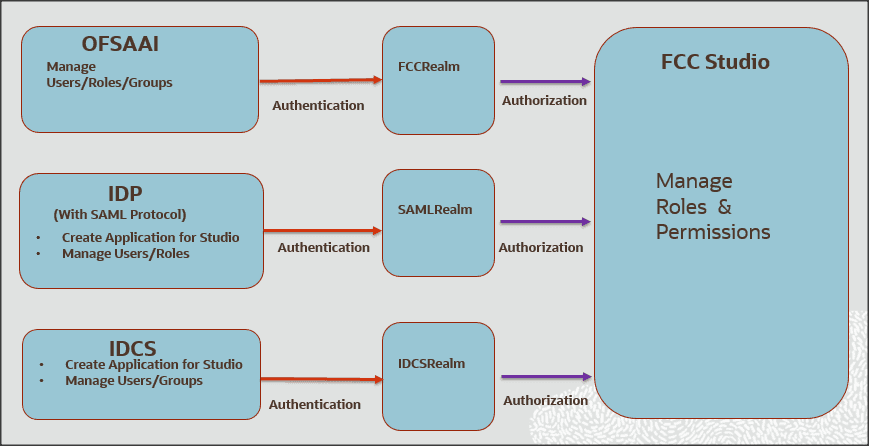
FCC Studio uses a realm based on unique authentication and authorization for its users. Realm indicates the functional grouping of database schemas and roles that must be secured for an application. Realms protect data from access through system privileges and do not provide additional privileges to its owner or participants.
Realm based authorization establishes a set of database accounts and roles that can manage or access objects protected in realms and are authorized to use its system privileges. It provides a run-time mechanism to check logically if a user's command is allowed to access objects specified in the command and to proceed with its execution.
Realms (FCCRealm, SAMLRealm, and IDCSRealms) are selected based on the Identity Provider (IDP) during the installation. For more information, see Oracle Financial Crime and Compliance Studio Application Installation Guide.
After you select the realms, you can register a set of schema objects or roles (secured objects) for realm protection and authorize a set of users or roles to access the secured objects.
The FCC Studio application is accessed using the following realms that you have selected during installation of FCC Studio application:
· FCCMRealm: The FCCMRealm uses Oracle Financial Services Analytical Applications Infrastructure (OFSAAI) Identity Management system for user authentication. Users, Roles, and Groups are created in the OFSAAI. The OFSAAI facilitates System Administrators to provide access, monitor, and administer users along with the Infrastructure metadata operations. The required permissions to roles or groups are authorized in the FCC Studio applications using the Permission feature.
· SAMLRealm: The SAMLRealm uses an identity provider (IDP) Identity Management system for user authentication. Security Assertion Markup Language (SAML) is an open standard that allows identity providers (IDP) to pass authorization credentials to service providers (SP). IDP acts as the Single Sign-On (SSO) service. Users and Roles are created in the IDP. The required permissions to Users and Roles are authorized in the FCC Studio applications using the Permission feature.
· IDCRealm: The IDCRealm uses Oracle Identity Cloud Service (IDCS) Identity Management system for user authentication. IDCS is Oracle’s next-generation security and identity management platform that is cloud-native and designed to be an integral part of the enterprise security fabric, providing modern identity for modern applications. Users and Groups are created in the IDCS. The required permissions to Users and Groups are authorized in the FCC Studio applications using the Permission feature.
The following image illustrates the authentication and authorization process in FCC Studio.
This section provides information on the creation of users who can access FCC Studio using the FCCMRealm method of authentication through Oracle Financial Services Analytical Applications Infrastructure (OFSAAI). The users with SYSADMN and SYSAUTH roles in OFSAAI can create and authorize users respectively.
Identity Management in the OFSAAI facilitates System Administrators to provide access, monitor, and administer users along with the Infrastructure metadata operations. The Security Management System (SMS) component is incorporated with Password Encryption, Single Logon, Role and Data-Based Security, Access Control, and Audit Trail feature to provide a highly flexible security envelope. Administrators can create, map, and authorize users defining a security framework that can restrict access to the data and meta-data in the warehouse, based on a fine-grained access control mechanism. These activities are done at the initial stage and then on a required basis. For more information on creating and authorizing users in OFSAAI, see the Oracle Financial Services Analytical Applications Infrastructure User Guide.
The following table describes the ready-to-use roles and the corresponding user groups who can access FCC Studio using FCCMRealm.
NOTE |
Only in FCCRealm, users are mapped to user groups. |
The default permissions mapped to these users and user groups are available in the Permission section. However, these permissions can be added or modified. Table 1 describes Roles and User Groups in FCC Studio.
Role |
User Groups |
|---|---|
DSADMIN |
DSADMINGRP |
DSINTER |
DSINTERGRP |
DSUSER |
DSUSERGRP |
DSBATCH |
DSBATCHGRP |
DSAPPROVE |
DSAPPROVEGRP |
DSREDACT |
DSREDACTGRP |
This section provides information on managing users who can access FCC Studio with Identity Provider (IdP or IDP). The IdP acts as the Single Sign-On (SSO) service provider for implementations between FCC Studio, Investigation Hub, and Enterprise Case Management. This configuration prevents separate login for each application.
An identity provider (IdP) is a service that stores and verifies user identity. IdPs are cloud-hosted services, and they often work with single sign-on (SSO) providers to authenticate users. An identity provider (IdP or IDP) stores and manages users' digital identities. An IdP checks user identities via username-password combinations and other factors, or it may simply provide a list of user identities that another service provider (like an SSO) checks.
The following are the ready-to-use roles that can access FCC Studio using SAMLRealm.
To integrate FCC Studio with IdP as the SSO provider, follow these steps:
1. Create the following roles in the IDP system:
§ DSADMIN
§ DSINTER
§ DSUSER
§ DSBATCH
§ DSAPPROVE
§ DSREDACT
2. Map the user groups to the respective user based on the user roles.
The default permissions mapped to these users are available in the Permission section. However, these permissions can be added or modified.
This section provides information on managing users who can access FCC Studio with Oracle Identity Cloud Service (IDCS). The IDCS acts as the Single Sign-On (SSO) service provider for implementations between FCC Studio, Investigation Hub, and Enterprise Case Management. This configuration prevents separate login for each application. IDCS Realm Integration with FCC Studio allows SSO for both FCC Studio and ECM to provide seamless integration and eliminates the requirement to log in separately to FCC Studio.
The Oracle Cloud Infrastructure Console provides an integration with Oracle Identity Cloud Service (IDCS) that lets you perform many management tasks for your IDCS users and groups in the Console. In the Console, you can add users, remove users, add users to groups, assign roles to users to access services and instances, and reset the user password.
To manage Oracle Identity Cloud Service users and groups in the Console, you must have granted permissions in both the Oracle Cloud Infrastructure service and in Oracle Identity Cloud Service. To create users and groups in the Oracle Identity Cloud Service federation, you must have the Identity Domain Administrator role or be a member of a group that has been granted that role.
The following are the ready-to-use User Groups who can access FCC Studio using IDCSRealm.
To integrate FCC Studio with IDCS as the SSO provider, follow these steps:
1. Create the following user groups in the IDCS application:
§ DSADMIN
§ DSINTER
§ DSUSER
§ DSBATCH
§ DSREDACT
§ DSAPPROVE
2. Map the user groups to the respective user based on the user roles.
The default permissions mapped to these users are available in the Permission section. However, these permissions can be added or modified.
For more information on Managing Users with Oracle Identity Cloud Service Accounts, visit https://docs.oracle.com/en/cloud/get-started/subscriptions-cloud/mmocs/managing-users-identity-cloud-service-accounts-1.html.
NOTE |
It is recommended to use FCCRealm or SAMLRealm. |
The FCC Studio offers a rich permission system. The four key components are permissions, permission templates, roles, and groups. A permission is an action that applies to entities and types. A permission can be a general action, an action on all entities of a particular type, or an action on a specific entity of a type.
Authenticated users access FCC Studio through FCCRealm, SAMLRealm, and IDCSRealm. Users or User Groups are mapped to roles (DSADMIN, DSINTER, and so on) in the respective IDP (Identity Provider). Each role group is assigned to certain permissions (to use general, notebook, graph, interpreters, and so on). And, every permission has certain actions to perform (delete a paragraph, modify paragraph, execute interpreter variant, and so on). Hence, users or user groups mapped to roles can perform only assigned actions to which they have permissions.
· User: Authorized users can access FCC Studio through realms. For example, FCCMADMIN can access FCC Studio through FCCRealm or IDCSRealm.
· Role: Users are mapped to one or more roles by the realms. For example, FCCMADMIN is mapped to DSUSER role. A role consists of one or more permissions.
· Permission: Permission is a set of actions. For example, A permissions to perform on Notebook, Graph, Interpreter Variant, Interpreter, General, and so on. Having permissions on Notebooks, you can delete a notebook, schedule a notebook, and so on.
· Action: Actions are read, write, execute, and so on.
Use this section to view the logged in users and view, add, or modify ready-to-use permissions granted to the users, roles, or groups. You can also create groups, roles, and permission templates (actions).
NOTE |
You can only view users and their details. |
It is recommended to:
· Use the Roles for permissions mapping.
· Use the Groups and Permission Templates that are configured and ready-to-use in the application.
To manage the permissions, log in to the FCC Studio application and follow these steps:
1. Enter the URL in the following format in the browser:
https://<Host_Name>:<Port_Number>
<Port_Number> for,
§ FCC Studio installed on-premise: 7008.
§ FCC Studio deployed on the Kubernetes cluster: 30078.
2. Enter the System Administrator Username and Password.
3. Click Login. The Crime and Compliance Studio application’s landing page is displayed.
4. Click
the Navigation Menu  on the upper-left corner. The
applicable menu items to the logged-in user are displayed.
on the upper-left corner. The
applicable menu items to the logged-in user are displayed.
5. In the Crime and Compliance LHS Menu, select Permissions.
In the Permissions page, you have the following panes:
§ Users
§ Groups
§ Roles
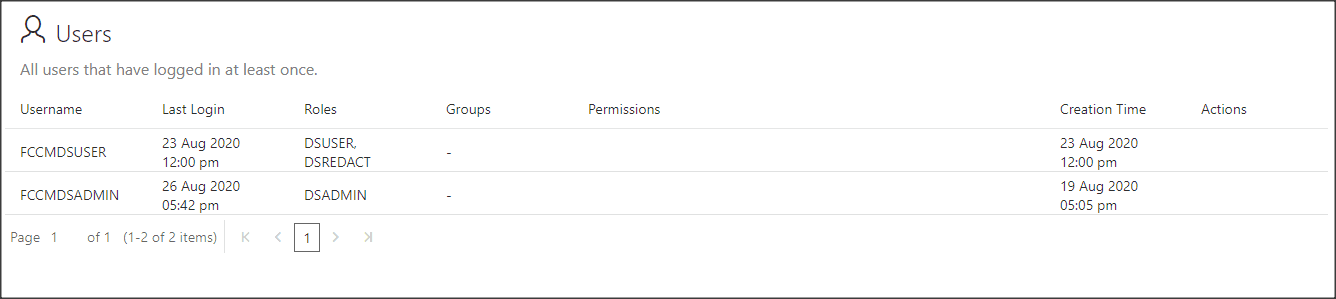
The Users section lists all the users, the date of their last login, and their roles, groups, other permissions. Users cannot be added or deleted in this section, but the groups they belong to can be updated.
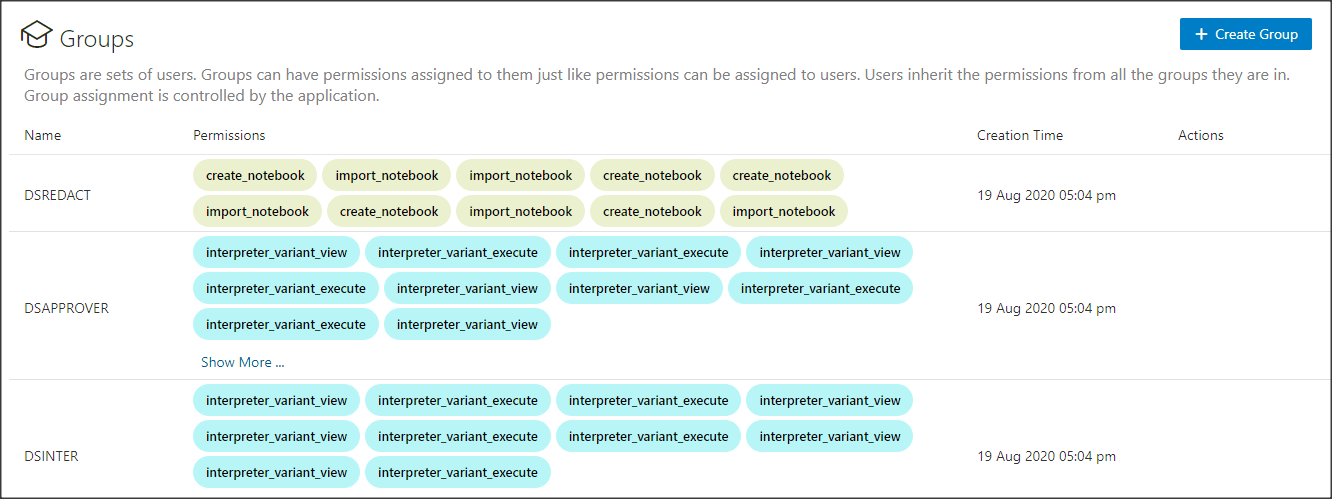
A Group consists of one or more permissions. A user can belong to multiple groups. For example, Oracle Labs, General, and External. The Groups section allows users to view and manage all group and permissions for it. Groups can be added, updated, and deleted. However, it is recommended to use ready-to-use groups in FCC Studio.
NOTE |
Groups are applicable if you are using IDCSRealm. |
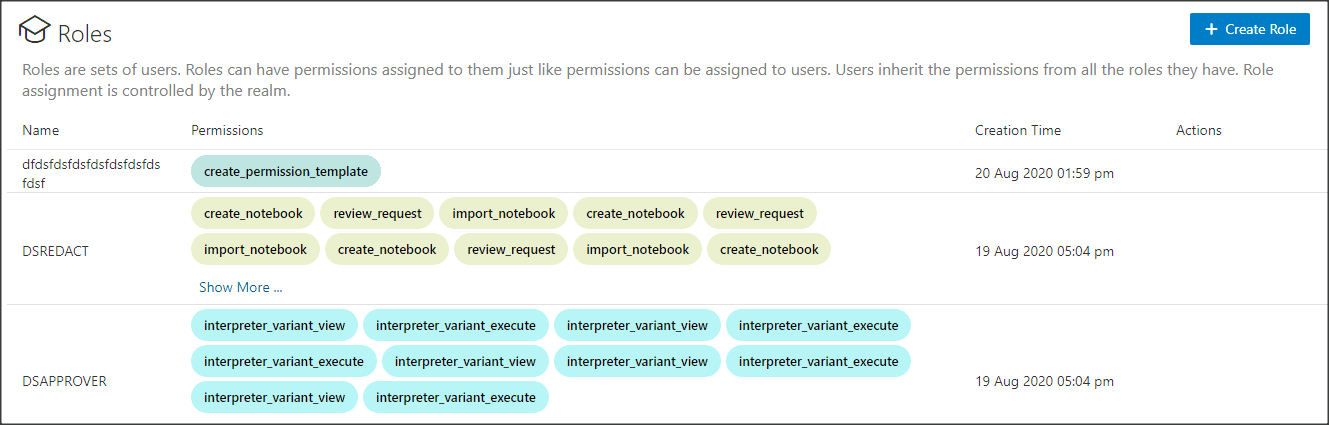
A Role consists of one or more permissions. A user can have multiple roles that are assigned in IDP. For example, admin, user, and guest. All the listed roles can be added, updated, and deleted. However, it is recommended to use ready-to-use roles in the application.
NOTE |
Roles are applicable if you are using FCCRealm and SAMLRealm. |
A Permission Template is a set of actions. For example, limited_read, read, and write. All the listed Permission Templates can be added, updated, and deleted. However, it is not recommended to use a ready-to-use permission template in the application.
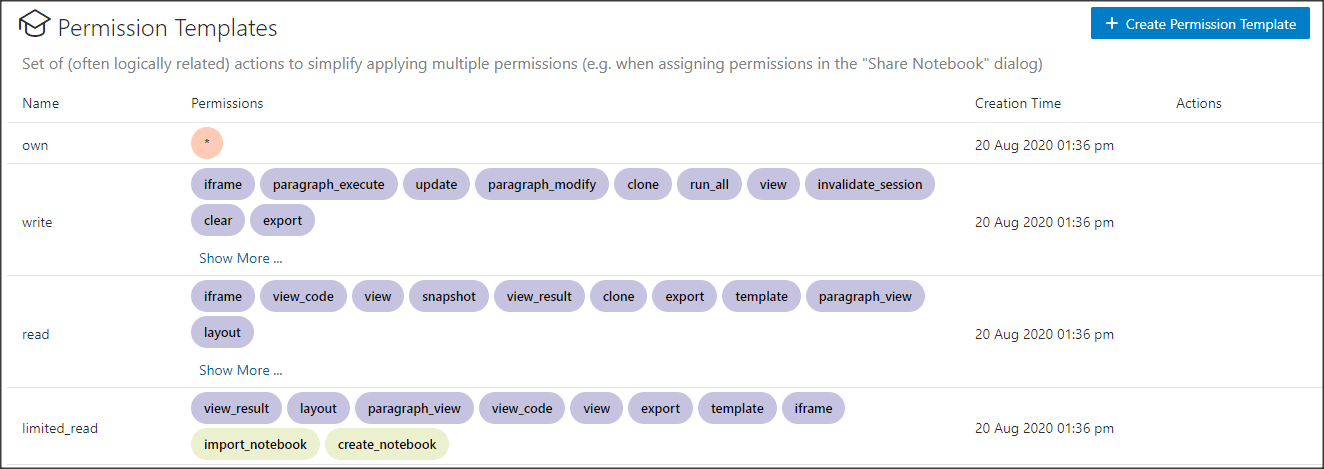
To modify ready-to-use Groups, Roles, and Permission Templates, follow these steps:
1. In the Group pane, place your cursor in the Action column against required Groups, Roles, and Permission Templates name. The Modify and Delete icons are displayed.
2. To
modify ready-to-use Groups, Roles, and Permission Templates, click Modify  . The
Update Groups, Update Roles, or Update Permission Templates window is
displayed. Go to required options, such as Permission, Notebook, Interpreter
Variant, General, Interpreter, Graph, and so on.
. The
Update Groups, Update Roles, or Update Permission Templates window is
displayed. Go to required options, such as Permission, Notebook, Interpreter
Variant, General, Interpreter, Graph, and so on.
3. Click the required permissions such as create a permission template, delete a paragraph, and so on. The selected permissions are underlined.
4. To
select all the options, click All
 . All the options in the Update
Group window are selected. To deselect all the options, click All again.
. All the options in the Update
Group window are selected. To deselect all the options, click All again.
5. To
delete the permissions, select the required permission and click Delete  .
The selected permission is deleted.
.
The selected permission is deleted.
6. Click Save. A confirmation message is displayed.
When new users, roles, or groups are created in the respective realms, you must authorize them with permissions. Use this section to authorize new groups, roles, or permission templates.
To create Groups, Roles, and Permission Templates, follow these steps:
1. In
the Groups, Roles,
and Permission Templates pane.
Click Create  .
The Create window for Groups,
Roles, or Permission Templates is displayed.
.
The Create window for Groups,
Roles, or Permission Templates is displayed.
2. Enter the name of Groups, Roles, or Permission Templates.
NOTE |
Enter up to 30 characters. |
3. Select the required Permissions, Notebooks, Interpreter Variants, General actions, Interpreters, Graphs. The selected permissions are underlined.
4. To
select all the options, click All
. All the options in the Create
window are selected. To deselect all the options, click All
again.
5. Click Save. A confirmation message is displayed.