A Holiday is a day designated as having special significance for which individuals, a government, or some religious groups have deemed that observance is warranted, and thus no business is carried on this day. The Holiday Calendar code can range from 1 to 99999.
Topics:
· Navigate to the Holiday Calendar window
· Search for a Holiday Calendar
From the MRMM Home page, click Common Object Maintenance, then select Holiday Calendar.
To search for a holiday calendar, follow these steps:
1. Navigate to the Holiday Calendar summary page. This page is the gateway to all the Holiday Calendars and related functionality. You can navigate to other pages related to Holiday Calendar from this page.
2. In the Search field, type the first few letters of the holiday calendar name that you want to search. The summaries whose names consist of your search string are displayed in a tabular format.
3. In the Name column, click the name of the holiday calendar you want to view. If there are multiple results for your search, try refining the search string by providing the exact names of the summary. Use the navigation buttons at the bottom of the table in case of multiple search results.
NOTE:
You can control the number of rows to display on the window by selecting Pagination Options from the Page Navigation bar.
You create holiday calendars to capture holidays for a date range for any organization. It is possible to create and use multiple holiday calendars.
To create a Holiday Calendar, follow these steps:
1. Navigate to the Holiday Calendar Summary page.
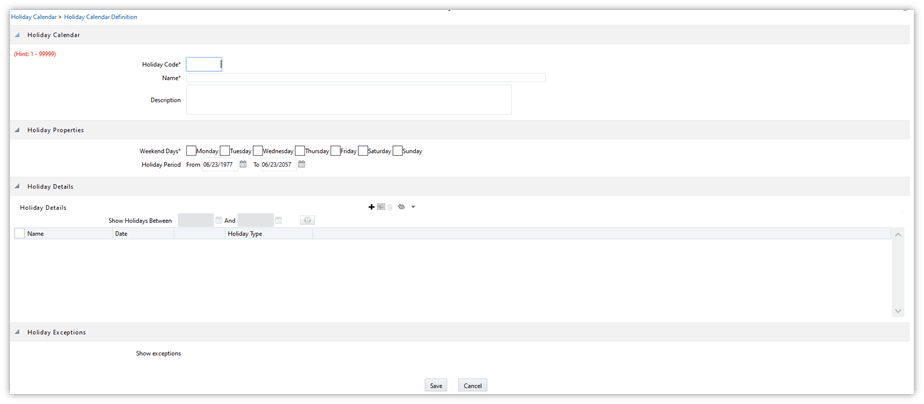
2. Click Add. The Holiday Calendar details page is displayed.
Figure 61: Holiday Calendar Definition Window
3. Enter a code value for the new holiday calendar.
NOTE:
The code is a numeric identifier for the holiday calendar. The code value must be a number between 1 and 99999. The code value you assign to the new holiday calendar must be unique.
4. Enter the name and a brief description of the holiday calendar.
NOTE:
The name you assign to the holiday calendar must be unique and can hold a maximum of 30 characters.
5. In the Holiday Properties grid, select not more than two weekend days. Then select the Holiday Period. The Holiday Period can be defined for a range of up to 40 years less than the current date and 40 years greater than the current date, totally spanning a maximum of 80 years.
6. In the Holiday Details grid, define the Holiday details for any period within the holiday range defined in Step 5. There are two types of holidays that can be defined: Fixed and Moving.
§ Fixed Holiday: It is deemed as a holiday for every year in the holiday period, for that particular day. For example, 25th December - Christmas, is a fixed holiday.
NOTE:
To define a fixed holiday, input the holiday date for the first occurrence in the date range. For example, if your Date Range runs from 01-JAN-2000 to 31-DEC-2050, you should input the fixed holiday, Christmas, as 25-DEC-2000. The holiday calendar procedure will populate all subsequent 25-DEC entries in the holiday list table (FSI_HOLIDAY_LIST). A HOLIDAY_TYPE code = 0 is a Fixed type holiday, code = 1 is a Moving type holiday, and code = 2 is a weekend.
The holiday calendar procedure will also ensure that holiday and weekend entries are not duplicated. For example, if weekends are defined as Saturday and Sunday and Christmas falls on a weekend day, there will be only one entry in the FSI_ HOLIDAY_LIST table. The PREVIOUS_WORKINGDAY and NEXT_WORKINGDAY fields designate the valid prior and following working days, respectively.
§ Moving Holiday: It is deemed as a holiday only for that particular date and year, and not for every year in the holiday period. All occurrences of a moving holiday must be input manually.
7. Once the holiday calendar definition is saved, its status in the summary page is marked as defined.
8. A holiday calendar created can also be deleted. Select one or more rows of holiday calendar definitions and click Delete.
The Excel import or export functionality is used for adding or editing holiday exceptions.
You execute a holiday calendar definition to generate calendar dates listing the various types of holidays for a given holiday period.
You must have predefined Rules to execute a holiday calendar. To execute a holiday calendar, follow these steps:
1. Navigate to the Holiday Calendar Summary page.
2. Search for a rule.
3. Select a Holiday
Calendar and click the Generate Calendar Dates
 to execute the selected holiday calendar.
Holiday list for the holiday ID #1 generated successfully message appears (where #1 is the holiday calendar code).
4. The holiday list can be confirmed by querying the FSI_HOLIDAY_LIST table.
5. The status of a holiday calendar is displayed as processed in the status column if the holiday dates have been generated.
NOTE:
If you do not want to Generate Calendar dates immediately,
you can select that particular holiday calendar anytime later from the
summary page with its status defined, and, then click the Generate
Calendar Dates to execute
the selected holiday calendar.
6. The generated holiday list is no longer valid if the following is true:
§ There is a change in the definition of the holiday calendar.
§ There is any update or modification to the Holiday Exceptions defined for that holiday calendar.
In such a scenario, the following message is displayed, and the holiday calendar state is changed to Defined until the holiday list is regenerated with a new definition.
“This holiday calendar has been modified. Please generate the holiday list again”.
Holiday exceptions can be specified for a well-defined holiday calendar, with the status - Processed. Generating the holiday list populates the holidays (weekends, fixed, and moving) along with the working days. Then the Show Exceptions button is enabled on the details page. Any changes in the holiday definition, disables the Show Exceptions button. In such a scenario, you must generate the holiday list again to define or view the exceptions.
To specify holiday exceptions, follow these steps:
1. Click Show Exceptions in the Holiday Exceptions table. The Holiday Exceptions window is displayed.
2. The search block in the Exceptions page has the following fields:
§ From (Year), To (year): Denotes the range of years which is a subset of the generated holiday list for which exceptions are required to be defined.
§ Fixed Holidays: You can filter the list of holidays by the type of Fixed Holidays.
§ Moving Holidays: You can filter the list of holidays by the type of Moving Holidays.
§ Holiday Date: You can define exceptions for a particular known holiday date.
§ All Exceptions: This check box when selected lists all the exceptions, if already defined, for the holidays within the From, To Date range.
3. In the Holiday Exceptions section, you can define two types of exceptions:
§ Not a holiday: Any holiday can be marked as not a holiday, in which case that day is removed from the Holiday List. If the drop-down list in the exception type is selected as Not a Holiday, then the shift to date picker field is disabled.
For example, Good Friday earlier considered as a holiday in the holiday calendar can be marked as Not a Holiday in the Exceptions Window. Additionally, you can mention comments or remarks in the Notes Text Box, next to the Exception Type drop-down list.
§ Shift to: Any holiday can be shifted to another day, in which case the earlier declared holiday is removed from the Holiday List, while the shifted to, day is included as a holiday.
The Excel import or export functionality is used for adding or editing holiday exceptions.