.
.Process Modeling Framework (PMF) is a design and execution framework that enables the Process Pipeline developers to implement various Pipelines modeled by the Business Analysts. The Process Pipeline developers use the framework to orchestrate the Business Pipelines and the Run Pipelines within OFSAA and to design the artifacts that participate in the Pipelines to complete their implementation.
This chapter provides information about the usage of the Process Modeling Framework (PMF) feature in the Oracle Financial Services Data Foundation application.
NOTE:
For detailed information about the Process Modeling Framework (PMF) feature in OFSAA, see the Oracle Financial Services Analytical Applications Infrastructure Process Modelling Framework Orchestration Guide Release 8.1.2.0.0.
Topics:
· Overview
· Process Modeling Framework Roles
· Accessing the Process Modeling Framework in OFSDF
· Using the Process Modeling Framework in OFSDF
· Designing a Pipeline in OFSDF
· Creating Filter using DIM_DATA_ORIGIN
After OFSDF is installed successfully, the following out-of-the-box standard Run pipelines (PMF processes) are available in the PMF:
· Financial Services Data Foundation Sourced Run: This Run pipeline (Process) loads all non-Run enabled tables in OFSDF.
· Financial Services Data Foundation Execution Run: This Run pipeline (Process) loads all Run enabled tables in OFSDF.
To load all non-Run enabled tables in OFSDF using the out-of-the-box Financial Services Data Foundation Sourced Run process, or to load all Run enabled tables in OFSDF using the out-of-the-box Financial Services Data Foundation Execution Run process, perform the steps in the sections Designing a Run Pipeline and Executing the Run Pipeline.
To grant access to the PMF functionality, assign the following PMF Roles to the user.
Role Code |
Role Name |
|---|---|
WFMWRITE |
Manage Workflow Monitor |
WFADMINACC |
Process Admin User |
WFDELACC |
Process Delegation User |
WFACC |
Workflow Access |
WFADV |
Workflow Advanced |
WFAUTH |
Workflow Authorize |
WFDELGADM |
Workflow Delegation Admin |
WFMACC |
Workflow Monitor Access |
WFREAD |
Workflow Read |
WFWRITE |
Workflow Write |
To access the PMF, follow these steps:
1. Log in to
the OFSDF application and select Administrator
.
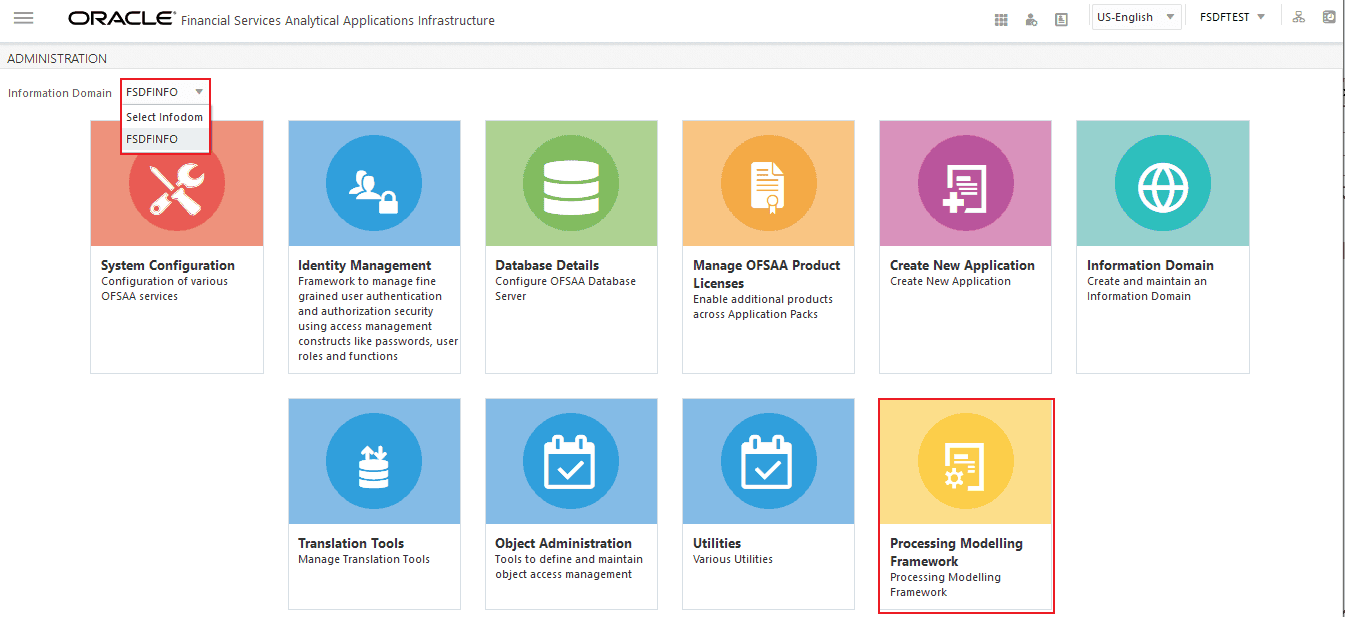
2. In the Information Domain drop-down list, select the required FSDF information domain. Then click the Process Modeling Framework tile.
Figure 17: Select the OFSDF Infodom and then select the Process Modelling Framework tile
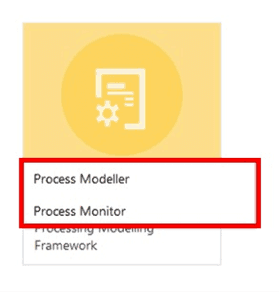
3. A submenu is displayed with the following menu items:
§ To access the Process Modeller, select Process Modeller.
§ To monitor currently running processes, select Process Monitor.
Figure 18: Select the Process Modeller or Process Monitor option in PMF submenu
The Process Modeling Framework consists of these features:
The Process Modeller is used to create and modify types of Pipelines, test the Process flow, and execute the Run.
Figure 19: Process Modeller page
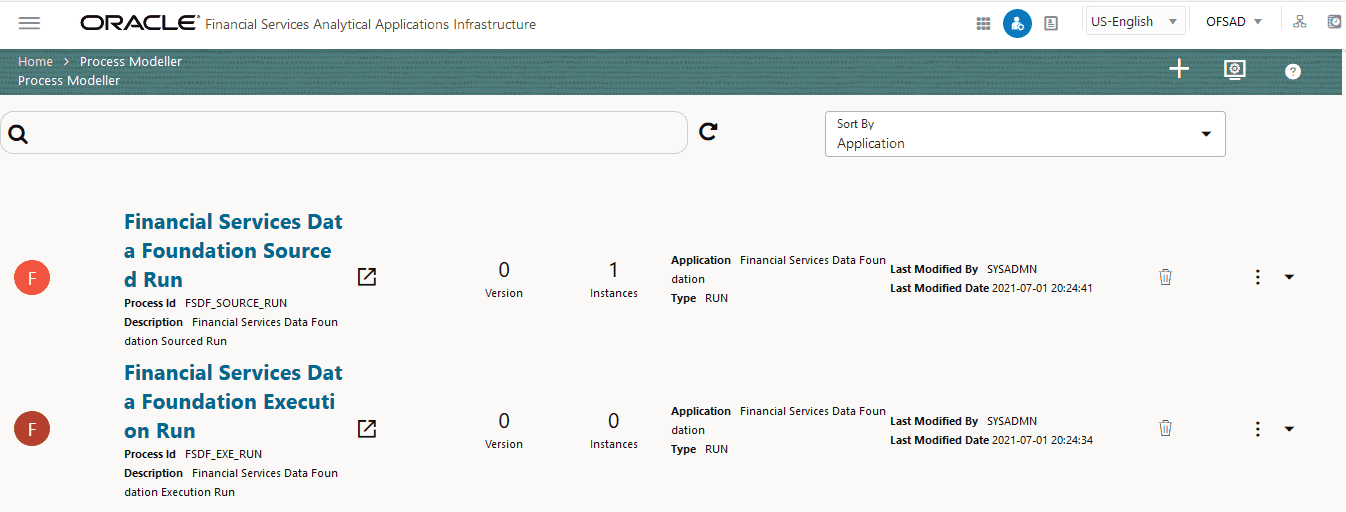
The Process Modeller page displays the existing Business Process Pipelines and Run Pipelines with the details such as Process ID, Process Name, Process Description, Version, Instance, Application, and Last Modified.
You can perform the following tasks from the Process Modeller window:
· Click to create a new Pipeline.
· Click the Process Name link to launch and edit the Process Flow.
· Click to delete a Pipeline.
· Click to view the following submenu:
§ Click View to see the process flow.
§ Click Copy to create a new Pipeline with the same process flow.
§ Click Process Flow Monitor to monitor the Pipeline.
§ Click Test Process Flow to test or check whether the Business Pipeline you designed works as expected.
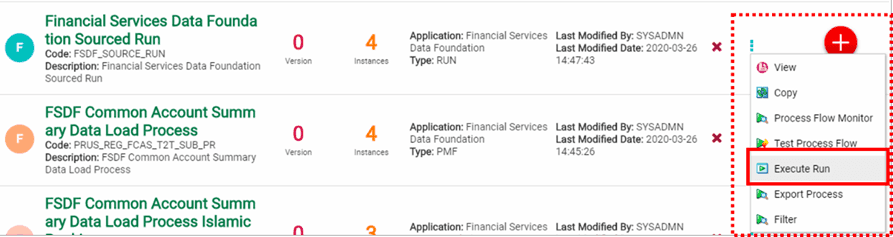
§ Click Execute Run to execute a Run Pipeline.
§ Click Export Process to export a Process.
NOTE:
The export process is performed using the Object Migration feature.
· Use the
Search grid to search for a specific Pipeline by providing a keyword from
the Process ID, Process Name, or Process Description and then click Search  icon.
Click Reset
icon.
Click Reset  to
reset the Search fields.
to
reset the Search fields.
· You can sort the Pipelines based on Process ID, Process Name, or Application. Click the Sort by drop-down and select the required attribute to sort.
· You can use the Filter Pipeline field to filter pipelines based on the pipeline type. For example, to view only the Run Pipelines, remove Process from the Filter Pipeline field.
· Click  to
launch Process in a new window.
to
launch Process in a new window.
· Click Process Monitor  to
launch the Process
Monitor page.
to
launch the Process
Monitor page.
The Process Monitor is used to supervise the current stage of the Process for different instances. After integration with an application, the workflow can be invoked. After invoking, the workflow goes through all the stages defined. The Process Monitor displays all the stages finished, the current stage, and future stages. Your user group must be mapped to the function role WFMACC (Workflow Monitor Access) to access the Process Monitor window. For the list of the PMF Roles, see the Process Modeling Framework Roles section.
Figure 20: Process Monitor page
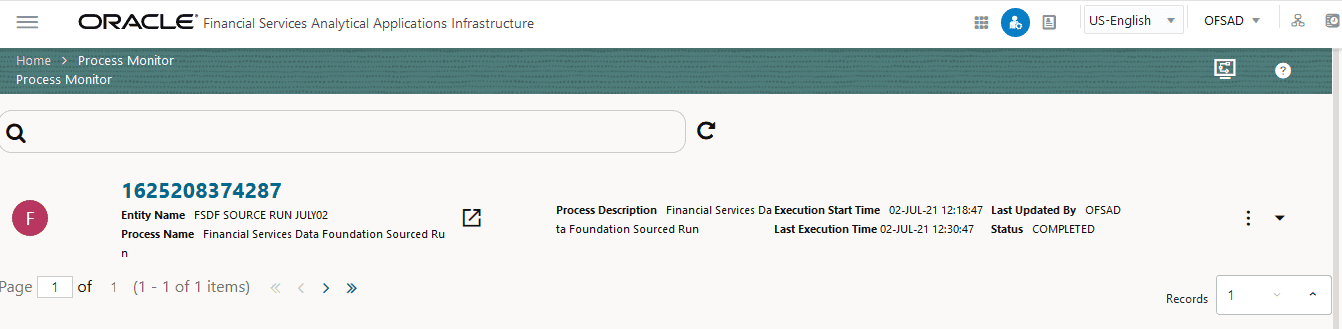
This page displays all the workflows, which are invoked from the application with details such as Entity Name, Entity ID, Process Name, Process Description, Execution Start Time, Last Execution Time, Last Updated By, and Status.
You can perform the following tasks from the Process Monitor window:
· Click  Menu to view the following
submenu:
Menu to view the following
submenu:
Figure 21: Process Monitor Menu
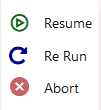
§ Abort: To abort an ongoing Run Pipeline process.
§ Resume: To resume a Run Pipeline process.
§ Re-Run: To execute a Run Pipeline process again irrespective of the previous execution status.
· Use the
Search grid to search for a specific Pipeline by providing a keyword from
the Process ID, Process Name, or Process Description and then click Search .
Click Reset to
reset the Search fields.
· You can sort the Pipelines based on Process ID, Process Name, or Application. Click the Sort by drop-down and select the required attribute to sort.
· You can use the Filter Pipeline field to filter pipelines based on the pipeline type. For example, to view only the Run Pipelines, remove Process from the Filter Pipeline field.
· Click to
launch Process in a new window.
· Click Process Modeller  to
launch the Process
Modeller page.
to
launch the Process
Modeller page.
Business pipelines are defined in OFSAA to design and execute a sequence of tasks, which are either OFSAA tasks or external tasks, to derive a well-defined outcome. This flow is defined by using various OFSAA artifacts from the component toolbar.
Use the Process Modeler for the following tasks:
· Verifying the Execution Logs
NOTE:
For illustration, a Run Pipeline design for FSDF Sourced Run is depicted in this section.
For information about designing a Business Pipeline, see the Orchestration of a Business Pipeline section in the Oracle Financial Services Analytical Applications Infrastructure Process Modelling Framework Orchestration Guide Release 8.1.2.0.0.
Visual representation of the Run is enabled through PMF by the construction of a Run Pipeline. Various OFSAA widgets that enable the construction of Run Pipeline are available in the Component toolbar. For detailed information about the Components in PMF, see the Components for Designing Your Process Flow section in the Oracle Financial Services Analytical Applications Infrastructure Process Modelling Framework Orchestration Guide Release 8.1.2.0.0.
To create a new Run Pipeline in the Process Modeller, follow this procedure:
1. Navigate to the Process Modeller page. For details, see the Accessing the Process Modeling Framework in OFSDF section.
2. In the Process Modeller page, click Add
 .
.
3. The Process Details page is displayed. Enter or select the required values for each field.
Figure 22: Process Details page
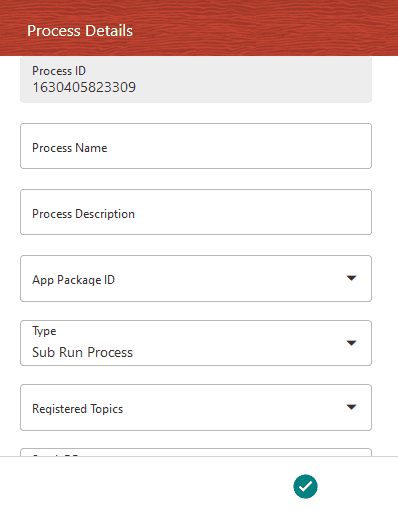
Field Name |
Description and instruction |
|---|---|
Process ID |
Enter a unique and easily recognizable value in the Process ID field. |
Process Name |
Enter a unique and easily recognizable value in the Process Name field. |
Process Description |
Enter a unique and easily recognizable value in the Process Description field. |
App Package ID |
Select the required application package in which the process must be created from the drop-down list. |
Type: · Business Process Pipeline · Run Pipeline · Stream Pipeline |
Select the required process type from the Type drop-down list. |
Registered Topics |
Note: This functionality is currently not applicable to OFSDF. |
Spark DB |
Enable the Spark DB option if you are executing the Run for Hive metadata. |
Infodom |
Select the information domain from the Infodom drop-down list in which the Run Pipeline must be created. The list displays all the infodoms mapped to the applications configured in your OFSAA instance. |
Tag |
Enter the text that can be used as search keywords or helpful in defining a relationship between two or more Pipelines. |
4. To save the details and launch the Process Flow designing window, click Save & Launch.
After you click Save & Launch in the Process Details page, the Process Flow page is displayed. The Process Flow tab contains a floating toolbar and a drawing canvas. Use the drawing canvas to design the process flow with the Tools, Activities, and OFSAA Widgets components available in the floating toolbar.
Figure 23: Process Flow page
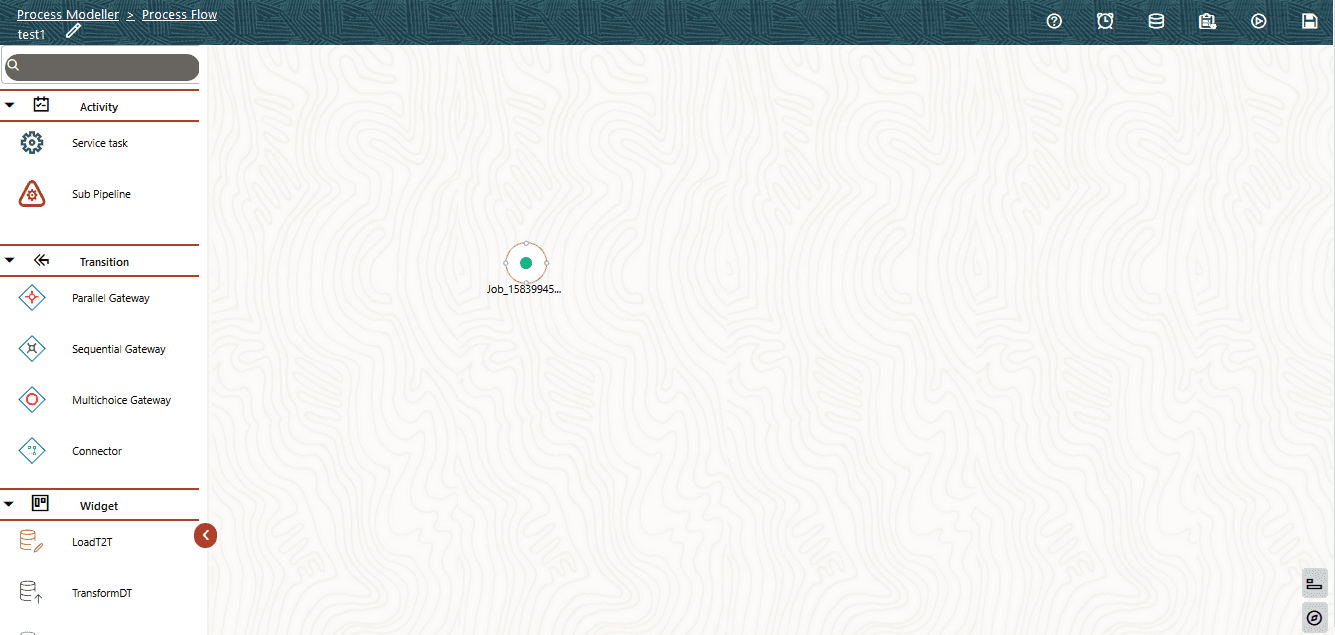
You can design the process flow diagrams for all three types of processes (Business Process Pipeline, Run Pipeline, and Stream Pipeline). This is an example of a process flow diagram for a Run Pipeline (for FSDF Sourced Run).
Figure 24: Process Flow diagram for a Run Pipeline
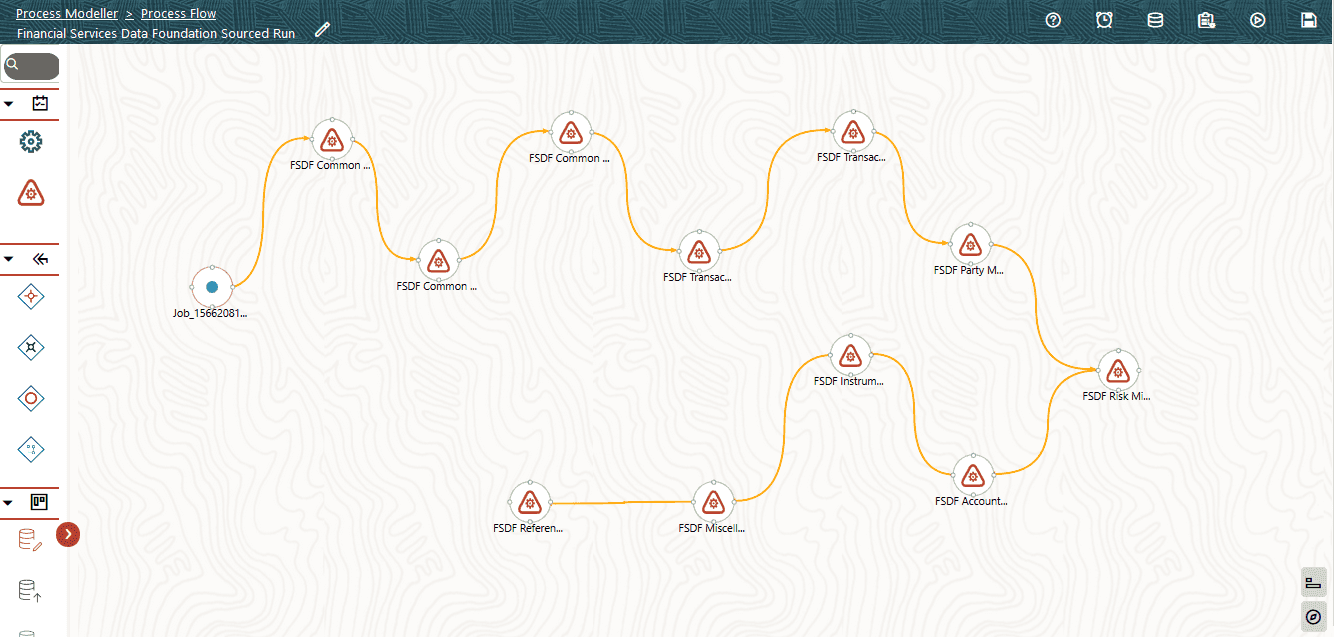
To design a process flow diagram for a Run Pipeline, see the Run Pipeline section, and to use various components available in the Process Flow tab, see the Components for Designing Your Process Flow section in the Oracle Financial Services Analytical Applications Infrastructure Process Modelling Framework Orchestration Guide Release 8.1.2.0.0.
After a process is designed and defined in the process flow diagram, you must assign values to the Run parameters, and execute the Run. You can execute a Run Pipeline from the UI or using a command-line utility called wfExecExternal.sh.
This section includes the following topics that describe the Run Pipeline execution from the UI:
· Selecting the Run Parameters and Executing the Run
· Verifying the Run Execution
· Aborting, Resuming, or Rerunning the Run Pipeline Process
· Verifying the Execution Logs
NOTE:
For information about executing the Run Pipeline using a command-line utility, see the section Using Command Line Utility in the Oracle Financial Services Analytical Applications Infrastructure Process Modelling Framework Orchestration Guide Release 8.1.2.0.0.
After designing and saving the process flow diagram, the Process is listed in the Process Modeller
page.
To select the Run parameters and execute the Run, follow this procedure:
1. In the Process Modeller page, click corresponding
to the Run Pipeline that must be executed.
Figure 25: Select Execute Run in the Run Pipeline
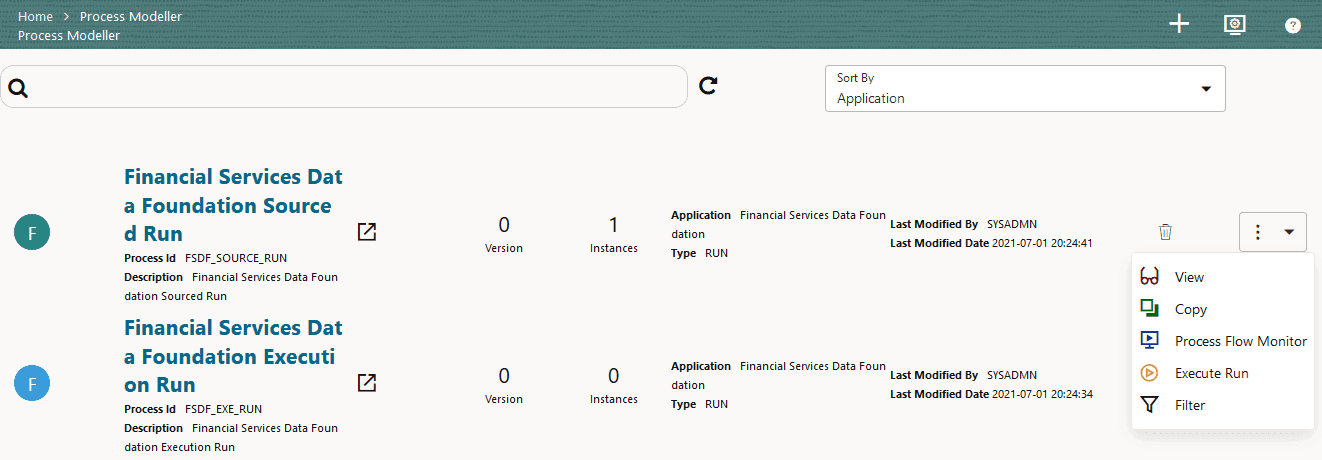
2. When you click Execute Run, the Execution dialog is displayed. Select the Execution Type as Without Parameters or With Parameters.
Figure 25: Execution Without Parameters
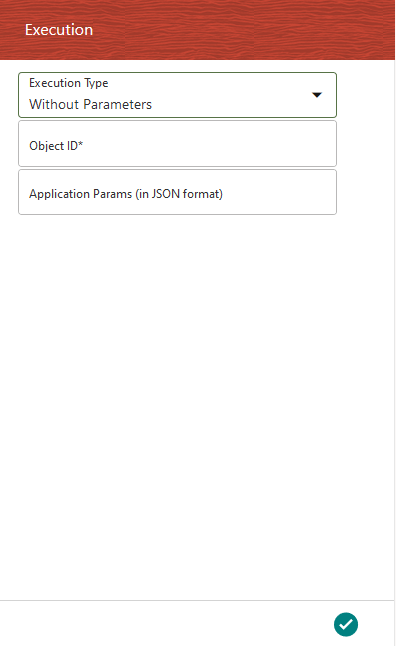
Figure 26: Execution With Parameters
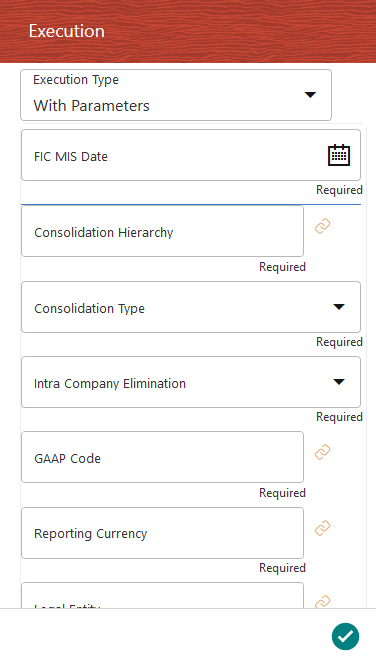
Select or enter the required values for each field as follows.
Field Name |
Description or Instruction |
|---|---|
Object ID |
Enter the Object ID, which is the entity ID used to identify if a workflow needs to be started from the beginning of the current stage. |
Application Params (in JSON format) |
Enter the Application Run execution parameters in the JSON format. |
FIC MIS Date |
Select the extraction date. |
Consolidation Hierarchy |
Enter the Legal Entity Hierarchy used for the consolidated run. This parameter is not required for the Solo Run. |
Consolidation Type |
Select the Consolidation Type of legal entities on a solo or consolidation basis. In a Solo Run, only the selected legal entity is used. In a Consolidated Run, along with the selected legal entity, all its child legal entities are also used. |
Intra Company Elimination |
Select the Intra Company Elimination type to eliminate (YES) or skip the elimination (NO) of Intra Company Accounts during a Consolidated Run. |
GAAP Code |
Enter the required accounting standard. |
Reporting Currency |
Enter the Reporting Currency Code used to calculate the amount during the data population in the target table. |
Legal Entity |
Select the Legal Entity Code to identify the legal entity used for the Run. |
Run Execution Description |
Enter a longer description of the Run. |
3. When you click OK, the Run execution begins. The Select Run Params page closes.
NOTE:
The execution of the Run Pipeline is triggered using the selected FIC MIS DATE. The Run SKey is generated and inserted into the DIM_RUN table. For the Run SKey generated, the corresponding user-selected Run parameters are inserted into the RUN_EXE_PARAMETERS table.
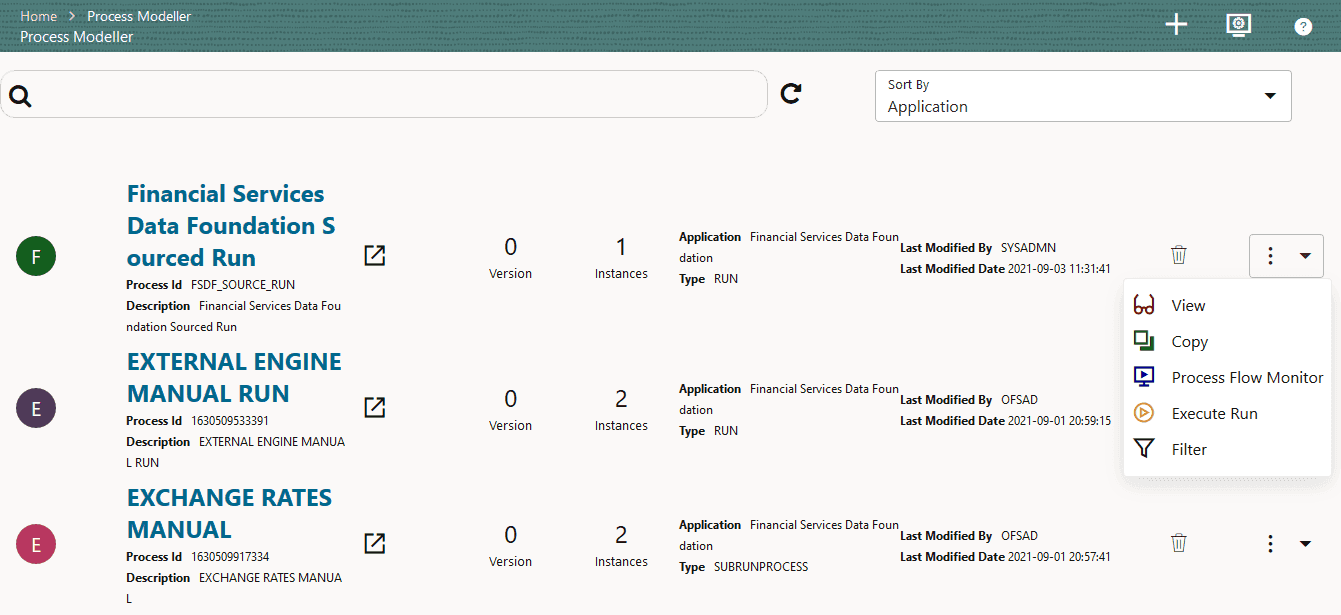
After selecting the Run parameters and beginning the Run execution, verify the progress of the Run. To verify the Run execution progress, follow this procedure:
1. In the Process Modeller page, click corresponding
to the Run Pipeline that must be verified. Click Process
Flow Monitor.
Figure 27: Select Process Flow Monitor in the Run Pipeline
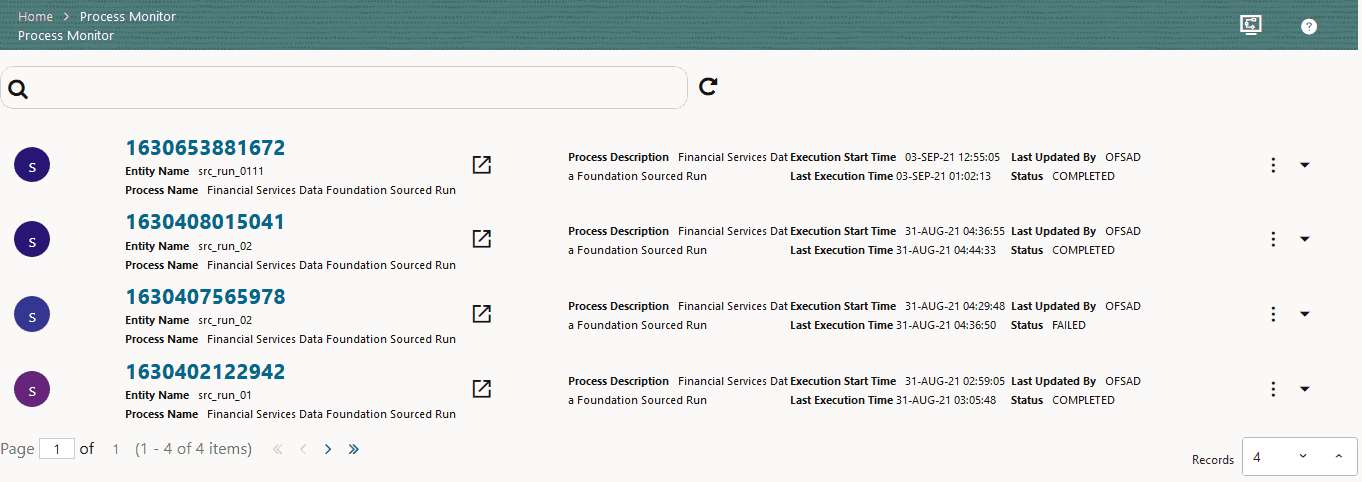
2. The Process Monitor page is displayed. You can see the generated process flow ID, the Run execution timestamp, and the status of the Run execution. To verify the Run execution status at the Pipeline level, click the corresponding process flow ID.
Figure 28: Process Monitor page with the Process Flow ID
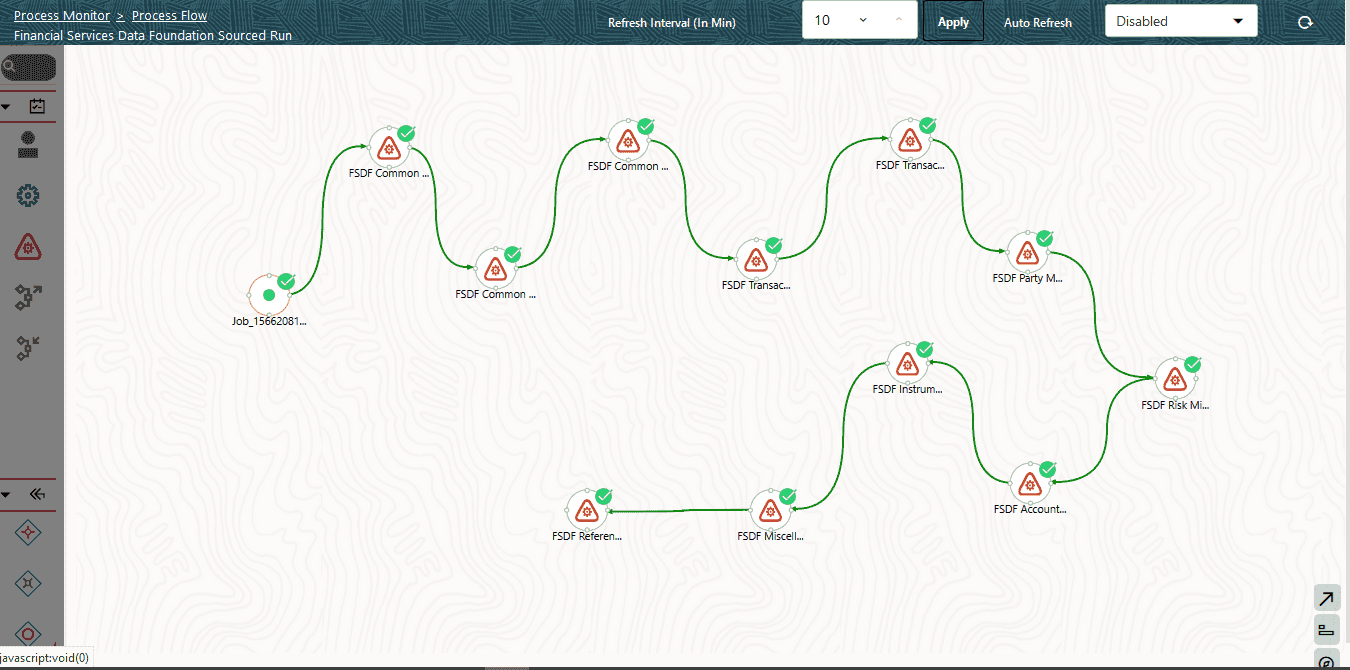
3. The Process Flow diagram page is displayed. The  icon at each Sub Pipeline
indicates that the Run execution is successful.
icon at each Sub Pipeline
indicates that the Run execution is successful.
Figure 29: Process Flow diagram page with the indication of successful Run execution
In the Process Monitor page,
click corresponding to the Run Pipeline
process that must be aborted, resumed, or rerun. Then select Abort,
Resume, or Re-Run.
Figure 30: Process Monitor Menu
To abort, resume, or rerun the Run Pipeline Process, see the Abort Run Pipeline, Resume Run Pipeline, and Re-run Run Pipeline sections respectively in the Oracle Financial Services Analytical Applications Infrastructure Process Modelling Framework Orchestration Guide Release 8.1.2.0.0.
You can access the execution logs to verify the details of the Run. To verify the execution logs, see the Viewing Activity Execution Logs and Viewing Execution Log for Widgets sections in the Oracle Financial Services Analytical Applications Infrastructure Process Modelling Framework Orchestration Guide Release 8.1.2.0.0.
Filters using DIM_DATA_ORIGIN are not present in T2Ts. Therefore, follow this execution procedure to introduce the filters using DIM_DATA_ORIGIN:
1. Download the post-script file SOR_postscript_update.sql from the My Oracle Support and execute it in the CONFIG schema.
NOTE:
Oracle recommends executing the post-script after resaving the Hierarchy if any.
2. Follow these steps to create a Data Origin Filter:
Create a DIM_DATA_ORIGIN Hierarchy for the attribute key as N_DATA_SOURCE_CD, and add Level 0 as V_DATA_SOURCE_CODE.
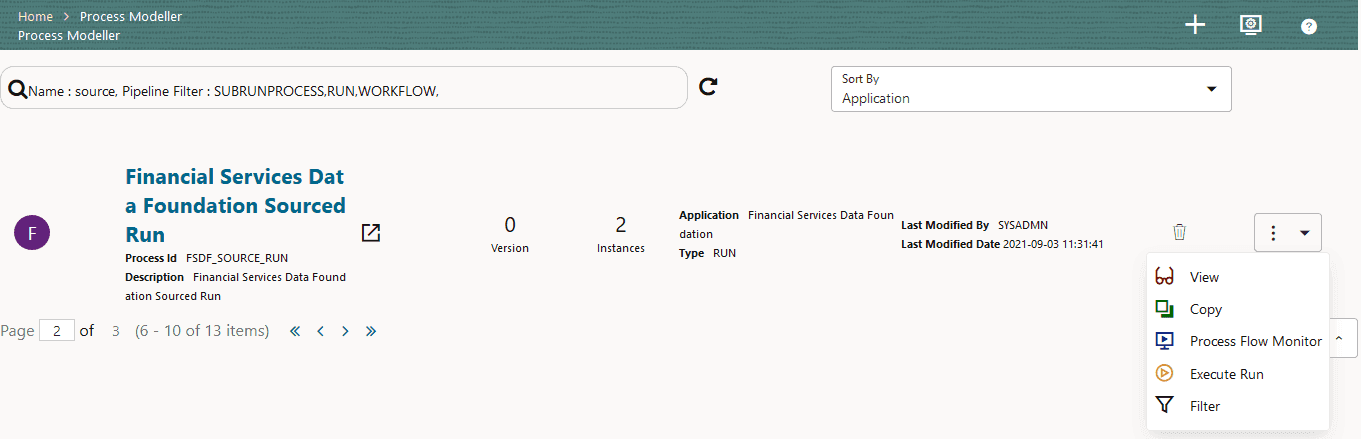
a. In the Process Modeller page, in the Financial
Services Data Foundation Sourced Run pipeline, click to view the menu, and select
Filter.
Figure 38: Select Filter in the menu of the Financial Services Data Foundation Sourced Run pipeline
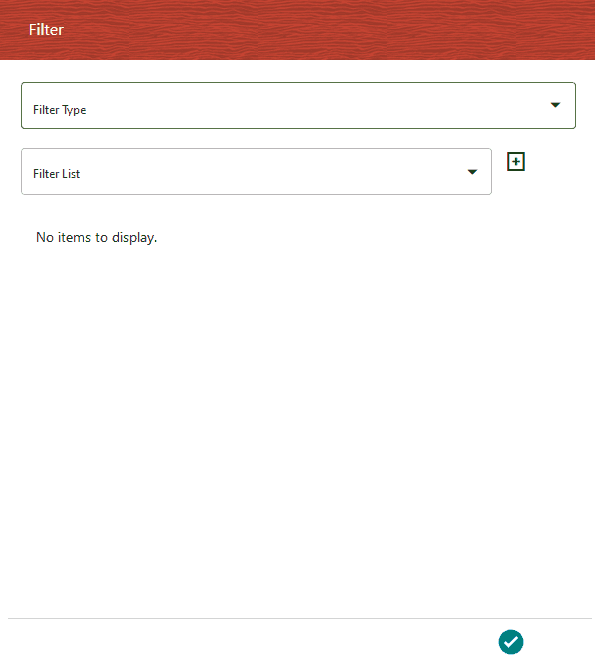
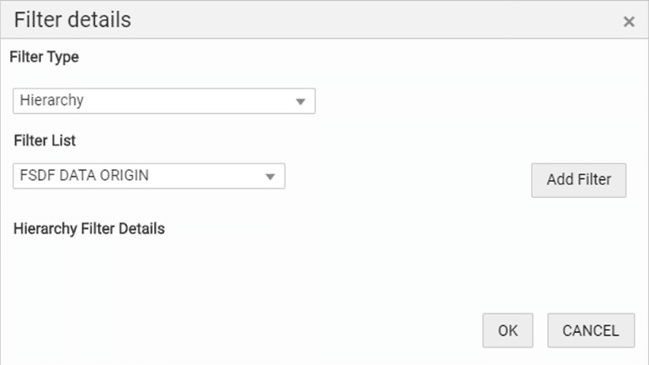
b. The Filter dialog is displayed. Select the Filter
Type as Hierarchy and select the name
of the Hierarchy created in the Filter List
(in this illustration, it is FSDF DATA ORIGIN).
Then click  .
.
Figure 39: Added Filter is listed in the Filter Details section
c. This filter is listed in Hierarchy Filter Details. Click the pop-out page.
Figure 40: Filter Details page with the Hierarchy Filter Details

d. The Hierarchy page is displayed with the LOVs (lost of values). In the FSDF DATA ORIGIN folder, select and move all the required LOVs from the Available Values section to the Selected Values section. Then click OK.
Figure 41: Select the LOVs in the Hierarchy page for the Hierarchy Filter

e. On the Filter details page, click OK to save the Hierarchy Filter details.
Figure 42: Save the Hierarchy Filter details
f. In the Process Modeller page, click Execute Run to execute the PMF Sourced Run.
Figure 43: Execute the PMF Sourced Run