This section provides information to create the Subtype and Supertype relationship between two entities.
A scenario where the Subtype and Supertype relationship can be created is when an entity’s (parent entity) columns must be inherited into another (child entity).
For information about selecting and using the Subtype and Supertype in the data model merge process, see the Data Model Merge Guidelines section.
To create a Subtype and Supertype relationship between two entities, follow these steps:
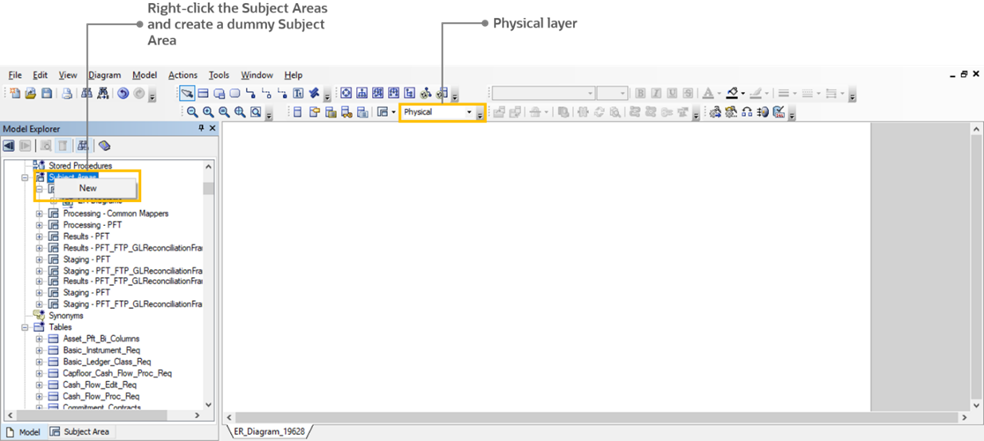
1. Open the erwin Data Modeler application. Select the Physical layer. In the Model Explorer section, right-click the Subject Areas and click New to create a dummy Subject Area.
Figure 1: Open erwin Data Modeler and create a new Subject Area
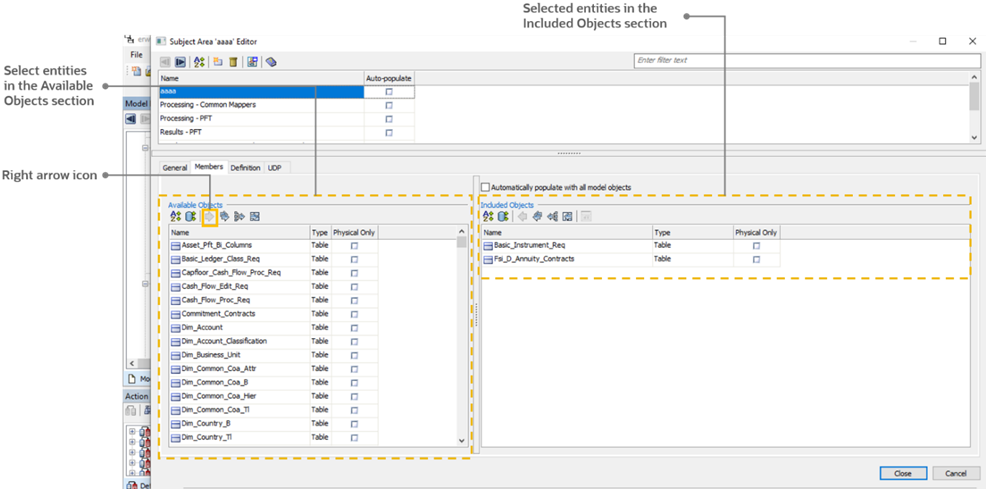
2. The Subject Area Editor window opens. In the Available Objects section, select the entities that must be added into the newly created Subject Area, and click the right arrow icon to move the selected objects into the Included Objects section. Click Close.
Figure 2: Select entities for the new Subject Area
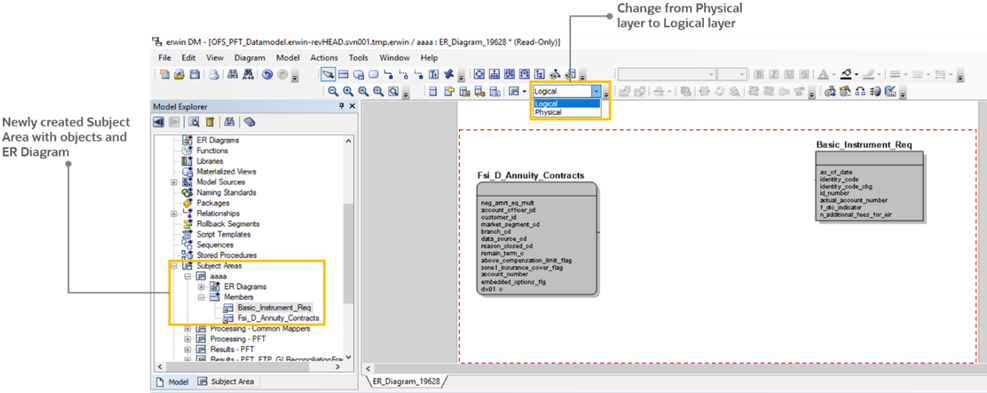
3. On the ER_Diagram canvas, the selected entities are displayed, and the newly created Subject Area with objects is listed in the Model Explorer section. Select the Logical layer.
Figure 3: Select the Logical layer
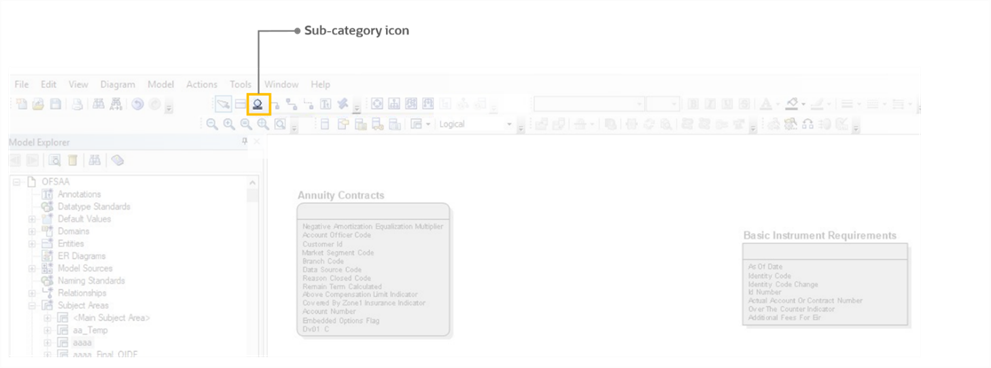
4. Select the
parent entity on the ER_Diagram canvas. Click Sub-category .
.
Figure 4: Select the Sub-category icon
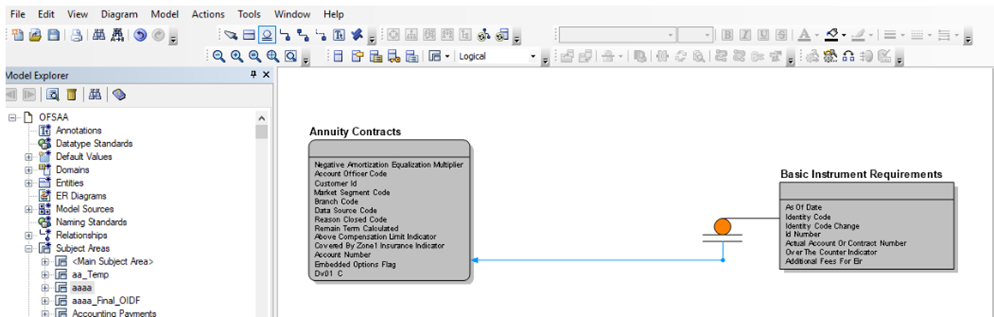
5. First, click the parent entity in the relationship. Then click the child entity. In the illustration, the parent entity Basic Instrument Requirements table is Supertype and the child entity Annuity Contracts table is Subtype.
Figure 5: Create the Supertype and Subtype relationship
6. To see the
Supertype and Subtype relationship details of the parent-child entities,
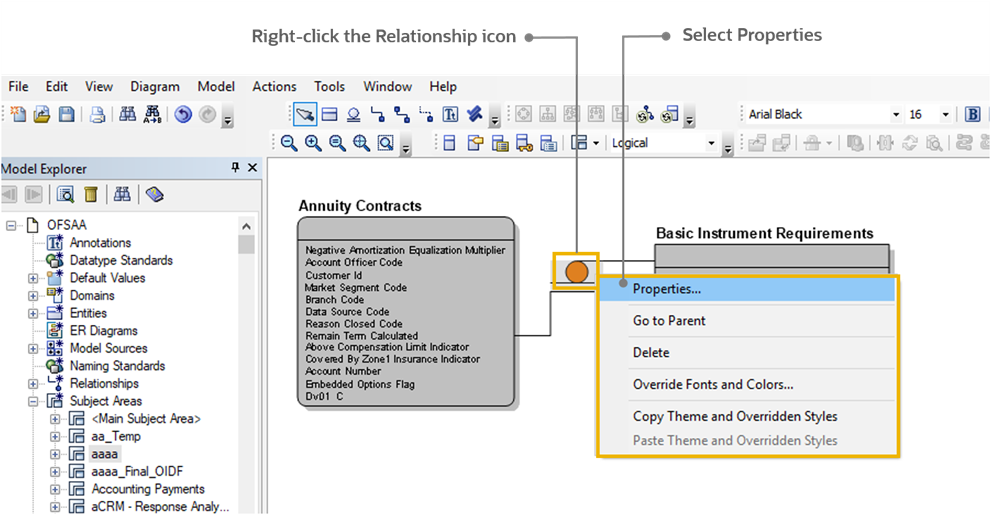
right-click the Relationship icon  connecting
the two entities, and select Properties.
connecting
the two entities, and select Properties.
Figure 6: Select Properties
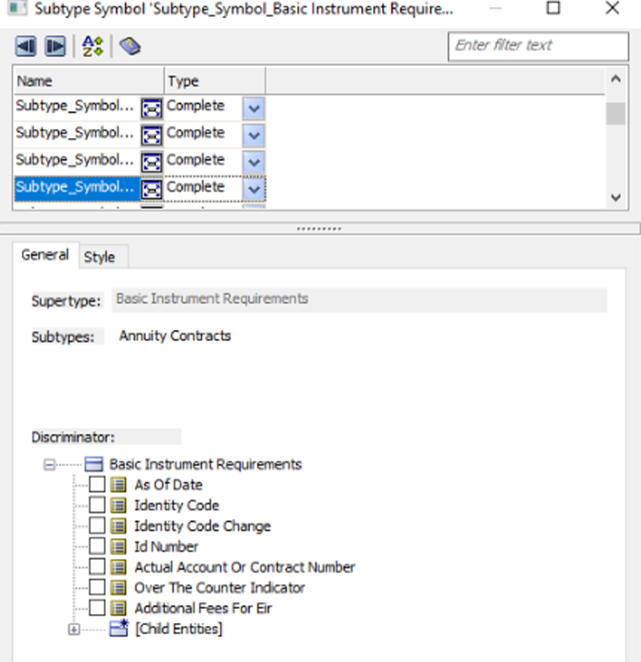
7. The Properties window opens. You can verify the Supertype and Subtype relationship details of the parent-child entities.
Figure 7: The Properties window
8. Save the settings. The Supertype and Subtype relationship is created between two entities.