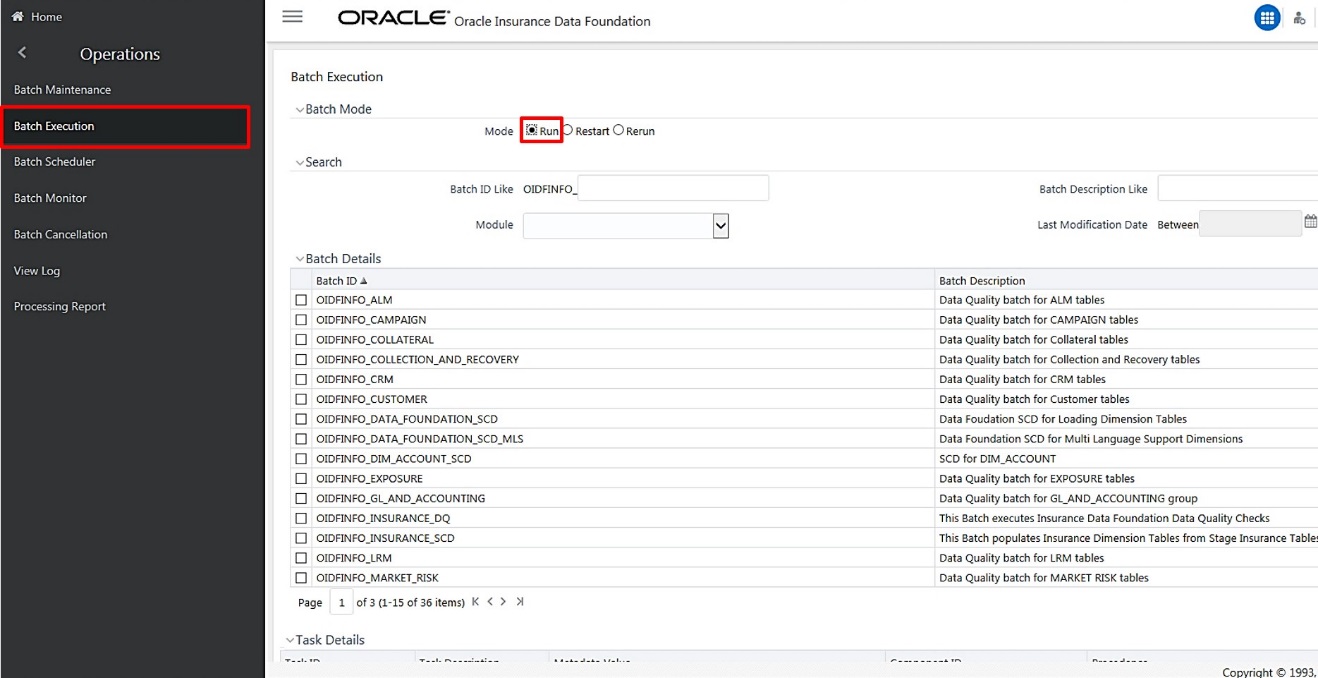
To execute the SCD batch of the DIM_ACCOUNT table, perform the steps in the following section.
To execute the SCD batch:
1. Navigate to the Batch Execution page.
Click Oracle Insurance Data Foundation > Operations > Batch Execution.
2. In the Batch Mode section of the Batch Execution page, select the Run option.
3. Select the Batch ID.
4. In the Batch Details section, search and select the required Batch ID:
§ For DIM_ACCOUNT table, select the Batch ID <INFODOM>_DIM_ACCOUNT_SCD.
§ For the DIM_POLICY table, select the Batch ID <INFODOM>_INSURANCE_SCD and include only DIM_POLICY related Stage table tasks.
§ For all other Dimension tables, select the Batch ID <INFODOM>_DATA_FOUNDATION_SCD.
The Task Details section lists the tasks corresponding to the selected Batch ID. The list consists of all the Stage tables that are mapped to Dimension tables.

5. Exclude/Include tasks from/into the SCD batch.
a. Make a note of the Metadata Value (SCD map reference number) and the Task ID for the required Dimension table.
NOTE |
To populate the Dimension table from its corresponding Stage Master table, use SCD packaged in OIDF with the respective Map Reference Number. |
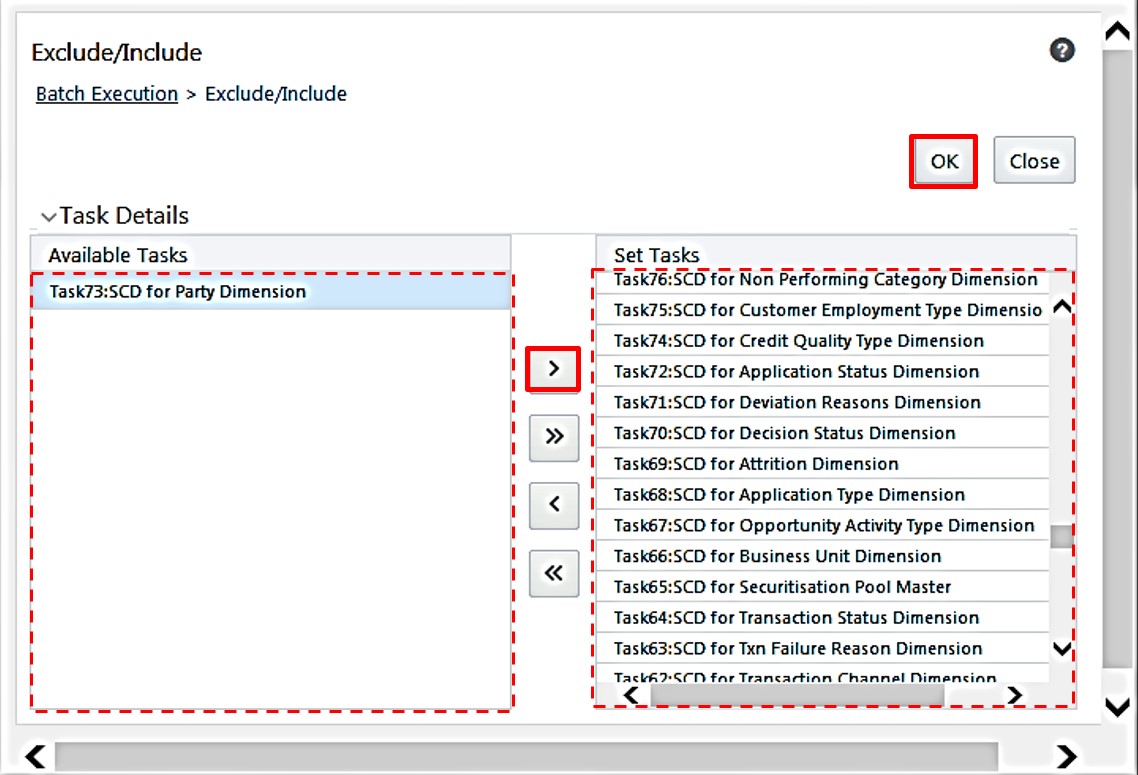
b. To exclude or include a task from or into the required SCD batch, in the Task Details section, click the Exclude/Include icon.

c. The Task Mapping – Exclude/Include window appears.

d. Include/Exclude tasks.
In the Task Details section, select the tasks that must be excluded from the batch execution procedure, and click > to move those tasks from the Available Tasks list to the Set Tasks list. Retain the task (Task ID noted in the earlier step) related to the currently required Dimension table in the Available Tasks list.
e. Confirm task inclusion/exclusion.
i. To save the changes, click OK. The warning message: If you exclude a task, it will be skipped when executing the batch but, the precedence will not be altered. Do you want to exclude the selected task(s)? appears.
ii. To proceed, click OK. The Task Details list consists only of tasks present in the Available Tasks list. For example, in the following screenshot, the highlighted task is executed during batch execution.
iii. 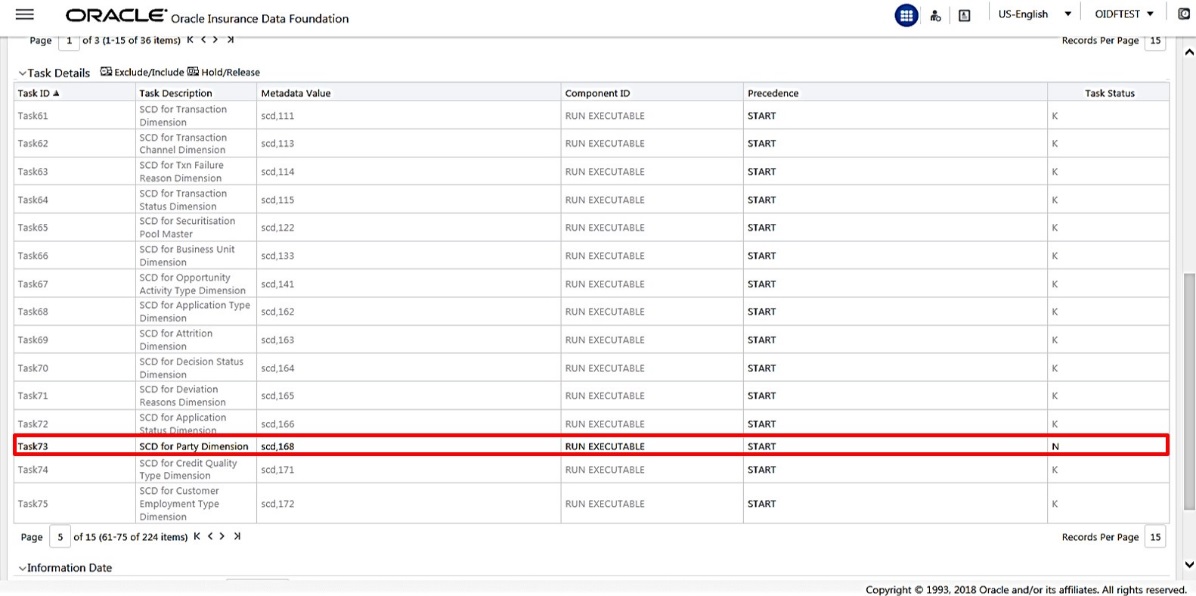
In the Information Date section, click the calendar icon and select required date. This date is the FIC_MIS date populated in the DIM_DATES table.

Click Execute Batch to run the selected SCD batch with the selected Task:
§ For DIM_ACCOUNT table, execute the Batch ID <INFODOM>_DIM_ACCOUNT_SCD.
§ For the DIM_POLICY table, execute the Batch ID <INFODOM>_INSURANCE_SCD and include only DIM_POLICY related Stage table tasks.
§ For all other Dimension tables, execute the Batch ID <INFODOM>_DATA_FOUNDATION_SCD.
8. Confirm the SCD batch execution.
a. A pop-up message: Do you want to execute the batch for MIS Date <MIS_Date>, appears. To execute the batch, click OK.
b. An acknowledgment message appears. Click OK to continue. The SCD batch is executed. As a result, data is populated in the target Dimension table.