The Metadata Export Utility helps you to export OFSAA metadata into Excel Sheet. This feature helps to get a view of OFSAA metadata and its dependencies. It is a template-based approach where-in you create templates and select Metadata Objects that must be extracted. The extraction process is supported only for Excel Sheet. When defining the template, you are expected to have prior knowledge of the OFSAA Metadata objects that are relevant from his application point of view.
Topics:
· Create and Export Metadata Report Templates
· View Metadata Report Templates
· Modify or Edit Metadata Report Templates
· Delete Metadata Report Templates
The following executions must be performed before using the Metadata Export Utility:
1. Before executing MDB Publish and Data Elements Wrapper Batch, ensure the following:
a. Tablespace Requirement:
i. Ensure that the USER tablespace has a minimum of 150 GB available
ii. Ensure that the TEMP tablespace has a minimum of 45 GB available
b. Execute the following Gather Stat command for the mentioned tables:
BEGIN
DBMS_STATS.GATHER_TABLE_STATS(USER, 'TABLE_NAME');
END;
i. Atomic Schema:
FSI_M_CELL_DEFN
FSI_M_CELL_DETAILS
FSI_M_CELL_DIM_VAL
FSI_DE_SEEDED_DIMENSIONS
FSI_DE_TABLE_APPLICATION_MAP
FSI_DE_PP_TABLE_LIST
FSI_DE_METADATA_SEEDED_VW_MAP
FSI_DE_PP_TABLE_REPORT_MAP
ii. Config Schema:
AAI_OBJECT_B
AAI_OBJECT_TL
AAI_DMT_DEFINITION
AAI_DMT_DEF_SOURCE_ENTITY
AAI_DMT_MAPPING_DETAILS
PR2_RULES_B
PR2_RULE_MAP
PR2_RULE_OBJECT
PR2_RULE_OBJECT_MEMBER
PR2_OBJECT_TL
PR2_OBJECT_TRACE
BATCH_MASTER
BATCH_TASK_MASTER
BATCH_PARAMETER_MASTER
METADATA_MASTER
METADATA_ELEMENT_MASTER
METADATA_LOCALE_MASTER
METADATA_TYPE_MASTER
METADATA_ATTRIBUTE_MASTER
2. MDB Publish: Execute the INFODOM_MDB batch
3. After Executing MDB Publish and Data Element Wrapper Batch, ensure the following:
a. Execute the following Gather Stat command for the mentioned tables:
BEGIN
DBMS_STATS.GATHER_TABLE_STATS(USER, 'TABLE_NAME');
END;
i. Atomic Schema:
FSI_DE_REPORT_LINEAGE_BASE
FSI_DE_REPORT_LINEAGE_DETL
FSI_DE_METADATA_TGT_MEMBER
FSI_DE_METADATA_SRC_MEMBER
FSI_DE_REPORT_TARGET_MEMBER
FSI_DE_REPORT_SOURCE_MEMBER
4. Logs: MDB logs are generated under deployed area (/Context_Name/logs/MDB_XXXX.log)
5. Data Elements Wrapper Execution: After MDB Publish is completed successfully with the message: Metadata publishing is finished. in the /Context_Name/logs/MDB_XXXX.log file, you must execute the Data Elements Utility with the following seeded batch to get the Data Lineage for each Metadata in OFSAA:
<INFODOM>_POP_DATA_ELEMENTS_EBA
NOTE |
This execution requires adequate tablespace. Ensure that your Atomic Schema is having enough table space in TEMP and USER. |
Parameters used in DATA_ELEMENTS Batch
The batch can be executed in different modes according to each requirement. The following are the parameters used for executing the batch.
The default parameters used in the <INFODOM>_POP_DATA_ELEMENTS_EBA batch are:
Task1 (METADATA PARSER)
Table 12: Metadata Parser
Sl. No. |
Parameter |
Description |
List of Values |
Default Value |
1 |
P_FULL_PARSE |
Full Parser Flag |
Y or N |
Y |
2 |
P_INFODOM_NAME |
Infodom Name |
##INFODOM## |
<Value of the Infodom where EBA is installed>. |
Task2 (REPORT PARSER)
Table 13: Report Parser
Sl. No. |
Parameter |
Description |
List of Values |
Default Value |
1 |
P_JURISDICTION |
Jurisdiction Code |
EBA |
EBA |
2 |
P_INFODOM_NAME |
Infodom Name |
##INFODOM## |
<Value of the Infodom where EBA is installed>. |
Execution Types for METADATA Parsing in <INFODOM>_POP_DATA_ELEMENTS_EBA Batch
1. Full METADATA Parsing [Default Mode] (if the P_FULL_PARSE parameter is Y, then the parsing happens for entire METADATA and Run Elements for the Run (or Runs) enabled in the FSI_DE_POP_RUN_LIST table in the Atomic Schema.)
2. Incremental METADATA Parsing [Optional Mode. Batch Parameter to Be Modified] (if the P_FULL_PARSE parameter is N, then the parsing happens for changed METADATA and Run Elements for the Run (or Runs) enabled in the FSI_DE_POP_RUN_LIST table in the Atomic Schema.)
You can edit the parameters by accessing the Batch Maintenance screen.
a. Log in to Oracle Financial Services Analytical Applications interface with your credentials.
b. Navigate to Financial Services Data Foundation, select Operations, and then select Batch Maintenance.
c. Select Batch Name (<INFODOM>_POP_DATA_ELEMENTS_EBA).
d. Select Task1 and click Edit. The Edit Task Definition Window is displayed.
e. Modify the Parameter List field as applicable.
NOTE |
The values must be in single quotes and comma-separated for each value. Follow the same order as in the table. |
Execution Types for REPORT Parsing in <INFODOM>_POP_DATA_ELEMENTS_EBA Batch:
1. EBA Jurisdiction REPORT Parsing [Default Mode] (if the P_JURISDICTION parameter is EBA, then the parsing happens for EBA Reports enabled in FSI_DE_POP_REPORT_LIST table in the Atomic Schema).
NOTE |
Even if the P_JURISDICTION parameter in <INFODOM>_POP_DATA_ELEMENTS_EBA Batch is loaded, the Dashboards which get parsed depend on the FSI_DE_POP_REPORT_LIST table in the Atomic Schema. |
2. All Jurisdictions REPORT Parsing [Optional Mode. Batch Parameter to Be Modified] (if the P_JURISDICTION parameter is NULL, that is, (‘’) or two Single Quotes, then the parsing happens for entire Reports enabled in FSI_DE_POP_REPORT_LIST table in the Atomic Schema).
You can edit the parameters by accessing the Batch Maintenance screen.
a. Log in to Oracle Financial Services Analytical Applications interface with your credentials.
b. Navigate to Financial Services Data Foundation, select Operations, and then select Batch Maintenance.
c. Select Batch Name (<INFODOM>_POP_DATA_ELEMENTS_EBA).
d. (OPTIONAL) Select Task2 and click Edit. The Edit Task Definition Window is displayed.
e. Modify the Parameter List field as applicable.
NOTE |
The values must be in single quotes and comma-separated for each value. Follow the same order as in the table. |
Enabling Run for METADATA Parsing
Every execution for METADATA Parsing requires a minimum of one Run to be enabled in the FSI_DE_POP_RUN_LIST table in the Atomic Schema. Trigger the following Runs in order.
Table 14: Run Names for Metadata Parser
RUN NAME |
INCLUDE RUN |
EBASOURCERUN |
Y |
EBAREGRUN |
Y |
Enabling Reports for REPORT Parsing
Every execution for REPORT Parsing requires a minimum of one Report to be enabled in the FSI_DE_POP_REPORT_LIST table in the Atomic Schema. By default, the following Reports are enabled for EBA Jurisdiction.
Table 15: Report Codes for Report Parser
Sl. No. |
DASHBOARD ID |
REPORT CODE |
JURISDICTION CODE |
INCLUDES REPORT |
1 |
5001 |
FI0200 |
EBA |
Y |
2 |
5002 |
FI0405 |
EBA |
Y |
3 |
5002 |
FI040401 |
EBA |
Y |
4 |
5002 |
FI040201 |
EBA |
Y |
5 |
5002 |
FI040202 |
EBA |
Y |
6 |
5002 |
FI0404 |
EBA |
Y |
7 |
5002 |
FI0402 |
EBA |
Y |
8 |
5002 |
FI0401 |
EBA |
Y |
9 |
5002 |
FI040301 |
EBA |
Y |
10 |
5002 |
FI0403 |
EBA |
Y |
11 |
5003 |
FI0701 |
EBA |
Y |
12 |
5003 |
FI0700 |
EBA |
Y |
13 |
5004 |
FI0802 |
EBA |
Y |
14 |
5004 |
FI0801 |
EBA |
Y |
15 |
5005 |
C30.00 |
EBA |
Y |
16 |
5005 |
C29.00 |
EBA |
Y |
17 |
5005 |
C28.00 |
EBA |
Y |
18 |
5005 |
C31.00 |
EBA |
Y |
19 |
5005 |
C26.00 |
EBA |
Y |
20 |
5005 |
C27.00 |
EBA |
Y |
21 |
5006 |
FI0501 |
EBA |
Y |
22 |
5006 |
FI0500 |
EBA |
Y |
23 |
5007 |
FI0601 |
EBA |
Y |
24 |
5007 |
FI0600 |
EBA |
Y |
25 |
5008 |
FI0902 |
EBA |
Y |
26 |
5008 |
FI090101 |
EBA |
Y |
27 |
5008 |
FI0901 |
EBA |
Y |
28 |
5009 |
C17.00 |
EBA |
Y |
29 |
5010 |
FI1400 |
EBA |
Y |
30 |
5011 |
FI1000 |
EBA |
Y |
31 |
5012 |
FI1104 |
EBA |
Y |
32 |
5012 |
FI1103 |
EBA |
Y |
33 |
5012 |
FI1101 |
EBA |
Y |
34 |
5013 |
FI1303 |
EBA |
Y |
35 |
5013 |
FI1301 |
EBA |
Y |
36 |
5013 |
FI1302 |
EBA |
Y |
37 |
5014 |
FI1900 |
EBA |
Y |
38 |
5015 |
C07.00 |
EBA |
Y |
39 |
5016 |
C75.00 |
EBA |
Y |
40 |
5016 |
C74.00 |
EBA |
Y |
41 |
5016 |
C72.00 |
EBA |
Y |
42 |
5016 |
C73.00 |
EBA |
Y |
43 |
5017 |
FI2005 |
EBA |
Y |
44 |
5017 |
FI2006 |
EBA |
Y |
45 |
5017 |
FI200701 |
EBA |
Y |
46 |
5017 |
FI2007 |
EBA |
Y |
47 |
5017 |
FI2004 |
EBA |
Y |
48 |
5017 |
FI2001 |
EBA |
Y |
49 |
5017 |
FI2002 |
EBA |
Y |
50 |
5017 |
FI2003 |
EBA |
Y |
51 |
5018 |
FI1602 |
EBA |
Y |
52 |
5018 |
FI1601 |
EBA |
Y |
53 |
5018 |
FI1605 |
EBA |
Y |
54 |
5018 |
FI1606 |
EBA |
Y |
55 |
5018 |
FI1607 |
EBA |
Y |
56 |
5018 |
FI1603 |
EBA |
Y |
57 |
5018 |
FI1604 |
EBA |
Y |
58 |
5018 |
FI160401 |
EBA |
Y |
59 |
5019 |
FI1800 |
EBA |
Y |
60 |
5020 |
C41.00 |
EBA |
Y |
61 |
5020 |
C43.00 |
EBA |
Y |
62 |
5020 |
C44.00 |
EBA |
Y |
63 |
5020 |
C40.00 |
EBA |
Y |
64 |
5020 |
C47.00 |
EBA |
Y |
65 |
5021 |
FI0102 |
EBA |
Y |
66 |
5021 |
FI0101 |
EBA |
Y |
67 |
5021 |
FI0103 |
EBA |
Y |
68 |
5022 |
FI1703 |
EBA |
Y |
69 |
5022 |
FI1701 |
EBA |
Y |
70 |
5022 |
FI1702 |
EBA |
Y |
71 |
5023 |
FI2100 |
EBA |
Y |
72 |
5024 |
FI4101 |
EBA |
Y |
73 |
5024 |
FI4102 |
EBA |
Y |
74 |
5024 |
FI4103 |
EBA |
Y |
75 |
5025 |
FI4200 |
EBA |
Y |
76 |
5026 |
FI4300 |
EBA |
Y |
77 |
5027 |
FI4600 |
EBA |
Y |
78 |
5028 |
FI4501 |
EBA |
Y |
79 |
5028 |
FI4502 |
EBA |
Y |
80 |
5028 |
FI4503 |
EBA |
Y |
81 |
5029 |
FI0300 |
EBA |
Y |
82 |
5030 |
FI3002 |
EBA |
Y |
83 |
5030 |
FI3001 |
EBA |
Y |
84 |
5031 |
FI3102 |
EBA |
Y |
85 |
5031 |
FI3101 |
EBA |
Y |
86 |
5032 |
FI4403 |
EBA |
Y |
87 |
5032 |
FI4402 |
EBA |
Y |
88 |
5032 |
FI4401 |
EBA |
Y |
89 |
5033 |
FI2202 |
EBA |
Y |
90 |
5033 |
FI2201 |
EBA |
Y |
91 |
5034 |
FI1202 |
EBA |
Y |
92 |
5034 |
FI1201 |
EBA |
Y |
93 |
5035 |
FI1500 |
EBA |
Y |
94 |
5036 |
FI4002 |
EBA |
Y |
95 |
5036 |
FI4001 |
EBA |
Y |
96 |
5037 |
C60.00 |
EBA |
Y |
97 |
5037 |
C61.00 |
EBA |
Y |
98 |
5038 |
C01.00 |
EBA |
Y |
99 |
5038 |
C02.00 |
EBA |
Y |
100 |
5038 |
C03.00 |
EBA |
Y |
101 |
5038 |
C04.00 |
EBA |
Y |
102 |
5038 |
C05.00 |
EBA |
Y |
103 |
5039 |
C09.00 |
EBA |
Y |
104 |
5040 |
OPRS |
EBA |
Y |
105 |
5041 |
MKEQ |
EBA |
Y |
106 |
5042 |
MKFX |
EBA |
Y |
107 |
5050 |
Instrument Dataset |
ECB |
Y |
108 |
5050 |
Financial Dataset |
ECB |
Y |
109 |
5050 |
Instrument-protection Received Dataset |
ECB |
Y |
110 |
5050 |
Protection Received Dataset |
ECB |
Y |
111 |
5050 |
Joint Liabilities Dataset |
ECB |
Y |
112 |
5050 |
Counterparty Risk Dataset |
ECB |
Y |
113 |
5050 |
Counterparty Instrument Dataset |
ECB |
Y |
114 |
5050 |
Counterparty Reference Dataset |
ECB |
Y |
115 |
5050 |
Accounting Dataset |
ECB |
Y |
116 |
5050 |
Counterparty Default Dataset |
ECB |
Y |
NOTE |
By Default, all Dashboards are enabled and if you wish to parse particular Dashboards, modify the FSI_DE_POP_REPORT_LIST table in the Atomic Schema by enabling or disabling the Include Report Column. |
Executing SELECTED tasks of <INFODOM>_POP_DATA_ELEMENTS_EBA Batch
By Default, the<INFODOM>_POP_DATA_ELEMENTS_EBA Batch contains both the tasks, that is, METADATA Parsing and REPORT Parsing. You can use the platform feature of the EXCLUDE or INCLUDE Batch Task for the Optional execution of required tasks.
Topics:
Data Elements logs are generated in Atomic Schema under the FSI_MESSAGE_LOGS table.
Table 16: Data Elements Logs
Flag |
Batch Run ID |
Indication |
Task1 (METADATA Parsing) |
REGISTER_ELEMENTS_<Batch_Run_ID> |
Processes Metadata Parsing. The message “Completed REISTER_ELEMENTS” indicates that the Metadata parsing is completed with Registration. |
Task2 (REPORT Parsing) |
REPORT_TO_ELEMENTS_<Batch_Run_ID > |
Processes Report Parsing. The message “Completed REPORT_TO_ELEMENTS” indicates that all the Report parsing is completed. |
In Atomic Schema, you must verify that data is present in the following tables and ensure that the table is populated:
· FSI_DE_RUN_LINEAGE_METADATA
· MDR_LINEAGE_METADATA
· FSI_DE_REPORT_LINEAGE_BASE
· FSI_DE_REPORT_LINEAGE_DETL
NOTE |
It is recommended that the following SQL statement must be executed in Config Schema if this INDEX is not created: CREATE INDEX index_mdr_mod_parent_child |
The following user groups are pre-seeded in the component that grants access to the Metadata Report Extract screen.
· MDR View Group: To see Metadata Report Extract with View permissions.
· MDR Owner Group: To create templates in Metadata Report Extract.
Perform the following steps to create and export the Metadata Report Templates:
1. Navigate to Common Components, select Utilities, and then select Metadata Report.
Figure 113: Metadata Report Template Summary Screen
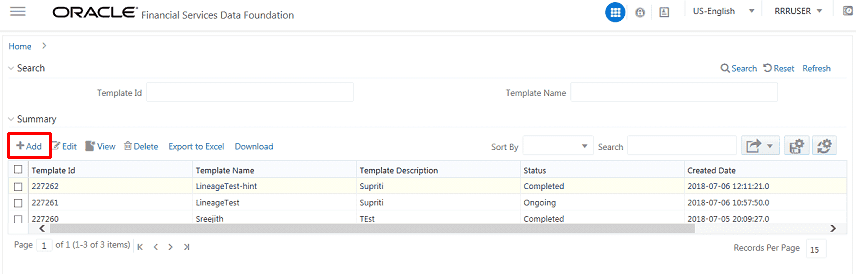
2. In the Summary screen, click Add to create a new Metadata Report Template.
Figure 114: Metadata Report Template Summary-Add Screen
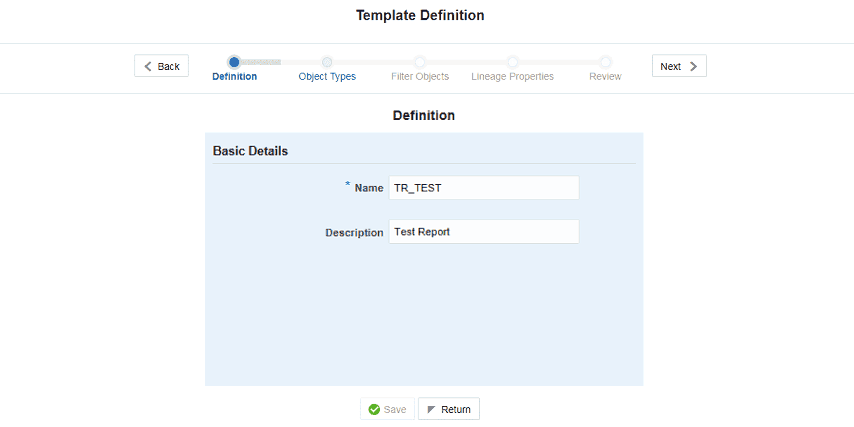
3. Provide the Name and Description for the new template in the Template Definition page.
Figure 115: Template Definition Screen
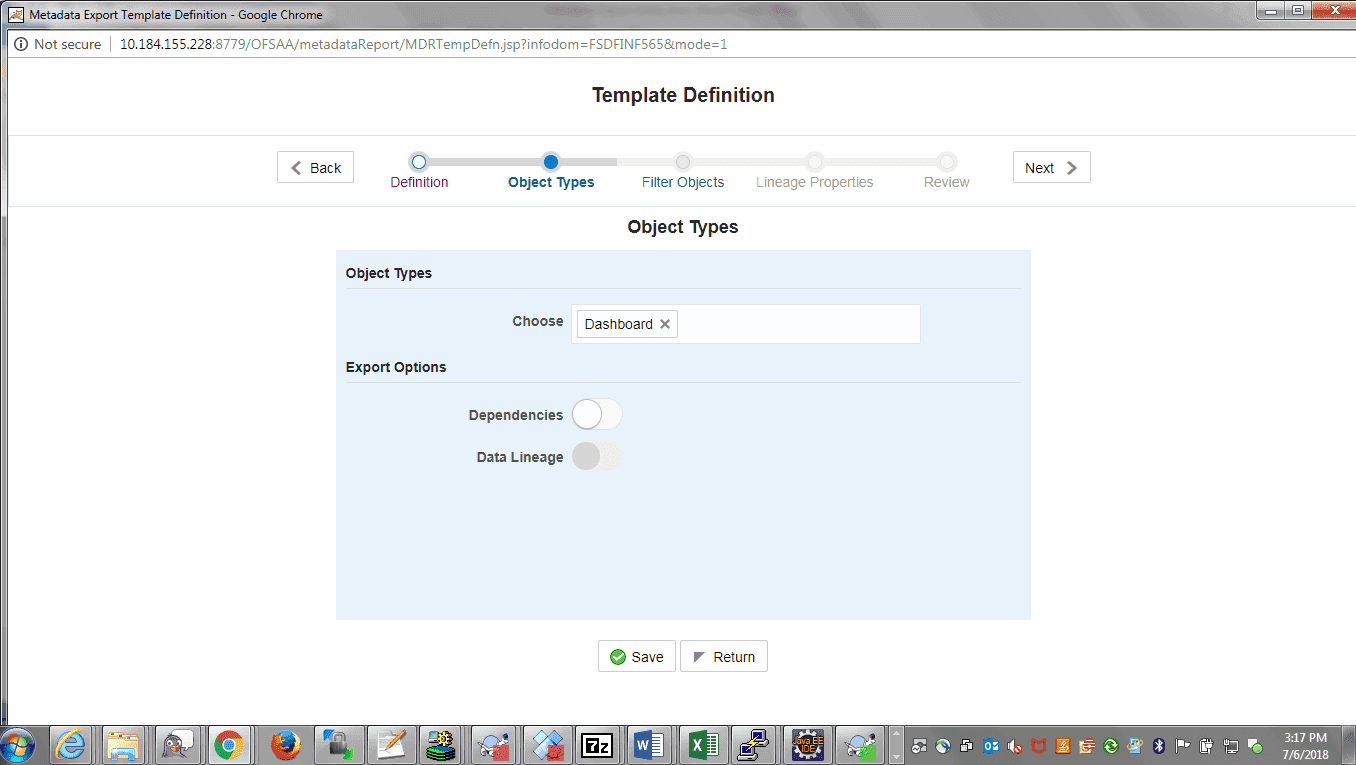
4. Select the desired object from the Object Type dropdown to be exported.
The individual report generates only the basic properties of the object selected, that is, name and description. The relational report generates detailed information up to the Entities level if Dependencies is chosen; and up to the Staging Columns level, if Data Lineage is selected along with Dependencies.
Dependencies: Metadata object is dependent on several other metadata objects. Metadata object is also used (that is, consumed) in several other metadata objects. Dependency or usage tree can be of any depth. For example, a rule can be dependent on a hierarchy, business processor, and dataset. Further, each of these metadata objects can be dependent on other metadata objects. Metadata Export Utility exports all the dependent or used metadata objects for all paths in the dependency or usage tree if this option is selected.
Lineage: Data is loaded from source systems to staging and then moved across to processing or reporting. Lineage traces the data element as it moves across different layers of OFSAA: staging, processing, and reporting. Metadata Export Utility exports the lineage of each of the reporting area data element that is identified by dependencies.
For Individual: In the Export Options, do not select Dependencies or Data Lineage.
Figure 116: Template Definition Report Export Options Screen
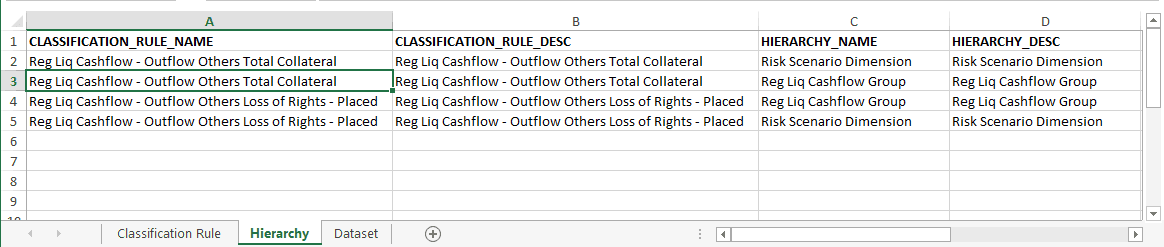
The exported sample report for Individual is as follows.
Figure 117: Exported Report for Individual Screen
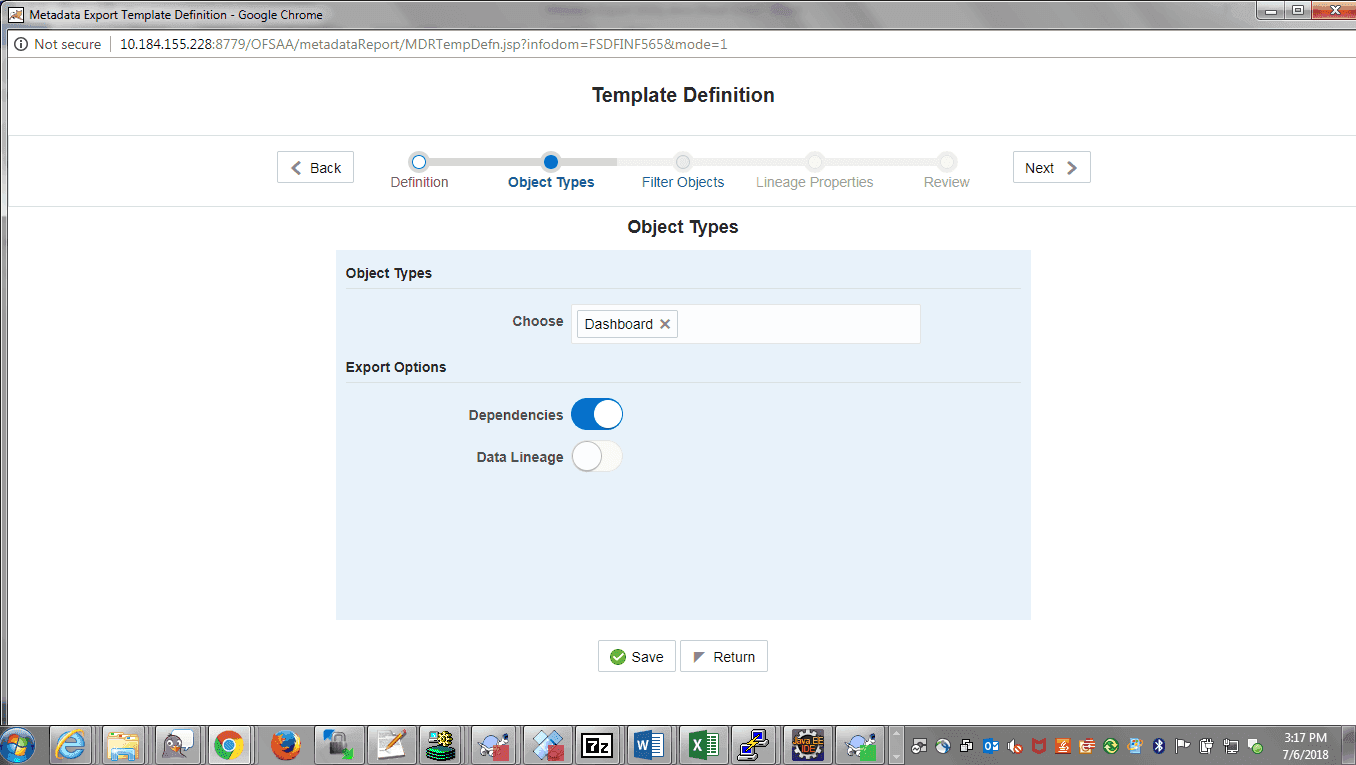
For Relational: In the Export Options, select Dependencies.
Figure 118: Template Definition Report Export Options Selected Screen
The exported sample report for Relational is as follows.
Figure 119: Exported Report for Relational Screen
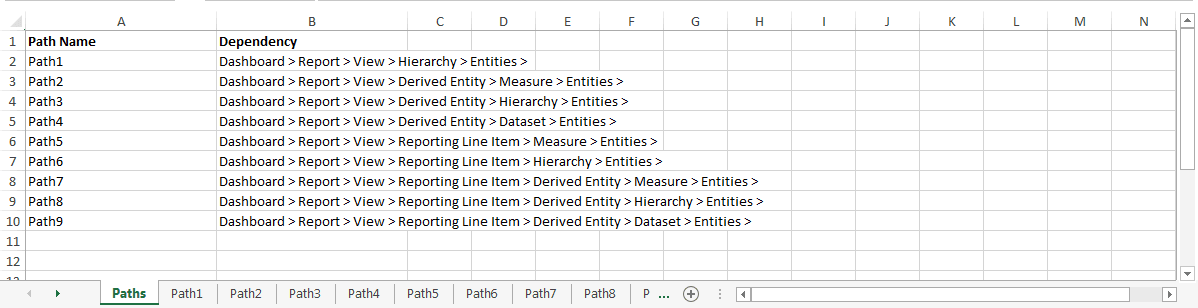
The first sheet shows the different Paths and their Dependencies up to the Entities level. Select the required Path sheet at the bottom to view the dependencies.
Each path tells how the dependency or usage is derived from dashboard to entity or vice versa involving various OFSAA object types like Derived Entity, Hierarchies, Datasets, Measures, and so on.
These paths are generated by the system using data already published in MDB dependency tables as part of the OFSAA MDB object publish.
For every dependent object type displayed in each path sheet, the following columns are displayed:
§ Object type name
§ Object type description
§ One of many Object-specific properties (optional)
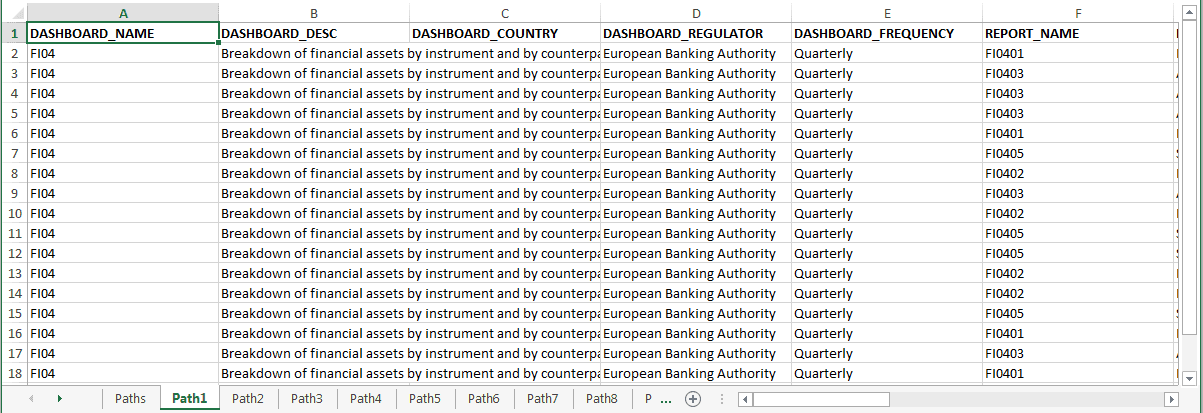
For example: In Path1, Dashboard is the first Object type, the dependencies generated are Dashboard Name, Dashboard Description, and Dashboard properties: Dashboard Country, Dashboard Regulator, and so on. Similarly, Report is the next Object type in Path1 and the dependencies generated are Report Name, Report Description, Views Name, Views Description, View Display Format, and so on. Then followed by Hierarchy Objects name, description, and properties up to the Entities level.
Figure 120: Dependent Objects Type Screen
The Usage sample report (generated by default when Dependencies is selected) is as follows.
Figure 121: Usage Report Screen
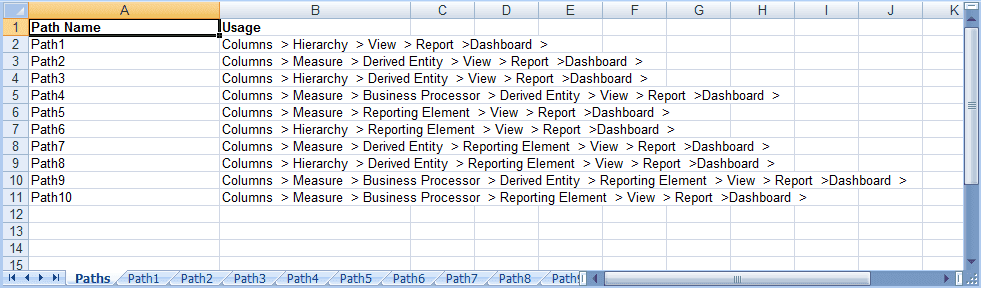
The first sheet shows the different Paths and their Usage up to the Dashboard level. Select the required Path sheet at the bottom to view the Usage.
Figure 122: Data Lineage Report
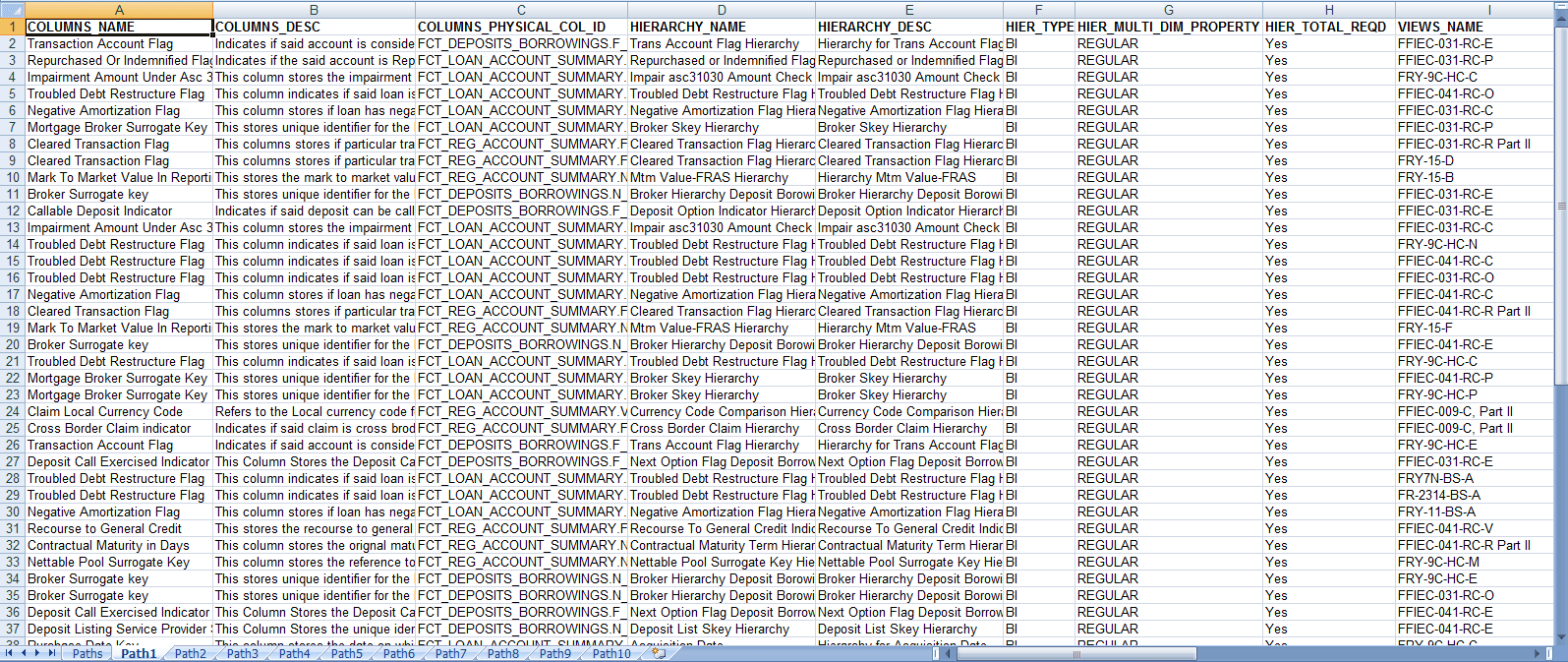
Navigate to Template Definition, select Choose Object Type, and then select Data Lineage to export the lineage details up to the Staging Columns level.
NOTE |
Data Lineage
can be selected only if Dependencies
are selected. |
Figure 123: Template Definition Data Lineage Selection Screen
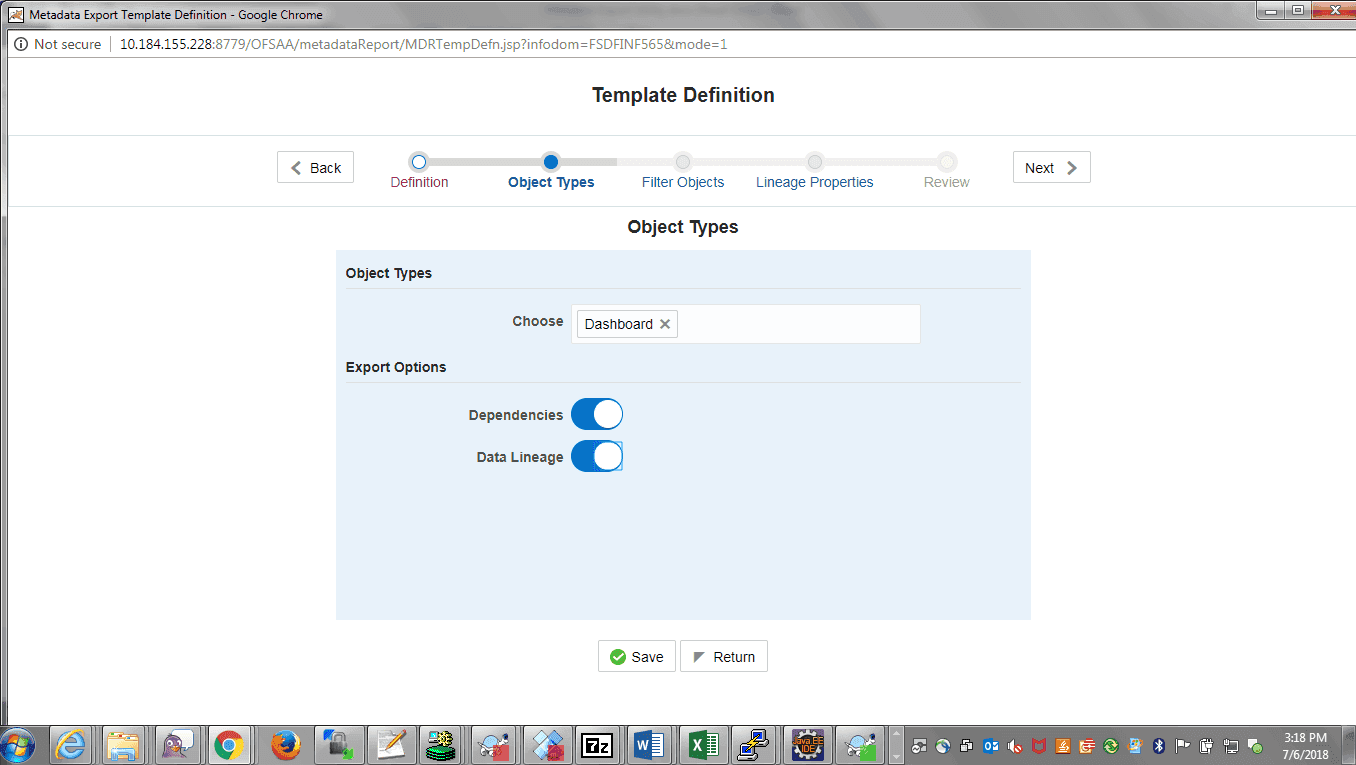
NOTE |
Data Lineage is generated as a separate sheet in the generated Relational report along with the Dependencies. Select the Lineage sheet to view the Data Lineage (up to Staging column level). |
Figure 124: Lineage Report Screen
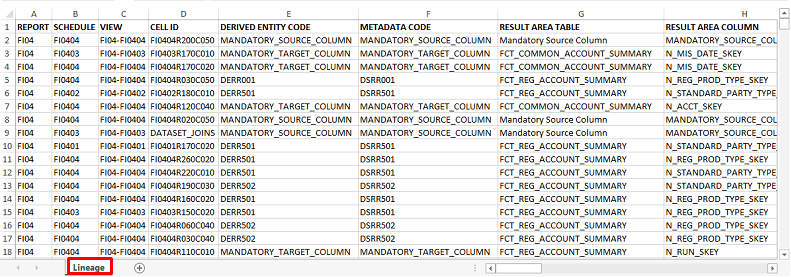
5. Select Filter Objects to see the selected objects.
Figure 125: Template Definition Filter Objects Screen
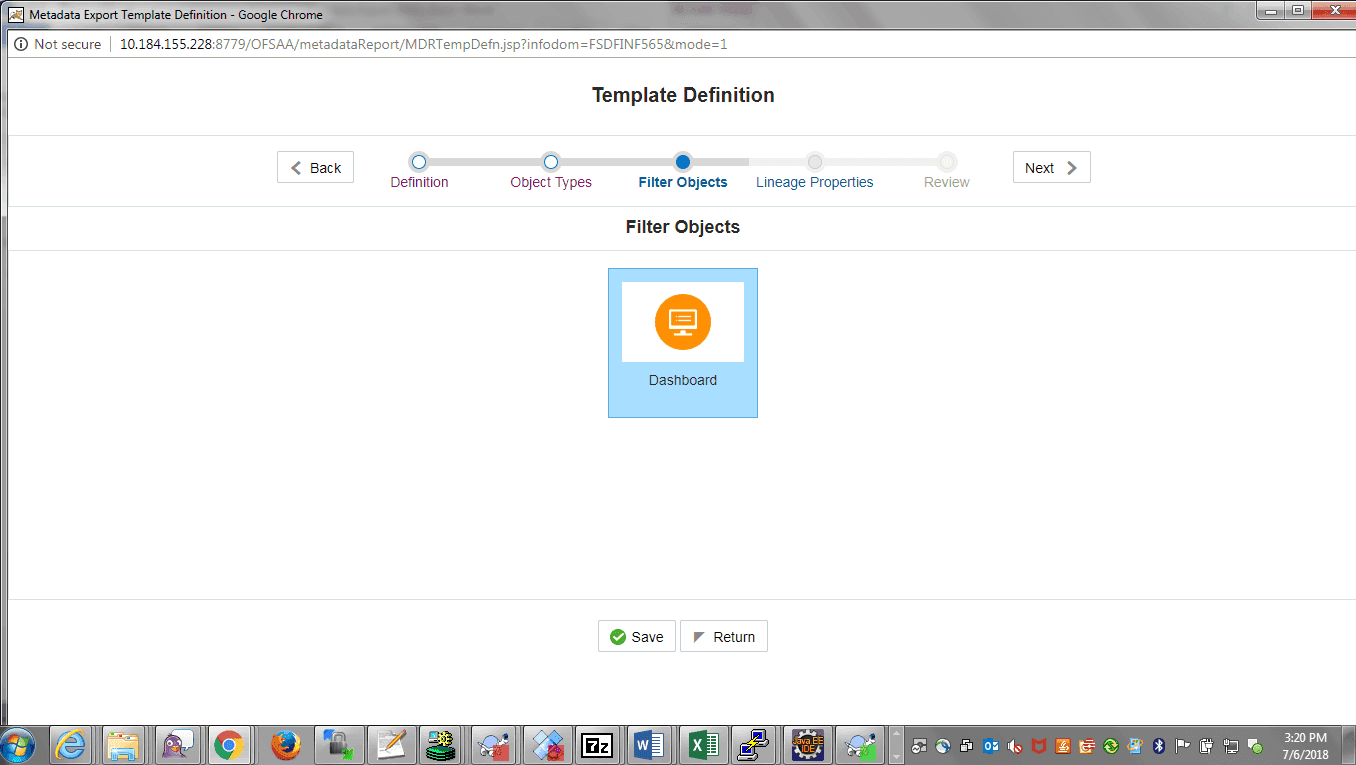 Select
one Filter Object from the Available
Objects and Click Move
Select
one Filter Object from the Available
Objects and Click Move  to
add a Selected Object. Select one Filter
Object from the Selected Objects and
click Remove to remove a Filter
Object.
to
add a Selected Object. Select one Filter
Object from the Selected Objects and
click Remove to remove a Filter
Object.
Figure 126: Filter Objects Screen
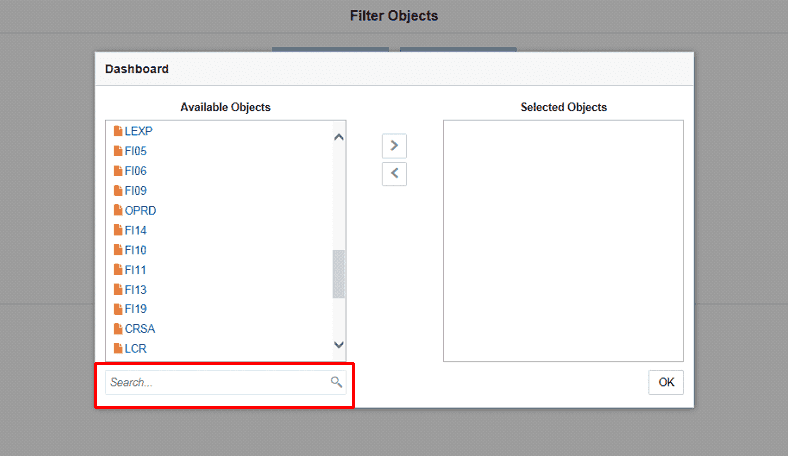
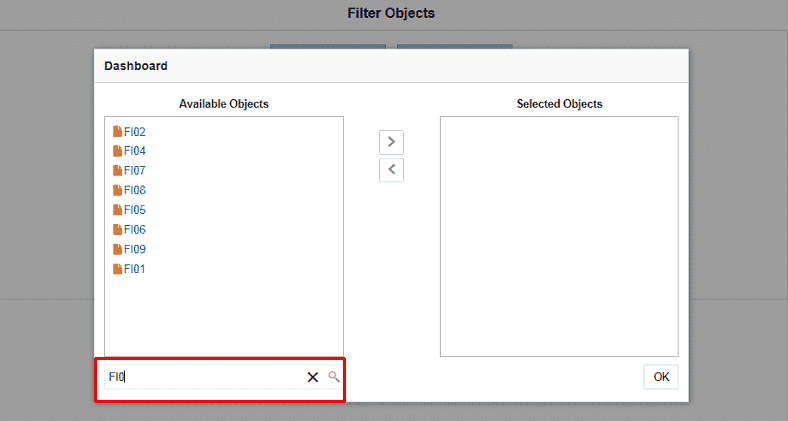
When the object list is huge, use the Search option as shown above. Type first three letters of the Filter Object name and the relevant Filter Objects are displayed.
NOTE |
You can type the complete Filter Object name to select and add to the Selected Objects. |
Figure 127: Filter Objects Selection Screen
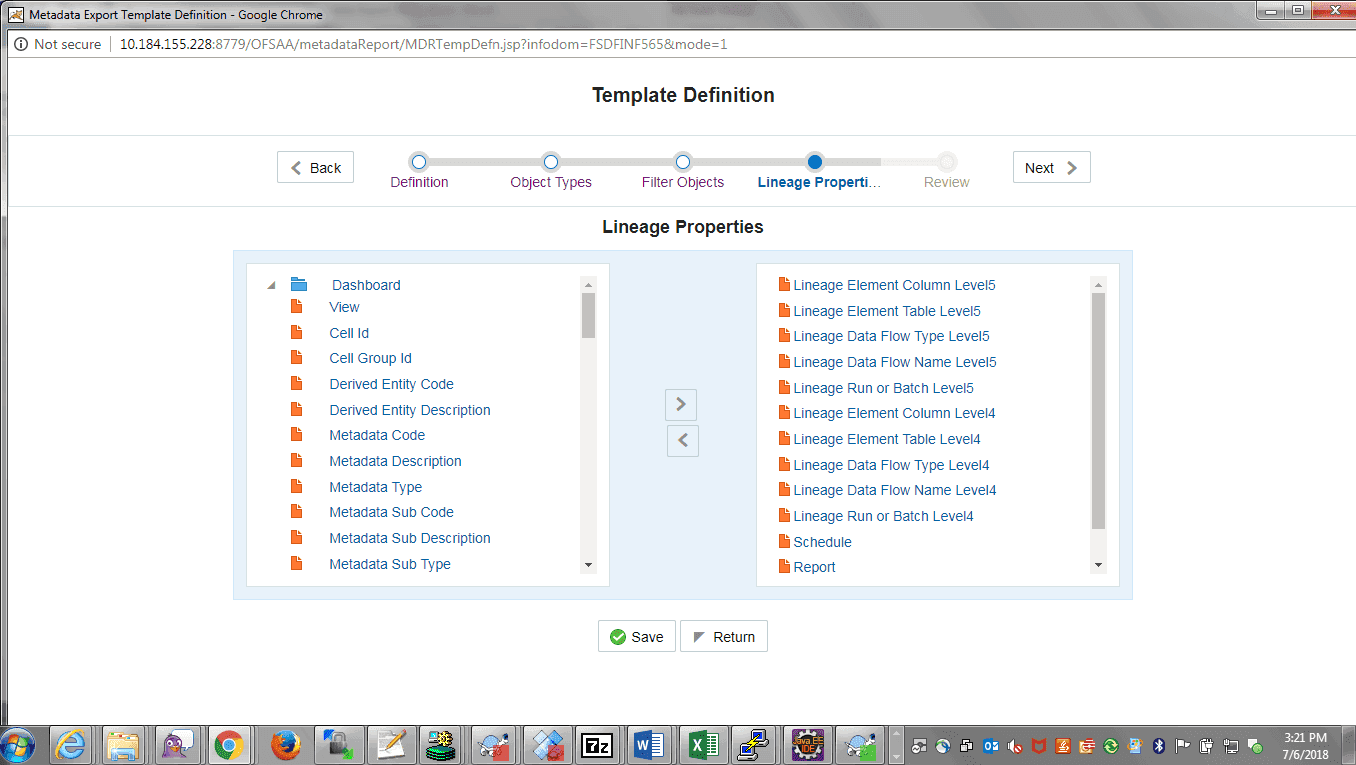
6. Select the Lineage Properties required to be generated.
Figure 128: Template Definition Lineage Properties Screen
7. Review the Template Definition once and click Save.
Figure 129: Template Definition Save Screen
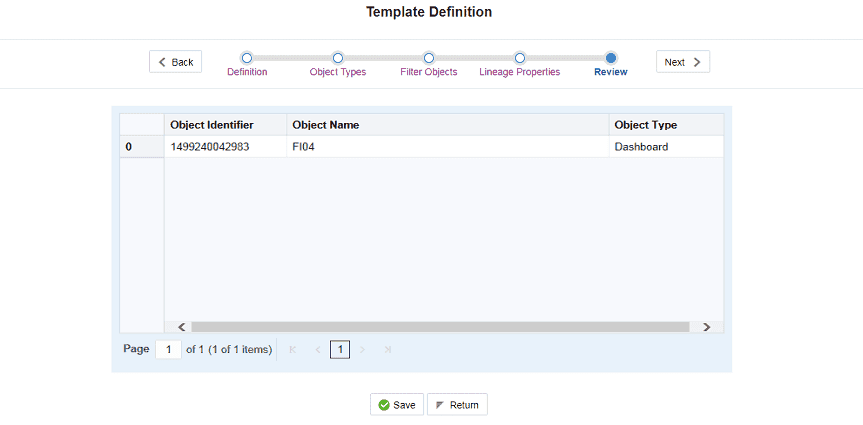
8. Click Return to go to the Summary page.
Figure 130: Metadata Report Template Summary Screen
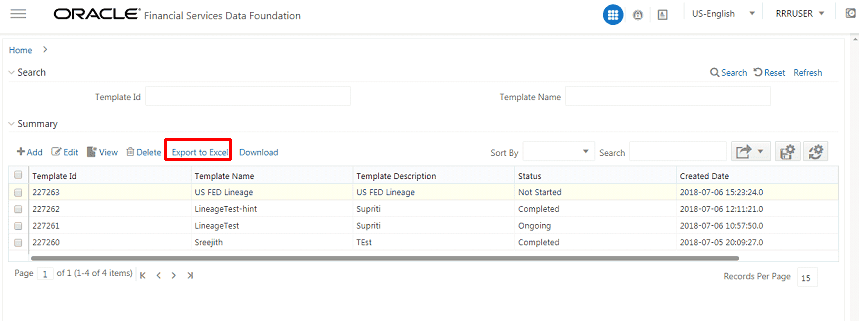
9. Select a Template in the Template List in the Summary screen and click Export to Excel to export the desired objects in Excel Sheet format.
NOTE |
MDB Publish must be triggered before executing the Export to Excel option. |
10. The Report Generation function is an asynchronous action and to check the status of the export function, use the Refresh option in the Summary screen.
Figure 131: Template Exported Screen
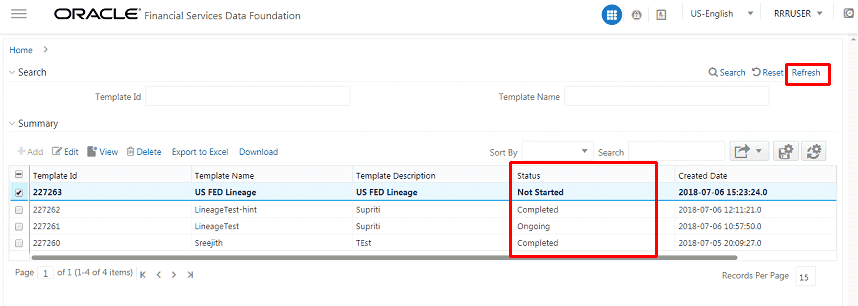
· For Excel Export, the following are the Status values:
§ Not Started: The Report Generation is yet to start, but the function has triggered the action in the background.
§ Ongoing: The Report Generation is started and in process.
§ Completed: The Report Generation is completed and ready to view or download.
§ Failed or Partially Completed: The Report Generation encountered an issue and the process is partially completed or failed.
NOTE |
The export logs are generated
and placed in the /Context_Name/logs/MDB.log
directory. 1. All Paths query 2. The query for each path and if data present for this path 3. Lineage query 4. Status of excel output creation 5. Exceptions and errors, if any |
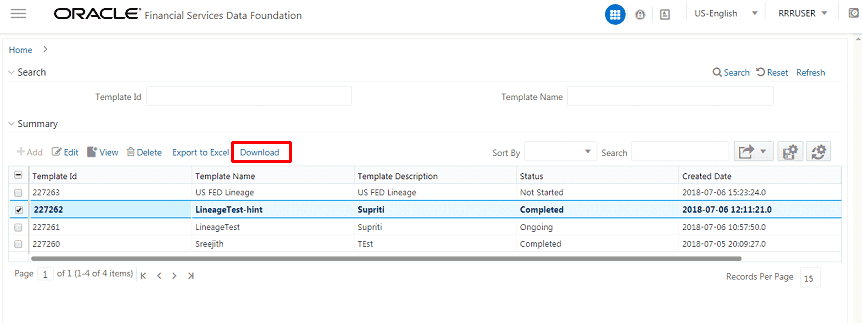
11. Select a Template in the Template List in the Summary screen and click Download to save a copy of the generated Metadata Report Templates excel sheet, after the export status shows as completed.
Figure 132: Metadata Report Download Screen
User Access
The following user groups are pre-seeded in the component that helps you to get access to the Metadata Report Extract screen.
· MDR View Group: Helps you to see Metadata Report Extract with View permissions.
· MDR Owner Group: Helps you to create templates in Metadata Report Extract.
Perform the following steps to view the Metadata Report Templates:
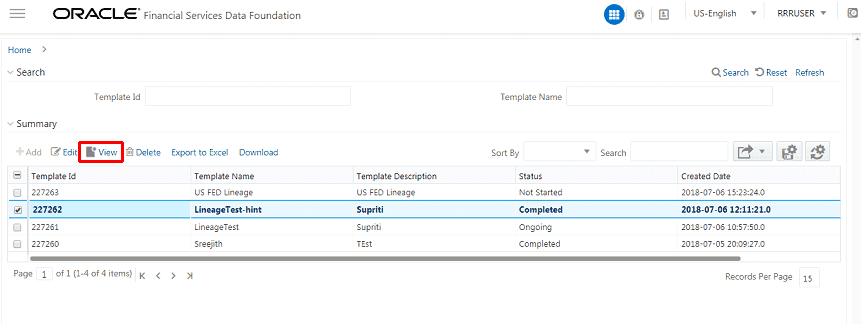
1. Select a Template in the Template List in the Summary screen.
2. Click View to view the generated Metadata Report Templates excel report (after the export status shows as completed).
Figure 133: Metadata Report View Screen
NOTE |
With this option, the Metadata Report Templates excel report is opened in view-only mode. |
Perform the following steps to edit or modify the Metadata Report Templates:
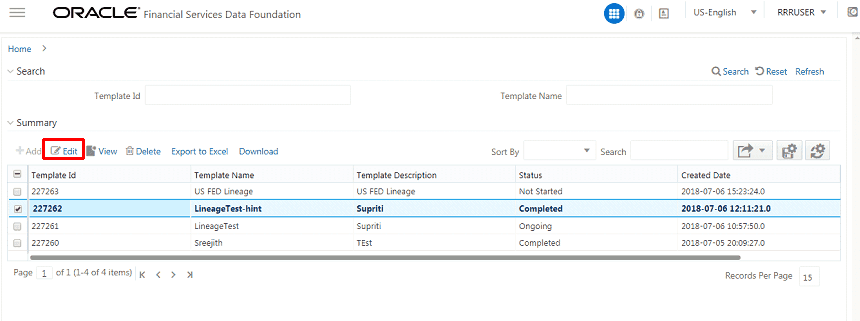
1. Select a Template in the Template List in the Summary screen.
2. Click Edit to modify the generated Metadata Report Templates excel report (after the export status shows as completed).
Figure 134: Metadata Report Edit Screen
Perform the following steps to delete the Metadata Report Templates:
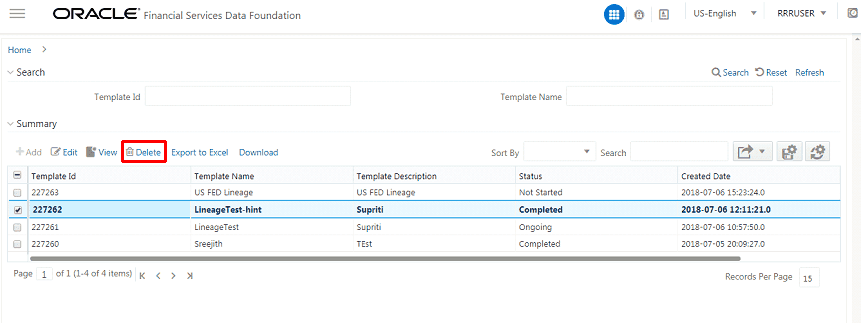
1. Select a Template in the Template List in the Summary screen.
2. Click Delete to delete the Metadata Report Templates.
Figure 135: Metadata Report Delete Screen