Follow the instructions in this chapter to install the OFS AgileREPORTER Applications Pack depending on the mode of installation.
OFS AgileREPORTER Applications Pack Installation supports the following modes of installation:
· Upgrades from Prior Versions of OFSAA AgileREPORTER
· Running the Installer in GUI Mode
· Running the Installer in GUI Mode for Upgrade
· Running the Installer in SILENT Mode
· Running the Installer in SILENT Mode for Upgrade
If you are using older versions of OFSAA AgileReporter, see the following table on the supported AR Upgrade Path to upgrade from an older version to the latest version of AgileREPORTER.
Table 2: Supported OFSAA AgileREPORTER Upgrade Versions
Upgrade to and Upgrade from |
8.0.6.1.0 |
8.0.7.3.0 |
8.0.7.4.0 |
8.0.8.0.0 |
8.0.8.1.0 |
8.0.9.0.0 |
8.0.9.6.5 |
8.1.0.0.0 |
8.1.0.0.1 |
8.1.0.0.2 |
8.1.1.0.0 |
|---|---|---|---|---|---|---|---|---|---|---|---|
8.0.6.1.0 |
Yes |
Yes |
Yes |
Yes |
Yes |
Yes |
Yes |
No |
No |
No |
No |
8.0.7.3.0 |
|
Yes |
Yes |
Yes |
Yes |
Yes |
Yes |
No |
No |
No |
No |
8.0.7.4.0 |
|
|
Yes |
Yes |
Yes |
Yes |
Yes |
Yes |
Yes |
Yes |
Yes |
8.0.8.0.0 |
|
|
|
Yes |
Yes |
Yes |
Yes |
Yes |
Yes |
Yes |
Yes |
8.0.8.1.0 |
|
|
|
|
Yes |
Yes |
Yes |
Yes |
Yes |
Yes |
Yes |
8.0.9.0.0 |
|
|
|
|
|
Yes |
Yes |
Yes |
Yes |
Yes |
Yes |
8.0.9.6.5 |
|
|
|
|
|
|
Yes |
No |
Yes |
Yes |
Yes |
8.1.0.0.0 |
|
|
|
|
|
|
|
Yes |
Yes |
Yes |
Yes |
8.1.0.0.1 |
|
|
|
|
|
|
|
|
Yes |
Yes |
Yes |
8.1.0.0.2 |
|
|
|
|
|
|
|
|
|
Yes |
Yes |
Before proceeding, ensure that all preinstallation requirements listed in Chapter 3 - Preparing for Installation are met.
ATTENTION:
In the previous release of AgileREPORTER (20.3), the Log4j Library was replaced with the Logback Library in the application. From this release onwards, since the application includes ZooKeeper which also uses Log4j, all the instances of Log4j is automatically removed from Zookeeper.
NOTE:
The following screenshots are taken from a Windows System; however, they look similar in Linux Configuration for GUI Mode Installation.
To install this product in GUI Mode, ensure the following software and configuration are available:
· Install and configure any PC X Server Software such as Open Text Exceed (formerly Hummingbird Exceed) on the Desktop System of the user from which the installation is triggered.
· Configure the DISPLAY variable.
· Ensure you set the DISPLAY variable (in user. profile) on the system on which the OFSAA Infrastructure is installed, to point to the Desktop System of the user where the PC X Server Software is installed.
Syntax:
export DISPLAY = hostname:n
where the hostname is the IP Address or Hostname of the User’s Desktop System and n is the sequence number (usually 0).
For example: 10.XXX.XXX.XXX:0000 or myhostname:0
To install OFS AgileREPORTER using the installer GUI, follow these steps (click Next to advance after each step):
1. Navigate to the path where the OFS AgileREPORTER Installer Kit is unzipped.
2. Navigate to the OFS_AGILE_REPORTER/AgileREPORTER/Bin Directory.
3. Execute the./Setup.sh GUI command in the Console.
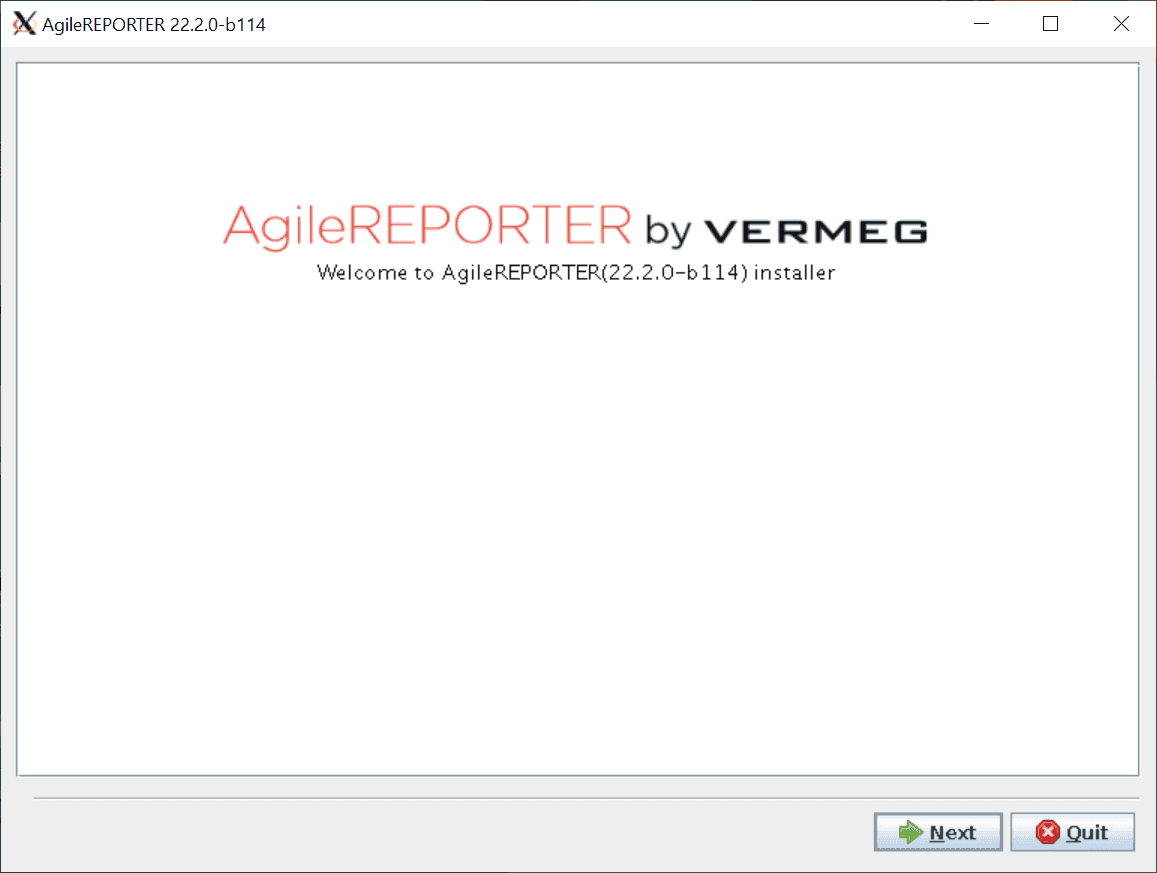
The initial Splash Screen is displayed.
Figure 2: Initial Splash Screen
4. Select Next to continue the installation.
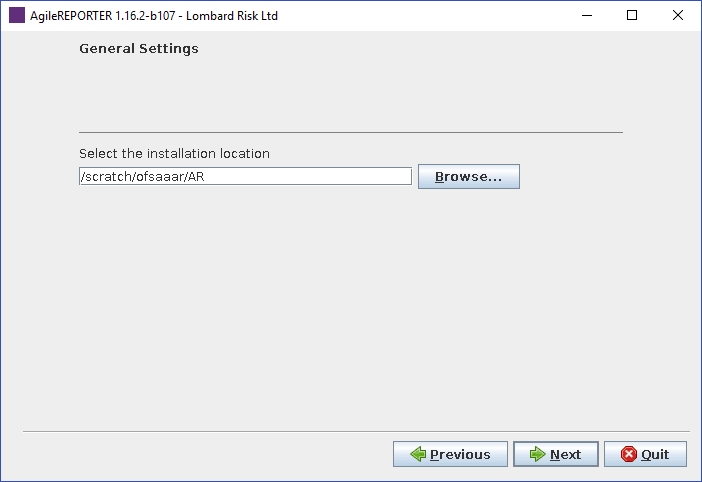
5. Select the location where OFS AgileREPORTER must be installed.
Figure 3: General Settings Screen
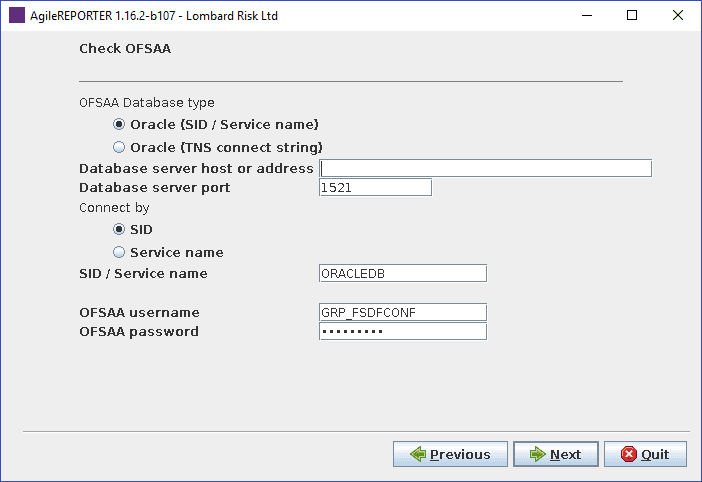
6. The installer checks for the OFSAA Database when the database details are entered.
Figure 4: Check OFSAA Database Screen
NOTE:
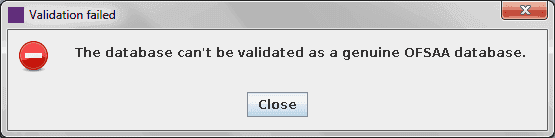
If Oracle FSDF is unavailable, the following message is displayed.
Figure 5: Validation Screen
If Oracle FSDF is available, the following screens continue as part of the installation.
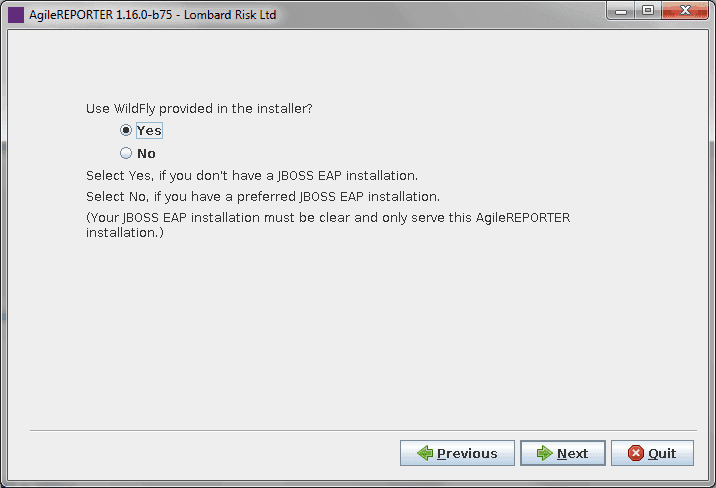
7. Select the JBOSS Options as applicable.
Figure 6: JBoss Options Screen
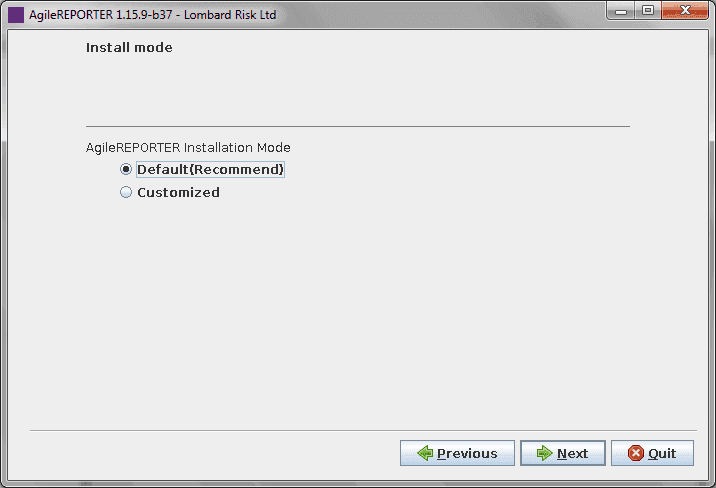
8. Select the Installation Mode as applicable.
Figure 7: Install Mode Screen
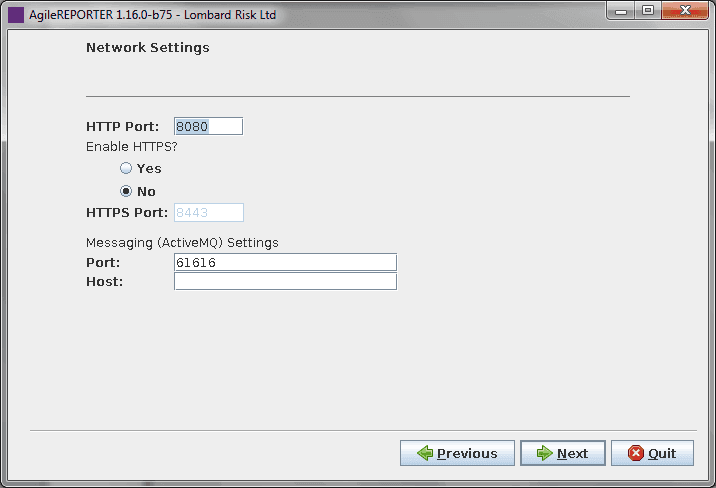
9. Select the
Network Settings as applicable.
To enable HTTPS for AgileREPORTER see the Enable HTTPS for AgileREPORTER
Section in the AgileREPORTER
20.4 - Installation and Administration Guide.zip.
Figure 8: Network Settings Screen
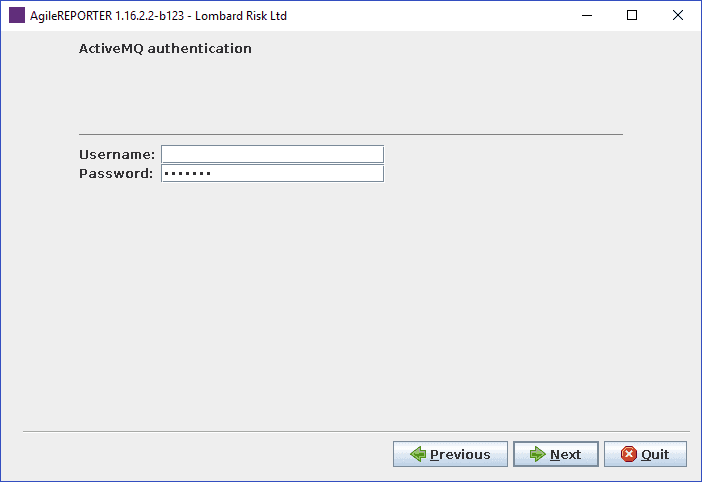
10. Provide the MQ Authentication details.
Figure 9: ActiveMQ Authentication Screen
11. Select Enable return workflow to enable approval workflow for changes made to returns and set how many approvers are required per change.
Figure 10: Enable or Disable return workflow Screen

NOTE:
The following screenshots are taken from a Windows System but will look similar in Linux Configuration for GUI Mode Installation.
If your installation of OFS AgileREPORTER is connected to the REPORTER Module, OFS AgileREPORTER uses approval workflow settings from there instead of showing you this step.
You may require a new license to enable the approval workflow feature; contact VERMEG.
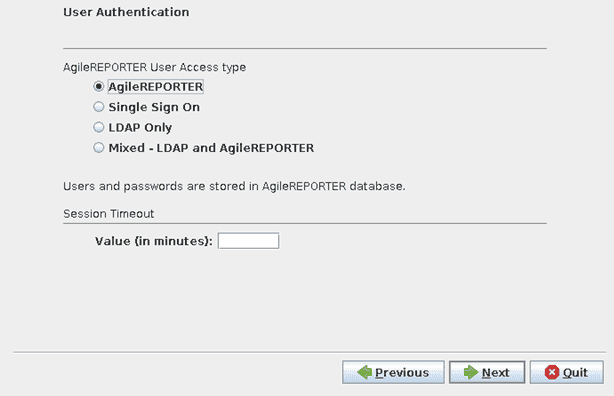
12. Select how AgileREPORTER Users must be authenticated when logging in.
Figure 11: User Authentication Screen
NOTE:
· Single Sign-On: Users are managed in the AgileREPORTER database, but passwords can be optional in AgileREPORTER. An SSO Server is used to provide user authentication.
· LDAP Only: Users are managed in the AgileREPORTER Database, but passwords can be optional in AgileREPORTER. An LDAP Server is used to provide user authentication.
· Session Timeout: Users' sessions will time out after a period of inactivity. Set the Timeout Value (allowed period of inactivity) in minutes. If no value is specified, AgileREPORTER will default to 15 minutes.
13. If you select Single Sign-On, enter values for Identity Provider URL and Service Provider URL.
Figure 12: Enable Single Sign-On Screen
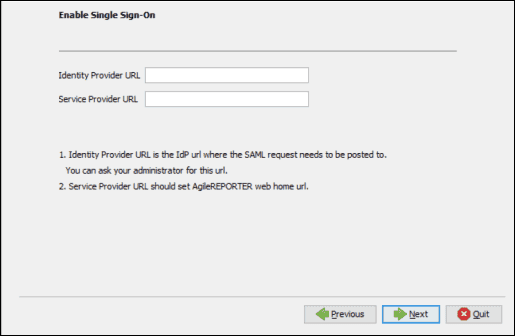
Identity Provider URL: Where OFS AgileREPORTER sends SSO requests. For example, to an Identity Provider set up within your infrastructure.
Service Provider URL: Must be http(s)://<hostname>:<port>/agilereporter/ (the OFS AgileREPORTER URL).
NOTE:
OFS AgileREPORTER supports Single Sign-On by using the SAML v2 protocol. If you have the SAML v2 compatible Identity Provider in your IT infrastructure already, the Identity Provider can be used to authenticate users of OFS AgileREPORTER.
One possible usage of this functionality is that OFS AgileREPORTER, OBIEE, and OFSAA Web Share Single Sign-On using SAML v2 implemented by Oracle Identity Federation. This requires that OFS AgileREPORTER as a SAML Service Provider (SP) is configured with the details of Oracle Identity Federation as a SAML v2 Identity Provider (IdP).
The OFSAA Results Area Database Credentials are added post-installation using OFS AgileREPORTER’s Configuration Manager.
For accurate SSO usage in OFS AgileREPORTER, ensure the following:
· Tme on the Identity Provider Server and the OFS AgileREPORTER Server is synchronized.
· The identity provider uses a plain text Username in the SAML assertion sent to OFS AgileREPORTER when attempting a user login.
· The same Username exists in OFS AgileREPORTER.
· The Identity Provider includes the role LRM_RP_USER in the SAML assertion sent to OFS AgileREPORTER when attempting a user login.
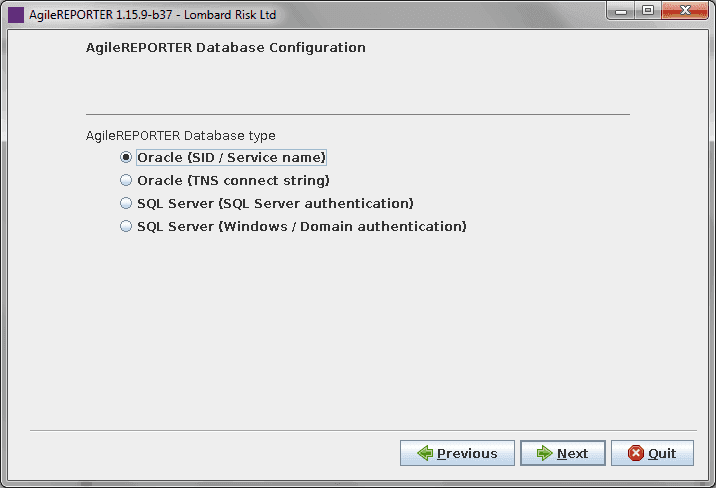
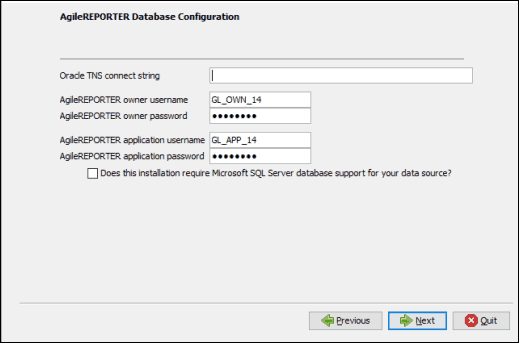
14. Enter the database connection information and credentials for the OFS AgileREPORTER Schemas with DDL (at installation) or DML (at Application Runtime).
NOTE:
Credentials must match those defined in the schemas referenced in the Supported Databases Section.
Select Oracle (SID / Service name). Full SQL Server Support will be supplied in a later version.
Figure 13: AgileREPORTER Database Configuration Screen
Oracle (SID / Service Name)
Figure 14: AgileREPORTER Database Configuration Oracle (SID / Service name) Screen

Oracle (TNS connect string)
Figure 15: AgileREPORTER Database Configuration Oracle (TNS connect string) Screen
NOTE:
For domain single sign-on, enter the OFS AgileREPORTER system domain field, but leave the Domain username and Domain password fields blank.
For domain authentication, enter OFS AgileREPORTER system domain, Domain username, and Domain password.
15. Set up the initial AgileREPORTER Administration User Account.
NOTE:
This step only appears during a fresh installation of OFS AgileREPORTER.
Figure 16: Create AgileREPORTER Administration User Screen
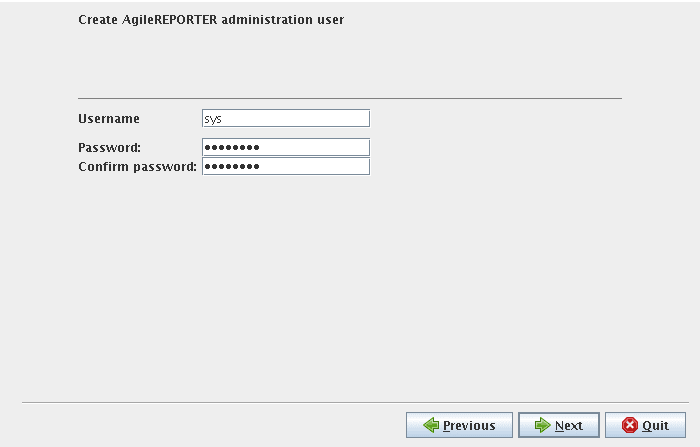
If the Single Sign-On is enabled, the Username must be a valid user in the Identity Provider and the password can be left blank. This user is created as an administrative user in OFS AgileREPORTER.
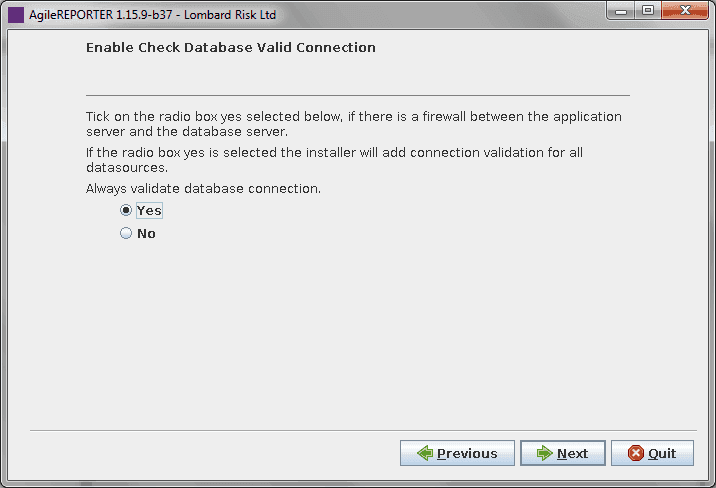
16. Select Yes for Always validate database connection to check if there is a firewall between the Application Server and Database Server.
Figure 17: Enable Check Database Valid Connection Screen
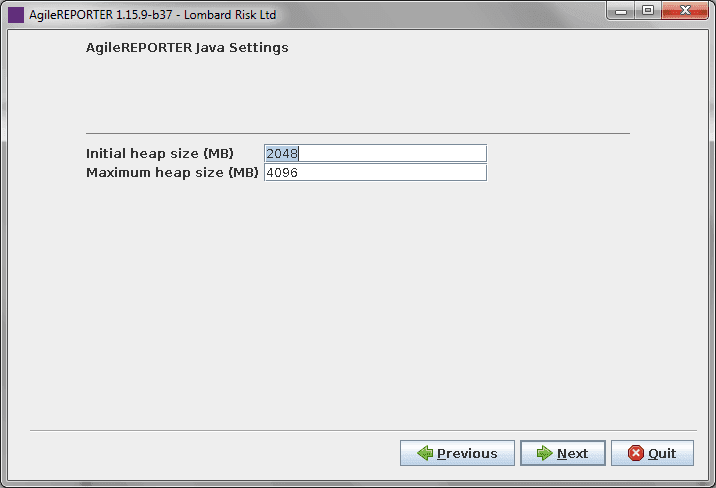
17. Enter the Java minimum and maximum heap sizes.
Figure 18: AgileREPORTER Java Settings Screen
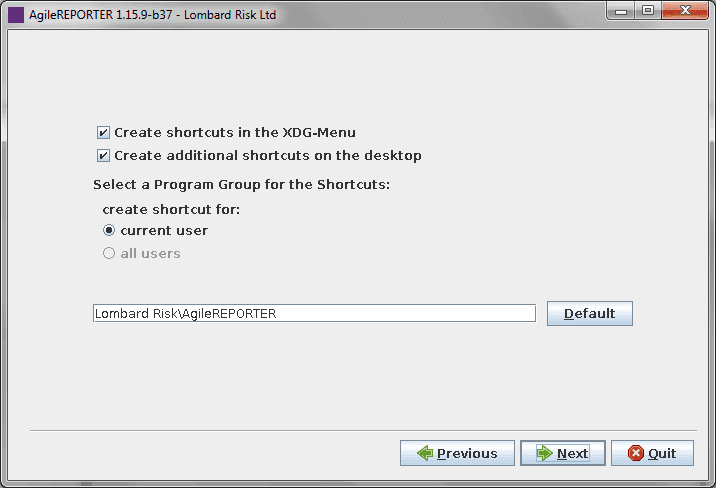
18. Select the shortcut settings, if required.
Figure 19: Shortcut Settings Screen
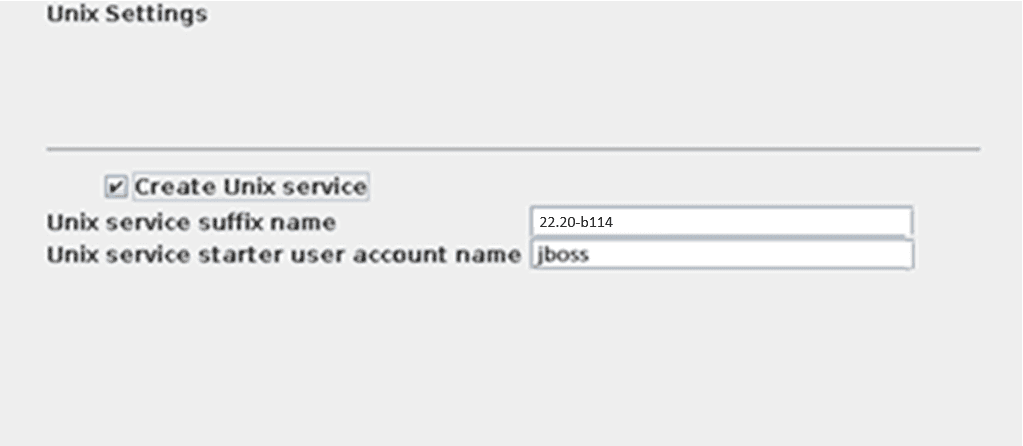
19. Select Create UNIX Service to create a UNIX Service on the server where OFS AgileREPORTER is running.
Enter the starter user account name, which is the Linux Operating System Account that starts the service.
Figure 20: Unix Settings Screen
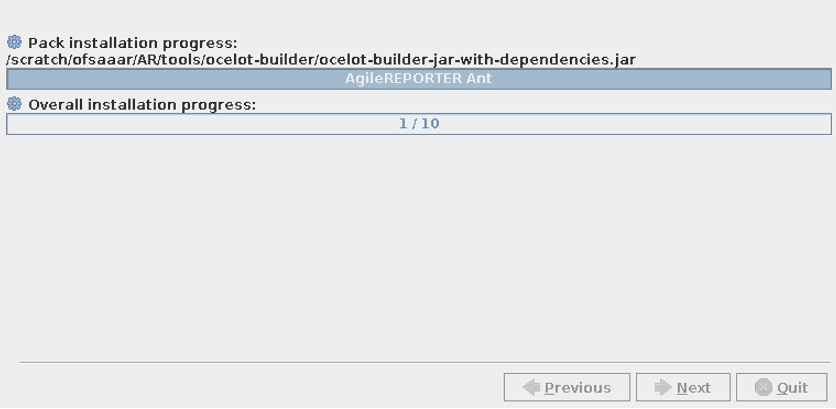
20. Wait for unpacking and installation to complete.
Figure 21: Installation progress Screen
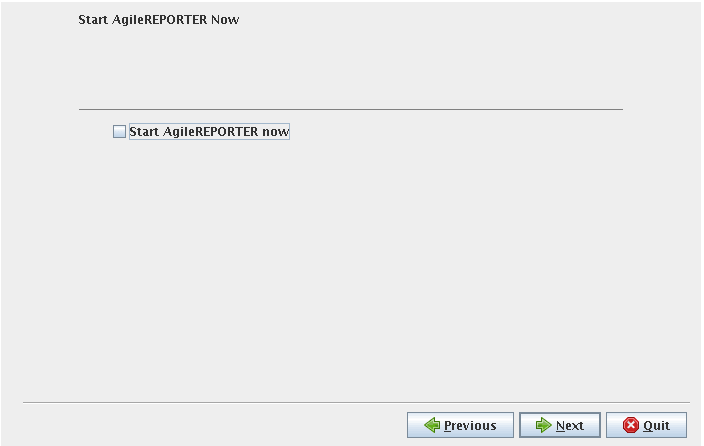
21. Select Start AgileREPORTER now (to open immediately) and click Next.
Figure 22: Start AgileREPORTER Now Screen
22. Click Done to finish the installation process.
Figure 23: Installation success Screen
NOTE:
If required, the DDL Schema or login can be locked after successfully installing the OFS AgileREPORTER.
You can now try opening OFS AgileREPORTER in a Web Browser. For example, open Internet Explorer and enter http(s) ://<server>:<port> or http(s)://<server>:<port>/agilereporter, specifying the chosen http Protocol, Server Address and Port.
Figure 24: AgileREPORTER Dashboard
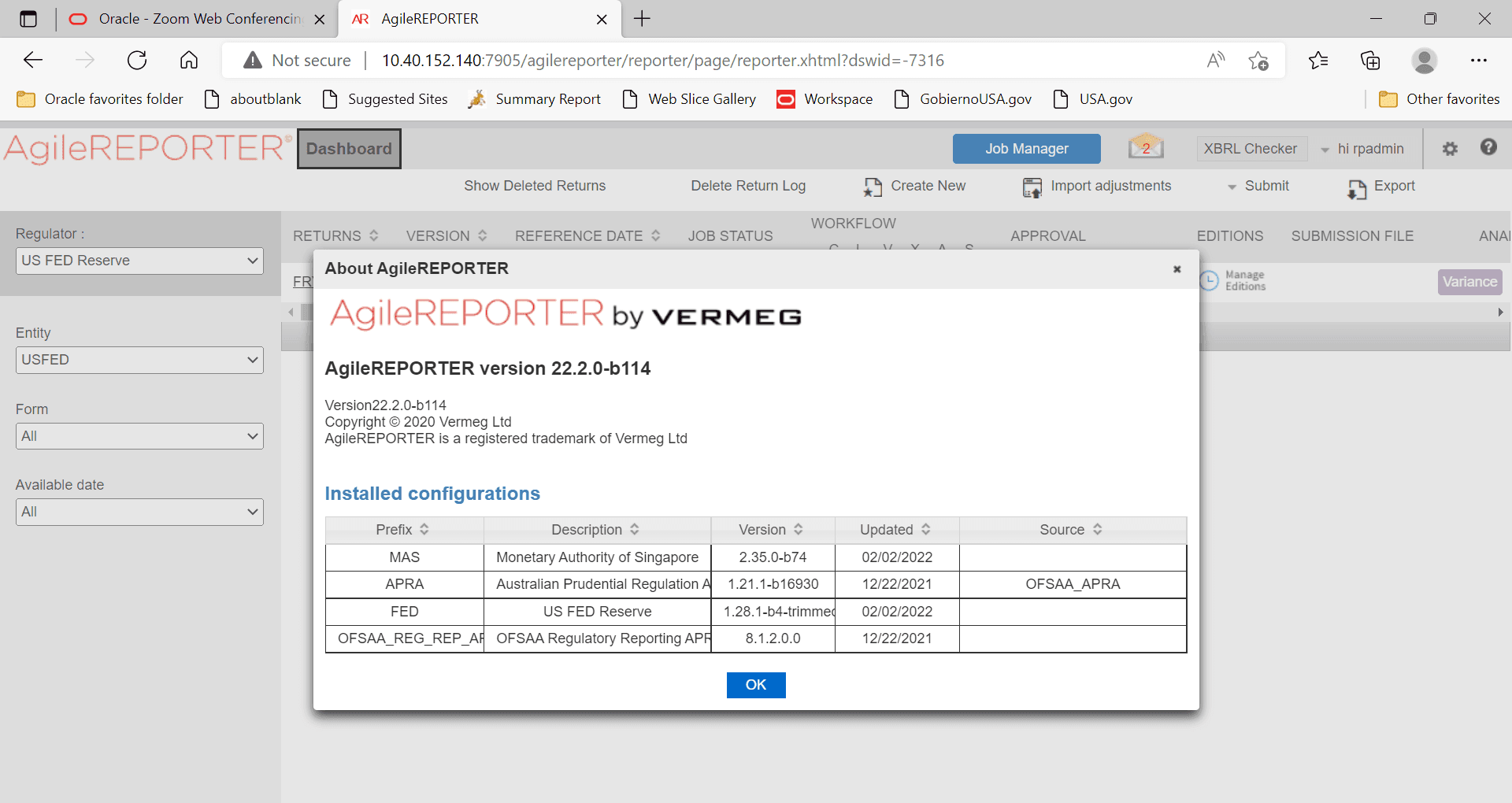
To upgrade OFS AgileREPORTER using the installer in GUI Mode, follow these steps (click Next after each step to continue):
1. Repeat the steps in section 4.1.2 Running the Installer in GUI Mode till you specify the installation path.
2. Specify the installation path and click Next.
3. The subsequent GUI Screens get auto populated with the existing information. You must click Next to continue and complete the installation.
NOTE:
After upgrading from a previous version of AgileREPORTER, any manual changes made to the AgileREPORTER configuration in the previous version must be reapplied to the configuration in the upgraded installation. For example, changes made to the standalone.xml file in the previous version will be overwritten when upgrading.
NOTE:
Before proceeding, ensure that all pre-installation requirements listed in Chapter 3 – Preparing for Installation are met. An additional parameter Session Timeout has been introduced in the AgileREPORTER 20.4 release. For more information, see Table 4: Configuration Properties for Silent.props File
Rename the Silent.template to Silent.props from the OFS_AGILE_REPORTER/AgileREPORTER/conf directory and then fill the Silent.props file from the OFS_AGILE_REPORTER/AgileREPORTER/conf directory before starting the installation.
The following table describes the installation properties that you must enter in the Silent.props Java Properties file. This file uses a standardized format consisting of a key followed by an equal to sign (=), followed by a value on each line.
The following characters must be appended with a backslash (\) for the Escaped version when used in keys and values.
Table 3: Installation properties for Silent.props File
Character Name |
Character Symbol |
Escaped Version |
|---|---|---|
Equals |
= |
\= |
Colon |
: |
\: |
Backslash |
\ |
\\ |
For example:
\:\=\\bin\\temp when un-escaped translates to
:=\bin\temp
For more information, see http://docs.oracle.com/javase/6/docs/api/java/util/Properties.html#load (java.io.Reader) or contact VERMEG support.
The configurable properties with a grey background are not shown in the OFS AgileREPORTER Installer user interface. Do not alter these unless instructed to do so by VERMEG Support.
NOTE:
AgileREPORTER security is improved constantly. Earlier, the Blowfish Algorithm with a hard-coded secret key was used to encrypt the passwords saved in the ocelot.properties file. Now, the Blowfish Algorithm is deemed as weak encryption and therefore, AgileREPORTER uses AES (Advanced Encryption Standard) Algorithm for encryption.
Consequently, the Encoding Tool that encrypts a given password using the AES Algorithm has been updated and is delivered with AgileREPORTER.
If the password is encrypted in the properties file, the ocelot.secret.key property must be added to the Silent.props file to specify the secret key used to encrypt the password.
For upgrading an existing AR, use the existing ocelot.properties file and the installer will automatically generate a secret key for you.
For a new AgileREPORTER, use the ocelot-encoding tool to generate a secret key, then use this secret key to encrypt all passwords in the Silent.props file before you can use it to install AgileREPORTER.
To encrypt the password using an existing secret key, see AppendixA-EncodingTool Section in AgileREPORTER Installation Guide 22.1 .pdf.
All passwords mentioned in the Silent.props properties file must be encrypted. Execute the following command to encrypt all passwords using the password encryption utility ocelot-encoding- 1.4150.0.jar under the /utility folder:
To generate a secret key:
java -jar ocelot-encoding-1.4150.0.jar –gk
To encrypt with an existing secret key:
java -jar ocelot-encoding-1.4150.0.jar -en <PASSWORD>
-k <SECRET KEY>
To encrypt with a random secret key:
java –jar ocelot-encoding-1.4150.0.jar –en “password”
Table 4: Configuration Properties for Silent.props File
Property Name |
Description of Property |
Property Name |
Permissible Values |
Property Name |
Comments |
|---|---|---|---|---|---|
ocelot.install.path |
AgileREPORTER Home Directory Install Path |
ocelot.install.path |
Not applicable |
ocelot.install.path |
For
example: |
singleLoginModel |
Single Login Model |
singleLoginModel |
True |
singleLoginModel |
The default value is False. NOTE: Enter True if you want to restrict to one user per session. |
main.host.name |
Current machine’s IP address or hostname |
main.host.name |
Not Applicable |
main.host.name |
For
example: |
activemq.port |
AgileREPORTER jBoss AMQ Port |
activemq.port |
Not Applicable |
activemq.port |
For
example: |
agile.reporter.web.app |
AgileREPORTER Web Application |
agile.reporter.web.app |
True |
agile.reporter.web.app |
The default value is True. |
host.port |
AgileREPORTER Web Host Port |
host.port |
Not Applicable |
host.port |
For
example: |
httpsMode |
HTTPS/SSL Required or Not |
httpsMode |
True |
httpsMode |
The
default value is False. |
host.port.https |
HTTPS Port |
host.port.https |
Not Applicable |
host.port.https |
(Optional.
Required only when HTTPS is used). host.port.https = 0000 |
did.retrieve.job |
DID Retrieve Job activation |
did.retrieve.job |
True |
did.retrieve.job |
The default value is True. |
data.schedule.export.job |
Data Schedule Export Job activation |
data.schedule.export.job |
True |
data.schedule.export.job |
The default value is True. |
other.brokers |
Other ActiveMQ Broker activation |
other.brokers |
True |
other.brokers |
The default value is False. |
other.brokers.hosts |
Other ActiveMQ Broker Host Name and Port |
other.brokers.hosts |
Not Applicable |
other.brokers.hosts |
For
example: |
ocelot.database.type |
Ocelot Database Type |
ocelot.database.type |
Oracle |
ocelot.database.type |
The default value is Oracle. |
ocelot.jdbc.url |
Ocelot JDBC URL |
ocelot.jdbc.url |
For
SID: For Service Name: |
ocelot.jdbc.url |
For
example:
|
ocelot.jdbc.username |
RP OWNER Schema User Name |
ocelot.jdbc.username |
Not Applicable |
ocelot.jdbc.username |
For
example: |
ocelot.jdbc.password |
RP OWNER Schema Password |
ocelot.jdbc.password |
Not Applicable |
ocelot.jdbc.password |
For
example: |
ocelot.database.role name |
RP Read/Write Role Name |
ocelot.database.role name |
Not Applicable |
ocelot.database.role name |
For
example: |
ocelot.app.jdbc.user name |
RP Application Schema User Name |
ocelot.app.jdbc.user name |
Not Applicable |
ocelot.app.jdbc.user name |
For
example: |
ocelot.app.jdbc.password |
RP Application Schema Password |
ocelot.app.jdbc.password |
Not Applicable |
ocelot.app.jdbc.password |
For
example: |
check.db.valid.connection.enable |
Database Connection Validation activation |
check.db.valid.connection.enable |
True |
check.db.valid.connection.enable |
Default
value: |
ocelot.user.name |
AgileREPORTER User Interface Login User Name |
ocelot.user.name |
Not Applicable |
ocelot.user.name |
For
example: |
ocelot.user.password |
AgileREPORTER User Interface Login Password |
ocelot.user.password |
Not Applicable |
ocelot.user.password |
For
example: |
ocelot.user.authentication.mode |
Agile Reporter User Interface Login Mode |
ocelot.user.authentication.mode |
SYSTEM, SSO, LDAP |
ocelot.user.authentication.mode |
Default
Value: |
sso.idp.url |
Agile Reporter UI using SSO Credentials |
sso.idp.url |
Not Applicable |
sso.idp.url |
Optional. Required only if ocelot.user.authentication.mode = SSO |
ldap.host |
Agile Reporter UI using LDAP Login Model |
ldap.host |
Not Applicable |
ldap.host |
Optional. Required only if ocelot.user.authentication.mode = LDAP |
jvm.parameters.Xms jvm.parameters.Xmx |
Java Heap Memory |
jvm.parameters.Xms jvm.parameters.Xmx |
1024 2048 |
jvm.parameters.Xms jvm.parameters.Xmx |
Optional. For example: jvm.parameters.Xms = 1024 jvm.parameters.Xmx = 2048 |
ocelot.ofsaa.server |
OFSAA Config Database server address |
ocelot.ofsaa.server |
Host Name or IP address of the database server that has FSDF installed |
ocelot.ofsaa.server |
For
example: |
ocelot.ofsaa.port |
OFSAA Config Database server port |
ocelot.ofsaa.port |
Database Port |
ocelot.ofsaa.port |
For
example: |
ocelot.ofsaa.dbType |
OFSAA database type (SID / Service name, TNS) |
ocelot.ofsaa.dbType |
Oracle |
ocelot.ofsaa.dbType |
The default value is Oracle. |
ocelot.ofsaa.connectType |
OFSAA connect by SID or Service name |
ocelot.ofsaa.connectType |
SID |
ocelot.ofsaa.connectType |
For
example: |
ocelot.ofsaa.instance |
OFSAA SID or Service name to connect to OFSAA CONFIG schema |
ocelot.ofsaa.instance |
SID / Service Name |
ocelot.ofsaa.instance |
For
example: |
ofsaa.database.tns |
OFSAA Connect string |
ofsaa.database.tns |
Leave empty if SID or Service name is used. jdbc:oracle:thin:@(TNS String) |
ofsaa.database.tns |
For
example: |
ocelot.ofsaa.username |
OFSAA Config Schema Username |
ocelot.ofsaa.username |
Not Applicable |
ocelot.ofsaa.username |
For
example: |
ocelot.ofsaa.password |
OFSAA Config Schema password |
ocelot.ofsaa.password |
Not Applicable |
ocelot.ofsaa.password |
For
example: |
ocelot.secret.key |
The secret key used to encrypt the password |
ocelot.secret.key |
Not Applicable |
ocelot.secret.key |
For example: M7zsrc2WcWyhz9a0rbkPQw== (A random secret key can be generated using the ocelot-encoding tool.) |
activemq.authentication.user |
AgileREPORTER admin user |
activemq.authentication.user |
Not Applicable |
activemq.authentication.user |
For
example: |
activemq.authentication.password |
AgileREPORTER admin password (encrypted) |
activemq.authentication.password |
Not Applicable |
activemq.authentication.password |
For example: 5dfc52b51bd355539bd9a0b76da9b8e7 |
ocelot.session.timeout |
# HTTP session timeout (in minutes) to be defined in web.xml. |
ocelot.session.timeout |
Not Applicable |
ocelot.session.timeout |
For example: ocelot.session.timeout=25 Default is 15 minutes if left blank. |
To install OFS AgileREPORTER using the installer in SILENT Mode, follow these steps:
1. Navigate to the path where the contents of the OFS AgileREPORTER Installer Kit have been extracted.
2. Navigate to the OFS_AGILE_REPORTER/AgileREPORTER/conf directory.
3. Rename the file Silent.template to Silent.props and update the file as explained in Section 4.1.4
4. Navigate to the OFS_AGILE_REPORTER/AgileREPORTER/bin directory in the Console.
5. Execute the ./Setup.sh SILENT command.
If the installation fails, check the log file at the <RP_HOME>/log/install.log directory.
You can now try opening OFS AgileREPORTER in a Web Browser. For example, open Internet Explorer and enter http(s) ://< server>:<port>/agilereporter, specifying the chosen HTTP Protocol, Server Address, and Port.
To upgrade OFS AgileREPORTER using the installer in SILENT Mode, follow these steps:
1. Take a backup of the ocelot.properties file that was used for installing the earlier version of AgileREPORTER and keep it for your reference to fill the Silent.props file.
2. Repeat the section 4.1.4 Running the Installer in SILENT Mode to upgrade AgileREPORTER.
NOTE:
After upgrading from one version of AgileREPORTER to another, any manual changes made to the AgileREPORTER configuration in the previous version must be reapplied to the configuration in the upgraded installation. For example, changes made to the standalone.xml file in the previous version will be overwritten when upgrading.
The log file install.log can be found in the <RP_HOME>/log/ directory. The log files contain a detailed summary of the installation processes. It also shows the number of Fatal Errors, Errors, Debug Statements, Information, and Warnings.