Report templates, created in
Oracle Business Intelligence Publisher, consume data in XML format and generate reports dynamically.
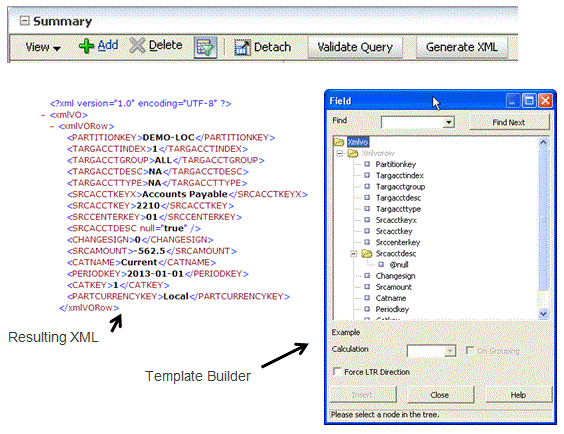
To create a report template:
Create a query definition for the report.
On the
Setup
tab, under
Reports, select
Query Definition.
In
Query Definition, click
Add.
In
Name, enter the name of the query definition.
Oracle recommends that you assign a name that corresponds to the report definition in which the SQL is embedded.
In
Select Clause, specify the SQL Select clause used to query the database and return the data that corresponds to your selected criteria.
In
Where Clause, specify the SQL Where clause used to restrict the data that is returned to only the specific criteria that you specify.
In
Group by/Order by Clause, specify the Group by or Order by clause.
The ORDER BY clause sorts the records in the result set. The ORDER BY clause can be used only in SQL SELECT statements.
The GROUP BY clause fetches data across multiple records and returns the results grouped by one or more columns.
Click
Validate Query.
If the query definition is validated,
Oracle Hyperion Financial Data Quality Management, Enterprise Edition
returns the message:
"Query validation successful."
If the query definition is not validated,
FDMEE
indicates that an error was found in the SQL. You must fix the error before validating the query again.
Click
Save.
Click
Generate XML.
Create the report template.
Install the XML Publisher Desktop.
See the
Report Designer's Guide for Oracle Business Intelligence Publisher. To download the Oracle BI Publisher Desktop for Microsoft Office, see
Oracle BI Publisher Downloads.
Load the XML created in step 2.
Reference the template builder tutorial as needed.
Save the template, and then upload it to the server.
Create report definition with group, query and template.