Defining a Multiple Period Data Load in Import Formats
When you need to load date for an entire fiscal year or multiple years (such as for budgeting and forecasting data); you can use a multi-period file to load the data. With a multi- period file-based load, you can import one single file that has data for multiple periods in multiple columns.
To define a multiple period data load:
-
On the Setup tab, under Integration Setup, select Import Format.
-
In Import Format, from the Import Format summary grid, select the file in which to define a multiple period data load.
-
In File Type, select Multi-Period - Numeric Data.

-
In File Delimiter, select the delimited based on the source file.
-
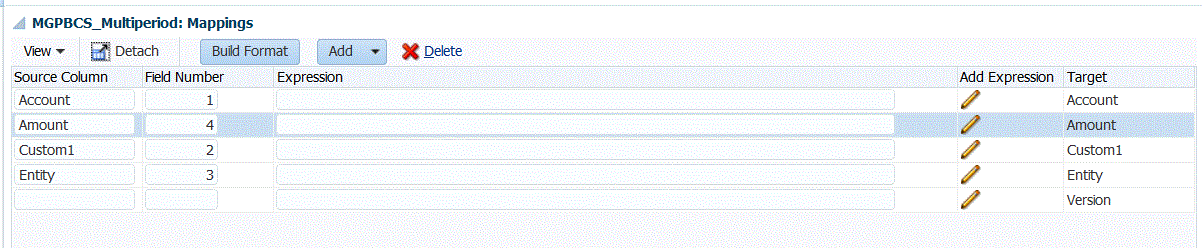
Add column mappings by mapping the source files column numbers with the target application dimensions.
-
From the Expression column for Amount, click the Add Expression editor.
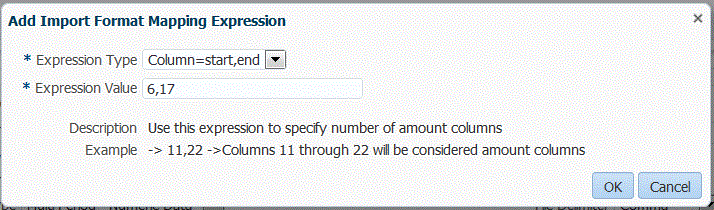
- From Add Import Format Mapping Expression screen, and then from the Expression Type drop-down, select Column=start,end.
- From
Expression Value, enter the column number of the first amount in the source file, and then the column number of the last amount in the source file.
For example, if the source file has forecasting values from January to December, and the amount for January begins from column 6, the December amount is at 17. In this case, when you specify 6, 17, the Expression Value includes the amounts beginning from column 6, and then load value for the next 12 months up to December.
- Click Save to save the import format.
-
Optional: If necessary, create a location that includes the import format for the multi-periods.
For more information, see Defining Locations.
-
Optional If necessary, create a data load rule.
For more information, see Defining Data Load Rules to Extract Data.
- From
Data Load, then
Data Load Rule, click
Execute
to execute the data load rule.
For more information, see Running Data Load Rules.
Note:
Locations with multi-period import formats cannot be executed from the Data Load Workbench. They are executed using the Data Load Rule only.