Drill Through using JavaScript
You can specify a JavaScript based drill through that enables you to drill through to a graphical user interface instead of an URL. To do this, you write a script in the Script Editor and store it in a custom script directory.
The JavaScript for the drill through is associated with the source adapter. You invoke JavaScript from the drill through link by specifying "#javascript" instead of "http URL" in the source system. You can also pass contextual parameters to a JavaScript function similar to the http drill URL.
To add a drill through using JavaScript:
- In the detail section, from Drill Through URL, enter #javascript.
-
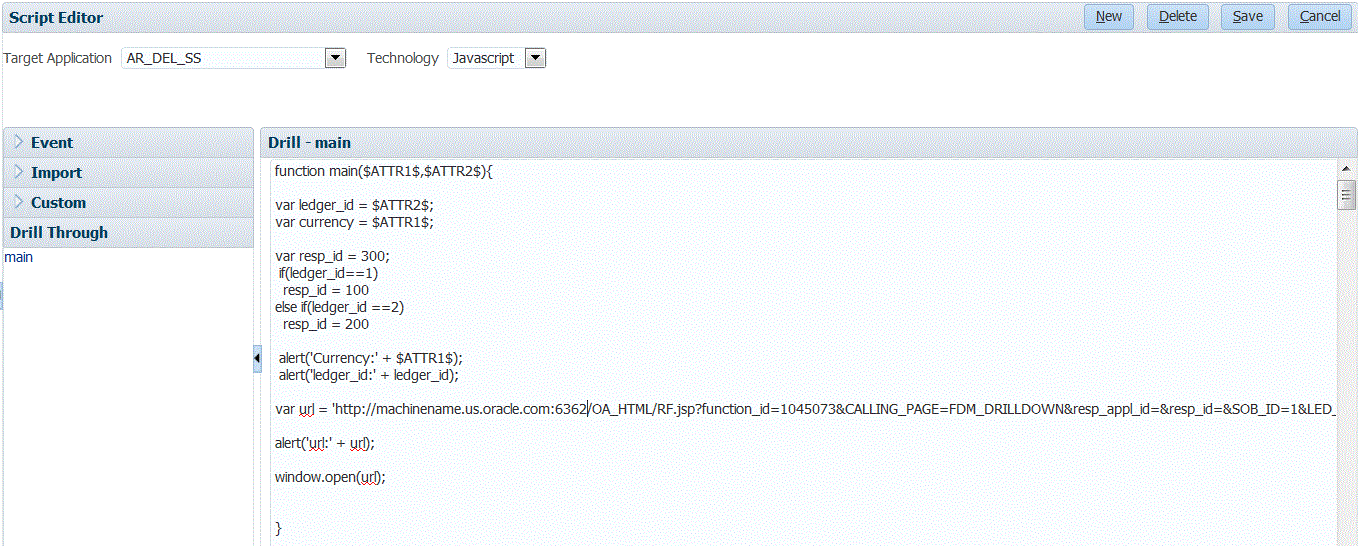
Write the code for the custom script in the Script Editor.
Ensure the name of the JavaScript function is same as the file name.
For example,
function main($ATTR1$,$ATTR2$){var ledger_id = $ATTR2$;
var currency = $ATTR1$;
var resp_id = 300;
if(ledger_id==1)
resp_id = 100
else if(ledger_id ==2)
resp_id = 200
alert('Currency:' + $ATTR1$);alert('ledger_id:' + ledger_id);var url = 'http://machinename.us.oracle.com:6362/OA_HTML/RF.jsp?function_id=1045073&CALLING_PAGE=FDM_DRILLDOWN&resp_appl_id=&resp_id=&SOB_ID=1&LED_ID='+ledger-id+'&fdm_per=Jan-03&fdmccid=13098&fdm_currency+'+currency+'fdm_balance_type=A
alert('url:' + url);window.open(url);
}
-
On the
Drill URL
task bar, select
Add.
Entry fields are displayed for the Drill URL Name, Drill URL, Request Method, and Drill URL Prompt columns.
