To create assignment rules:
Task Areas
, select
Manage Allocations, then
Assignments.
The Assignments screen is displayed.
The dimensions and members for the stage are displayed.
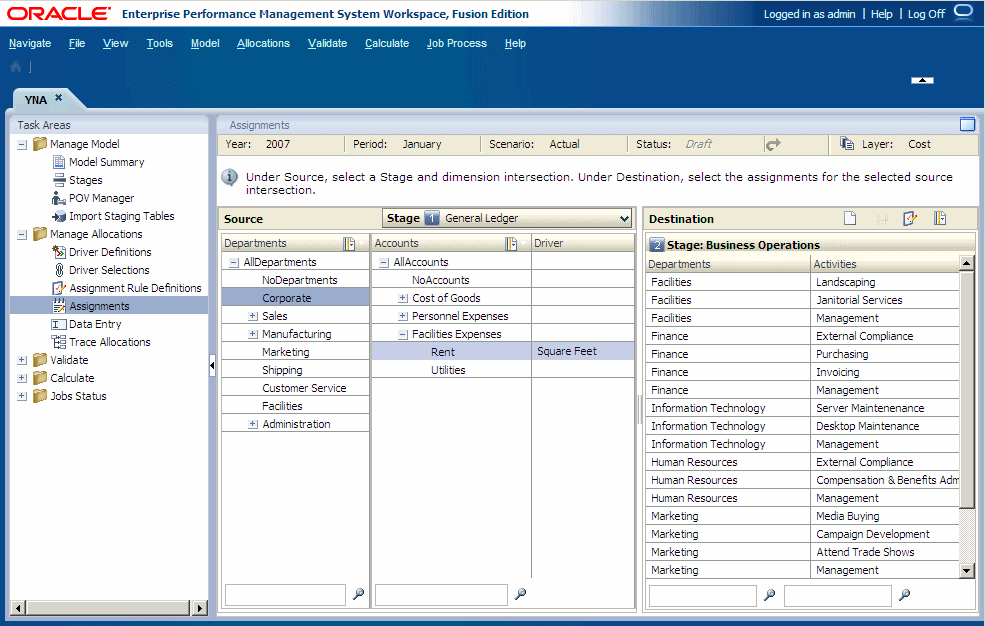
When all dimensions of the intersection have been selected, the Destination column is populated with this information:
With the dimensions and members of the destination stages, if there are assignments for this intersection.
With the names of the destination stages and assignment rules, if they are applied to this intersection.
.
The Assignment Rules Management dialog box is displayed.
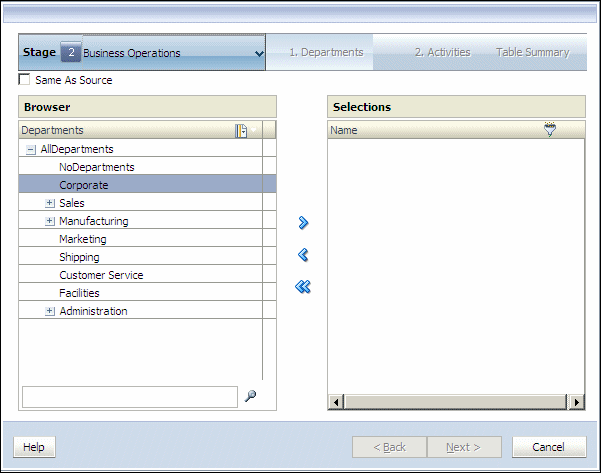
.
The Add Rule dialog box is displayed.
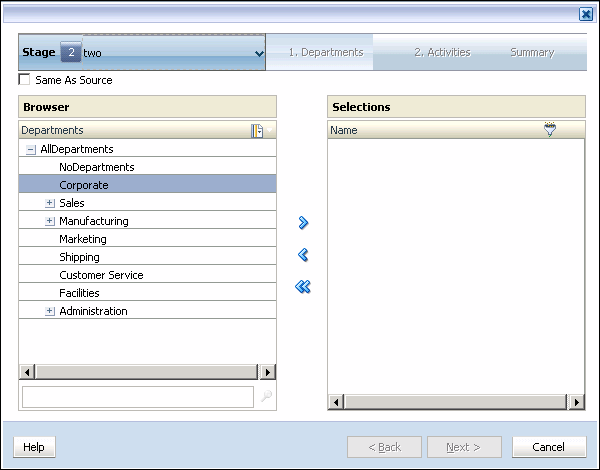
When the calculation script is generated, the script inserts the selected source into the rule, to create the appropriate allocation.
When entering a value in a filter for UDA or Attribute parameters, enter the entire string. Wildcard symbols, such as asterisks (*) and question marks (?) are supported in assignment rule Name filters. For example, enter "B*" to filter members having names or aliases beginning with the letter "B". You cannot use "*B" as this means that the filter is beginning with a wildcard, which is not allowed.
See Using Filters.
Note:
For Assignment Rules, the Filter with Name criterion is applied to both the member Name and Alias, regardless of which mode was selected during filter creation (Show Alias or Show Name).
When all members have been selected, the Destination Selection Summary is displayed.
When all members have been selected, the Assignment Rule Summary is displayed.
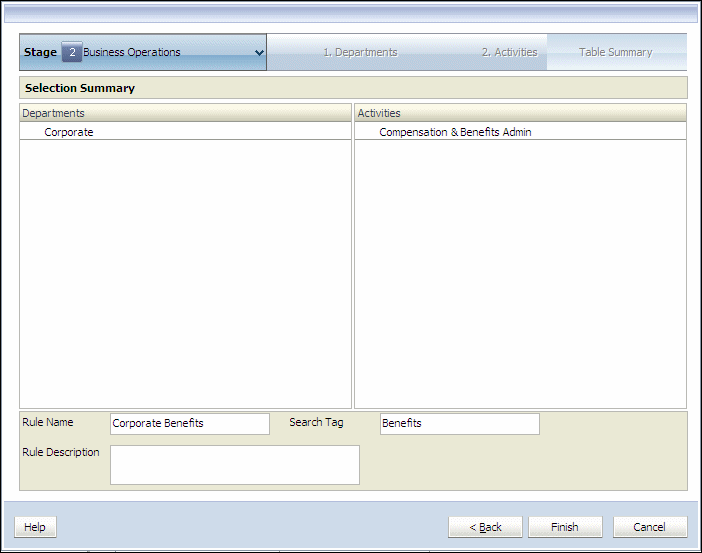
The Rule Name is added to the list of Available Rules on the Assignment Rules Management dialog box.