Editing Custom Queries
To edit queries:
-
Click the Edit Query button
 to open the query wizard.
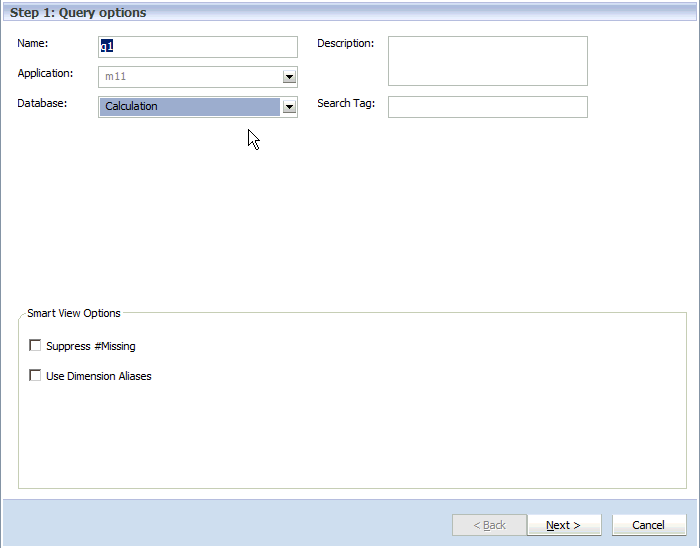
-
Click
Next.
Step 2 - Dimension Layout screen is displayed.
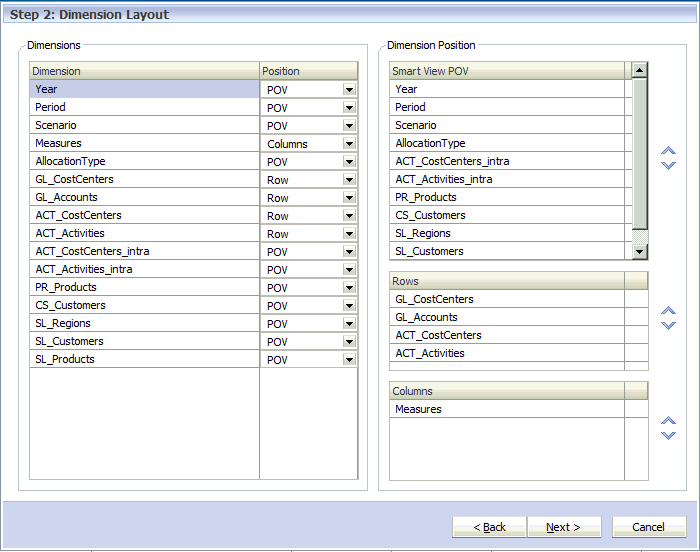
-
Click
Next.
Step 3 - Member Selections is displayed. All dimensions from the Smart View POV, Rows and Columns are displayed in the order defined on the Dimension Layout screen. Use the arrows to scroll up or down through the list.
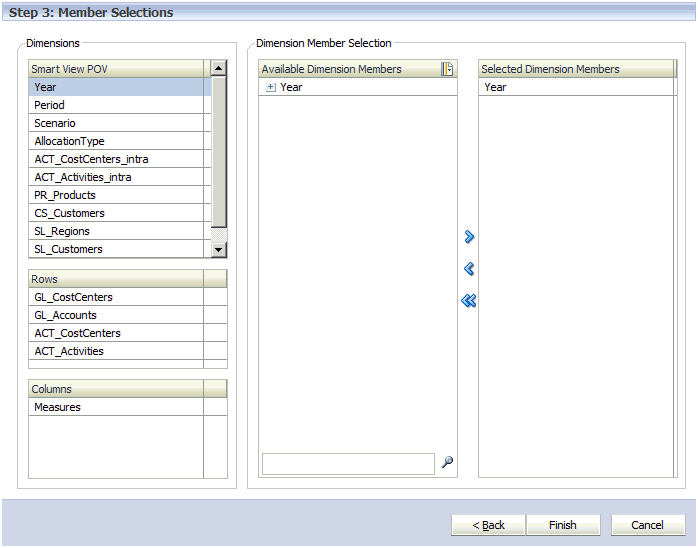
-
Under
Dimension Member Selections, use the Add arrow
 to move the dimension members to be included in the query to the
Selected Dimension Members
column.
to move the dimension members to be included in the query to the
Selected Dimension Members
column.
The list displays all dimension members, including alternate hierarchies and the NoMember member. Because there are no restrictions on level, alternate hierarchy, shared or base member, any member may be selected.
Use the Ctrl key to select multiple dimensions, or the Shift key to select the first and last members in a range.