The modified assignment rule definition can be saved as the original, or you can rename it to create a new assignment rule definition.
To modify assignment rule definitions:
In an open model, from
Task Areas, select
Manage Allocations, then
Assignment Rule Definitions.
The Assignment Rule Definitions screen is displayed.
Select the assignment rule to be modified.
Click
Edit Selected Assignment Rule
.
The Assignment Rules wizard is displayed.
Optional:
For Step
1, under
Browser, use the Add arrow or the Remove arrow to move the appropriate members under the
Selection
column, and then click
Next.
Optional: Under Step
2, under
Browser, use the Add arrow or the Remove arrow to move the appropriate members under the
Selection
column, and then click
Next.
Repeat this step for additional dimensions, if required. When all members have been selected for the intersection, the Destination Selection Summary is displayed.
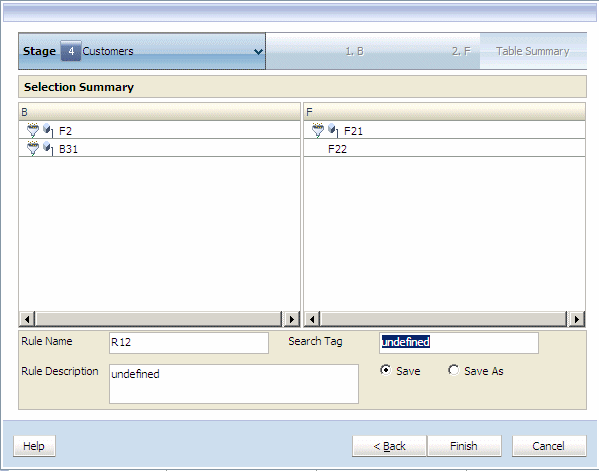
Review the modifications to the assignment rule.
Optional: To save the modifications to the existing assignment rule under the same rule name, click
Save, enter a Search Tag and Rule Description for the existing Rule Name, and then click
Finish.
The modified Assignment Rule is saved.
Optional: To save the assignment rule as a new assignment rule, click
Save As, enter a new Rule Name, Search Tag and Rule Description, and then click
Finish.
The new assignment rule is saved with the selected dimensions under the new rule name.