2. An Overview
Dashboards are the tiny windows displayed on the landing page of the Application. Dashboard renders quick and crisp information of specific transactions or tasks mapped to the ‘User Role’ of the Bank staff, who logs on to the system.
2.1 Dashboard Organization
Dashboard will provide the comprehensive and consolidate snapshot, for easier ways to access information which helps the business/operations to analyze, monitor and making better decisions which will save time and cost. Following dashboards will be made available as part of FCIS and this will be based on User rights.
Dashboards |
Function ID’s |
FMG/AGY |
Pending Fund Price |
UTSFPRQU |
FMG |
Un-authorized fund dividend |
UTSUNDIV |
FMG |
Un-authorized fund prices |
UTSFPUUA |
FMG |
Unauthorized Fund |
UTSUNFND |
FMG |
Un-authorized unit-holders |
UTSUNUH |
AGY |
Un-authorized transactions |
UTSUNAUT |
AGY |
Pending redemption confirmations |
UTSUNRED |
AGY |
Un-authorized standing instruction details |
UTSUNSIN |
AGY |
You can login and based on user rights the above mentioned dashboards will be visible. If you have got rights for all dashboards, you can view all dashboards.
You can change the Show Dash Board from Yes to No or No to Yes either from User settings or User Admin Maintenance.
You can map the function IDs in the Dashboard Mapping screen of User Admin maintenance if the Show Dashboard is Yes. During this mapping, if Show in Dashboard is checked, then those functions will be displayed in the dashboard.
If Show Dashboard is set to No then dashboard details will not be displayed. Based on the dashboard where clause maintenance, the result will be displayed.
Oracle FLEXCUBE Investor Servicing facilitates integration of Information from multiple products and displays it as Dashboard on the home page, also called the landing page of the application; however, you can view these dashboards, only if the ‘Show Dashboard’ field value is maintained as ‘Y’ at the ‘User Settings’ level.

Oracle FLEXCUBE Investor Servicing organizes Dashboards to provide comprehensive and consolidate snapshot in tiny windows, to access information easily. Thus, helping the bank staff to; analyze, monitor, and make better decisions which in turn help save time and cost.
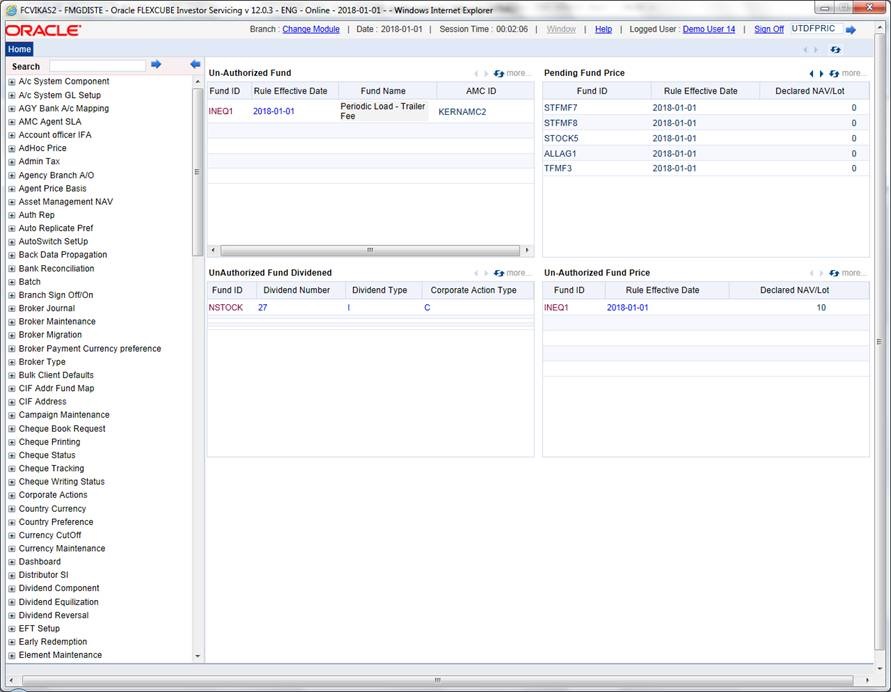
Landing page is designed to display six Dashboards distributed in three rows with two Dashboards per row, without vertical scroll bar.
Note
- If less than six Dashboards are mapped, then the unfilled frames
are blank.
The height and width of all Dashboards are fixed; however, the number of columns per Dashboard varies based on the size and name of the columns specified at Dashboard design level. Since the height of each Dashboard is fixed, only the first 5 records can be viewed at a time. If the Dashboard contains more than 5 records, then the following buttons and links at the top of each Dashboard aid in viewing them:
Button/Link |
Functionality |
Previous |
Click the button to view the previous set of 5 records. |
Next |
Click the button to view the next set of records. However, if there are more than 5 entries then only the next five can be viewed. |
Refresh |
Click the button to manually refresh and view the first five records. |
More |
Click this link to launch a screen with more information similar to that of the current Dashboard. |
The following hyperlink facilities are also available in each Dashboard:
- Column-wise link – Each column in the Dashboard can be mapped to a different Function ID to provide column-wise hyperlinks. Click the hyperlink in a particular column to launch the corresponding Function ID. A link to a particular column is limited only to that column.
- Row wise link – Each row in the Dashboard can be mapped to a different Function ID to provide row-wise hyperlinks. Click the hyperlink in a particular row to launch the corresponding Function ID. A link to a particular row is the same across all fields in that row.
Note
Hyperlinked rows and columns are highlighted to distinguish them from others. When a row/column link is clicked, the clicked row/column gets highlighted respectively.
You can map any number of Dashboard function IDs (DFI) to a specific ‘Role’ or ‘User’ at Role Mapping and Dashboard Mapping level. If DFIs are mapped at ‘Dashboard Mapping’ level, then to enable Dashboards you need to map the corresponding functions/assigned roles at ‘Role Mapping’ level. You can also specify sequence order of DFIs at ‘Dashboard Mapping’ level, however, you can specify the same at ‘Role Mapping’ level. If multiple roles are added and the sequence is not specified, then the system will sort and display the DFIs alphabetically. If DFIs are mapped to ‘User’, then you can specify the display order for each DFI individually.
You can search for the function IDs in the left hand side menu. System will search for the records at all the levels of search criteria. System will fetch respective module details based on the function right mapping to the user. For instance, if you type ‘Entity’ at the menu and click ‘Search’, then system will fetch all the records for entity, such as Single Entity Maintenance, Entity Commission Sharing, Entity IDS, Entity Mapping, Entity Media Maintenance, Entity Notepad, Entity Payment, all entity related reports. This includes all the levels of menu search (details, summary screens, reports, batch).