Section - 5 : Using Task Tray Controller
When the Setup wizard finishes, you will find a Documaker Connector Start menu folder with an uninstall option:

It also places the Documaker Connector Task Tray Agent in your Startup folder:


Select this option to start Documaker Connector Task Tray Agent. The Task Tray Agent appears in your task bar. Here is an example:

You can start the Task Tray Agent and then use it to start the service. Right click on the Task Tray Agent and choose the Start Connector option to start Documaker Connector:
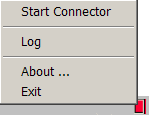
The icon is yellow while starting up and then turns green while running normally.
The default configuration of the service is to run Documaker Connector with the Documaker Source and the WebCenter Content destination. Before running the service, you must complete the configuration so the Documaker Source can connect to the database and the WebCenter Content destination can reach the WebCenter Content system. For more information, see Configuring Documaker Connector.