Section - 6 : Testing Your Installation
To test your Docupresentment installation, open a command window and follow these steps.
-
Start Docupresentment Server by entering this command in the c:\docserv directory:
docserver.batYou should now see a window similar to the following window:
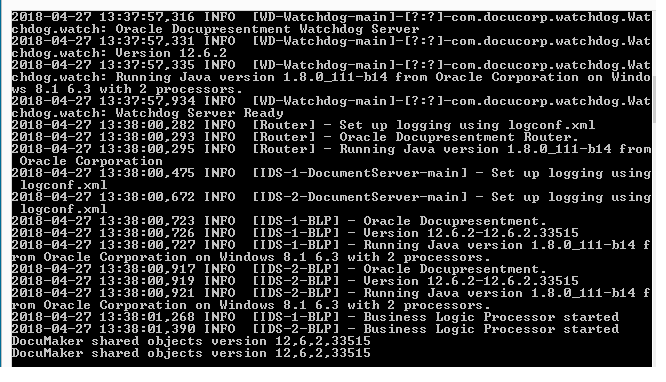
Figure 2.6.1 - Testing Installation Docupresentment Server has started when you see the following:
Business Logic Processor started
Documaker shared objects version 12.6.xxxxx
Note: xxxxx refers to the build number.
-
By default, two instances of Docupresentment Server 12.6.2 will start. Go to the Docupresentment Client Box an open a command prompt. Then go to the Docupresentment Client directory, such as c:\docclnt, and enter this command:
dsiexw32.exe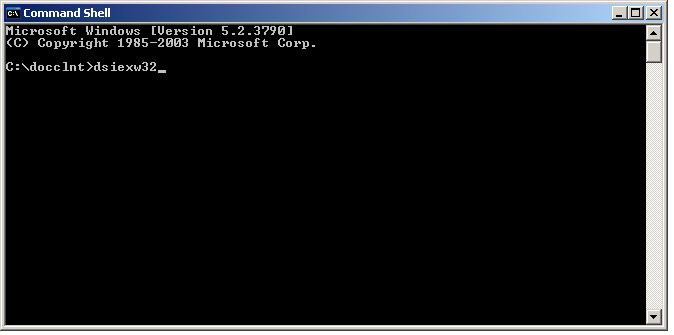
Figure 2.6.2 - Command Shell -
You should now see a window similar to the following window:
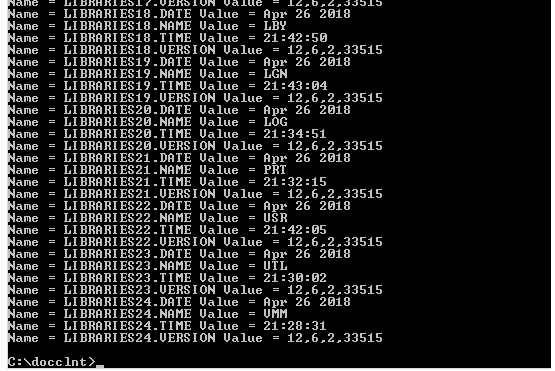
Figure 2.6.3 - Command Shell Process If you receive these results, Docupresentment is installed and running properly.
-
You can run another verification test using threads.bat by typing the following command at the command prompt:
threads.bat reqtype=sss display=yes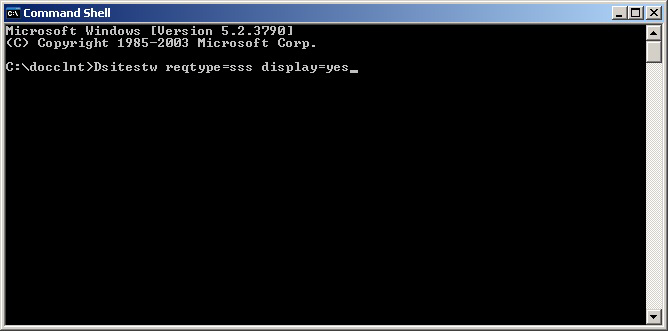
Figure 2.6.4 - Verification test in Command Shell You should now see a window similar to the following window:
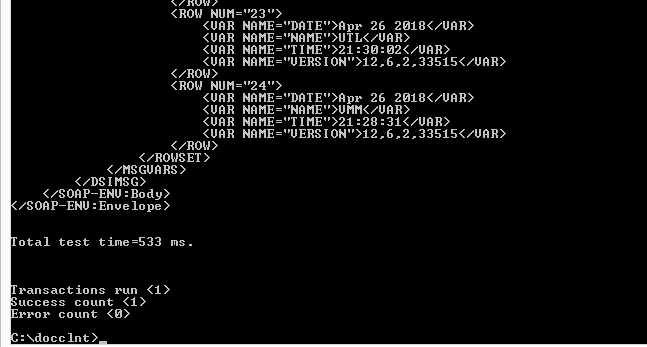
Figure 2.6.5 - Final result in Command Shell
If you receive these results, Docupresentment is communicating via HTTP queues and the system is able to process request types successfully.