Working with Export Jobs Tab
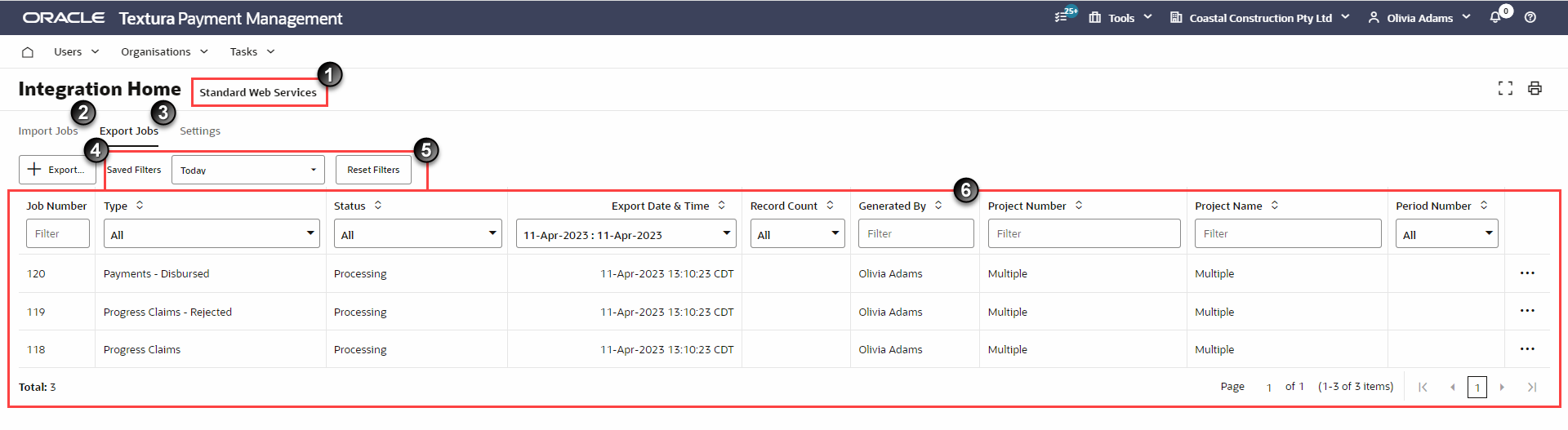
The following page elements are displayed on the Export Jobs Tab:
- Accounting Package Name: The name of your accounting package.
- Import Jobs Tab: Select this tab to view your import jobs and to start an import.
- Export Jobs Tab: Select tab to view your export jobs and to start an export.
- Export Button: Select the button to start an export.
- Filters (Saved Filters and Reset Filter): From the Select Filters drop-down, select from your saved filters. To filter, type or select your filter parameters from the filter row. Select Reset Filters, to reset your filters.
- Export Jobs Grid: Displays the exported jobs based on the selected filter criteria.
The grid can include the following columns:
- Job Number: A unique identifier for a specific integration job execution.
- Type: The type of integration export job running, such as Documents or Progress Claims.
- Status: The current status of the integration job:
- Completed: The job completed successfully.
- Error: The system encountered an error while processing the job. The Error column displays the related error message.
- File Downloaded: The job completed successfully, and a user manually downloaded the file from Textura.
- In Queue: The integration job is waiting to run. Another job may need to finish before processing can begin.
- Processing: The integration job has started and is currently running.
- Export Date & Time: The date and time when the integration job started.
- Record Count: The number of records exported. This value links to the Exported Records tab filtered for the selected integration job.
- Generated By: The username of the user who created the job.
- Project Number: The project number associated with the export job.
- Project Name: The name of the project associated with the export job.
- Period Number: The period number associated with the export job.
- Error: Error messages explain the reason an integration job failed. These messages typically identify issues that stopped the entire job from running and usually do not include record-level errors. To review record-level errors, view the Exported Records tab.
 Gear menu: Hover over the job number to view the Gear icon. From the Gear icon you can perform the following actions: View Audit Report, View Export File, and View TLC Log. The option to view TLC Log is displayed only if your organisation uses Textura Link Cloud for integration.