Working with View Document Status Page for Subcontractors
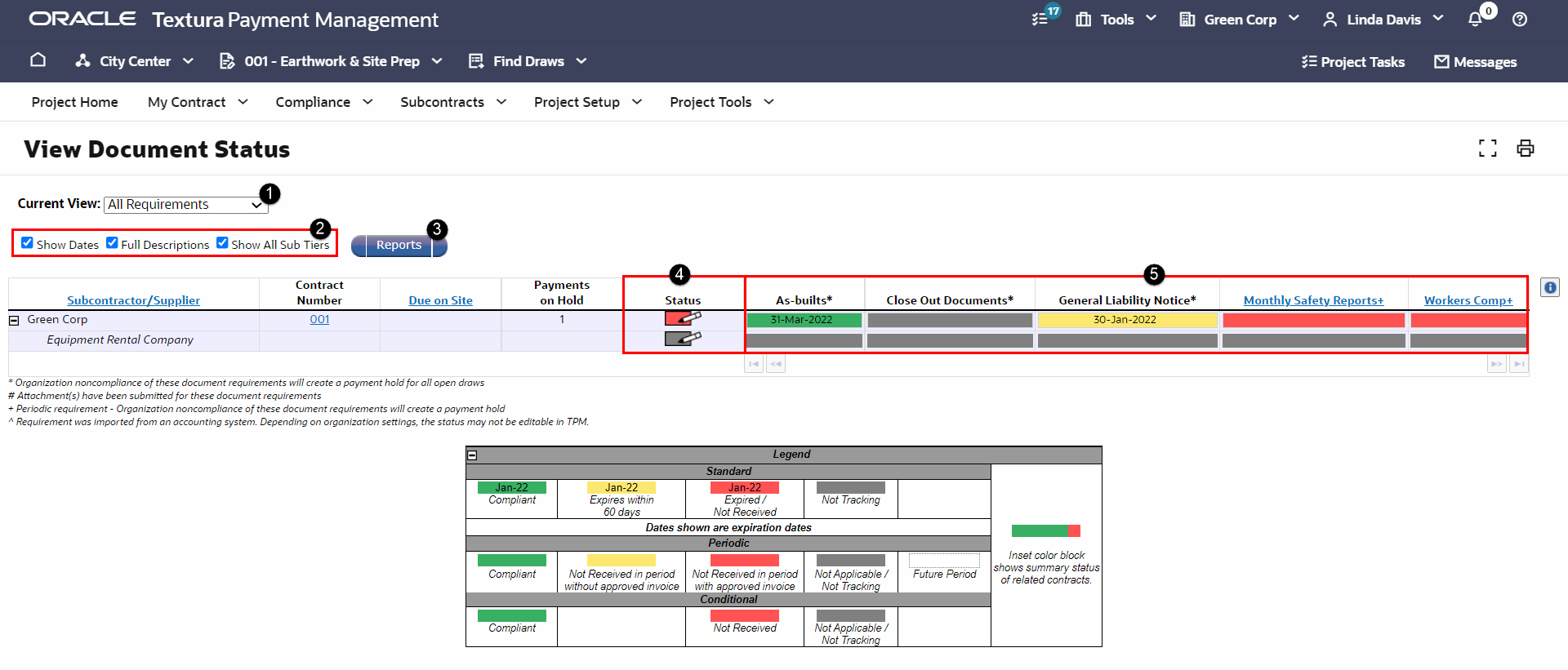
- Current View Drop-Down: Defaults to show all requirements in the table. Select a Periodic document requirement from the drop-down to filter the table so it only shows compliance for the selected document across all draws.
- Display Settings: Manage how much data displays in the table. Choose to show dates or full descriptions to include submission dates and full document names. When you choose to show Sub-Tiers, the page displays rows for all Sub-Tier Subcontractors. Sub-Tier names nest under their Prime Subcontractor and display in italics.
- Reports: Navigate to the Reports page to create compliance-related reports. When you select a compliance report from the Reports menu, the Reports page will reflect your choice.
See Reports for Subcontractors for more information on how to complete the Reports workflow.
- Document Status: Displays the compliance status of a document requirement. Select the colored icon in this column to update compliance requirements for a specific subcontract.
- Document Requirements: The table includes a row for each subcontract and a column for each document requirement. Column headings for Periodic document requirements include a blue plus sign (+). A # (pound) sign signifies the requirement includes an uploaded document.