Working with the Import Jobs Tab
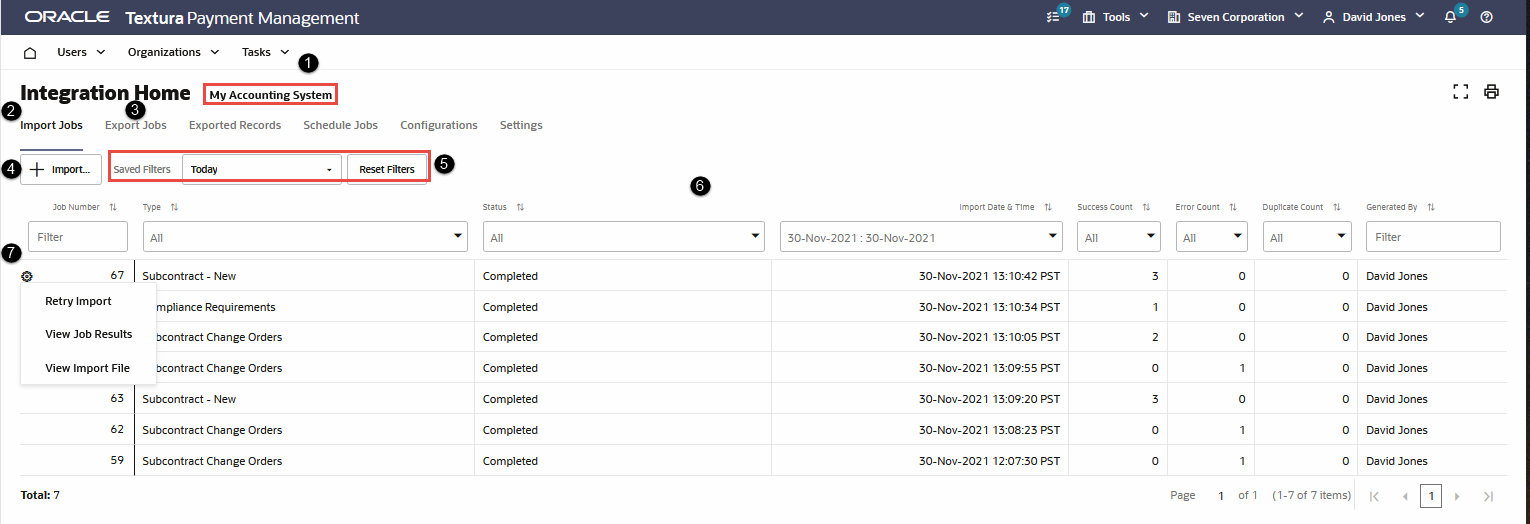
- Accounting Package Name: The name of your accounting package.
- Import Jobs Tab: Select this tab to view your import jobs and to start an import.
- Export Jobs Tab: Select this tab to view your export jobs and to start an export.
- Import Button: Select the button to start an import.
- Filters (Saved Filters and Reset Filters): From the Select Filters drop-down, select from your saved filters. To filter, type or select your filter parameters from the filter row. Select Reset Filters, to reset your filters.
- Import Jobs Grid: Displays the import jobs based on the selected filter criteria. Use the filter row to type or select your filter parameters from the filter row.
The grid can include the following columns:
- Job Number: A unique identifier for a specific integration job execution.
- Type: The type of integration import job running, such as Subcontract – New or Subcontract Change Orders.
- Status: The current status of the integration job:
- Completed: The job completed successfully.
- Error: The system encountered an error while processing the job. The Error column displays the related error message.
- In Queue: The integration job is waiting to run. Another job may need to finish before processing can begin.
- Processing: The integration job has started and is currently running.
- Import Date & Time: The date and time when the integration job started.
- Success Count: The number of records imported successfully.
- Error Count: The number of records that failed to import.
- Duplicate Count: The number of duplicate records in the batch.
- Generated By: The username of the user who created the job.
- Error: Error messages explain the reason an integration job failed. These messages typically identify issues that stopped the entire job from running and usually do not include record-level errors. To review record-level errors, view the results file available from the ellipsis menu for the corresponding record.
 Gear Menu: Hover over the job number to view the Gear icon. From the Gear icon you can perform the following actions: Retry Import, View Job Results, and View Import File.