Working with the Documents Library Page for Owners
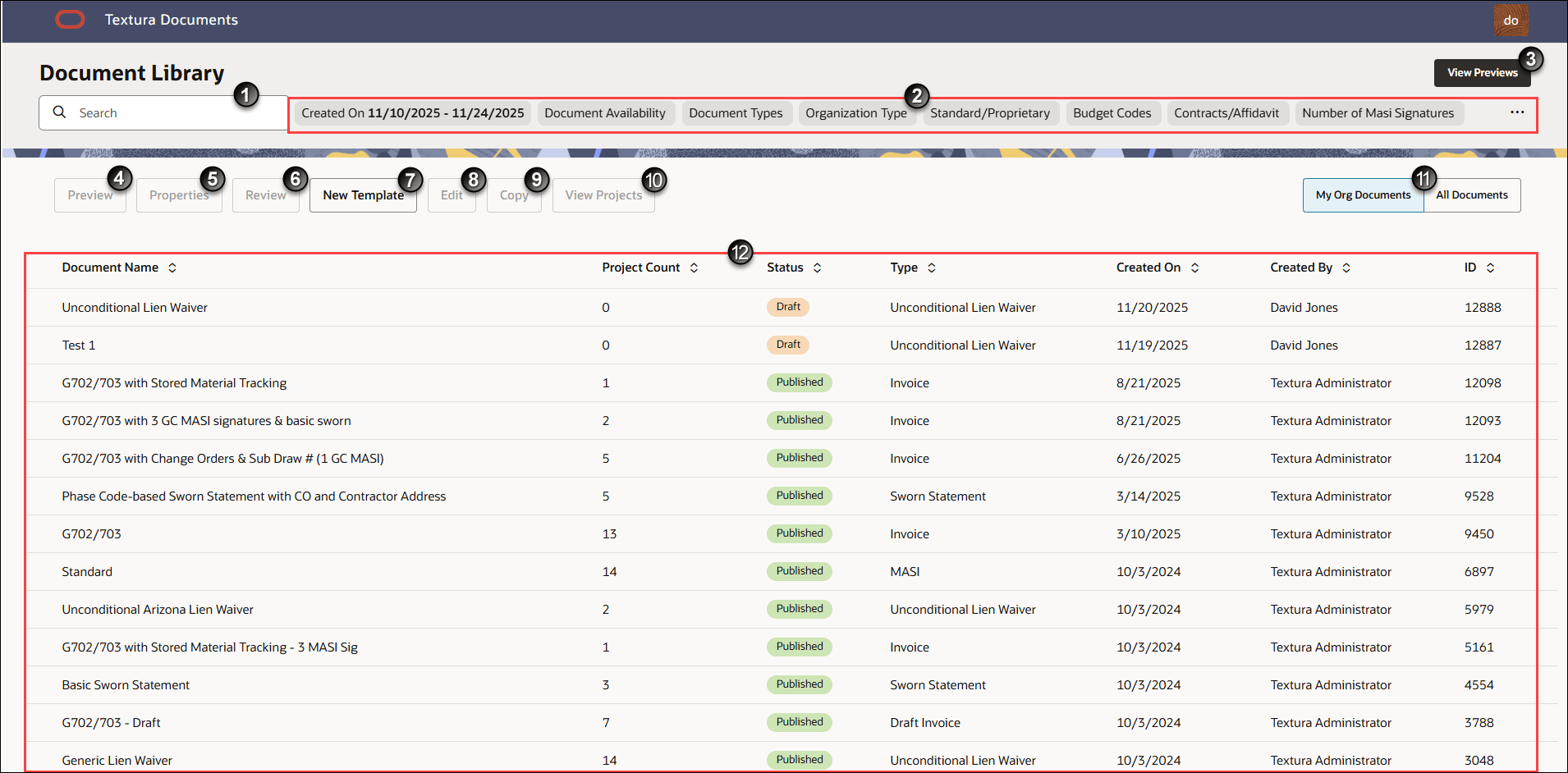
- Document Search: Find specific document templates available to your organization based on your unique search input. Searches include content from all columns of the table, not just the document template name.
- Filters: Select one or more of the predefined filters to the right of the search bar to quickly filter the table to only show specific document templates that fit your selected criteria. Some filters require you to define additional constraints after selecting them. When available, choose additional options from the drop-down list in the search bar.
- Editor and Publisher Contacts: Opens a drawer that displays all users in your organization who are assigned Editor or Publisher permissions. The list includes each user's first and last name, email address, and assigned permission, and is sorted alphabetically by last name. You can use this information to identify users who can review and publish documents with an In Review status.
- View Previews: Open a Previews page to view all recent document template previews you generated.
- Preview: Generate a preview of a selected document template. Choose options from the Template Preview drawer to preview how the document would look for a specific project, draw, or contract. You can also optionally choose to generate a preview of a final invoice or include notarization, if the document template supports these features.
- Properties: View information about a document template you selected from the Document Table. On the Properties page, the document template's supported properties are marked with a check mark.
Note: The Properties page is read-only. You cannot make changes to the document template here.
- Review: Before a document template becomes available for selection on a project, it must be reviewed, approved, and published. Select any document template from the Document Table with an In Review status to activate the Review button. Click Review to open document template information in a drawer on the right side of the page. Only users with Documents Publisher permissions can review, approve, and publish documents.
- New Template: Create a new document template.
- Edit: Update an existing document template's properties and formatting.
- Copy: Copy an existing document template's properties to create a new document template.
- Delete: Delete a proprietary document template not used on any project.
- View Projects: Select a document template from the table and then select View Projects to open a Projects drawer on the right side of the page. The Projects drawer lists the projects currently using the selected document template. Additional project details include Project Number and Status. You can export this information as a CSV file.
- My Org Documents | All Documents: Filter the table to display only document templates that are in Draft status or used by your projects, or view all available templates.
- Document Table: By default, the table lists all document templates available to your organization in order of creation with newer document templates appearing at the top of the list. There are six columns in total:
- Document Name: The name of the document template.
- Project Count: The number of active projects using the document template.
- Status: The current status of a listed document template.
- Draft: An Editor has begun to create a document template but has not yet submitted the template for publishing by pushing it forward to the reviewer.
- Legacy: The document is a generic document available to all organizations.
- In Review: The Editor has completed drafting the document template and sent it forward to the review stage. The Publisher needs to either approve or reject it. Once approved, the document template moves to the Published state.
- Published: The Publisher chose to publish the document template. The document template is now available to use on any project where your organization acts as the General Contractor.
- Type: The way a document is classified on Textura. Document types include lien waiver (CLW), unconditional lien waiver (LW), invoice, and sworn statement.
- Last Updated: The date a user last edited and saved the document template. All legacy documents have the same date. Newer document templates created by your Textura representative have different dates.
- Last Updated By: The name of the individual who most recently updated the document template. Generic documents available to all organizations list Textura-Legacy as the creator. Documents created by your Textura Representative list Textura Administrator as the creator.
ID: A number used to identify the document template in Textura. The template ID is based on order of creation and is useful for Support if you need to contact Textura for help.