Working with the Project User Roles Page for Subcontractors
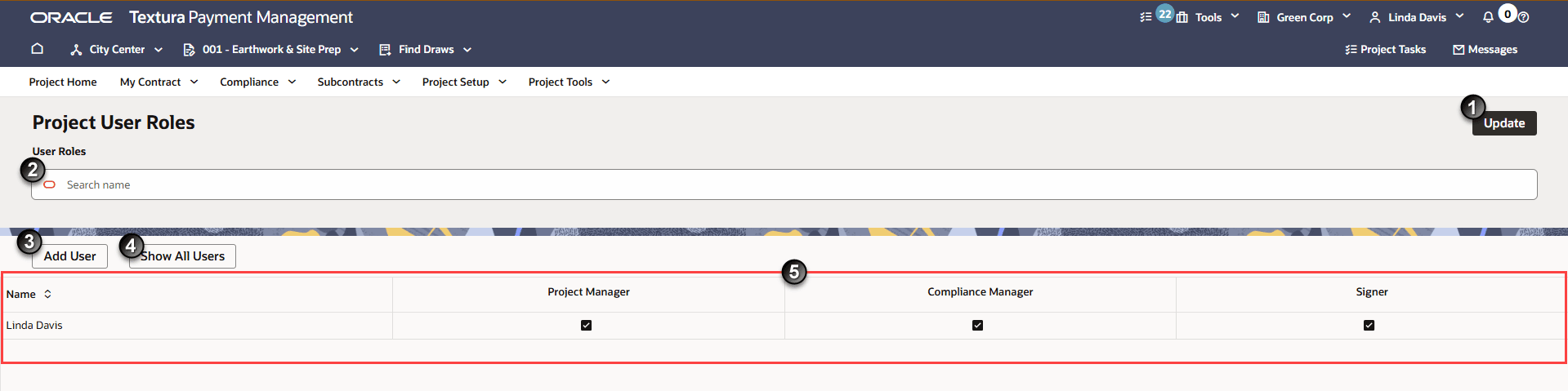
- Update: Save your project user role assignment.
- Search: Enter a user's name to search for them.
- Add User: Opens a drawer that shows all users in your organization. From the drawer, select one or more user to add to the Project User Roles table. After adding a user, you can select project roles to assign to them. Available user roles are determined by the user permissions selected on a user's profile.
- Show All Users: Display all organization users regardless of current project user role assignment. If you try to navigate away from the page without assigning a project user role to a user listed in the table, a Remove users without assigned roles? dialog box displays. Textura will remove users without assigned roles from the Project Users table.
- Project Users Table: Displays all users added to the project and their available and selected project user roles.